
Net Tracing Using the Mark Net Command
The Mark Net command lets you visually trace the physical connectivity of nets in a layout design without having to use a schematic. The command extracts the metal, via, poly, and diffusion layer information from the technology file and highlights these in the layout as the net passes from one layer to the next through the hierarchy. The trace is not a selectable object: it is the highlighted net. The Mark Net command is available both in read-only and edit modes.
You can choose which and how many levels of hierarchy to traverse for highlight generation. After the hierarchy selection range is set, you cannot select a shape that is outside the start-stop hierarchical range. You can start the Mark Net command from any level of the hierarchy, for example from Edit in Place, and the command will correctly trace the net throughout the designated hierarchical range. Mark Net Stop Level, specified in the MarkNet Options form, can be lower than the Display Level, specified in the Display Options form. However, if you set the Mark Net Start Level to greater than zero, it is possible to get incomplete net tracing. When the interconnect is interrupted by a shape on a hierarchical depth outside the specified range, the rest of the net is not highlighted even if the subsequent sections of the net are within the specified range.
A traced net remains highlighted as long as the cellview window remains open, unless you use the Unmark Net command to remove the highlighting. If you close the cellview window, the highlighting is deleted. However, as long as the cellview window is open, the nets remain highlighted even after the cellview window is redrawn, after any changes are made to the edit context, or after you exit the command. When the Mark Net command is re-invoked, it does not remove the existing highlighting. This allows you to incrementally mark nets, mark nets from any level of the hierarchy, and retain nets marked as you move throughout the hierarchy. You can mark nets in multiple cellview windows. You can also view the highlighted nets in the plot of a cellview. You can unmark a net later if required.
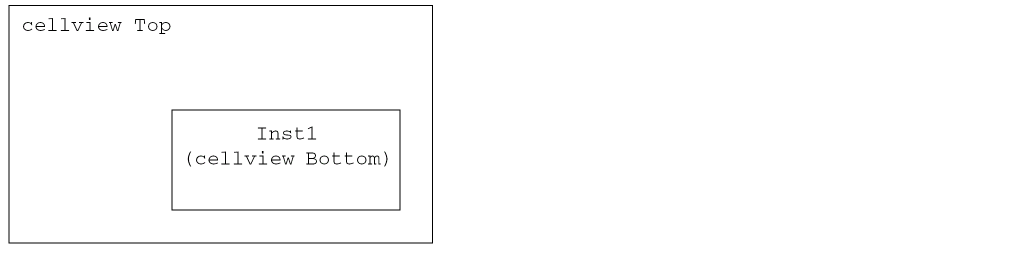
The highlighting is created relative to the current top-level cellview. If you highlight nets in separate cellview windows, the Unmark Net command removes all highlighting associated with the current top-level cellview. For example, cellview Top contains an instance of cellview Bottom and both the cellviews are open at the same time and you have used Edit In Place into the instance of cellview Bottom in cellview Top. The order in which you mark nets in the two cellview windows determines if Unmark Net removes the highlighting from one or both the cellview windows. If you mark the nets first in cellview Bottom, then this is the current top-level cellview. The marked nets will be highlighted in cellview Top as well. However, if you further mark nets in cellview Top and then Unmark All Nets in cellview Bottom, then it will unmark only those nets that were marked in cellview Bottom. You need to return to cellview Top and use Unmark All Nets to delete the additional highlighting in that window.
The final highlighted net is created by generating one large polygon representing the shapes on the net, so the highlight shows the outline of all the marked shapes; individual shapes on the net are not highlighted.
If the number of shapes on the net is 10,000 or less, a one-line message appears in the CIW, as in the following example:
Number of shapes processed by Mark Net: 5
If the number of shapes on the net is greater than 10,000, the output message in the CIW displays each time 10,000 shapes are processed. The traced nets are also displayed incrementally, in sets of 10,000 shapes. When the last shape is processed, the final number of shapes processed is displayed, as in the following example:
Number of shapes processed by Mark Net: 10000...
Number of shapes processed by Mark Net: 20000...
Number of shapes processed by Mark Net: 30000...
Number of shapes processed by Mark Net: 30030
The Mark Net command does not highlight elliptical nets or circular vias.
For the Mark Net command to work, your technology file must list the interconnect layers in the viaDefs section of the technology file. Via definitions are of two types, customViaDefs and standardViaDefs.
You can control the thread mode, single, auto or custom, of the Mark Net command using the environment variable, .
Related Topics
Return to top