
Auto and Fast Edit Via Mode Options
Using the Auto and Fast Edit via creation modes in the Create Via form, you can specify settings to prevent DRC violations, prevent creation of a via larger than overlap, show preview, and display hints during via creation.
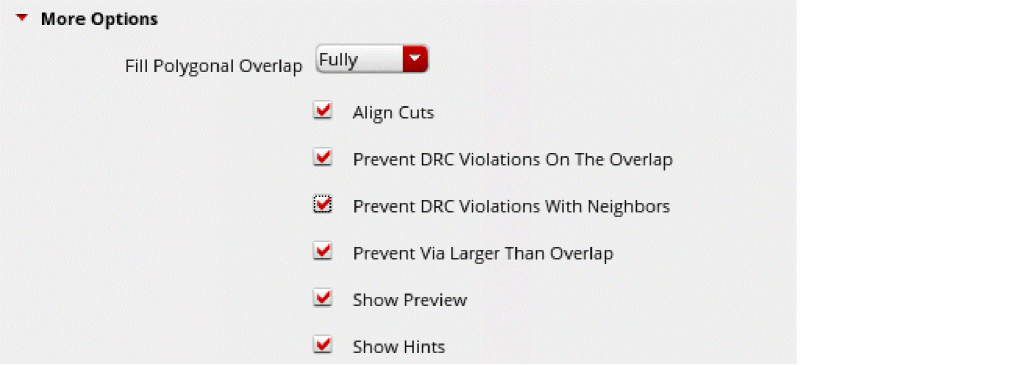
- Prevent DRC Violations On The Overlap
- Prevent DRC Violations With Neighbors
- Prevent Via Larger Than Overlaps
- Show Preview
- Show Hints
Prevent DRC Violations On The Overlap
You can use the Prevent DRC Violations On The Overlap option to prevent the creation of a via if it introduces DRC violations on the overlap.
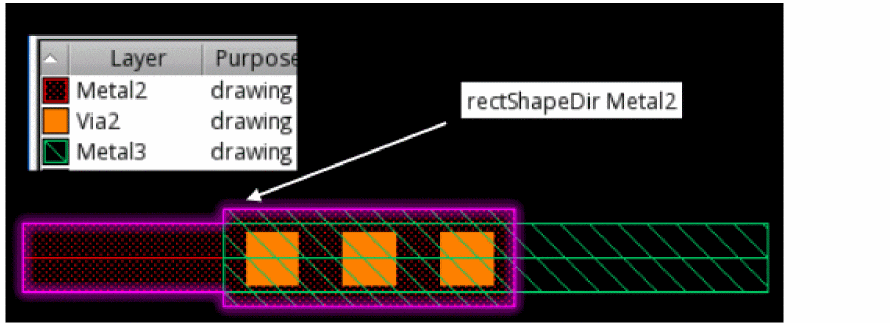
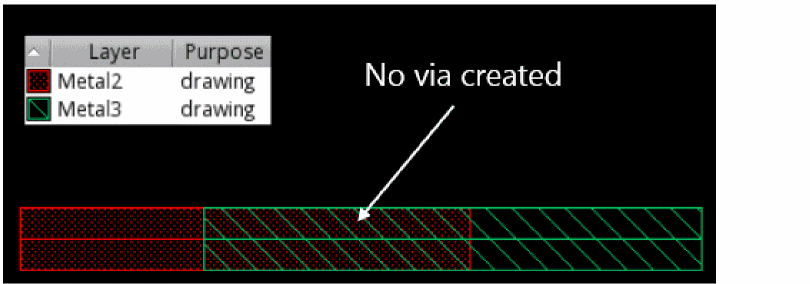
The following example depicts auto via creation using the Prevent DRC Violations On The Overlap option.
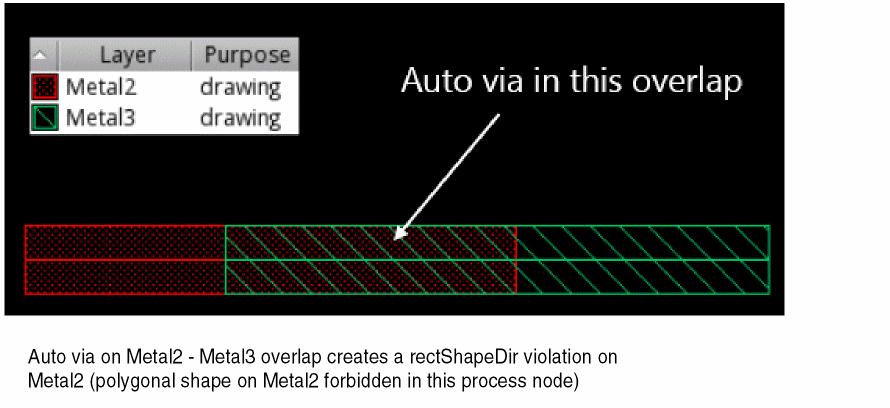
When the Prevent DRC Violations On The Overlap option is not selected, the auto via is created even though it introduces a DRC violation on the overlap, as shown in the following figure.
When the Prevent DRC Violations On The Overlap option is selected, the auto via is not created as it introduces a DRC violation. A warning message is displayed in the CIW.
Prevent DRC Violations With Neighbors
You can use the Prevent DRC Violations With Neighbors option to prevent the creation of a via if it introduces DRC violations with the neighboring shapes.
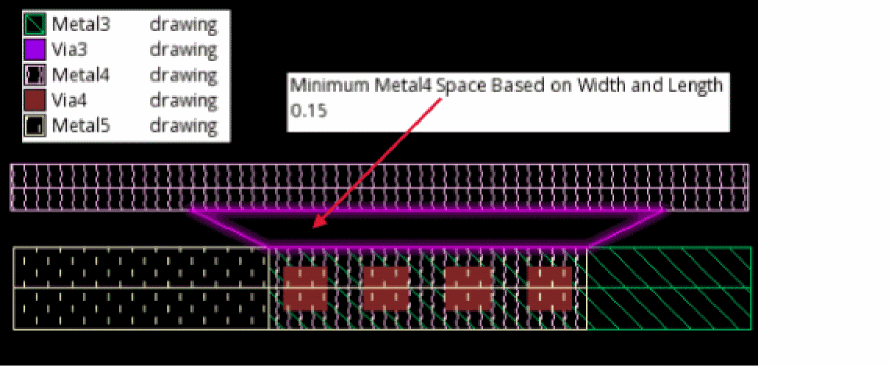
The following example depicts auto via creation using the Prevent DRC Violations With Neighbors option.
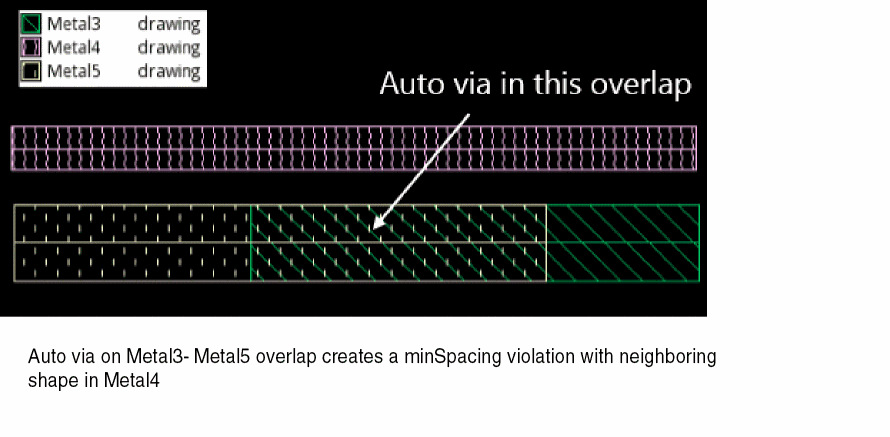
When the Prevent DRC Violations With Neighbors option is not selected, the auto via is created even though it introduces a DRC violation with the neighboring shapes, as shown in the following figure.
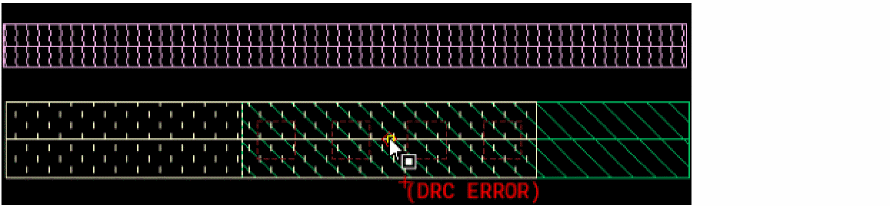
When the Prevent DRC Violations With Neighbors option is selected, the auto via is not created as it introduces a DRC violation. A shaded via and the (DRC ERROR) label are displayed on the canvas.
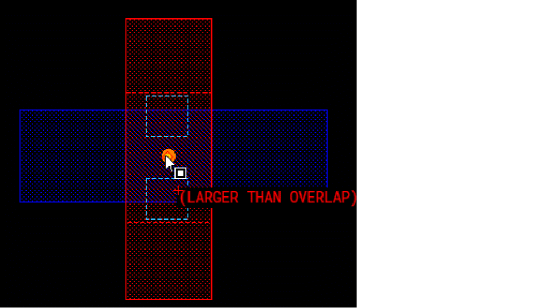
Prevent Via Larger Than Overlaps
You can use the Prevent Via Larger Than Overlap option to prevent the creation of a via if it is larger than the overlap.
Show Preview
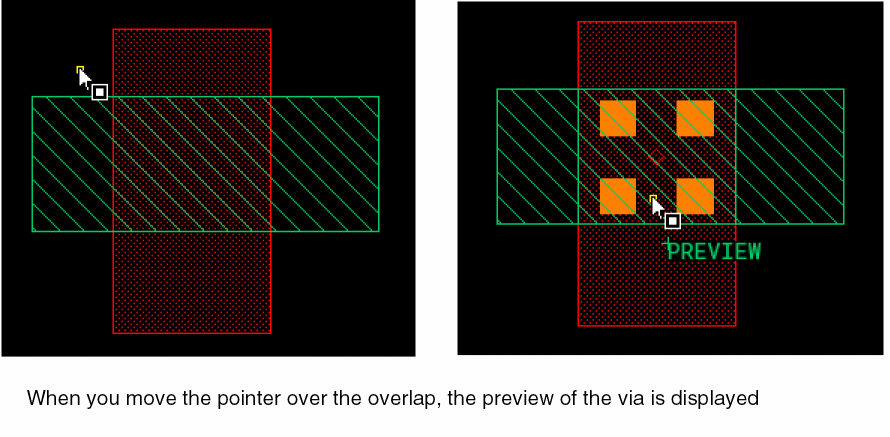
In the auto and fast edit via creation modes, you can also use the Show Preview option to preview the via before it is created, as shown in the following figure.
Show Hints
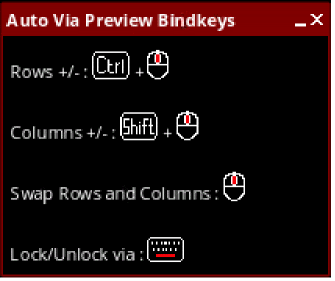
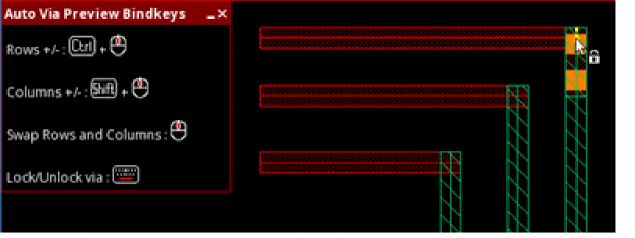
You can use the Show Hints option to display the Auto Via Preview Bindkeys hint box on the canvas.
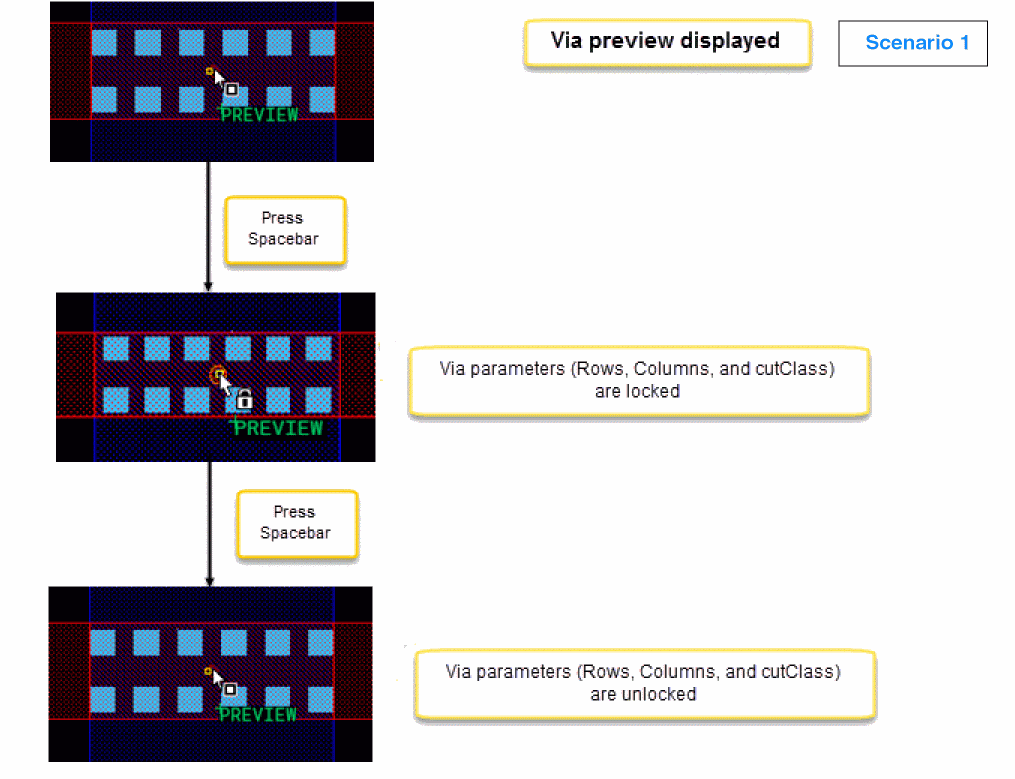
Locking a via captures the number of rows/columns along with the cutClass.
The following figure shows the lock/unlock via option when the via preview is not displayed.
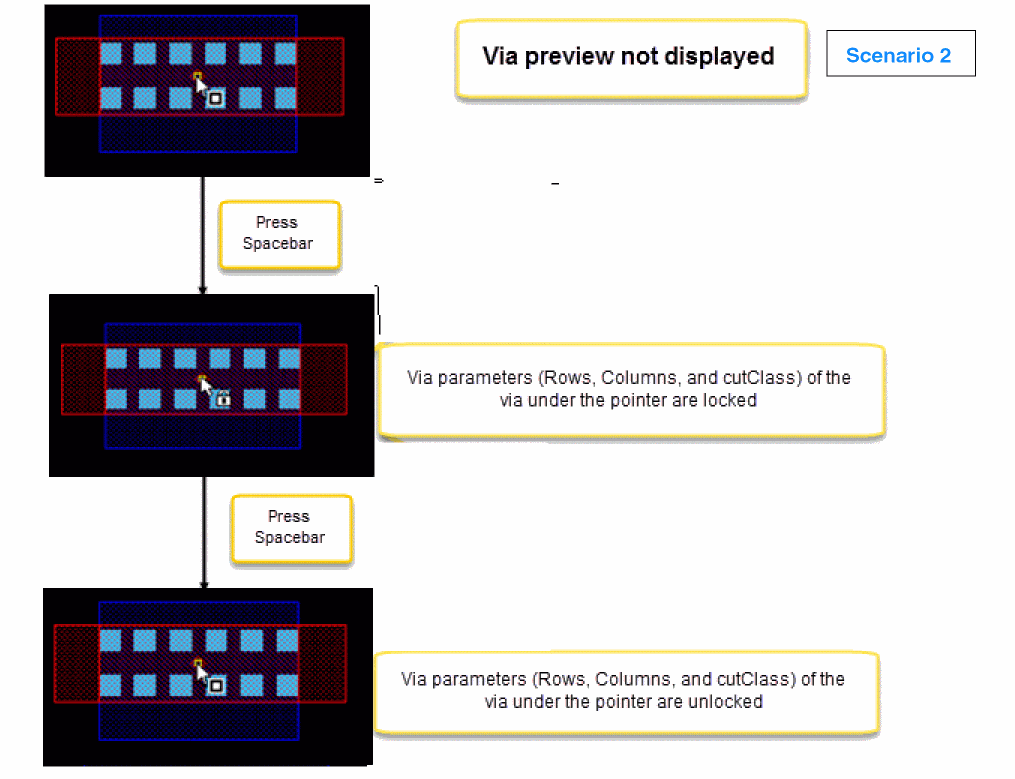
In the following example, the Create Via command is invoked in auto mode. If you press the spacebar when the pointer is over an existing via, via parameters of the existing via are locked, as shown in the following figure.
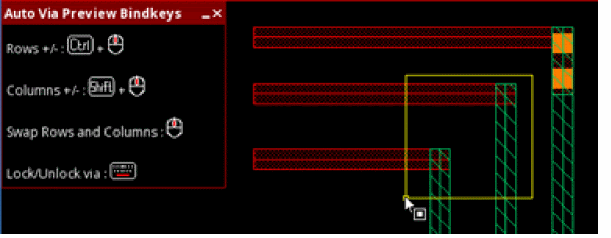
You can then draw an area using the middle mouse button to drop the vias on the other overlaps, as shown in the following figure.
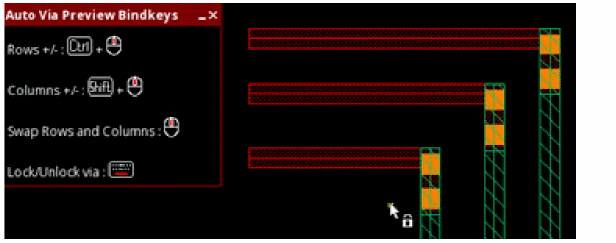
The vias that are dropped have the same parameters as the via that has been locked.
Related Topics
Return to top