
Checking Layout Integrity
You can perform integrity checks in a layout and view a summary of results. You can check for the following:
- Cells without library
- Cells without master
- Vias without definition
- Shapes without layer and purpose definition
- Pcell evaluation failure
You can specify the hierarchy range to be considered for integrity checks. You can also specify whether markers should be added to the design.
To perform integrity checks in a layout:
-
In the layout window, choose Verify – Integrity.
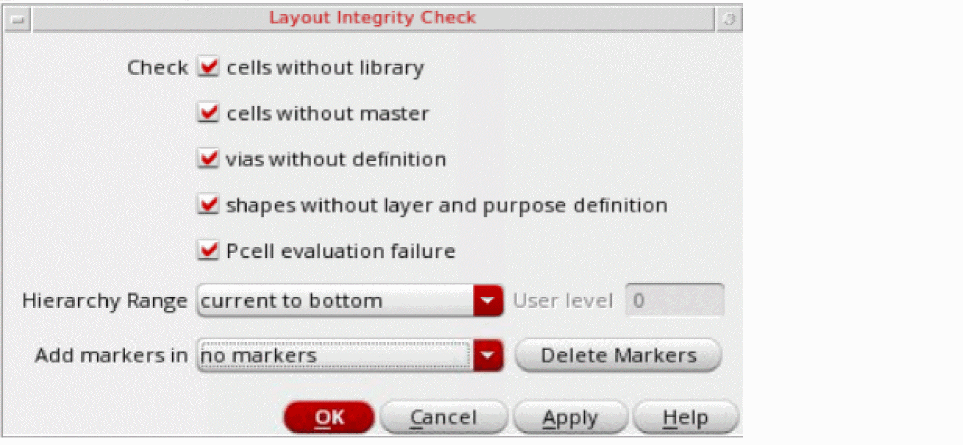
The Layout Integrity Check form opens.
-
Select the checks that you want to perform. You can select cells without library, cells without master, vias without definition, shapes without layer and purpose definition, and Pcell evaluation failure.
The shapes without layer and purpose definition option does not work when theaddDesignLppsToTechenvironment variable is set tot. - From Hierarchy Range, select how many levels of hierarchy are to be considered for the layout integrity check.
- From Add markers in, select where you want to add the markers by selecting from no markers, current cellview, or cellviews in the hierarchy options.
-
Click OK or Apply.
The total number of warnings and the layout integrity checks report is displayed.
The objects with issues are tagged with markers in the design. You can use the Markers commands to find, view marker information, and delete the markers. The markers are also listed in the Annotation Browser assistant. Using Annotation Browser, you can select the columns to be displayed, sort the markers, and customize how the markers are grouped and displayed.
Related Topics
Return to top