
Adding Objects to a Group
-
In the layout window, choose Edit – Group – Add to Group.
You are prompted to point at the target group. -
On the canvas, click the group you want to edit.
Alternatively, you can select the group you want to edit and right-click to display the Group shortcut menu. Then, select Add to Group from the shortcut menu.
You are prompted to select the figures to be added to the group.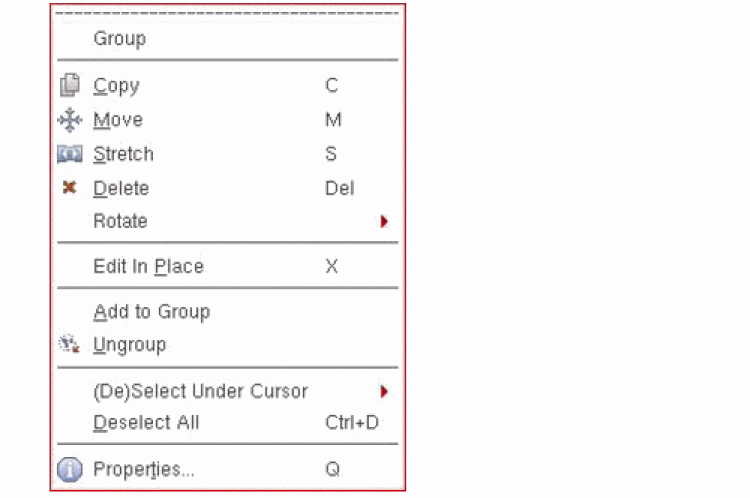
-
Click the objects you want to add to the group.
The objects are added to the group. The solid line surrounding the group changes to include the new objects. -
Press the
Esckey to end the command.
The dotted line surrounds all the group objects when you move the pointer over the group.
Related Topics
Adding Objects to a Group By Using the Select Target Group Form
Ungrouping All Objects in a Group
Editing Group Contents by Using Edit In Place
Editing Group Contents by Using Transparent Group Mode
Return to top