
Copying an Object in Repeat Mode
The Repeat Copy command enables you to repeatedly place copies of the selected object. The command supports both pre-selection and post-selection modes.
To repeatedly place copies of an object:
-
In the layout window, select Edit – Repeat Copy or click the Repeat Copy icon
 on the Edit toolbar.
 -
Click the object to copy.
A copy of the object attaches to the pointer.
You cannot change the selection set after you have placed the first copy. -
Press
F3to open the Repeat Copy form.
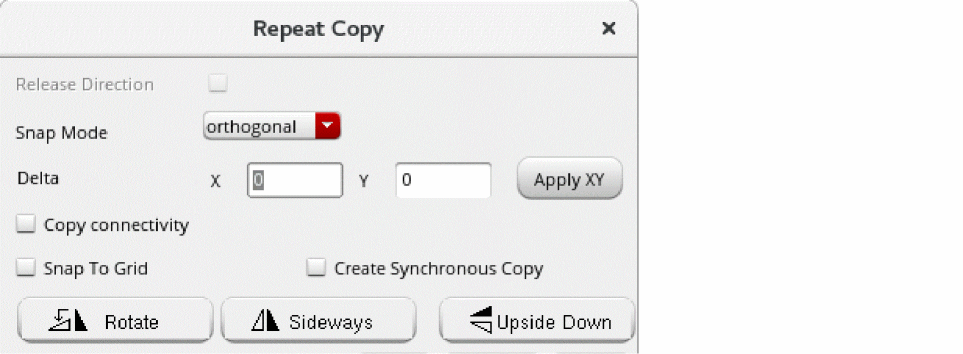
- From the Snap Mode list, select a direction in which to place the copy.
-
Click on the canvas to place the first copy.
The distance d between the object and its first copy and the direction in which the copy is placed determine the placement distance and direction of the subsequent placed copies. After you place the first copy, the distance and direction are fixed.
Alternatively, you can specify the distance at which to place the copy in the Delta X and Y fields in the Repeat Copy form and click the Apply XY button. The copy is placed at the specified distance from the object. -
Press dot (
.) to repeat placing the copy on the canvas.
The previous placed object is taken as the reference. A copy is placed at the same d distance from the previous copy and in the same direction in which the previous copy was placed.
If you specified the Delta distance, it will be used to place the remaining copies.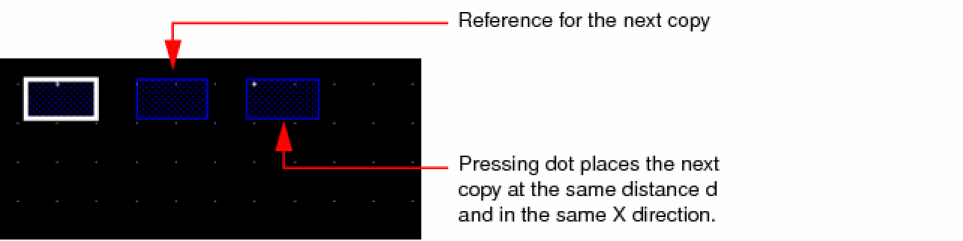
You can continue to press dot (.) to place the copy on the canvas as many times as required. -
To start placing the copy from a different location, while retaining the distance:
-
Press
F3to open the Repeat Copy form. -
Select the Release Direction check box.
The option is grayed out after you select the check box. -
Click Hide.
You can move the pointer freely in any direction on the canvas. You can place the copy in any direction and at any distance from the previous placed copy. -
Click on the canvas to place the copy of the object.
The copy is placed at the clicked location and a copy of the object attaches to the pointer.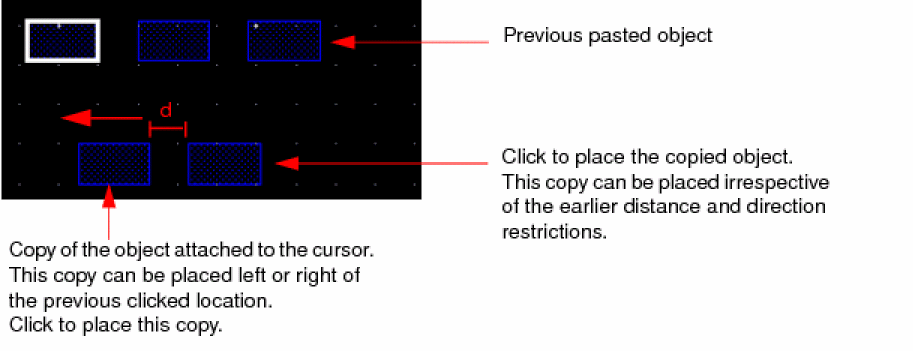
-
Move the pointer and click at the next location to place the copy.
To place this copy, the pointer movement is limited to only either horizontal or vertical direction, depending on the earlier direction in which the copy was placed. For example, if the earlier direction of placing the copy was along the X axis, you will be able to move the pointer only to the left or right of the placed copy. If the earlier direction of placing the copy was along the Y axis, you will be able to move the pointer only to the top or bottom of the placed copy.
The same distance d will be used to place the copy. Delta will be used if you specified it in the Repeat Copy form. -
Press dot (
.) to place the copy in the fixed direction at the fixed distance.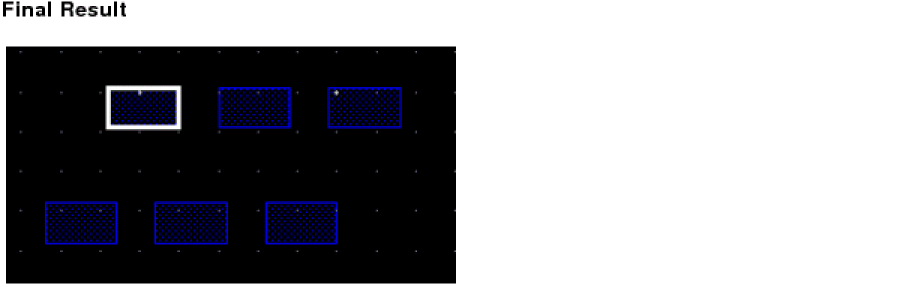
-
Press
-
Press
Escor click Cancel in the form to finish placing the copies.
The following image explains the steps involved in reaching the resultant copies.
The original copied object remains selected throughout.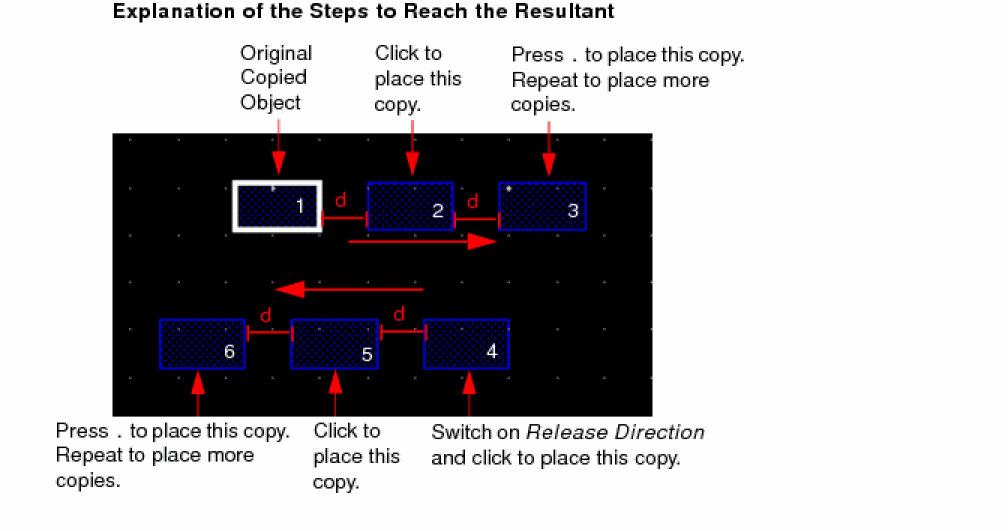
You can use the leRepeatCopyMoveStretch SKILL function to copy, move, or stretch the selected objects and apply the same transform as done in the last copy, move, or stretch command and select the newly created object.
Related Topics
Return to top