Cross Section Viewer Form
Use the Cross Section Viewer form to customize the settings for displaying the cross section of a layout.
|
Field
|
Description
|
|
View mode
|
Specifies the mode for displaying the cross section of a layout.
-
Assistant: Displays the cross section in the Cross Section assistant.
-
Floating: Displays the cross section in a floating window that follows the mouse pointer.
You can toggle between view modes by using the spacebar or the Assistant/Floating option on the shortcut menu.
Environment variable: crossSectionViewModeAssistant
|
|
Orientation
|
Specifies the orientation of the cutline as horizontal or vertical. The area underneath a cutline is displayed in the cross section.
You can toggle between orientations by using the middle mouse button or Rotate on the shortcut menu.
Environment variable: crossSectionOrientationHorizontal
|
|
Cutline color
|
Specifies the color of the cutline.
Environment variable: crossSectionCutLineColor
|
|
Size
|
Specifies the length of the cutline as Small, Medium, or Large.
To modify the size of the cutline, you can also use the bindkey Control + Shift + wheel button. The length of the cutline is increased or decreased depending on whether you rotate the wheel button up or down.
Environment variable: crossSectionSizeCutLine
|
|
Display
|
Specifies the details to be displayed for the cross section in the assistant or the floating window:
-
Layer Name: Lists the names of the layers that the cutline is cutting through in the layout.
Environment variable: crossSectionDisplayLayerName -
Unused Layer: Lists all the layers defined in the technology file but not used in the cross section of the layout.
Environment variable: crossSectionDisplayUnusedLayer -
Sync with Palette Visibility: Synchronizes the display of shapes and short markers, in the cross section viewer, with the palette visibility settings. If this option is inactive, shapes and short markers are displayed in the cross section viewer even if their visibility is inactivated in the palette.
Environment variable: crossSectionSyncWithPaletteVisibility -
Net Name: Displays the net names of objects that are under the cutline.
Environment variable: crossSectionDisplayNetName -
Forward Cut: Displays the vias present between two adjacent layers even if those vias are not directly under the cutline. This helps you to know that a via is present closer to the cutline. If this option is disabled, a via is displayed only when you move the pointer over the via.
Environment variable: crossSectionDisplayForwardCut
|
|
Config File
|
Specifies the configuration file used for displaying the cross section of a layout. The file defines settings such as the thickness of layers, layers to be skipped, and layers to be merged on the same line in the cross section viewer.
|
|
Select config file on disk 
|
Lets you select the configuration file that you want to use for displaying the cross section of a layout.
|
|
Create or edit config file 
|
Lets you edit the existing configuration fil specified in the Config file field.
If a configuration file does not exist, clicking  generates a new file named
 generatedConfig.il. It contains certain default entries that you can edit as required. If you specify a new file name in the Config file field and click  , a new file is generated by that name and you can edit the settings.
For more information, see Cross Section Viewer Configuration File.
|
|
Clear
|
Unloads the configuration file from the memory so that it is not considered for displaying a cross section.
|
|
Load
|
Loads the configuration file specified in the Config File field for displaying a cross section. By default, all layers are displayed using the same thickness.
|
Cross Section Shortcut Menu
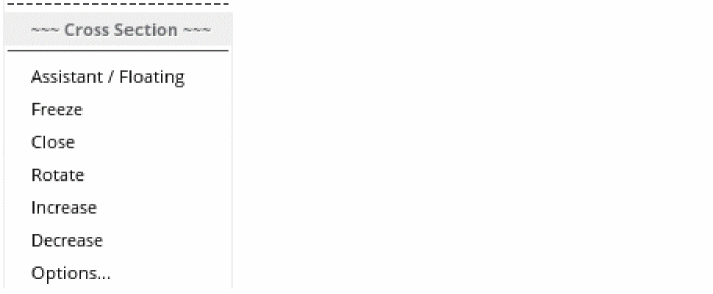
Use the Cross Section shortcut menu to quickly select certain settings for viewing a cross section.
|
Field
|
Description
|
|
Assistant/Floating
|
Lets you toggle between the mode for viewing the cross section of a layout.
-
Assistant: Displays the cross section in the Cross Section assistant.
-
Floating: Displays the cross section in a floating window that follows the pointer.
|
|
Freeze
|
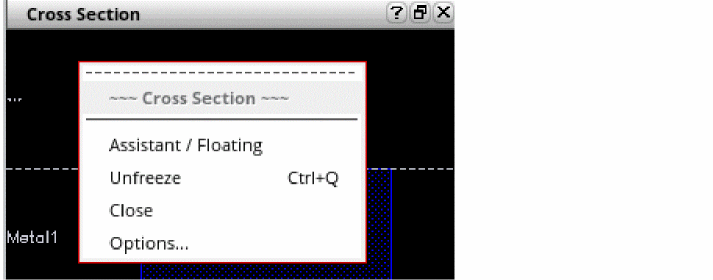
Freezes the cross section displayed and exits the Cross Section command. Alternatively, you can freeze a cross section by clicking on the canvas. When you freeze a cross section, the cutline is fixed and the command is exited.
You can enable the command again by selecting Unfreeze from the Cross Section shortcut menu or by pressing Control+Q. For a frozen cross section, the shortcut menu is displayed when you right-click within the assistant or the floating window viewer.
|
|
Close
|
Exits the Cross Section command.
|
|
Rotate
|
Toggles the orientation of the cutline between horizontal and vertical.
|
|
Increase
|
Increases the length of the cutline. The entire area under the cutline is displayed in the cross section viewer.
|
|
Decrease
|
Decreases the length of the cutline.
|
|
Options
|
Displays the Cross Section Viewer form, where you can customize the settings for displaying the cross section of a layout.
|
Related Topics
Cross Section Viewer
Viewing the Cross Section of a Layout
Specifying Cross Section Viewer Settings
Cross Section Viewer Configuration File
Return to top