
Display Controls for Width Spacing Patterns in the Palette Assistant
You can control the visibility of snap patterns, which include local grids, global grids, and width spacing grids, through the Grids panel of the Palette assistant.
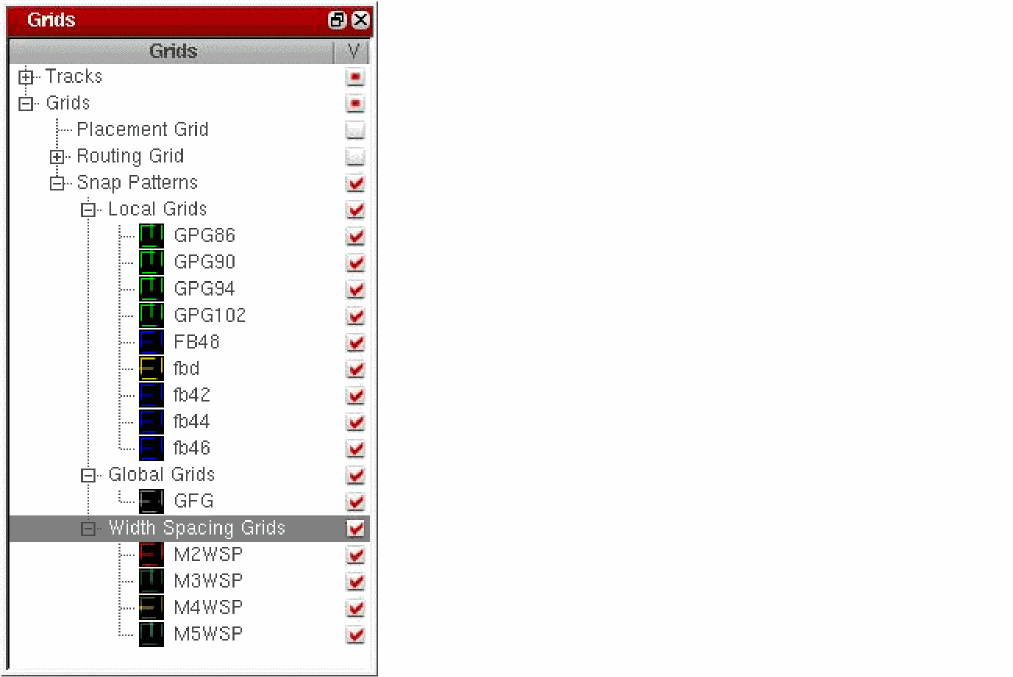
The layerset file references snap pattern entries by the snap pattern definition name. For example, the local grid named fb46 and WSP grid named M5WSP, shown in the figure above, are listed as follows in the layerset file:
GridLayer Local_Grids;fb46 t NA
GridLayer Width_Spacing_Grids;M5WSP t NA
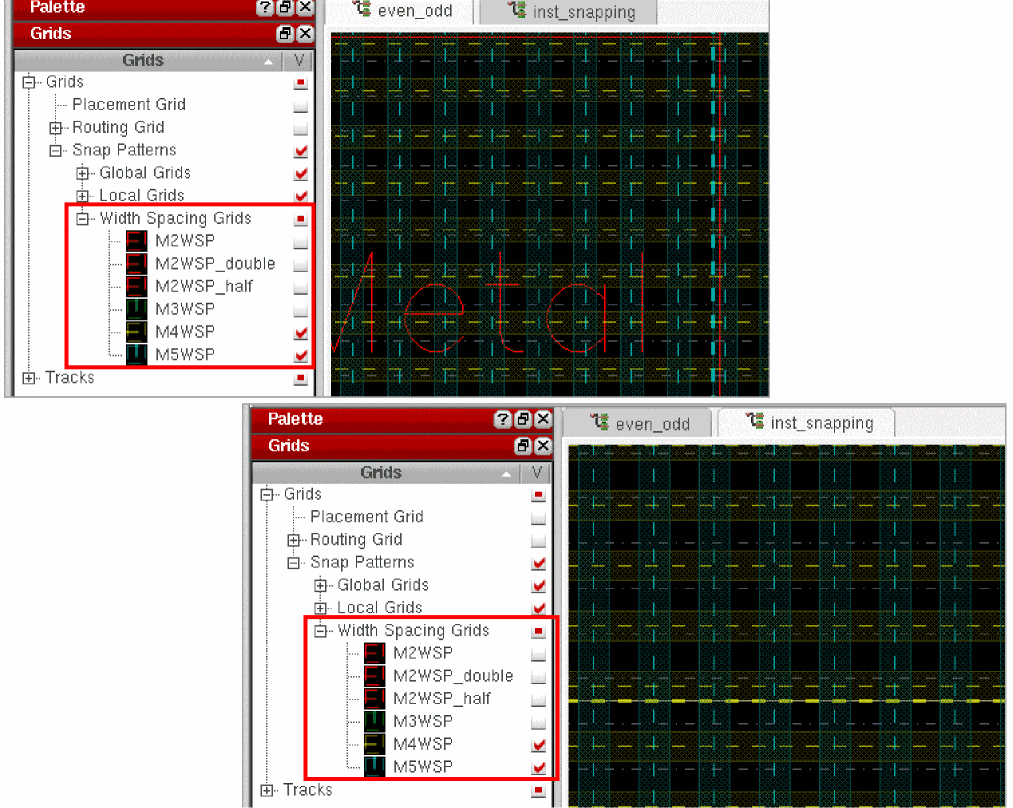
The visibility settings of WSP grids are cellview specific. Therefore, if you have two different cellviews open and you modify the visibility setting of a WSP grid in one cellview, the visibility setting of this WSP grid is not affected in the other cellview.
In the following example, the visibility settings of WSP grids in the two open cellviews are identical.
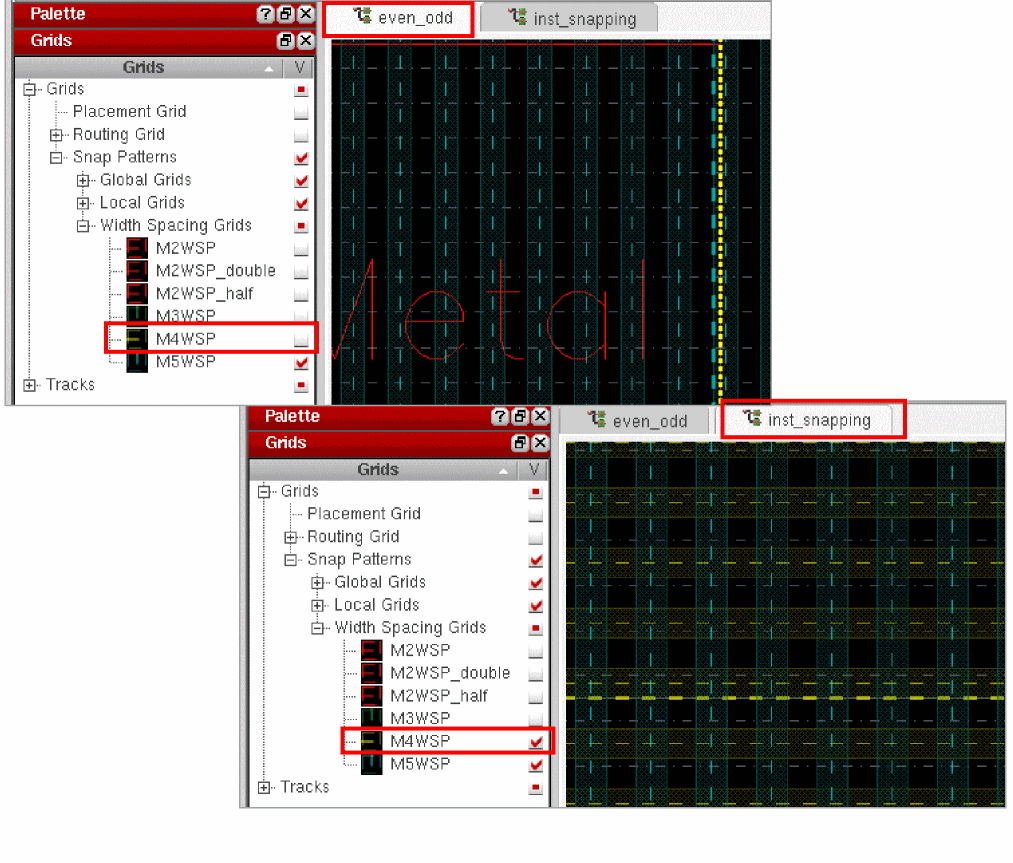
If you now turn off the visibility of WSP grid M4WSP in cellview even_odd, you will find that the visibility setting of WSP grid M4WSP in cellview inst_snapping remains unchanged.
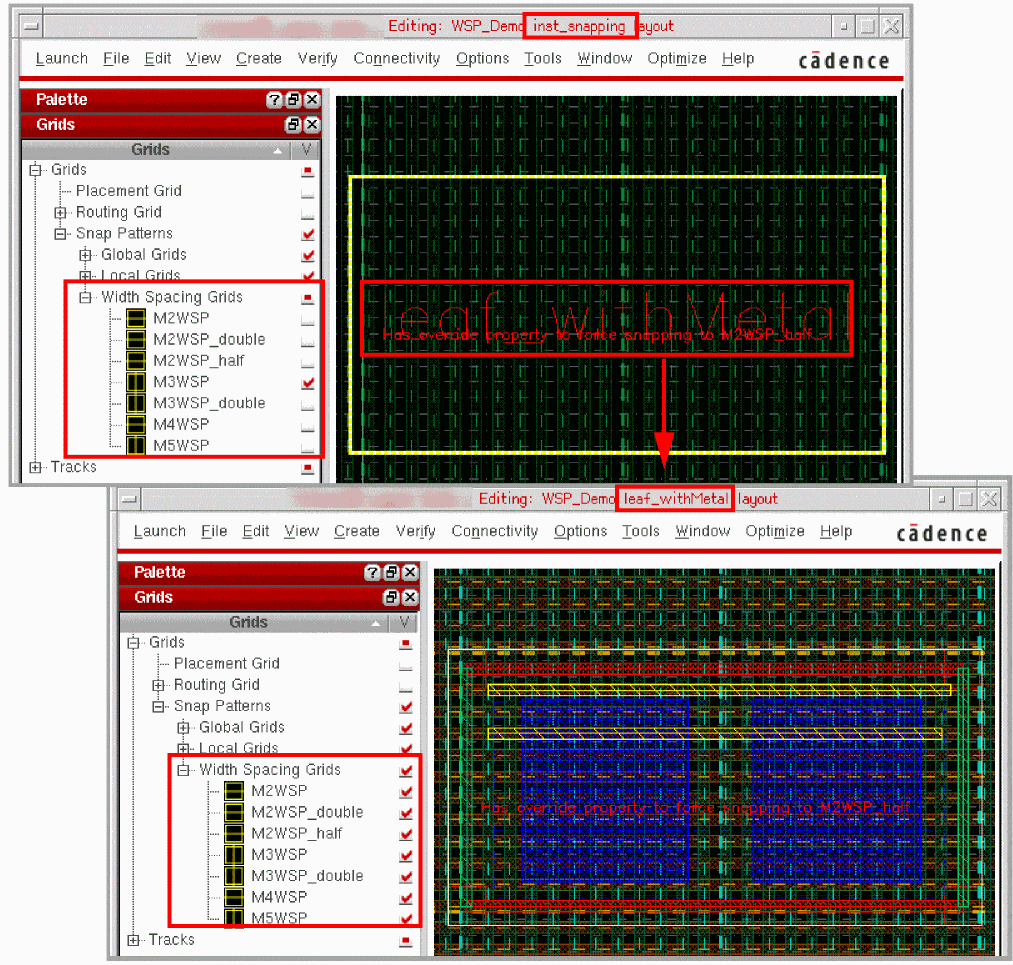
However, while editing a cellview, if you run the Edit In Place command or descend into a different cellview, the visibility settings of WSP grids are refreshed to reflect the settings for the cellview being edited, as shown in the example below.
Related Topics
Width Spacing Patterns in Layout Editor
Controlling the Display of Width Spacing Patterns
Return to top