
Controlling the Display of Width Spacing Patterns
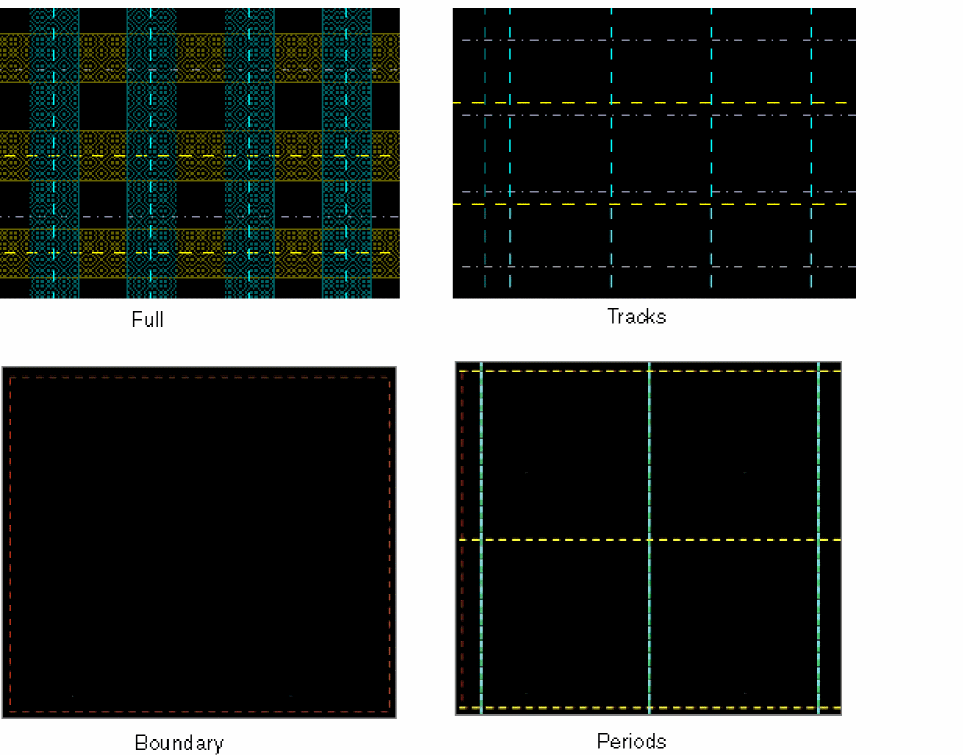
You can control the display of width spacing patterns (WSPs) using the Snap Pattern Display option in the Display Options form. In addition to boundary and tracks, you can display periods for WSPs.
To control the display of WSPs:
-
In the layout window, choose Options – Display.
The Display Options form opens. The Snap Pattern Display list shows the snap pattern displays available. -
Specify whether you want to display tracks, boundary, periods, or all of these for WSPs. From Snap Pattern Display list, select any of the following: Full, Tracks, Boundary, Periods, or Periods and Tracks.
The following figure shows a few examples.
- Click OK.
You can use the leCycleSnapPatternDisplay SKILL function to cycle through the different snap pattern display types. You set the default value using the new snapPatternDrawingStyle environment variable.
Related Topics
Width Spacing Patterns in Layout Editor
Return to top