
Object Snapping to WSPs During Editing
The Move, Copy, and Stretch commands support snapping for width spacing pattern layer-purpose pairs (WSP LPPs). If the selected set has multiple objects, the object closest to the reference point is snapped and all the objects in the selected set are moved by the same transform to maintain their relative spacing. The snapping object, closest to the pointer, in the selected set is the reference. In case there are multiple shapes closest to the pointer, the shape with the higher mask number takes precedence. If there is no shape closest to the pointer, the precedence that is followed is the closest instance, row, boundary, and then blockage. As illustrated in the figure, in case multiple objects are selected, this reference object is highlighted on the canvas.
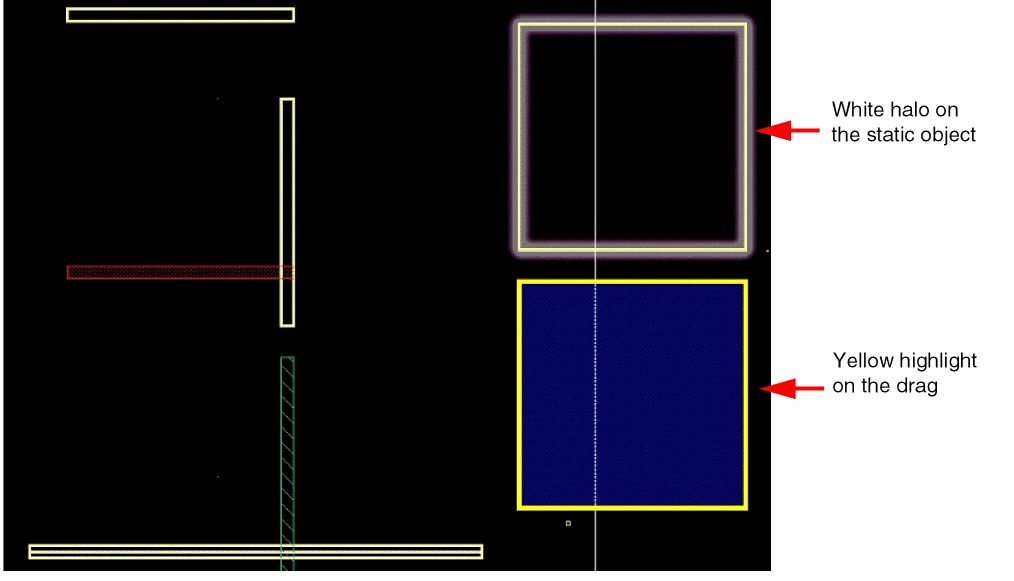
The object is snapped depending on its type: pin, region, or instance. The pointer is snapped to the snapping grid as you move the mouse. It gives a visual indication of how the objects will be placed after the editing command is complete.
- For Move and Copy commands, the selected pathSeg is resized if no other object is selected and in the Layout Editor Options form, the Wires option in the Wire Snapping section is set to Snap Pattern.
- For Stretch command for partially selected objects, the selected edge is snapped to the snapping grid. The edges that are not selected are not modified and these edges could be off-grid.
- For Chop and Yank commands, the WSP-specific information, like the definition name, present on the region shape is preserved.
- For Move and Copy commands, the reference pathSeg and vias are resized interactively according to the track width.
Related Topics
Object Snapping Behavior in Width Spacing Patterns
Return to top