
Pin Snapping to Width Spacing Patterns
A pin shape snaps to the snap patterns of the layer-purpose pair (LPP) on which the pin is being created or edited.
If the snap pattern is a
By default, a rectangular pin is created where the height of the pin is equal to the track width. You can enable the square pin creation mode using the environment variable rectangularWSPPinAsSquare. In the square pin creation mode, the width of the pin is fixed by the track width. The length of the pin is also fixed by the track width. A square pin can be created on a WSP track with a single click. This mode is useful when you want to pre-fill net names in the Create Pin form. The square pins can be placed quickly, one pin per click.
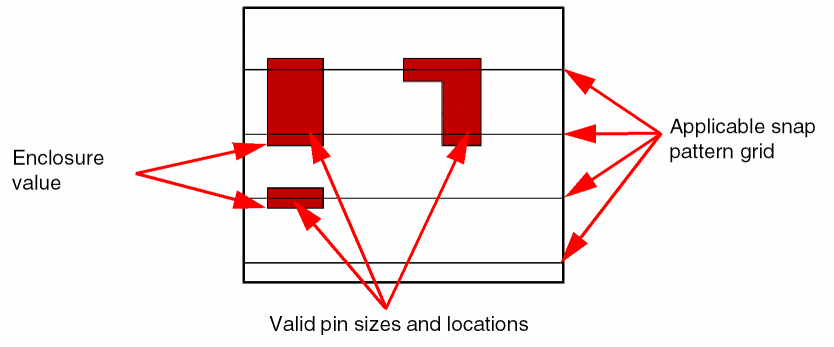
The figure below illustrates how a pin is snapped to a snapPatternDef.
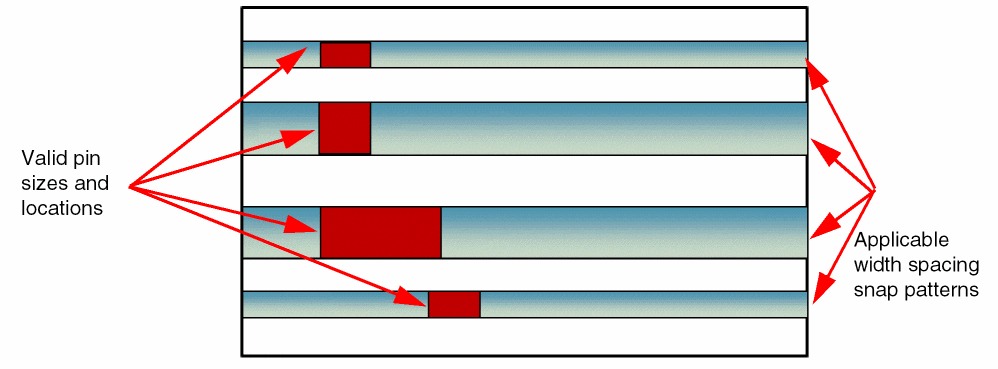
The figure below illustrates how a pin is snapped to a widthSpacingSnapPatternDef.
The following precedence is used for pin shape snapping:
-
Local grid (
snapPatternfollowed bywidthSpacingSnapPattern) available bound to shape: If the shape is bound to a WSP, the default active pattern applicable to corresponding WSSPD is applicable for pin shape snapping. -
Global grid (
snapPatternfollowed bywidthSpacingSnapPattern) available for pin LPP. - If local or global grid is not found, the pin shape is snapped to the X or Y snap spacing grids.
The minWidth constraint, the next track is searched.
When a track filter is active, pin editing is supported only for active tracks. Also, during pin creation, the pointer snaps to active tracks.
Related Topics
Dynamic Display During Pin Creation and Editing
Return to top