
Via Editing
You can edit vias by using the Property Editor assistant. You can also use the property editor - the Edit Via Properties and Edit Via Stack Properties forms. You can modify cdsVia parameters, including the metal layer and via layer purposes.
The Property Editor assistant displays a selected via stack as a single entity. From the Property Editor assistant, you can edit the start or end layers of the via stack as well as update viaDefs used for each of the layer pairs. You can also modify the number of top rows and columns in the via stack, the net name, and the rotation of the via stack. Right-clicking a via stack displays the Via shortcut menu.
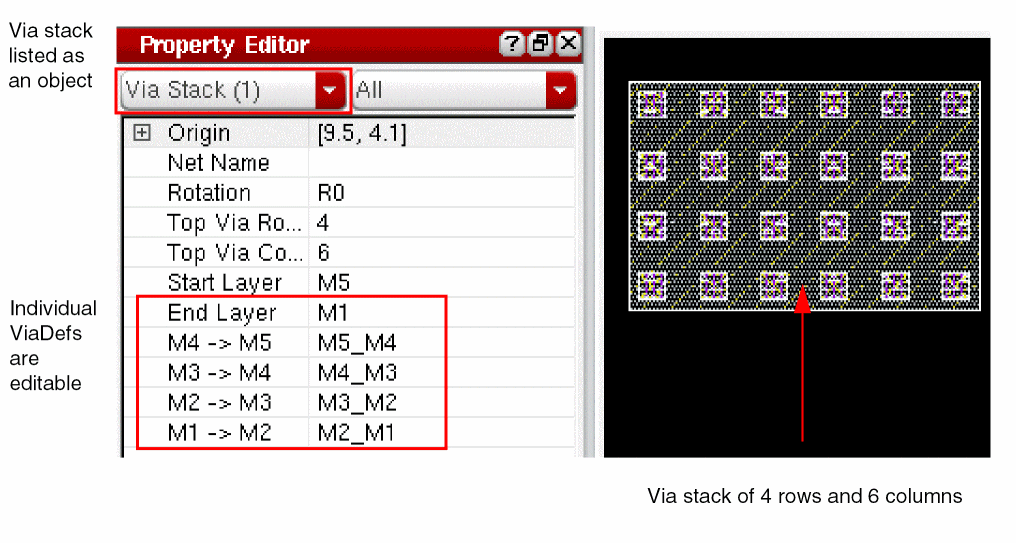
To edit individual vias of a via stack, you need to select Via from the object category selector list in the Property Editor assistant. This displays properties of all the vias in the via stack. You can expand the required property node and update properties on any of the individual vias.
In the property editor, a selected via stack is displayed as a single entity when the Via Stack mode is enabled in the Selection Options form.
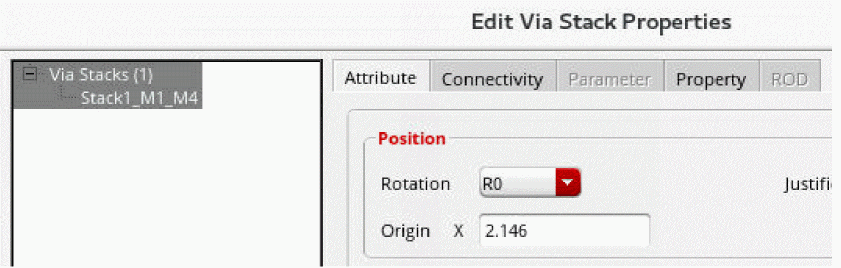
When the Via Stack mode is disabled, individual vias of a via stack are listed, as shown in the following figure.
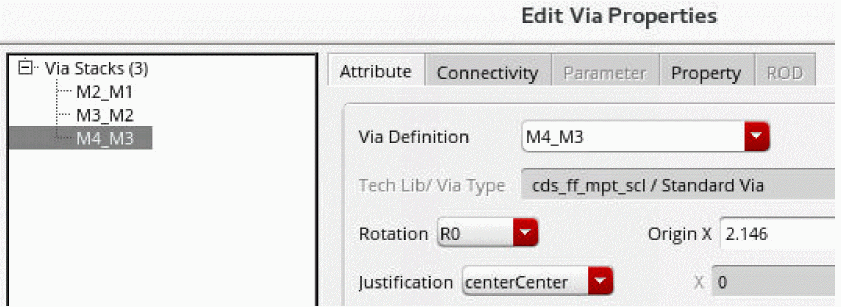
When you edit a via stack, the parameters for lower vias are generated to have the same footprint and not necessarily the same parameters values. If you want exactly same values on all vias of a via stack, then in the property editor you need to select all the vias in the selection tree and edit the required property. The new values are applied to all selected vias.
A cdsFixedVia via cannot be modified. You cannot use the property editor or the find and replace functionality to modify a cdsFixedVia. Also, you cannot chop or stretch a cdsFixedVia.
Related Topics
Return to top