
Editing Cut Patterns
-
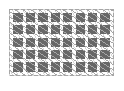
In the layout window, select a via array. For example, a via array of five rows and eight columns.
-
Choose Edit – Basic – Properties.
The Edit Via Properties form opens. -
Click the Edit Cut Pattern button in the Cut section.
The Edit Cut Pattern form appears. - Select Wall Paper as the editing method.
- Use the Paper Size left and down arrow buttons to reduce the rows and columns, for example, to three and three.
-
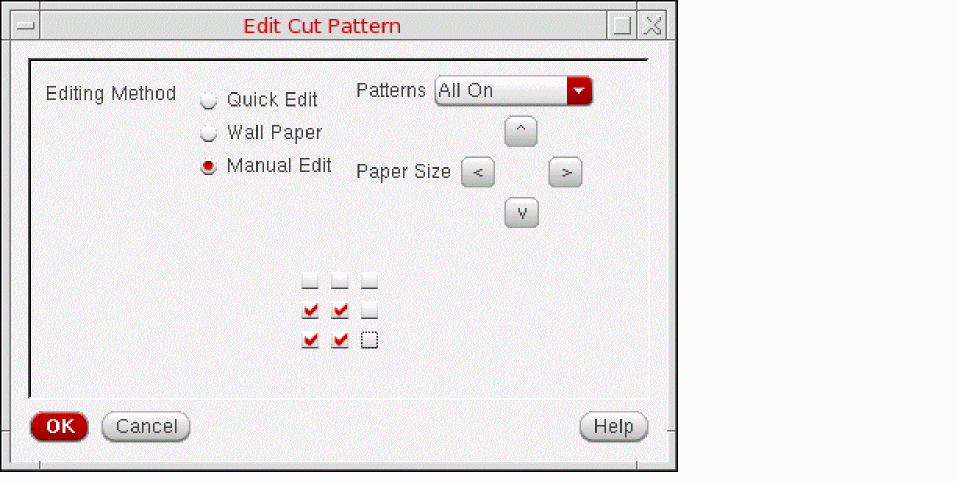
Edit cut-by-cut by clicking on the squares to turn off the top row and the far-right column, as shown below:
- Click OK.
-
Click Apply on the Edit Via Properties form.
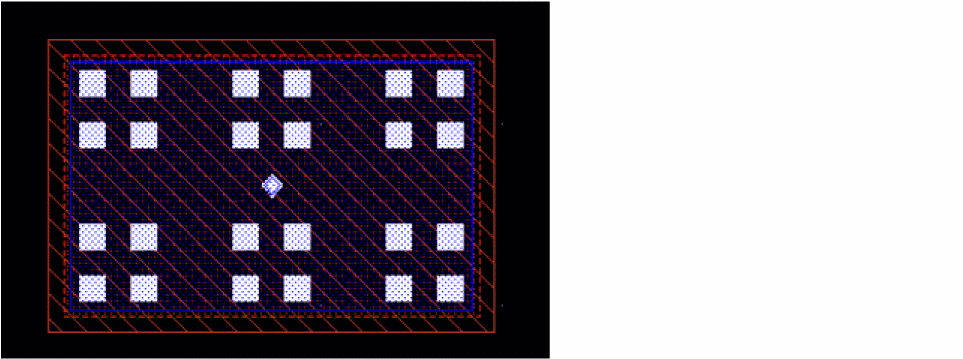
The pattern then repeats across the entire cut array, starting from the lower left corner of the array and repeating upwards and to the right.
The following image shows the cut pattern result.
Related Topics
Attributes in the Edit Via Properties Form
Return to top