
Editing Properties of a Group of Objects
To edit properties of a group of objects:
- In the layout cellview, select all the objects that you want to edit.
- Choose Edit – Basic – Properties to open the Edit Properties form.
-
Click the Select all objects in the tree icon
 or the Select All option from the shortcut menu in the selection tree.
The values for all properties common to the selected objects appear. If a property does not apply to all or is different for some of the selected objects, its value appears as AS IS, meaning this property cannot be changed on any of the selected objects. - Type or select new values for the objects.
-
Click OK.
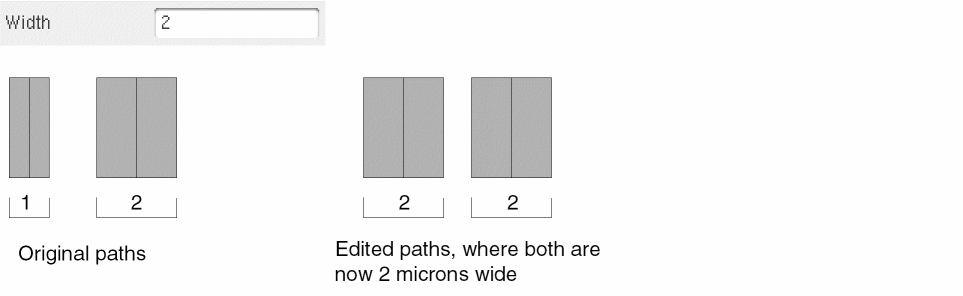
The following example shows that a new value is specified in the Width field to change the width of all selected paths.
Related Topics
Return to top