Edit Properties Form
Use the Edit Properties form to edit the properties of the objects that you have selected. The following table lists the tabs and common options available in the Edit Properties form.
|
Tab/Option
|
Description
|
|
Attribute Tab
|
Displays characteristics of an object. The available attributes vary, depending on the type of object selected.
For information about the attributes of various objects, such as area boundary, instance, label, path, polygon, row, or via, see Attribute Tab of Various Objects.
|
|
Connectivity Tab
|
Displays routing and net information about selected pins and shapes on a net. Only pins display I/O Type or Access Direction.
|
|
Parameter Tab
|
Displays any parameters defined for a parameterized cell (Pcells) or the selected instance, such as fluid guard ring.
For CDF instances, you can display the prompt names or CDF parameter names by selecting the option Prompt Name or Display CDF Parameter Name. By default, the prompt name is displayed for CDF instances.
For information about the Edit Instance Properties form for a Fluid Guard Ring, see Edit Instance Properties Form.
|
|
Property Tab
|
Sets the properties of the object and lets you add your own properties to an object.
|
|
ROD Tab
|
Displays the ROD properties of an object.
|
|
Hide/Show Selection Tree
|
Hides or displays the selection tree, which is displayed on the left in the form. The selection tree enables you to select the objects whose properties you want to edit.
|
|
Deselect highlighted ones from canvas
|
Deselects objects from the canvas that you selected in the selection tree. Also, removes those objects from the selection tree in the form.
Note that this option changes the selection set on the canvas.
|
|
Keep highlighted ones and deselect others from canvas
|
Retains the objects selected in the selection tree and removes all other objects from the selection tree. Also, the removed objects are deselected from the canvas.
Note that this option changes the selection set on the canvas.
|
|
Previous
|
Highlights the previous object in the selection tree and resets the form to show that object’s properties.
|
|
Next
|
Highlights the next object in the selection tree and resets the form to show that object’s properties.
|
|
Select all objects in the tree
|
Selects all the objects listed in the selection tree.
|
|
Apply Previous
|
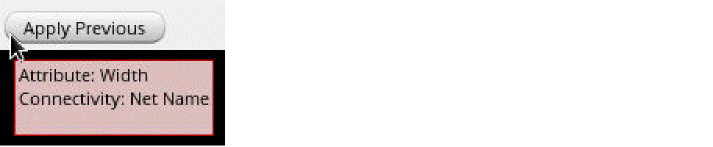
Reapplies the last-applied property editor data of the current session. When you hover over this button, the previously applied data, if any, is displayed as a tooltip. For example, if you modified the width of a rectangle on the Attribute tab and the net name on the Connectivity tab, the following tooltip is displayed, listing the names of the tabs and modified fields.
Only the properties applicable to the selected object are applied.
|
Connectivity Tab
The following table describes the fields available on the Connectivity tab of the Edit Properties form. The fields displayed might vary depending on the object selected. For example, only pins display I/O Type or Access Direction.
|
Field
|
Description
|
|
Net Name
|
Displays the name of the net to which the pin is connected. This field can be used to rename or delete the net.
When you edit the net name of an object (via or pathseg) that is a route element, the Net Name field appears as the Route Net Name field. This indicates that editing the net of an object in a route changes the net of the entire route.
|
|
Terminal Name
|
Sets the name of the terminal associated with this pin. The terminal name should always be the same as the net name.
|
|
Net Expression
|
Assigns a net expression of the terminal listed in the Terminal Name field.
-
Property: Sets the override property name to the net expression.
-
Default: Defines the net to be used if no override property is defined in the hierarchy above this point (in the schematic view). Unless a different signal name is entered, the terminal name is used.
|
|
I/O Type
|
Assigns a property used by routers to identify the direction of the signal into or out of this cellview. The signal can be input, output, inputOutput (bidirectional), switch (carries data either in or out, but not simultaneously), or jumper (passes data through this cellview).
|
|
Net Criticality
|
Sets a weighting factor that determines the routing priority for this net for the Cadence place-and-route tools.
|
|
Access Direction
|
Assigns a property used to identify the part of the pin to which the routers can connect routing. Applies only to rectangle pins. The selections are: top, left, bottom, right, any or none.
|
|
Signal Type
|
Specifies the signal type of the net for a pin. The options available for signal type are signal, ground, power, clock, analog, tieOff, tieHi, tieLo, scan, or reset. The default is signal.
For a photonics pin, only the optical, singleModeOptical, or multiModeOptical options are available.
|
Instance Connectivity
When you edit an instance that has terminals, the Connectivity tab displays the following fields. It enables you to map the terminals on an instance or a homogenous mosaic to the nets in a cellview. For information about updating instance connectivity or propagating nets, see Propagating Nets.
|
Field
|
Description
|
|
Terminal Name
|
Specifies the terminal name. Several pins can be defined on one terminal.
|
|
Net Name
|
Specifies the top-level net name. If a net name field is blank, the corresponding terminal is not currently mapped to a top-level net.
|
|
Set Net Name
|
Sets the net name same as the terminal name, when you click the Set Net Name  button.
|
|
Clear All Net Names
|
Clears the text fields.
|
|
Set All Net Names to Terminal Name
|
Sets all net names to the terminal names.
|
|
Show All Must-Join Terminals
|
Displays the must-join terminal names that exist in the cellview of the instance.
|
|
Defaults
|
Displays the existing top-level net names of terminals.
|
Property Tab
The following table describes the fields available on the Property tab of the Edit Properties form.
|
Field
|
Description
|
|
Add
|
Opens the Add Property form, which lets you add a new cellview property.
|
|
Delete
|
Deletes a selected property created with Add.
|
|
Modify
|
Opens the Modify Property form, which lets you change the definition for any property created with Add.
|
ROD Tab
The following table describes the fields available on the ROD tab of the Edit Properties form.
|
Field
|
Description
|
|
ROD Name
|
Displays the name of the ROD object.
|
|
Handle
|
Displays the system handle and user handle information. A handle is an attribute of, or item of information about, a ROD object, such as the coordinates of a point on the bounding box around an object, the width of the bounding box of an object, or the resistance of an object.
-
System handle: Displays handle names assigned to the object. When you choose a different handle from the cyclic field, the Value field updates to reflect the current handle.
-
Value: Specifies a non-editable field displaying the location of the system handle displayed in the System handle field. These values are predefined reference points.
-
User handle: Displays handle names assigned by the user to the object. When you choose a different handle from the cyclic field, the Value field updates to reflect the current handle. If a user handle is not assigned, the fields are empty.
-
Value: Displays the current location of the system handle displayed in the User handle field. You can change these values by typing new coordinates in this field.
|
|
Alignment
|
Displays the alignment information about two ROD objects. You can edit these fields if the objects have alignment values assigned to them, otherwise the fields are empty. When looking at the alignment information for two objects, the selected object is Align object. The separation is the distance from Reference object (unselected) to Align object (selected).
-
Reference object: Displays the name of the object assigned to be the reference object of Align object. If there is more than one object assigned to be Reference object, you can choose that object from the cyclic field.
-
Align object: Displays the name of the object aligned to Reference object. This field is not editable.
-
Reference handle: Displays the name of the handle Align object is aligned to.
-
Align handle: Displays the name of the handle Reference object is aligned to.
-
X separation: Displays the distance in the X direction from either the reference point handle or the reference point on Reference object to the alignment point handle on Align object. The value can be positive or negative or a Cadence SKILL language expression that evaluates to a positive or negative number.
-
Y separation: Displays the distance in the Y direction from either the reference point handle or the reference point on Reference object to the alignment point handle on Align object. The value can be positive or negative or a SKILL expression that evaluates to a positive or negative number.
|
Property Editor Shortcut Menu
Right-clicking in the selection tree of the Edit Properties form displays the property editor shortcut menu. The table describes the options available on the shortcut menu.
|
Option
|
Description
|
|
Select All/Clear Selection
|
Selects or deselects all the objects in the selection tree.
|
|
Deselect
|
Deselects the highlighted object from the canvas.
|
|
Keep
|
Retains the highlighted objects and deselects the other objects from the canvas.
|
|
Zoom To Selected
|
Zooms to the selected object on the canvas.
|
|
Highlight Modified Fields
|
Highlights the modified fields in the Edit Properties form.
|
|
Dynamic Cross Highlight
|
Dynamically highlights the objects on the canvas.
|
|
Collapse All
|
Collapses all expanded tree nodes in the selection tree.
|
|
Expand Selected
|
Expands the selected node in the selection tree.
|
Related Topics
Editing Object Attributes
leHiEditProp
Add Property Form
Modify Property Form
Return to top