
Layout XL Desktop
When you launch Layout XL, four windows are rearranged into the default window configuration on your desktop: command interpreter window (CIW), schematic window, layout window, and the Palette assistant.
The layout window is on the right with Virtuoso® Layout Suite XL displayed in the banner; the schematic that corresponds to the layout is in the schematic window on the left. The Palette assistant and the command interpreter window (CIW) are placed to the left and bottom of the screen, respectively. You can move, resize, and iconify any of the four windows.
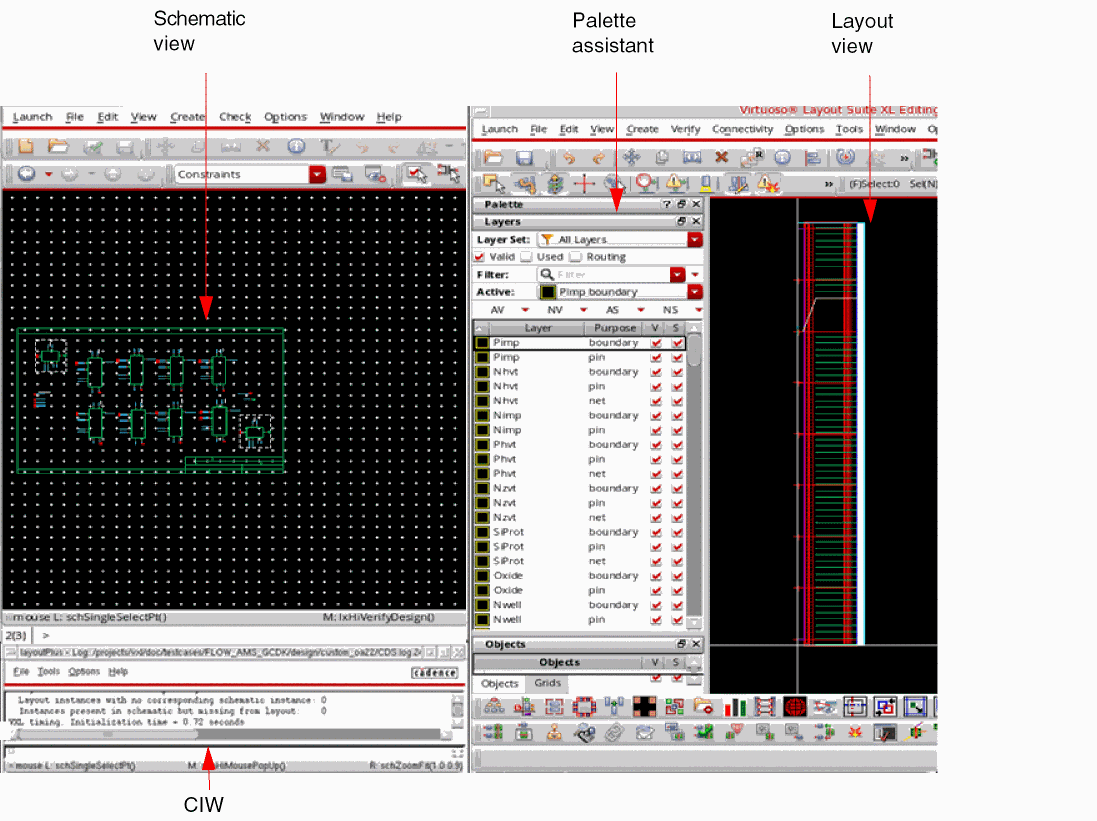
The layout window comprises a menu bar, a canvas, in which you can display and manipulate your design graphically, and a number of toolbars and dockable assistants to help you with your design tasks.
If you customize the desktop layout, you can save and reuse the customized desktop layout in one of the following ways:
-
Using the Options – Save Defaults command from the CIW.
When you use the Save Defaults command, Layout XL saves the size and position of the schematic and layout windows as a property on the current layout cellview. It also sends the Palette assistant and the CIW window size and location information to the.cdsenvfile.
When you reopen the layout and schematic cellviews, they appear in the same configuration as they had when you used the Save Defaults command. -
By adding the appropriate environment variables to your
.cdsenvfile. For example, to prevent Layout XL from rearranging or resizing windows, add the following line to the.cdsenv file:envSetVal("layoutXL" "autoArrange" 'boolean nil)
If you save the current window positions and form settings to a file other than.cdsenv, for example,.envFileName, you can restore the settings by adding the following line to your.cdsinitfile or typing it in the CIW.envLoadFile("layoutXL" ".envFileName")
For an overview of the connectivity-driven features supported by Layout XL and a lab database and workshop instructions to help you explore how these features can bring productivity gains for a design, view or download the rapid adoption kit, Introduction to Connectivity-Driven Design in VLS XL.
Related Topics
Return to top