Objects Panel
Use the Objects panel to manage the visibility and selectability of objects such as instances, pins, and vias in a design.
The Objects panel user interface can be categorized into the following major components: columns, column header context menu, and toolbars.
Objects Panel Columns
The following table describes the default columns displayed in the Objects panel. You cannot resize columns in the Objects panel.
|
Column
|
Description
|
|
Objects
|
Lists the objects in a hierarchical tree structure.
|
|
V (Visibility)
|
Lets you control the visibility of objects. To make an object visible, you need to select the corresponding check box in the V (Visibility) column.
You cannot change the visibility of objects such as fluid guard rings, fluid shapes, and soft blocks. For such objects, the V (Visibility) check box is unavailable.
|
|
S (Selectability)
|
Lets you control the selection of objects. To make an object selectable, select the corresponding check box in the S (Selectability) column. An invisible object cannot be selected.
In the Objects panel, the behavior of instance, via, and fig group objects is different from that of other objects because these are second-level objects. These objects can be selected even if they are invisible.
|
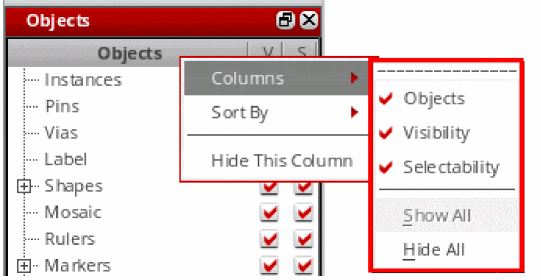
Objects Panel Column Header Context Menu
The following table describes the commands available on the column header context menu in the Objects panel. You can access the context menu by right-clicking a column header in the panel.
|
Command
|
Description
|
|
Columns
|
Lets you selectively hide or display columns in the Objects panel. The Hide All and Show All commands hide or display the Visibility and Selectability columns. The Objects column is not hidden from view when you choose the Hide All command.
|
|
Sort By
|
Lets you sort objects by object name, visibility, or selectability.
-
Objects: Sorts objects in the alphabetical order by name.
-
Visibility: Sorts objects by visibility status. The objects that cannot be made visible are listed first, followed by the objects for which the visibility check box is deselected. The objects for which the visibility check box is selected are listed last.
-
Selectability: Sorts objects by selectability status. The objects for which the selectability check box is deselected are listed first, followed by the objects for which the selectability check box is selected.
-
Default: Sorts objects in the default order. The default order is as follows: Instances, Pins, Vias, Label, Shapes, Mosaic, Rulers, Markers, Fluid Guardring, Fluid Shapes, Fig Groups, Boundaries, Soft Blocks, Blockages, Symmetric Axes, and Rows.
-
Reverse: Reverses the order in which the objects are currently displayed.
|
|
Hide This Column
|
Hides a column in the Objects panel. To hide a column, right-click the column header and choose Hide This Column.
|
Objects Panel Toolbars
The following table describes the toolbars available in the Objects panel. For more information about the functionality available in these toolbars, see Layers Panel Toolbars.
|
Toolbar
|
Description
|
|
Search
|
Lets you search for specific objects in the Objects panel.
|
|
Control Buttons
|
Lets you manage the visibility and selectability of objects in the Objects panel.
|
By default, the Objects panel does not display toolbars. You can display a toolbar by selecting it from the Show Tools submenu in the Palette context menu.
Related Topics
Layers Panel
Grids Panel
Palette Context Menu
Palette Assistant
Return to top