Product Documentation
Virtuoso Layout Viewer User Guide
Product Version IC23.1, August 2023

Layers Panel

Use the Layers panel to manage layer-purpose pairs. The user interface can be categorized into the following major components:

Layers Panel Columns

The following table describes the default columns available in the Layers panel.

Column Description

Swatch

Sorts layer-purpose pairs in the order in which they appear in the leLSWLayers section of the technology file. The swatch indicates how a shape appears on the canvas.

Layer

Displays layer names.

Purpose

Displays the purpose associated with each layer.

V (Visibility)

Determines whether the instances and objects on a layer are visible on the canvas.

To turn on or off the visibility of all layer-purpose pairs, objects, or elements together, you can click the V column header. To sort the layer-purpose pairs, objects, or elements based on their visibility, hold down the Ctrl key and click the V column header.

This default behavior can be modified by using the Header Column Click option in the Options form.

S (Selectability)

Determines whether the instances and objects on a layer are selectable on the canvas.

To turn on or off the selectability of all layer-purpose pairs, objects, or elements together, you can click the S column header. To sort the layer-purpose pairs, objects, or elements based on their selectability, hold down the Ctrl key and click the S column header.

Layers Panel Column Header Context Menu

Use the column header context menu to define the settings used for listing layer-purpose pairs in the Layers panel. The menu is displayed when you right-click any column header in the Layers panel.
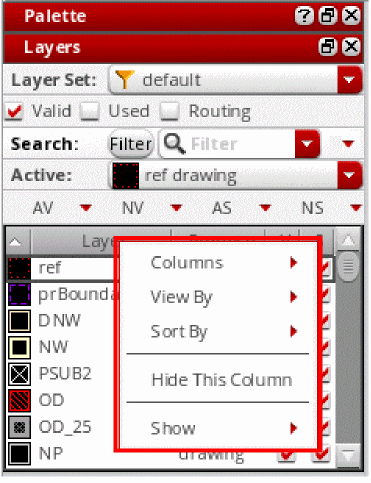
The following table describes the commands available in the column header context menu in the Layers panel.

Command Description

Columns

Lists the columns that can be displayed in the Layers panel. You can selectively display any column. You can hide or display all columns, except Swatch, by selecting the Hide All or Show All commands, respectively.

All columns except V (Visibility) and S (Selectability) can be resized by dragging the column margin separator.

View By

Displays layer-purpose pairs in a tree structure in the Layers panel. You can display layer-purpose pairs based on the following columns: Layer, Purpose, Function, Color, Routing Dir, Mask, GDS Number, Priority, Min Voltage, Max Voltage, Signal Type, Parent, Description, Layer Set List, and None. The column based on which layer-purpose pairs are grouped appears as the first column in the Layers panel.

  • View By – None: Displays layer-purpose pairs based on the column on which layer-purpose pairs are sorted. For example, if layer-purpose pairs are sorted on the Layer column and you select View By – None, the layer-purpose pairs are displayed in the alphabetical order by layer name.
  • View By – Advanced: Displays layer-purpose pairs in a tree structure based on multiple columns that you select.
  • LPP Group: Groups layers by specific purposes. This command is available for groups on the View By submenu, when the pteLppGroup environment variable is set.

Hide This Column

Hides a column in the Layers panel. To hide a column, right-click the column header and choose Hide This Column.

Show

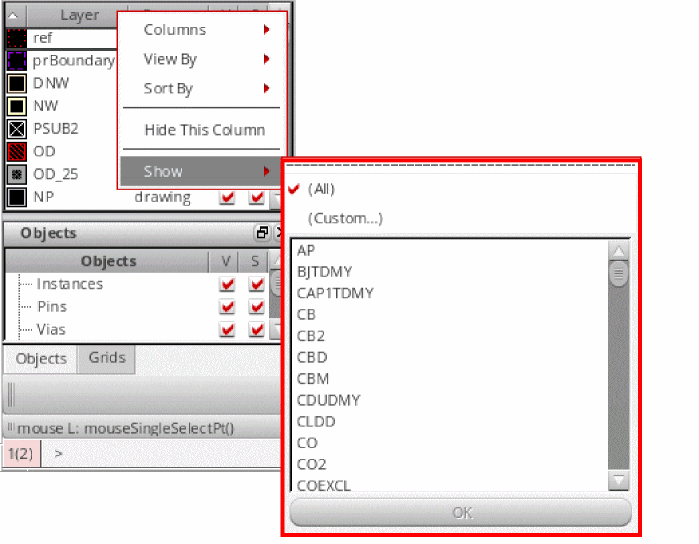
Provides an extended filter mechanism to filter layers based on the values of specific columns. The filter options are displayed when you right-click a column header, except V (Visibility) and S (Selectability), and choose Show. The Show menu includes the following filter options:

  • All: Displays all layers. No filter is applied.
  • Custom: Lets you define the criteria based on which layers are filtered. For example, selecting the Custom option for the Purpose column displays the Custom Show Purpose form. You can define the filter criterion by selecting an operator and a purpose. You can add multiple criteria by using the Add Criteria button in the form. Depending on your requirement, you can choose to match any or all specified criteria.
  • List of values: Lets you select a specific column value from the list, for example a specific purpose, that you want to display. You can use the Ctrl key to select multiple values in the list. Layers with the selected value are displayed in the Layers panel. The following figure displays the Show menu for the Purpose column.

Sort By

Sorts layer-purpose pairs based on the selected column. Each command on the Sort By menu corresponds to a column that can be displayed in the Layers panel. By default, the layer-purpose pairs are sorted in the order in which they are defined in the leLswLayers section of the technology file.

For information about the sort columns, see Sort By Columns.

Sort By Columns

The following table describes the columns, which are available on the Sort By context menu, based on which you can sort layer-purpose pairs in the Layers panel.
Column Description

Swatch

Sorts layer-purpose pairs in the order in which they appear in the leLSWLayers section of the technology file. If this section is not available, layers are sorted based on their priorities.

Layer

Sorts layer-purpose pairs in the alphabetical order by layer name. Layers with the same name but different purposes are sorted in the order of their priority. Layers for which a name is not specified are listed first, followed by layers with names.

Purpose

Sorts layer-purpose pairs by their purpose, in the alphabetical order. Layers with the same purpose but different names are sorted in the order of their priority. Layers for which a purpose is not specified are listed first, followed by the layers with purposes.

Function

Sorts layer-purpose pairs by their function, in the alphabetical order. Layer-purpose pairs for which the function is not specified are listed first, followed by the layer-purpose pairs for which the function is specified.

If none of the layer-purpose pairs have functions specified, the layer-purpose pairs are sorted in the order of their priority.

Routing Dir

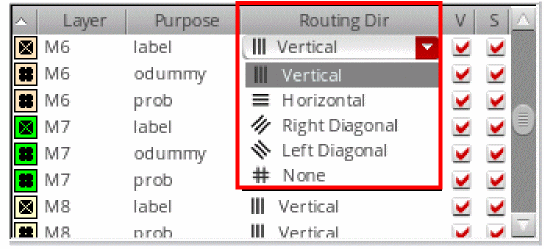
Sorts layer-purpose pairs by their routing direction. Layer-purpose pairs for which the routing direction is not defined are listed first, followed by the layer-purpose pairs with the routing direction defined. Layer-purpose pairs are sorted in the following order of routing direction: Horizontal, Left Diagonal, None, Right Diagonal, and Vertical.

You can change the routing direction by clicking in the Routing Dir column for a layer-purpose pair and selecting a routing direction from the list.

Mask

Sorts layer-purpose pairs in the ascending order of the mask number assigned to them in the Layer Definition section of the technology file. Layer-purpose pairs that do not have mask numbers assigned are listed first, followed by the layer-purpose pairs with mask numbers.

If none of the layer-purpose pairs have mask numbers assigned, the layer-purpose pairs are sorted in the order of their priority.

GDS Number

Sorts layer-purpose pairs in the increasing order of their GDS numbers.

The GDS Number column displays both the Layer Stream Number and the Datatype Stream Number separated by a ‘:’. These numbers are present in the optional <techLibName>.layermap file that is stored in the technology library directory. If this file is not found, the Palette automatically searches for a <techLibName>.gdsnumber file in the .cadence/dfII/gdsnumber directory. If both these files are not available, nothing is displayed in the GDS Number column.

Priority

Sorts layer-purpose pairs in the descending order of the priorities assigned to them in the Layer Definition section of the technology file. Layer-purpose pairs with priority 0 are displayed first.

Min Voltage

Sorts layer-purpose pairs in the ascending order of the minimum voltage assigned to them in the Layer Definition section of the technology file. The value is either an integer or a float value. The layer-purpose pairs for which the minimum voltage is not specified are listed first, followed by the layer-purpose pairs for which the minimum voltage is specified.

Max Voltage

Sorts layer-purpose pairs in the ascending order of the maximum voltage that is assigned to the layer-purpose pair in the Layer Definition section of the technology file. The value is either an integer or a float value. Layer-purpose pairs for which the maximum voltage is not specified are listed first, followed by the layer-purpose pairs for which the maximum voltage value is specified.

Signal Type

Sorts layer-purpose pairs in the alphabetical order by signal type. The signal type indicates the signal that is carried by the nets routed with the layer-purpose pair. The signal type for a layer-purpose pair is specified in the Layer Definition section of the technology file. Layer-purpose pairs for which a signal type is not defined are listed first, followed by layer-purpose pairs with a signal type defined.

Parent

Sorts layer-purpose pairs by the parent purpose of the layer-purpose pair, in the alphabetical order. The parent purpose is the main purpose of the layer from which you can define other purposes. The parent purpose for the layer is defined in the Layer Definition section of the technology file. The layer-purpose pairs for which the parent purpose is not defined are listed first, followed by the layer-purpose pairs for which the parent purpose is defined.

Description

Sorts layer-purpose pairs by their descriptions, in the alphabetical order. The description field provides additional information about each layer-purpose pair, as specified in the Layer Definition section of the technology file. The layer-purpose pairs for which a description is not specified are listed first, followed by the layer-purpose pairs with a description.

V (Visibility)

Sorts layer-purpose pairs by their visibility status. Layer-purpose pairs with the Visibility check box deselected are listed first, followed by the layer-purpose pairs with the check box selected.

S (Selectability)

Sorts layer-purpose pairs by their selectability status. Layer-purpose pairs with the Selectability check box deselected are listed first, followed by layer-purpose pairs with the check box grayed out. Layer-purpose pairs with the check box selected are listed last.

Stipple

Sorts layer-purpose pairs by their stipple patterns. Layer-purpose pairs with the Stipple check box deselected are listed first, followed by layer-purpose pairs with the check box selected.

LS Order

Sorts layer-purpose pairs in the increasing order of their layer set order numbers.

Reverse

Reverses the order in which the layer-purpose pairs are currently displayed.

Layers Panel Toolbars

The Layers panel includes the following toolbars: Layer Set, Scope, Search, Active Layer, Control Buttons, Edit, Window Context, and Layer Set Manager.

The following table describes each of these toolbars, which you can access by choosing Show Tools from the Palette context menu.

Toolbar/Command Description

Layer Set toolbar

This toolbar lists all layer sets available in the design and displays the name of the layer set that is currently active. Layers belonging to the active layer set are listed in the Layers panel.

All Layers

Is a system-defined layer set. You can apply filters to this layer set, but you cannot add or remove layers from it.

SKILL function: pteSetLSActive

On the Layer Set toolbar, you can select only one layer set at a time for your design. To set multiple layer sets as active at a time, use the Layer Set Manager toolbar.

Scope toolbar

This toolbar provides the following options for filtering layers: Valid, Used, and Routing.

Valid

Displays only valid layers in the Layers panel.

Used

Displays only the layers that contain design objects of the type shape. You need to reapply the filter to refresh the display in the Layers panel if you add a design object to a previously unused layer while the filter is still applied.

If you want to view layers that contain all types of design objects, such as blockages, boundaries, instances, mosaics, markers, and rows, set the pteShowUsedSystemLpps environment variable to t, and then select the Used check box.

When pteShowUsedSystemLpps is set to t, the Used filter is not dynamic and you need to reapply the filter, for example while switching to another tab or window, editing in place, or descending into a hierarchy.

Routing

Displays only the routing layers.

Routing layers are identified at the start of a Virtuoso session. By default, the following layers are identified as routing layers:

  • All layers with function metal, cut, and poly and purpose drawing through drawing9.
    You can exclude cut layers from routing layers by using the pteIncludeCutLayers environment variable. The value of this variable must be set before opening a design. Once set, it is applicable for the entire session.
  • All layers with purpose drawing through drawing9 present in the validRoutingLayers constraint.
  • All combinations of layers and purposes present in the validRoutingLPPs constraint. For example, you can add layer purpose pairs, diff/net and ndiff/pin, to the validRoutingLPPs constraint. This means that the following layer purpose pairs are treated as routing layer-purpose pairs: diff/net, diff/pin, ndiff/net, and ndiff/pin.

Search toolbar

This toolbar lets you search for specific layer-purpose pairs in the Layers panel.

Filter/Find toggle button

Lets you find or filter layer-purpose pairs. You can toggle between Filter and Find search modes.

  • Filter: Displays only the layer-purpose pairs that match the specified search criteria. The active layer does not change. This is the default search mode.
  • Find: Continues to display all layers and the first layer that matches the search criteria becomes the active layer. If you now press Enter, the next layer that matches the search criteria becomes the active layer. You can continue to press Enter to move through the list of matching layer-purpose pairs in a cyclic manner. In this mode, search is performed only on the layers that are currently listed in the Layers panel.

SKILL functions: pteFindNext, pteFindPrev

Filter/Find field

Lets you specify the search criteria. As you type individual characters, the information in the Layers panel gets updated. Finally, the search returns all layer-purpose pairs that contain the specified string in any of the displayed columns. By default, the search operation is case-insensitive and looks for values that begin with the specified string (prefix).

The search operation considers only the columns that are displayed in the panel in which you perform the search.

Search History

Displays the search history for the current session. The Search History icon appears next to the Filter/Find field. Once you choose a search criterion, the Clear icon replaces the Search History icon. Use the Clear icon to clear contents of the Filter/Find field.

SKILL function: pteClearSearchHistory

Advanced

Lets you refine the search results. The following advanced search options are available for Filter and Find modes:

  • Find With: Lets you specify the default operator for a search operation: AND (All Of The Words), OR (Any Of The Words), EXACTLY (The Exact Phrase), or NOT (None Of The Words).
    SKILL function: pteSetSearchOperator
  • Match Word: Lets you further refine the search by specifying whether a partial or an exact match is required. You can choose from any of the following options: Substring, Prefix, Exactly, and Suffix.
    SKILL function: pteSetSearchMatchType
  • Using Case: Lets you specify whether the search operation is case-sensitive (Sensitive Match) or the casing of the specified search string can be ignored (Insensitive Match). For example, to display search results that include the string M1 and not m1, you need to select the Sensitive Match option.
    SKILL function: pteSetSearchMatchCase

Active Layer toolbar

This toolbar displays the name of the layer that is currently active. The Active list stores the history of up to 10 active layers for the current session.

Show Unlocked Colors

Displays unlocked colors on shapes.

This option is displayed when the pteShowColorControlsForMPT environment variable is enabled.

Show Locked Colors

Displays locked colors on shapes.

This option is displayed when the pteShowColorControlsForMPT environment variable is enabled.

Control Buttons toolbar

This toolbar lets you manage the visibility and selectability of layer-purpose pairs in the Layers panel. It includes the AV, NV, AS, and NS control buttons.

AV

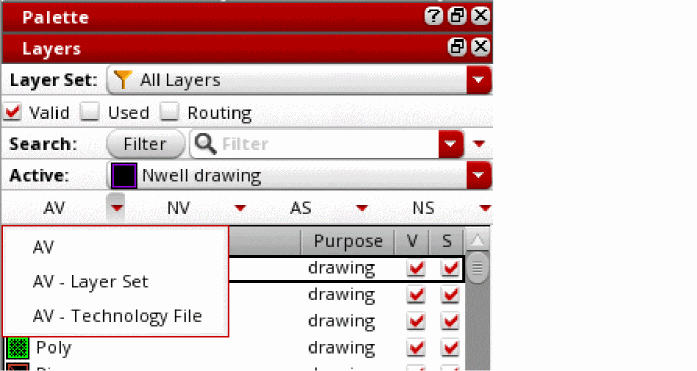
Controls visibility of layers in the Layers panel. AV refers to All Visible. The AV list contains the following options:

  • AV: Turns on visibility of all layers currently listed in the Layers panel. Clicking AV on the Control Buttons toolbar also performs the same function.
    SKILL Function: pteSetAllVisible
  • AV - Layer Set: Turns on visibility of all layers of the active layer set, irrespective of the layers displayed in the Layers panel.
  • AV - Technology File: Turns on visibility of all layers defined in the technology file.

NV

Turns off visibility of layers in the Layers panel. NV refers to None Visible. The NV list contains the following options:

  • NV: Turns off visibility of all layers currently listed in the Layers panel.
    SKILL Function: pteSetNoneVisible
  • NV - Layer Set: Turns off visibility of all layers of the active layer set, irrespective of the layers displayed in the Layers panel.
  • NV - Technology File: Turns off visibility of all layers defined in the technology file.

AS

Controls selectability of layers in the Layers panel. AS refers to All Selectable. The AS list contains the following options:

  • AS: Turns on selectability of all layers currently listed in the Layers panel.
    SKILL Function: pteSetAllSelectable
  • AS - Layer Set: Turns on selectability of all layers of the active layer set, irrespective of the layers displayed in the Layers panel.
  • AS - Technology File: Turns on selectability of all layers defined in the technology file.

NS

Turns off selectability of layers in the Layers panel. NS refers to None Selectable. The NS list contains the following options:

  • NS: Turns off selectability of all layers currently listed in the Layers panel.
    SKILL Function: pteSetNoneSelectable
  • NS - Layer Set: Turns off selectability of all layers of the active layer set, irrespective of the layers displayed in the Layers panel.
  • NS - Technology File: Turns off selectability of all layers defined in the technology file.

Edit toolbar

This toolbar lets you add or remove layers from layer sets.

Member

Displays the m (Membership) column in the Layers panel. To a layer or remove it from the current layer set, you need to select or deselect the corresponding check box in the m column.

SKILL functions: pteSetAllLayerSetMember, pteSetLayerSetMember, pteSetNoneLayerSetMember, pteEditLayerSet, pteCloseLayerSetEdition, pteToggleAllLayerSetMember

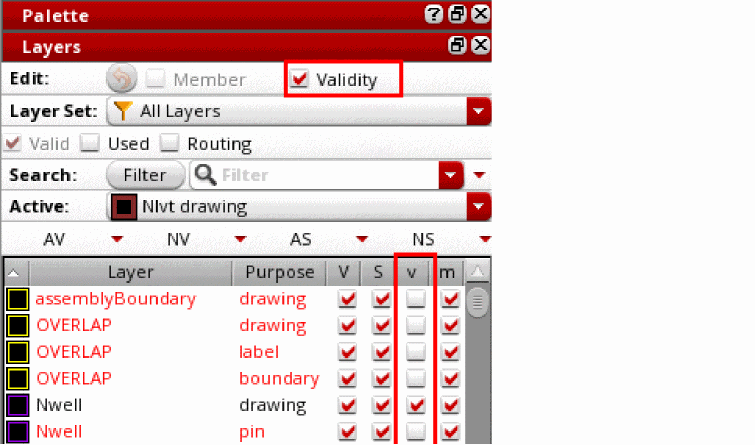
Validity

Displays both valid and invalid layers in the Layers panel. Also displays the v (Validity) and m (Membership) columns in the panel. Invalid layer-purpose pairs are displayed in red.

Layers are specified as valid or invalid in the technology file. You cannot set a layer-purpose pair as valid by using the Layers panel if following settings are defined in the technology file:

  • The layer or the purpose is set as invalid, that is, the valid attribute is set to nil.
  • The layer, purpose, or layer-purpose pair is locked, that is, the allowSetToValid and allowSetToValidInSession attributes are set to nil.

You cannot set an invalid layer as the active layer because such layers cannot be used effectively in a design. However, you can use the Layers panel to set a locked layer-purpose pair as invalid.
SKILL functions: pteEditLayerSetValidity, pteSetAllValidity, pteSetNoneValidity, pteSetValidity, pteShowValidLPP, pteToggleAllValidity, pteToggleLayerSetValidityEdition, pteCloseLayerSetEdition

Discard Edits

Lets you discard all changes made to the membership and validity status of layers.

SKILL function: pteDiscardLayerSetEdition

Window Context toolbar

This toolbar lets you synchronize or desynchronize the Palette.

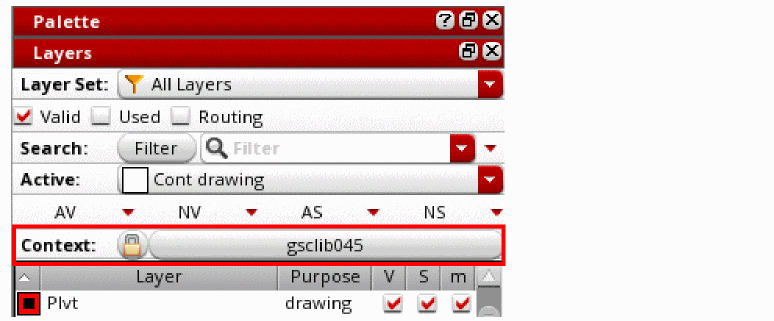
Context

Displays the name of the current display context. By default, it is the name of the technology file.
Synchronize/Desynchronize

Lets you synchronize or desynchronize the Palette.

Palettes with the same window context name are synchronized.

Layer Set Manager toolbar

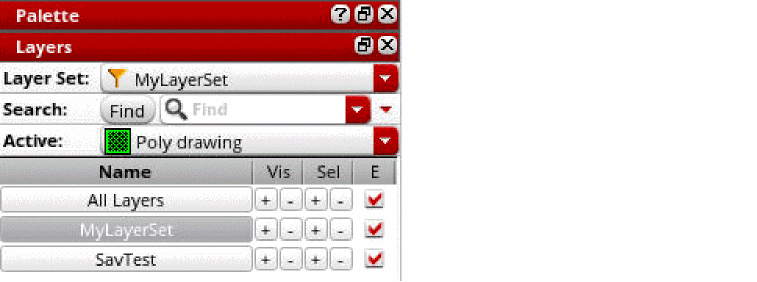
This toolbar lets you manage the layer sets available in the current design window. It contains three columns: Visibility (Vis), Selectability (Sel), and Enable Layer Set (E).

Visibility (Vis)

Lets you to turn on or off the visibility of all the layers in a layer set by clicking the corresponding + or – button, respectively.

These buttons work with respect to the filter settings defined on the Scope and Filter toolbars if the pteLSManagerRespectFilters environment variable is set to t.
Selectability (Sel)

Lets you to turn on or off the selectability of all the layers in a layer set by clicking the corresponding + or – button, respectively.

You can set a layer set as active and turn on the visibility and selectability of all its member layers by clicking the layer set with the middle mouse button. The visibility and selectability for all other layers is turned off.

Enable Layer Set (E)

Lets you to disable a layer set by deselecting the corresponding check box. This column is displayed when you right-click a column header in Layer Set Manager and choose ColumnsEnable Layer Set from the context menu.

The layer set that is currently active cannot be disabled.

Related Topics

LPP Validity

techIsLPValidBase

View By Form

Custom Show Layer/Purpose Form

Palette Assistant Panels

Palette Assistant


Return to top
 ⠀
X