
Dynamic Selection of Objects
Use the Dynamic Selection assistant to identify and select specific objects of interest from a densely-populated design window with many overlapping or hierarchical objects.
The assistant lists all the objects currently under the mouse pointer in the design display area, ordered by the layer-purpose pair on which a particular object is drawn. The display is updated whenever the mouse pointer is moved in the design display area.
You can freeze (and unfreeze) the display by pressing Ctrl+H when the pointer is positioned in the design display area. When the display is frozen, if you select an object in the Dynamic Selection assistant, the object is automatically cross-selected in the layout window. If you move the pointer over an object in the assistant, that object is dynamically highlighted in the layout window.
For hierarchical instances, groups, and ROD objects, the assistant displays the hierarchical path of the objects under the mouse pointer. It does not necessarily list all the objects contained in a particular hierarchical object, only those that were under the pointer when the display was frozen. The depth of the hierarchy shown is governed by the number of display levels set for the layout window in the Display Options form.
Hierarchy Depth, Color, and State Object Information
In the Dynamic Selection assistant, the LPP and Data columns specify the layer-purpose pair on which an object is drawn and provide a short description of the object, respectively.
For hierarchical objects, LPP, Data, and HCL Depth columns are displayed in the assistant. The assistant does not necessarily list all the objects contained in a particular hierarchical object, only those under the mouse pointer. You can use the [+] icon to reveal the hierarchical objects under a particular node and the [-] icon to hide them again. This happens automatically if the Automatically expand hierarchy option is enabled in the Dynamic Selection Assistant Options form.
For designs with color data, the Color and State columns are also displayed in the assistant. In the Color column, the color information of the shape is displayed. In the State column, the lock state of the shape is displayed. In case of vias in a design with color data, the Color and State columns are displayed for each shape within the via.
You can view the hierarchy depth of the color lock. The HCL Depth column represents the depth from the current cellview to the color.

The value 0 indicates that the color and lock of the shape can be edited at this level. The value 1 in the HCL Depth column indicates that you have to descend one level below to edit the color and lock for the selected shape.
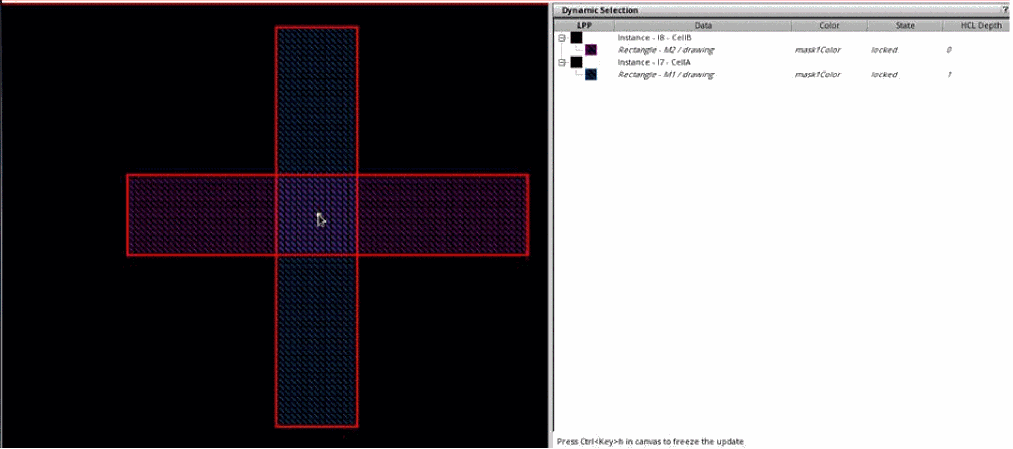
In the following example, the cellview has two instances, I8 - CellB and I7 - CellA. CellB has M2 shape with mask1/locked color and state. MPT coloring for this instance is set at the current cellview as the value of the HCL Depth column is 0. CellA has M1 shape with mask1/locked color and state. MPT coloring for CellA is set one level below the current cellview as the value of the HCL Depth column is 1.
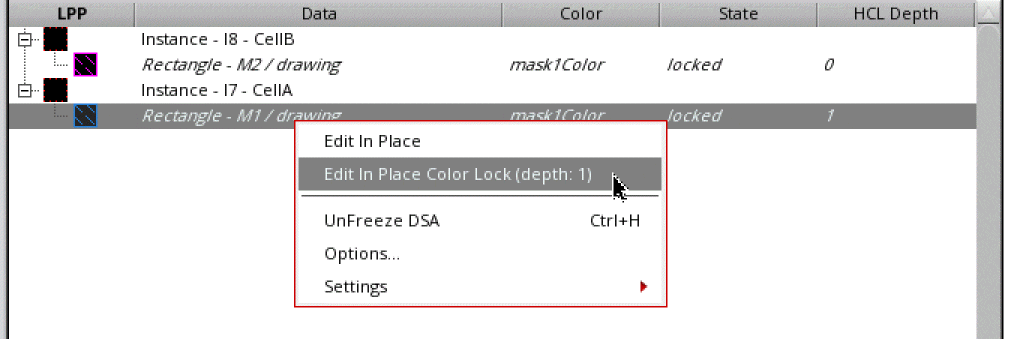
In Layout Suite XL and higher tiers, you can use the Edit In Place Color Lock option in the context-sensitive menu on the Dynamic Selection assistant to edit in place color and lock for the selected shape.
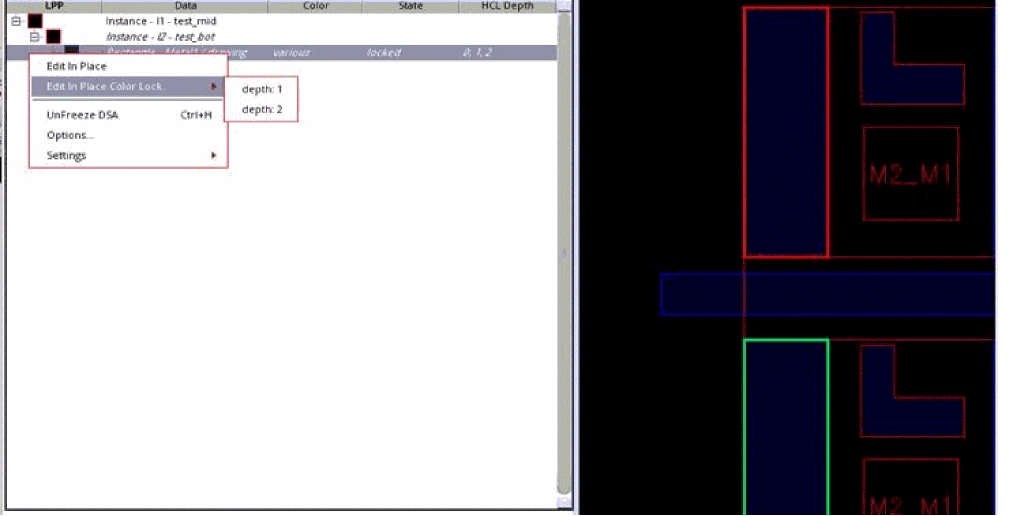
In the following example, there are three colors and three cellviews. The rectangle on the left is inside test_bot instance, instantiated in test_mid, which is instantiated in test_top. The lock color is set on this shape in test_top, then in test_mid, and then in test_bot, with different colors. The HCL Depth column displays values 0, 1, and 2. The value of the Color column is various. The context-sensitive menu option, Edit in Place Color Lock displays a submenu so that you can edit in place in level 1 (test_mid) or 2 (test_bot).
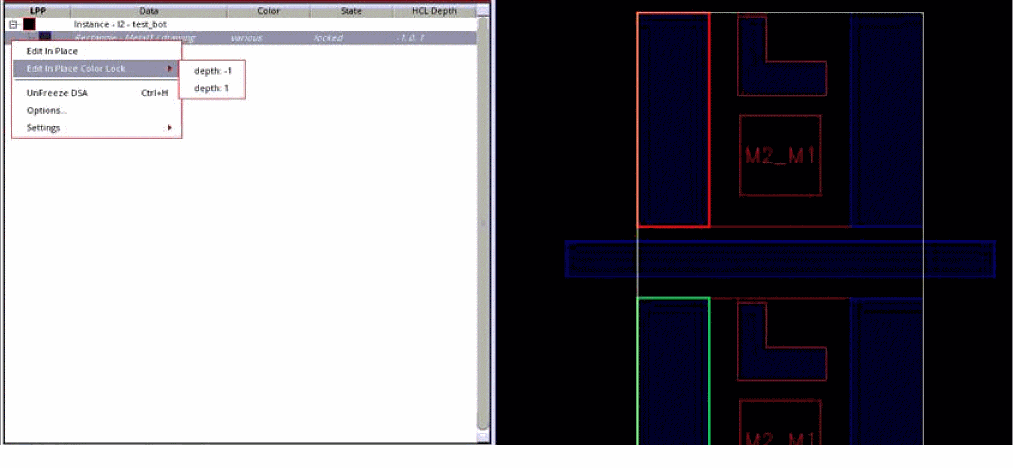
If you edit in place in level 1, the HCL depths are -1, 0, and 1 to reflect the lock states from the current edit level.
Related Topics
Selecting Objects Using the Dynamic Selection Assistant
Return to top