
Object Selection Cycle
In the Selection Options form, when the overlap mode is set to cycle mode, you can select overlapped objects on the canvas one by one by using the left mouse button to select any object and continuing to select them by clicking on the original object until you reach the largest overlapped object.
- Cycle mode is for use when three or more objects overlap at the same point. Cycle mode is window based.
- Cycle mode always cycles from the smallest to the largest object. If you continue to click the original object after reaching the largest object the cycle returns to the smallest object that you first clicked. The cycle repeats by re-selecting the smallest object that you clicked and selecting outwards again to the largest object. If you start by selecting the largest object in the overlapping stack the selection does not cycle back to the smaller objects.
- You must select a smaller object so that each selected point selects larger and larger objects except the one you have clicked on. This does not delete the objects themselves.
- The objects are selected according to the selection filter set for the Layer Selection Window and the Object Selection Window.
-
You can delete one of the selections by using the
Ctrlkey and clicking the left mouse button on the selected object. The objects are deselected in the opposite order in which they were selected. - Once you have selected the objects you want in the set you can also click the selected edge of one of the objects. This deletes all of the selections
- Multiple objects are not retained in the selected set. The final selected object is the selection that is retained. You can unselect by clicking outside of all of the overlapping objects.
-
You can add an unlimited number of objects to the selected set by holding down the
Shiftkey and selecting additional objects.
Selection Cycle of Preselected Objects
When the pointer is on overlapping objects in the design window, press the spacebar to cycle through the preselected objects. In the following example, the pointer is in the area where the three objects M1, M2, and M3 overlap. You can cycle through the preselected objects (dynamic highlight) using the spacebar.
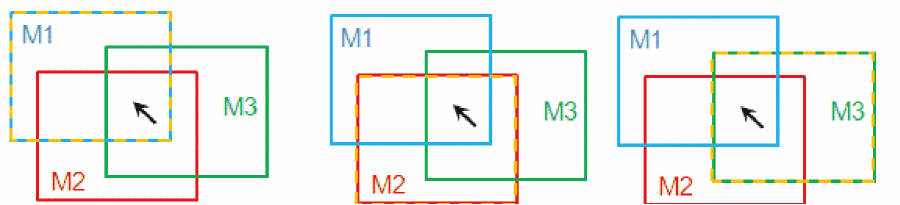
The preselect information is updated simultaneously in the dynamic highlight, Show Selection Info toolbar, and the information balloon. You can cycle through preselected objects even if the Dynamic Highlight option is not selected in the Display Options form. When you use dynamic highlight, the bounding box and label are selected or dynamically highlighted.
Selection Cycle in Partial Selection Mode
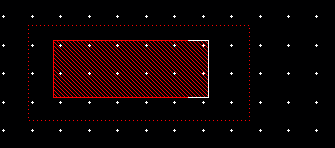
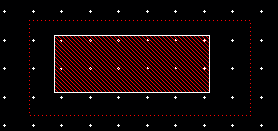
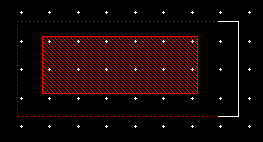
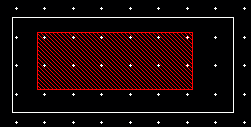
You can select and cycle through a shape in the partial selection mode. The following example illustrates this.
On the first click, the edge of the red shape is selected.
On the second click, the red shape is selected.
On the third click, the edge of the outer shape is selected.
On the fourth click, the outer shape is selected.
Related Topics
Object Information Display Criteria
Return to top