
Compact MPT Mode
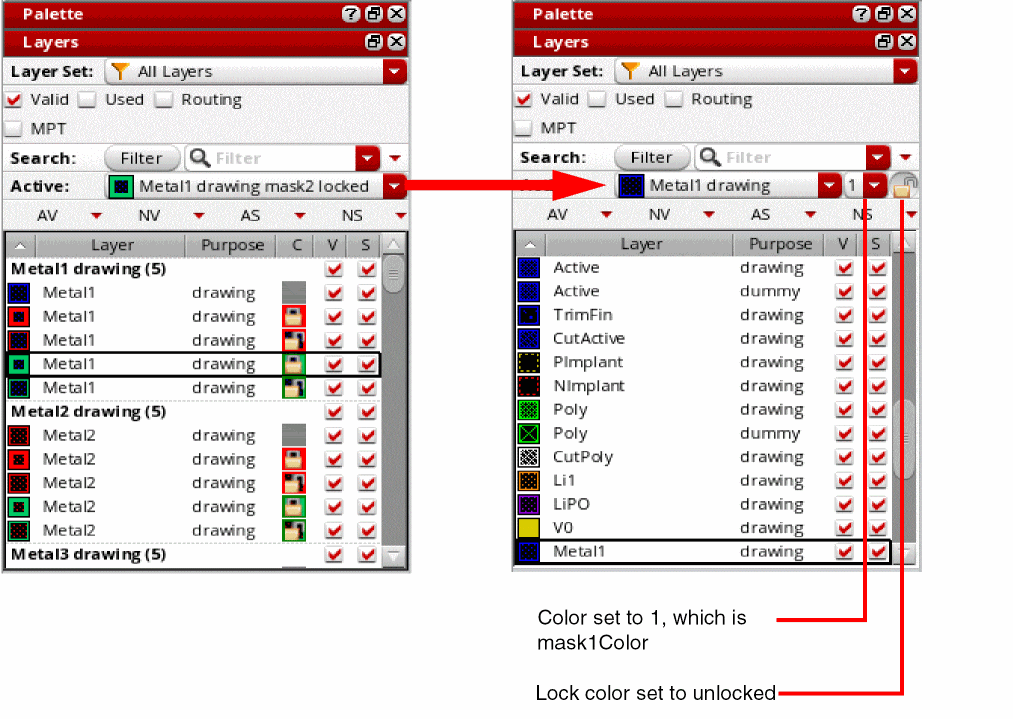
The compact MPT mode hides the C (Color) column in the Layers panel and displays the Color and Lock color options on the Active Layer toolbar. You can use these options to select the color and lock state combination for a layer-purpose pair with color. When you enable compact mode, Color is set to 1, which is mask1Color, and Lock color is set to the unlocked state for an active layer-purpose pair with color, as shown in the figure.
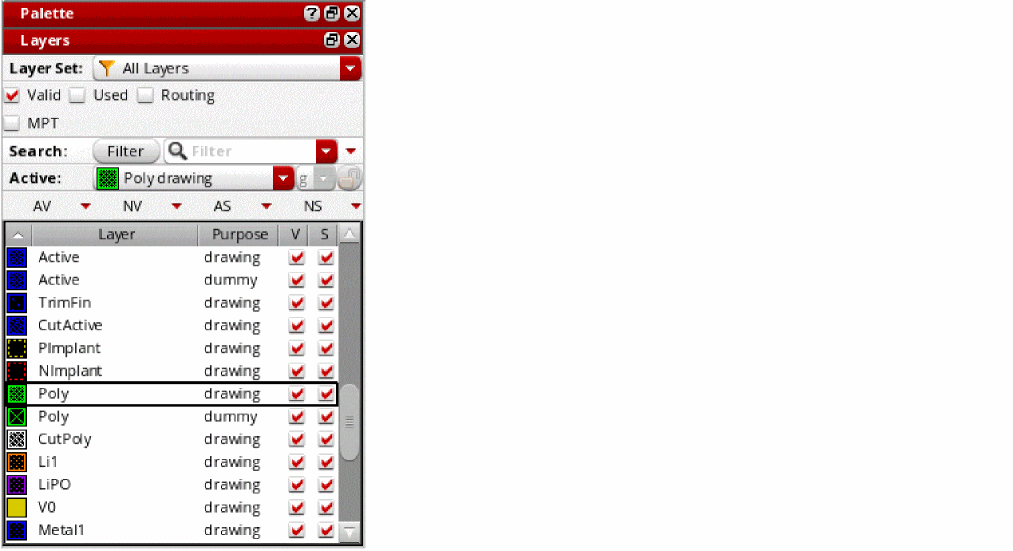
The Color and Lock color options are disabled for layer-purpose pairs without color. The Color for such layer-purpose pairs is set to g (grayColor), as shown in the figure.
You can use any of the following ways to enable compact mode:
- Enable the Compact MPT mode check box in the Options form in an open layout window.
-
Set the pteCompactMPT environment variable to
tat the start of a Virtuoso session to ensure that all layout windows have MPT support set to compact mode by default. -
Use the pteSetOptionString SKILL function. This propagates a change to the
pteCompactMPTenvironment variable in all open layout windows in real time.
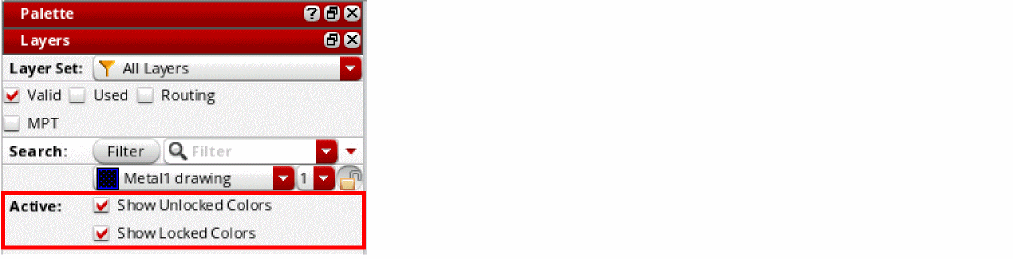
In compact mode, to control the visibility of colored shapes based on their lock status, you can use the Show Unlocked Colors and Show Locked Colors options on the Active Layer toolbar. These options are displayed when the pteShowColorControlsForMPT environment variable is enabled.
Related Topics
Return to top