
Drawing Shapes with Color
-
From the Palette context menu, choose MPT Support.
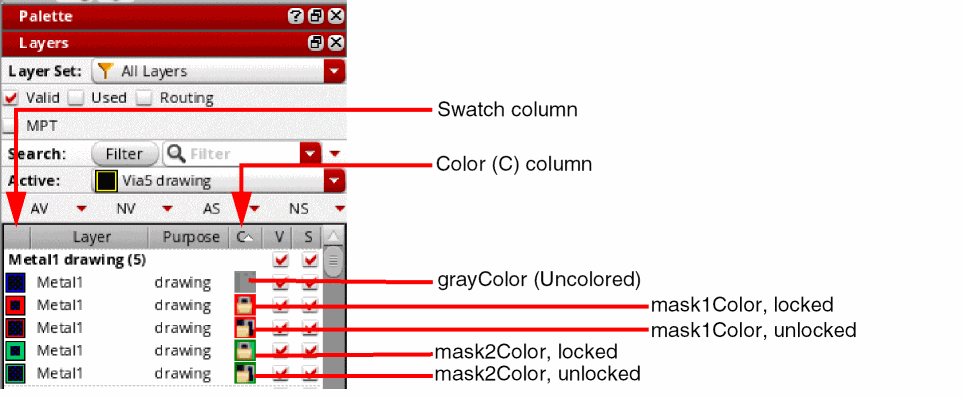
This displays the MPT check box on the Scope toolbar and the C (Color) column in the Layers panel. - Optionally, select the MPT check box if you want to display only the layer-purpose pairs with color.
-
Set a layer-purpose pair that has the required color and lock status as active.
Notice that the icons listed in the C (Color) column for each layer-purpose pair provide color as well as lock information. The swatch displayed in the first column indicates how a shape appears on the canvas.
-
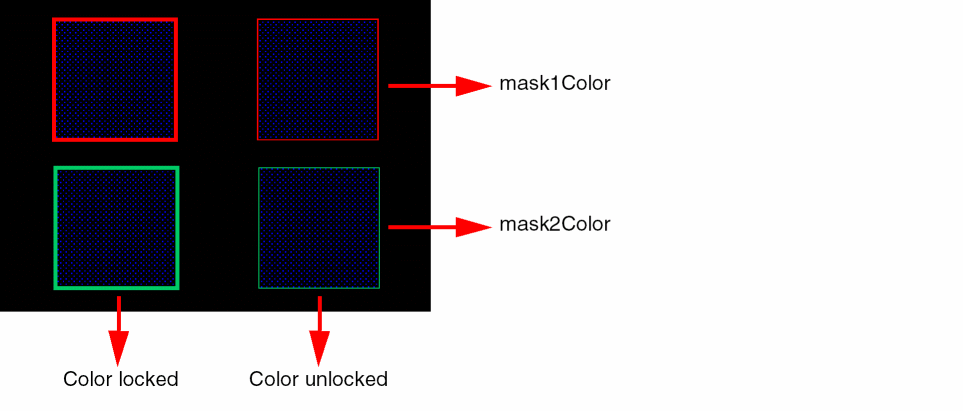
Draw a shape on the canvas.
The color and lock state are automatically set for the shape.
Related Topics
Controls for Display of Shapes
Purpose-Based Display of Color Information
Return to top