
Row Generation
Before running Virtuoso Placer, you must have generated rows in the layout canvas.
Row generation involves the following steps:
-
Defining one or more row templates: Use the Row Template Manager to define row templates.
Row templates are typically set up centrally for use with a particular project or process node and it is unlikely that the layout designer will have to edit them.
The Placement Planning form includes the Row Template field. This section covers the process of defining and generating rows using the Row Template Manager. -
Defining the area where rows should be generated: Use the Region tab of the Placement Planning form to specify the area (Boundary) in which the rows must be generated.
Depending on the area, which could be the PR boundary or a custom placement area, row templates are repeated to accommodate as many rows as possible within the area.
When you select a row template, the Row tab is automatically disabled. You cannot edit row attributes.
If you do not select a row template, you can use the options on the Row tab to define row attributes, as shown in the following figure:
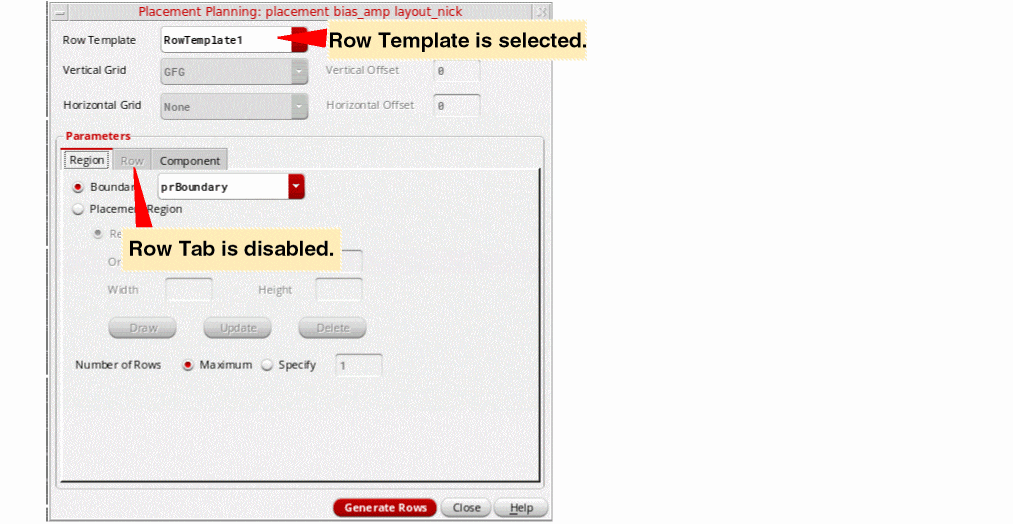
Click Generate Rows to generate rows in the layout canvas as per the specifications in the Placement Planning form.
Related Topics
Creating, Editing, and Deleting a Row Template
Importing a Row Template from Another Cellview
Return to top