
Removing Probes using the Right Mouse Button
An object may have two types of probes—the one added directly and the ones inherited from objects at a higher level. For the inherited probes to be deleted from the object, you need to remove the probe from where it originates.
For the direct probe to be removed from an object, you can use the shortcut menu available through the right mouse button.
Removing a Probe using the Right Mouse Button
To remove a probe on an object using the right mouse button:
-
Select the object in the layout canvas or the navigator and click the right mouse button.
A shortcut menu appears displaying the probing options.
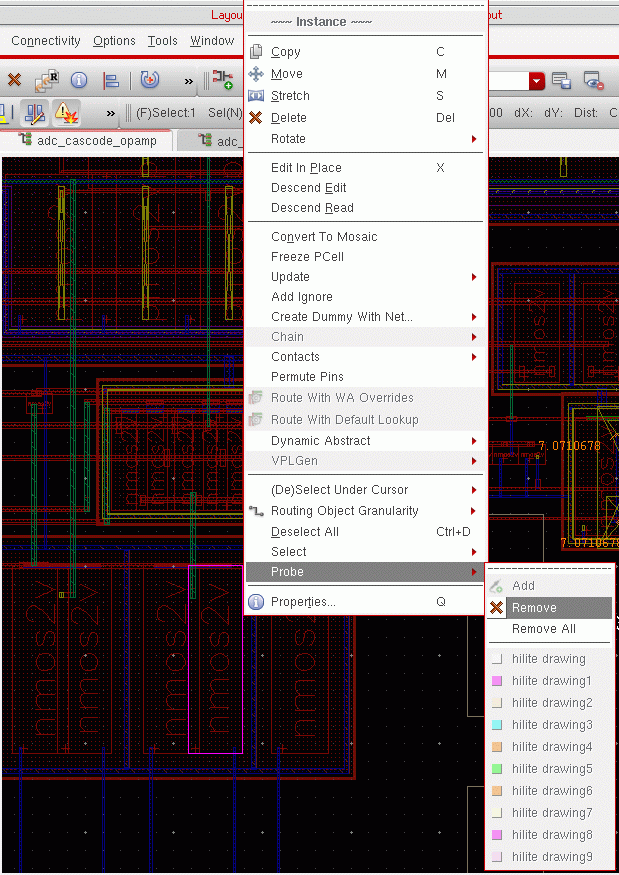
- Click Remove.
The probe on the selected object is deleted.
Removing All Probes using the Right Mouse Button
Unlike removing probes from specific objects, if you want to remove all the probes in a design with a single click; you can use the Removes All option. This removes all the probes in the design, irrespective of the object selected. In fact, the option can also be invoked using the right mouse button with no object selected.
The Remove All option is enabled in the shortcut menu only when a design carries one or more probes. This option allows for a single command to be run on several objects, improving usability and performance. In addition, the same command can be used for removing probes across the schematic and layout views. This not only improves performance but also helps ensure consistency across the two views.
Related Topics
Object Probing Using the Right Mouse Button
Adding a Probe using the Right Mouse Button
Return to top