
Dynamic Probing
The Dynamic Probing feature allows for probing an object on mouse over. For each probe created in the canvas, a corresponding probe in the schematic view is also created. However, as soon as the mouse moves off the object; the probe is removed.
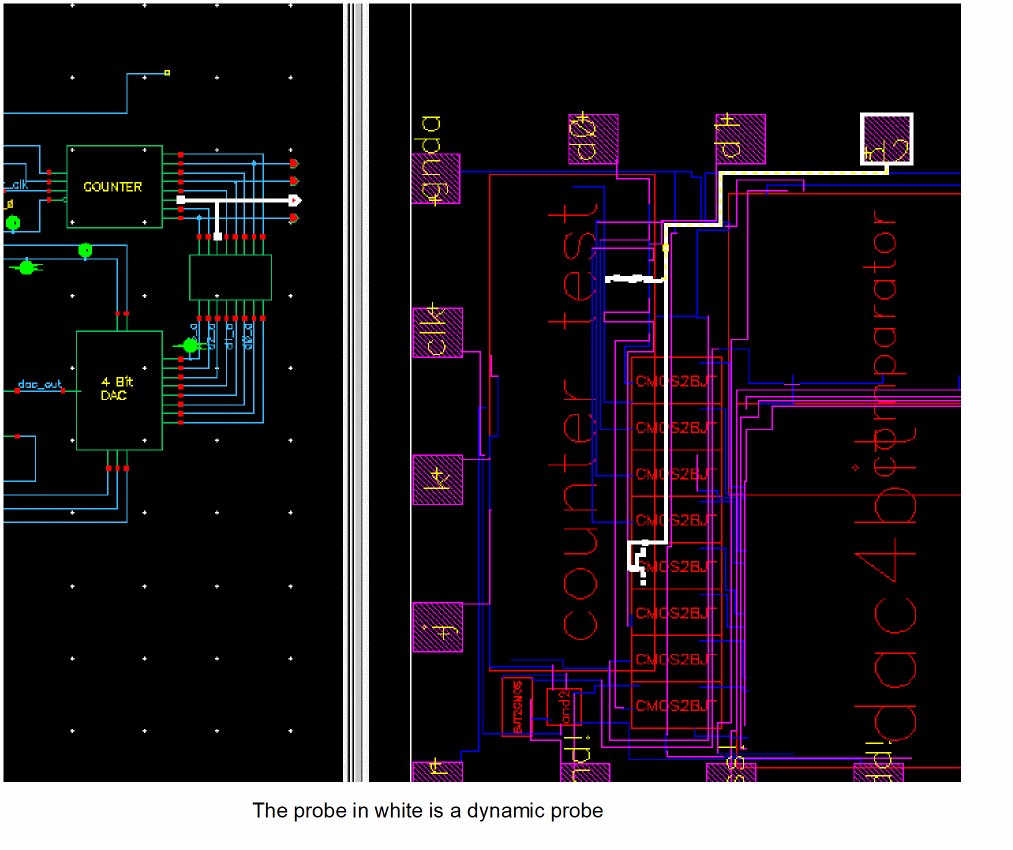
The rules for probe highlighting and color selection are the same as those for adding a new probe. For more information, see Adding a Probe using the Right Mouse Button.
To invoke the dynamic probing feature, access Options – Highlight and select the Dynamic Probe option.
For the probes to be dynamically highlighted in the navigator; make sure the Display Probe option on the Customize Navigator Filters form is selected. To access the Customize Navigator Filters form, click the ellipsis (...) button adjacent to the Show drop-down in the Navigator assistant.
Related Topics
Return to top