
Hierarchy Configuration Cells Table
The Cells table view shows a flat view of the cellviews used in the schematic design and lists the corresponding layout cellview.
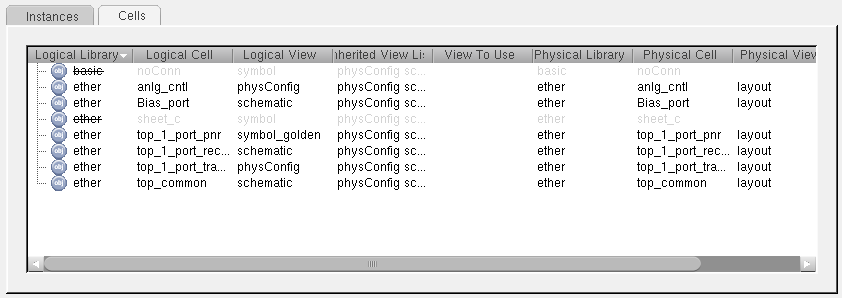
The table lists each cellview explicitly, so if your design contains two instances of the same cell and you specify different views to be used for each instance, then the Cells table lists two entries for that cell, one for each view to use.
There are a number of operations you can perform directly in the table view.
- To sort the tree alphabetically by column within each hierarchical node, click the header of the column you want to sort. Alternate clicks sort in ascending and descending order.
- To edit an entry in a table field directly, double-click the text you want to change and choose a value from the drop-down list or type in the new setting manually.
-
To edit multiple entries for a particular column:
- Select the rows you want to edit.
- Click the right mouse button on the column you want to change and choose Edit multiple <fieldName>.
-
Choose a value from the drop-down list or type in the new setting manually and press
Return.
The value is updated for all the selected rows.
Related Topics
Hierarchy Configuration Mode in the CPH Window
Color Coding in the Hierarchy Configuration Instances and Cells Tables
Shortcut menu for the Hierarchy Configuration Instances and Cells Tables
Return to top