
Splitting Fingered Devices
The Split fingered devices option controls whether each finger of a schematic device will be placed in the layout as a separate device.
For example, if an instance has three fingers in the schematic and finger splitting is selected, three devices, each with one finger, is generated in the layout. If the schematic device also has an mfactor value set, the number of devices generated in the layout is a multiple of the mfactor value and the number of fingers.
Therefore, for a schematic device that has 3 fingers and an mfactor value of 2, the number of devices generated in the layout is:
(number of fingers X mfactor value)
The Split fingered devices option also controls the width of each finger generated in the layout when the finger width is not specified as a CDF parameter but the total width and the number of fingers are specified. In this case, the resulting finger width may not match the schematic finger width because the split finger width is calculated as:
(total width X number of fingers)
To control the generated finger width, you can set the fingerSplitSetWidth environment variable to t.
Alternatively, finger splitting can be set by:
-
Setting the
fingerSplitenvironment variable tot. - Selecting the Split fingered devices option in the Generation of the Connectivity Form form.
To set or unset finger splitting using the Configure Physical Hierarchy window:
-
Click the Instances tab or the Cells tab, and select the device in question.
The Split fingered devices option appears selected (true) or deselected (false), depending on the default value set on the Generation tab of the Connectivity form.
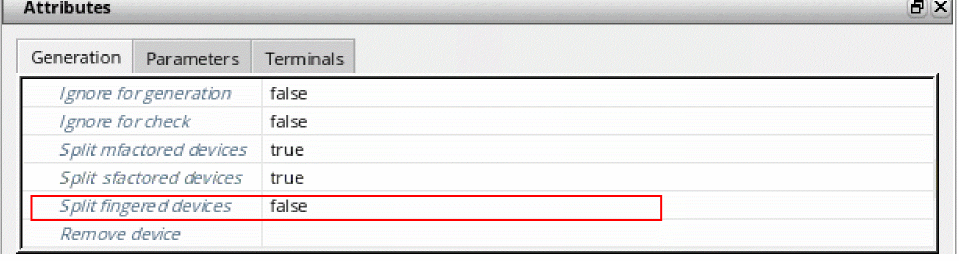
- Set the option as required and choose File – Save from the menu bar to save the physical configuration view.
The new setting takes effect the next time you generate or update the layout view.
Related Topics
Folding a Multi-fingered Device to Create Split Fingers
Return to top