
Connectivity Form
Use the Connectivity form to set Layout XL options either for the current cellview or Layout XL session. The form is split into the following tabs.
General
Use the General tab to define the scope of the options settings you make in the form and to load and save settings from and to an options file.
| Field | Description |
|---|---|
|
This section lets you specify whether the option settings apply for the current cellview only or globally for the current cellview and all the cellviews opened subsequently in Layout XL. |
|
|
Applies the settings to the current cellview and to all cellviews opened subsequently in Layout XL. |
|
|
Applies the settings only to the current cellview. Choosing this option grays out the Connectivity, Generation, and Parameters tabs, along with certain options on the Display and General tabs. |
|
|
This section lets you load, save or delete values to or from a cellview, library, technology library, or options file. |
|
|
Updates the options for the cellview from which you opened the form. |
|
|
Updates the library that contains the cellview from which you opened the form. |
|
|
Updates the technology library of the cellview from which you opened the form. |
|
|
Updates the |
|
|
Ensures that the Copy, Move, Stretch, and Rotate commands honor the following constraints: Alignment, Fixed, Locked, Matched Parameters, Orientation, Matched Orientation, and Symmetry. This is a system-wide setting that applies to all existing and new windows opened in the current Virtuoso session.
Environment variable: |
|
|
This section specifies the connectivity reference for the schematic window. |
|
|
Specifies whether the Virtuoso Schematic Editor is launched when you launch Layout XL or a higher tier and, if the schematic editor is started, which of its tiers opens. You can choose from: Schematic L, Schematic XL, No Schematic. No Schematic implies that the Virtuoso Schematic Editor is not launched. The default is Schematic XL.
Environment variable: The schematic editor tier level does not change when you launch Layout XL from the Virtuoso Schematic Editor XL nor when you switch between layout editor tier levels after Layout XL or GXL has been launched. If you choose No Schematic, the Open connectivity reference during Edit In Place/Descend field is disabled. |
|
|
Specifies whether the source cellview is opened when you use the Edit In Place or Descend commands. When switched off, the layout cellview remains open in Virtuoso Layout XL mode, but with no connectivity reference. The field is disabled if you choose No Schematic for the connectivity reference to Open with. If you choose to open the connectivity reference, you can choose to open the schematic cellview in a new window or a new tab. By default, the schematic cellview opens in a new window. Environment variables: openConnRef, openConnRefTab |
|
|
Closes the schematic window associated with the layout window that is closed, if the layout was opened first in Virtuoso Layout XL or a higher and the schematic window was automatically opened. If the schematic was opened first and then a Virtuoso Layout XL or higher window was launched from the schematic, the schematic window is not automatically closed when the layout window is closed. Environment variable: closeSchWindow |
|
|
This section provides options to specify the list of power and ground net names. |
|
|
Specifies the list of power net names used to achieve optimized chaining results in Layout XL device level schematics. Environment variable: lxSupplyNetNames |
|
|
Specifies the list of ground net names to help you achieve optimized chaining results in Layout XL device-level schematics. Both lists are also used by the Virtuoso Custom Digital placer to exclude power and ground nets during wire length optimization; and to determine the power nets that are hidden when the hideDraglinesForGlobalNets environment variable is switched on. |
Display
Use the Display tab to specify how the Layout XL windows are arranged on the desktop, how draglines are displayed in the layout window, and to control cross-selection and net probing.
| Field | Description |
|---|---|
|
Controls whether Layout XL automatically rearranges its four windows on your desktop when you launch the application. |
|
|
The default is on, meaning that the windows are positioned based on the values specified for the following environment variables: ciwWindow, lamReadFileMessage, lxAllowPseudoParallelNets, and schematicWindow. If those environment variables are not set, or they are set to the default value "((0.0 0.0) (0.0 0.0))", Layout XL tiles the three windows based on the height and width of your screen. This option is not available in Cellview mode.
Environment variable: |
|
|
Toggles the display of draglines when using the Generate Selected From Source, Generate Clones, Move, and Stretch commands. If the option is OFF, the options in this section are disabled. |
|
|
By default, the Display Draglines option is ON.
Environment variable: |
|
|
Displays draglines for all the connections to the instance that is being manipulated. When switched OFF, draglines are shown only for the connections closest to the current instance.
Environment variable: |
|
|
Hides draglines for global nets and power and ground nets specified using the lxGroundNetNames and lxSupplyNetNames environment variables. |
|
|
Shows each dragline in a different color.
Displaying many draglines during interactive commands can impair the performance of Layout XL. To mitigate these effects, use the
To set
To set a default value for graphic maxDragFig int 1000 nil Environment variable: colorDraglines |
|
|
Enables cross-selection of components between schematic and layout. When you select a component in the layout, the corresponding component is selected in the schematic and vice versa, unless the instance is ignored in either view. Environment variable: crossSelect |
|
|
Controls whether nets that are tapped during interactive editing are highlighted in the layout canvas. Environment variable: probeDuringCreate |
|
|
Messages - Redirect Layout XL messages to separate Info window |
Shows the messages issued by the Check Against Source, Update Layout Parameters, and Update Schematic Parameters commands in a separate info window instead of in the CIW. Environment variable: infoWindow |
Connectivity
Use the options on the Connectivity tab to set the Layout XL parameters for the current design. If you change any of the options on this tab, the new settings are taken into account on the next interactive editing, if interactive verification is enabled. Else, the new settings are considered for the whole design if you extract the design by using the Extract Layout command.
This tab is not available in Cellview mode. See the
The Connectivity tab is further split into the following tabs:
Controls
| Field | Description |
|---|---|
|
This section specifies the verification controls for the layers in the design. |
|
|
Sets the default constraint group from which Layout XL derives the extractable layers in the design.
See |
|
|
Displays extraction-related information about the selected constraint group and appropriate warning messages to indicate if the technology file has been correctly set up for extraction. You can display the report in a separate information window or in the CIW. |
|
|
Specifies how much of the design hierarchy the extractor considers when extracting the top-level design. See Extracting a Top-Level Design.
Whatever value you set for Extract connectivity to level, the extractor only extracts the top level; i.e., it only changes the connectivity of objects or creates markers at the top level of the design. To extract hierarchical cellviews, set the value of this option to a value greater than |
|
|
Enables incremental connectivity extraction, which updates the connectivity model whenever the design is modified. When switched off, the connectivity model is not updated automatically and no new short or open violation markers are generated in the layout window. Even when incremental extraction is switched off, you can run connectivity extraction at any time using the Connectivity – Update – Extract Layout command.
Environment variable: |
|
|
Allows connections to the substrate and sets the well layer connections as soft connections in the current cellview. |
|
|
Indicates the identifier that when placed after the net name in the label text means that the corresponding set of physically connected shapes are virtually-connected. By default, colon (:) is used as a virtual-connect identifier. The connectivity extractor does not report open markers between virtually connected shapes. However, after extraction, an INFO message is issued in the CIW, which indicates the number of virtual connections.
Environment variables: If virtual connections are enabled, a colon (:) at the end of a terminal name is not considered as a name mismatch. |
|
|
Specifies that the connectivity of non-pin shapes in Pcells is extracted. |
|
|
Checks and prevents incorrect shorts due to incorrectly assigned shapes in Pcells. By default, the option is deselected. This option is available only if Extract through pcells is selected. |
|
|
This section specifies the controls on stop layers during extraction. |
|
|
Specifies whether stop shapes at the
Environment variable: |
|
|
Specifies whether lock state of shapes should be ignored during extraction.
Environment variable: |
|
|
This section specifies the connectivity assignment of the shapes and instance pins. |
|
|
Preserves the connectivity of a design by keeping the shapes assigned. By default, the option is deselected.
Environment variable: |
|
|
Ensures that shapes that are connected to a connectivity source, such as a pin, an instance terminal, or a label, automatically have their lxStickyNet Property property removed to avoid any shorts or illegal must connections. By default, the option is OFF.
Environment variable: During a Copy or Repeat Copy run with Copy Connectivity selected, the option automatically removes the lxStickyNet Property property on floating sticky shapes to avoid any shorts or illegal must ‘connections. 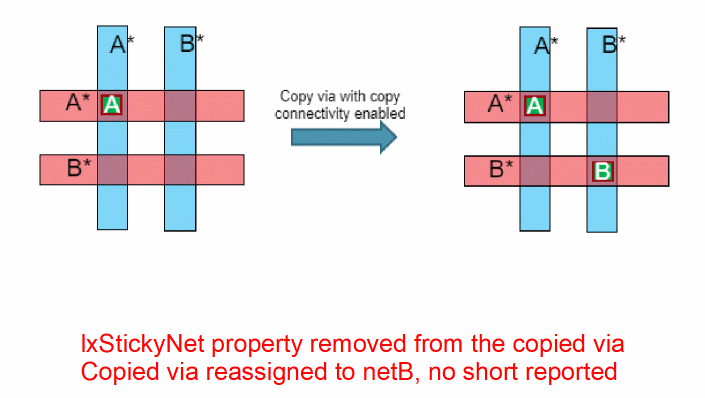 The lxStickyNet Property property on a shape is not removed if the sticky shape is created by a router. 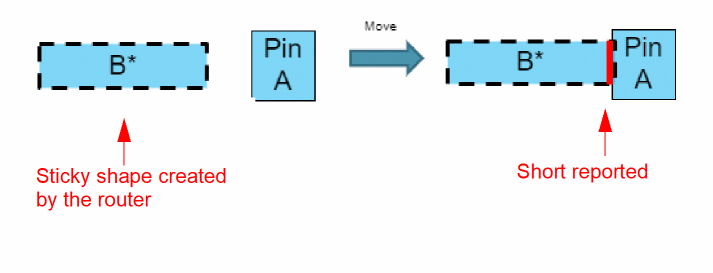 |
|
|
The sticky shape and the pin are on the same net. 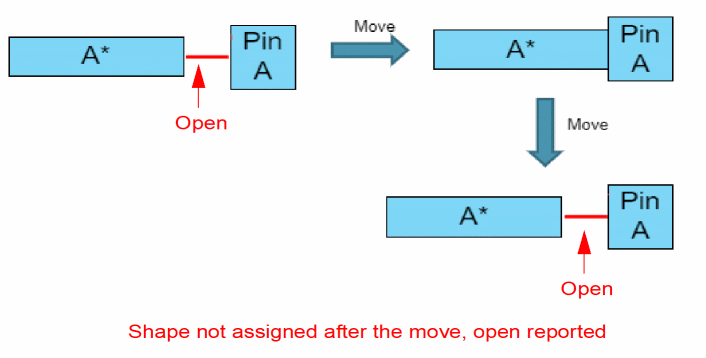 The sticky shape is stopped by another layer. 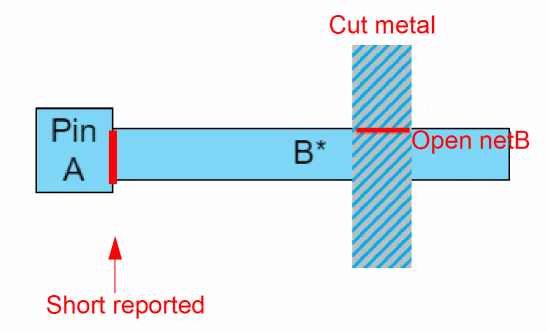 |
|
|
Ensures that an instance pin is automatically connected to the net assigned to the overlapping shape. By default, the option is ON. For example, consider an unassigned instance terminal that overlaps a shape connected to a net. If the option is ON, the instance terminal is assigned to the net. If the option is OFF, an illegal connection marker is created in the Annotation Browser and the instance terminal stays unassigned.
Environment variable: |
|
|
Ensures that a top-level shape with an attached label is automatically connected to the net referenced by the label text. By default, the option is OFF.
See |
|
|
Assign shapes from overlapping labels as defined by ‘stampLabelLayers’ rule |
Ensures that a shape overlapping the origin of a label is assigned to the net referenced by the label text. By default, the option is OFF. |
Diagnostics Report Displays extraction-related information about the selected constraint group and appropriate warning messages to indicate if the technology file has been correctly set up for extraction. You can display the report in a separate information window or in the CIW (see Extractor Diagnostics Options Form for more information).
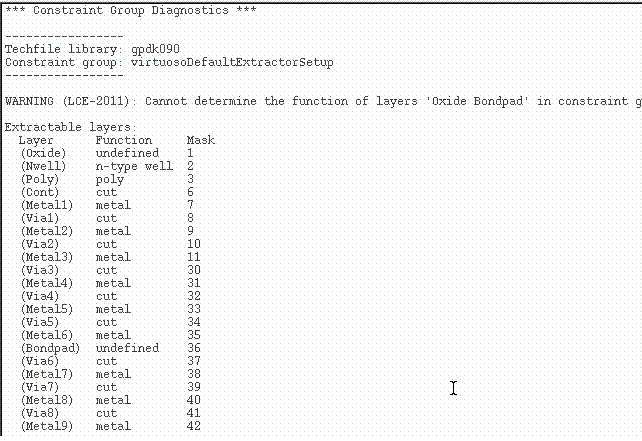
The report, as displayed above, contains the following information:
- Details about the extractable layers, equivalent layers, and other similar extraction-related information generated by the lcePrintExtractLayers() SKILL function.
- Details about the standard via and custom via definitions generated by the lcePrintExtractVias() SKILL function.
- Warning messages generated by the extractor to indicate errors in the technology file setup for the selected constraint group.
-
Details about the options selected on the Connectivity tab that determine the way the selected constraint group is parsed for extraction.
For example, depending on the options selected on the Connectivity Assignment tab, the extractor may parse the selected constraint group to verify connectivity from stamp labels and to substrate or well layers.
The details about the various sections in the Diagnostics Report and the information these sections provide about the extracted design is tabulated below:Section Purpose Lists the physical layers that have been selected for extraction by using the
validLayersconstraint.For more information, see validLayers.
Lists the layers that have been defined as electrically equivalent.
For more information, Connectivity Rules.
Lists the layers that are electrically-connected.
For more information, see validLayers.
Lists the layers that can be used to define the bulk area of shapeless terminals.
For more information, see validLayers – Bulk Area Layers Specification and Bulk Area Connectivity Extraction.
Lists the layers that are defined as “stopped” other layers.
For more information, see validLayers – Stop Layers Specification.
Lists the layers that can be used to create labels that stamp other layers.
For more information, see
stampLabelLayers .Lists the valid standard via definitions that have been parsed by the extractor.
For more information, see
Via Definitions .Lists the valid custom via definitions that have been parsed by the extractor.
For more information, see
Via Definitions .Lists the derived layers that have been parsed by the extractor for the '
validLayers' constraint.For more information, see Derived Layers.
Lists the layer purpose pairs that are not recognized by the extractor.
Annotations
| Field | Description |
|---|---|
|
Reports open violations in the design. When switched OFF, none of the dependent options is honored by Layout XL.
Environment variable:
|
|
|
Reports the open net connections for pins that have the |
|
|
Reports the weak-connect violation markers for the current cellview in Annotation Browser.
Environment variable: |
|
|
Reports the must-connect violation markers for the current cellview in Annotation Browser.
Environment variable: |
|
|
Reports the illegal hierarchical connections in the current cellview.
Environment variable: |
|
|
Ignores the unassigned hierarchical shapes when checking illegal hierarchical connections.
Environment variable: |
|
|
Reports illegal overlap violations for color-dependent stopping of shapes. By default this option is deselected. See Support for Color-Dependent Shape Trimming.
Environment variable: |
|
|
Reports the overlap between two sub-nets of a pseudo-parallel net.
Environment variable: |
Limits
| Field | Description |
|---|---|
|
Specifies the highest number of open violation markers that can be generated by the extractor for a particular net or cellview. By default, the extractor can generate a maximum of 100 open violation markers per net and 5000 open violation markers per cellview.
Environment variables: |
|
|
Specifies the highest number of short violation markers that can be generated by the extractor for a particular net or cellview. By default, the extractor can generate a maximum of 100 short violation markers per net and 1000 short violation markers per cellview.
Environment variables: |
|
|
Specifies the highest number of illegal connections that can be reported by the extractor for a particular design. By default, the extractor can report a maximum of 1000 illegal connections per design.
Environment variable: |
|
|
Specifies the highest number of unnecessary pseudo-parallel connections that can be reported by the extractor for a particular cellview. By default, the extractor can report a maximum of 1000 such connections per cellview.
Environment variable: |
|
|
Specifies the highest number of invalid connection markers that can be generated by the extractor for a particular net or cellview. By default, the extractor can generate a maximum of 100 invalid connection markers per net and 1000 invalid connection markers per cellview. (Virtuoso MultiTech Framework) |
Generation
Use options on the Generation tab to specify how certain components are handled when they are generated in the layout view. This tab is not available in Cellview mode.
See General tab.
| Field | Description |
|---|---|
|
This section lets you specify the options available in Generation section. |
|
|
Controls whether Layout XL places schematic devices with the mfactor Property property as multiple devices in the layout. See Splitting Mfactored Devices. Environment variable: mfactorSplit |
|
|
Controls whether Layout XL places schematic devices with the sfactor Property property as multiple devices in the layout. See Splitting Sfactored Devices. Environment variable: sfactorSplitsfactorSplit |
|
|
Controls whether each finger of a schematic device will be placed in the layout as a separate device. See Splitting Fingered Devices. Environment variable: fingerSplit |
|
|
Enables the detection of pseudoparallel nets during chaining. A pseudoparallel net connects nodes that are always the same voltage, so the current does not pass through the net. See Generating a Layout without Chaining and Folding on Pseudoparallel Nets and Defining a Pseudoparallel Connection. Environment variable: setPPConn |
|
|
Creates, checks, and updates implicit bus terminals in the layout cellview based on the explicit bus terminals in the schematic cellview. This avoids the need to run verilogAnnotate on the layout cellview before referencing the cellview for:
The Create implicit bus terminals option is OFF by default.
Environment variable: |
|
|
Controls the orientation of Layout XL layout devices generated from the schematic. Devices generated with a particular orientation may be further transformed if either the Chain, Fold, or Chain Folds options are switched on.
Environment variable: |
|
|
Controls the snapping of the PR boundary and the area boundaries when running the Generate All From Source or the Adjust Boundary command.
Environment variable: |
|
|
Turns on automatic abutment, which abuts prepared devices so that they can share pins. Abutment is switched on for both automatic and interactive layout generation and during automatic placement using the Virtuoso Custom Digital Placer. Environment variable: autoAbutment
|
|
|
Turns on automatic spacing, which allows components with the properties vxlInstSpacingDir Property and vxlInstSpacingRule Property to be spaced automatically according to the values specified in the properties. If one of the devices is in any type of group (including a synchronous clone), the other device must be in the same group for automatic spacing to occur. Environment variable: autoSpace |
|
|
Turns on automatic pin permutation during manual routing or editing. See permuteRule Property. |
|
|
Specifies that if a short violation is created during abutment, then Layout XL first mirrors the device to resolve the short. If this is unsuccessful, Layout XL attempts to resolve the short by permuting the pins. If you switch the option off, Layout XL uses only pin permutation when attempting to resolve shorts. If one of the devices is in any type of group (including a synchronous clone), the other device must be in the same group for automatic mirroring to occur.
Environment variable: |
|
|
Specifies if the XL fixer engines, such as auto-permute, auto-mirror, auto-spacing, and auto-abutment, should process the violations during batch extraction.
Environment variable: |
|
|
Creates the minimum number of folded devices. When switched off, Layout XL generates an odd number of folded devices. For example, it adds one fold if the device width divided by number of folds yields an even number.
Environment variable: |
|
|
Preserves the original device orientation when running the Generate Folded Devices command or the Generate All From Source command with the Fold option switched on. If the Chain option is also switched on, device orientation is not preserved. Environment variable: lxRetainFoldOrient |
|
|
Specifies how the Update Layout Parameters command updates folded devices when the width value is changed in the schematic.
|
|
|
The Update Layout Parameters command applies Environment variable: lxUpdateFoldedWidth |
|
|
Automatically identifies nodes that qualify as pseudoparallel connections and defines them during chaining and abutment. A pseudoparallel net connects nodes that are always the same voltage, so the current does not pass through the net. Contacts are dropped automatically, if appropriate. However, if the Preserve terminal contacts option is switched on, the contacts are preserved. This option applies only when chaining is turned on. It does not control the automatic identification and creation of pseudoparallel nets during manual abutment. To do that, switch on Create pseudoparallel connections. Environment variable: lxAllowPseudoParallelNets |
|
|
Controls how far up the hierarchy Layout XL looks for opportunities to chain devices. A value of This option is always considered by the Generate All From Source and Generate Selected From Source commands. However, the Generate Chained Devices command considers it only if there are 100 instances or more in the selected set. Environment variable: lxStackPartitionParameters |
|
|
Controls the alignment of p-device chains. The default alignment for p-device chains is “Top” but you can choose to align a chain to “Bottom” or “Center”. Environment variable: lxChainAlignPMOS |
|
|
Controls the alignment of n-device chains. The default alignment for n-device chains is “Bottom” but you can choose to align a chain to “Top” or “Center”. Environment variable: lxChainAlignNMOS |
|
|
Controls whether source or drain nets are optimized to the left of the generated chains. The default is Source, which means a chain is optimized so that one of its source nets is on the left-hand side (where possible). Set to Either if you have no preference (and to maintain the default behavior from previous releases). Source and Drain here refer to schematic source and drain nets, and not the layout source and drain nets, which may have been permuted. Environment variable: chainLeftNet |
|
|
Controls the effort applied during chaining. Increased effort can improve the quality of results, but it can be time-consuming. Environment variable: chainEffort |
|
|
Optimizes the chains by minimizing the number tracks or maximizing the number abutments or both. Environment variable: chainOptimize |
Parameters
Use options in the Parameters tab to specify which parameters are to be ignored by the generation and check command and how parameters are compared during Check Against Source.This tab is not available in Cellview mode. See General tab.
| Field | Description |
|---|---|
|
This section lets you specify the names of parameters to be ignored or checked by the check and update commands and the names of properties that cause objects to be ignored during generation and check. |
|
|
Adds to the list a parameter or property name you have typed into the text field. |
|
|
Removes the selected parameters or properties from the list. |
|
|
This field list the parameters and properties that need to be checked. |
|
|
Lists only those parameters that are checked by the Check Against Source command. Cadence recommends that you use the LAM file to set the parameters or provide an exhaustive list of parameters to be checked. Environment variable: paramsToCheck |
|
|
Lists the parameters that are ignored by the Check Against Source command. Mismatches for any of the listed parameters are not reported by the check. The list inherits all the parameter names from Parameters to ignore during generation. Environment variables: paramsToIgnore, paramsToIgnoreForCheck |
|
|
Lists the parameters that are ignored by the following Connectivity commands: Generate – All From Source, Generate – Selected From Source, Generate – Clones, Update – Components And Nets, Update – Layout Parameters, Update – Schematic Parameters.
The following parameters are always ignored: Environment variable: paramsToIgnore |
|
|
Lists the properties that cause pins and instances to be ignored by the Check Against Source command. Any object with one of the listed properties set to Environment variable: propsUsedToIgnoreObjsForCheck |
|
|
Properties used to ignore objects during generation and update |
Lists the properties that cause pins and instances to be ignored during the generate, check, and update commands listed above. Any object with one of the listed properties set to By default, the list contains the following properties. lxRemoveDevice ignore nlAction Environment variable: propsUsedToIgnoreObjs |
|
Lists the parameters or properties that are inherited from the list defined for generation. Parameters and properties ignored for generation are always ignored for check. |
|
|
This section lets you specify the names of special parameters used in the schematic. Select the parameter you want to edit from the cyclic field and type the names in the text field. |
|
|
Lists the names of the schematic parameters used to specify the multiplication factor ( Environment variable: mfactorNames |
|
|
Lists the names of the schematic parameters used to specify the number of series-connected ( Environment variable: sfactorNames |
|
|
Lists the names of schematic parameters used to specify transistor width. The default is
Environment variable: |
|
|
Lists the names of the schematic parameters that are used to specify capacitance. The default is The capacitance value must be split among the generated series-connected devices during the Generate All From Source, Check Against Source, or Update Layout Parameters commands. Layout XL checks each schematic instance for one of the listed parameter names and updates the capacitance values of the matching layout parameters accordingly. Environment variable: capacitanceParamNames |
|
|
Lists the names of the schematic parameters that are used to specify resistance. The default is Environment variable: resistanceParamNames |
|
|
Lists the names of the schematic parameters that are used to specify inductance. The default is Environment variable: inductanceParamNames |
|
|
Lists the schematic parameters that are recognized as finger values when generating the layout. Layout XL checks each schematic instance for one of the listed parameter names and generates the device in layout with as many fingers, if applicable, based on the finger value associated with that parameter name. However, if fingerSplit is set to |
|
|
Lists the schematic parameters that are set to indicate a single instance of a resistor with one or many segments. The name of each segment is unique and can be set by using the |
|
|
This section lets you defines how CDF parameters and properties are compared during the Check Against Source, Update Layout Parameters, and Update Schematic Parameters. |
|
|
Compares only CDF parameters in the schematic against the parameters and properties in the layout and reports (or updates) values that do not match, parameters that cannot be checked, and parameters that are missing from the layout view. By default, parameters that are present in the schematic but missing from the layout are ignored. To propagate the missing parameters to the layout, make sure the Ignore missing parameters or properties check box is OFF. Environment variable: checkParamsOnly |
|
|
Checks CDF parameters and cell and instance properties in the schematic against the parameters and properties in the layout and reports (or updates) values that do not match, parameters that cannot be checked, and parameters that are missing from the layout view. Use this option to check or update user-defined properties in the schematic and layout or when you know that a particular instance has certain properties that you are interested in comparing or updating. By default, parameters and properties that are present in the schematic but missing from the layout are ignored. To propagate the missing parameters and properties to the layout, make sure the Ignore missing parameters or properties check box is OFF. Environment variable: checkParamsOnly |
|
|
Ignores parameters (and properties, if Consider parameters and properties is checked) that are present in one view but missing from the other. Switch off this option if, for example, your layout has additional parameters or properties that you want to propagate to the schematic using the Update Schematic Parameters command. Environment variable: checkMissingParamsOrProps |
|
|
Specifies the relative tolerance used when comparing values between the schematic and layout.
If Environment variable: paramTolerance |
|
|
Transfers properties from schematic instances to layout instances during the Generate All From Source or Generated Selected From Source commands. Properties are transfered in addition to the CDF parameters, which are always transferred. |
|
|
Updates instance parameters, ignoring the parameters that are defined as parameters to be ignored for generation or the parameters to be ignored for check. See Ignore Parameters and Terminals. By default, the option updates instance parameters based on the parameters to check or parameters to ignore for check. In this case, only the parameters marked for checking are updated if they report a parameter or property mismatch during Check Against Source. The parameters that are ignored during the check do not report a mismatch and are not updated. Environment variable: updateParamsForCheck |
|
|
Updates the value of schematic parameters that are defined as expressions with the evaluated layout values, when the parameter values across the two views are different. Environment variable: updateSchParamWithEvalValue
By default, the option is ON, which implies that all the schematic parameter values, including that of schematic parameters that are expressed as AEL or NLP expressions, are updated with the layout parameter values, when the evaluated schematic and layout parameter values are found to be different. For schematic parameter values that are expressions, the automatic update can overwrite the expression parameter values with the fixed value of the evaluated layout parameter. To avoid the automatic update, you can set updateSchParamWithEvalValue to |
|
|
This section lets you specify the format of component description. |
|
|
Causes all SKILL callbacks defined on CDF parameters to be evaluated by default when you run the Generate and Update commands in Virtuoso Layout Suite XL. Callbacks defined on buttons are not evaluated. Environment variable: lxEvalCDFCallbacks |
|
|
Controls the number of significant digits used by Layout XL when calculating the value of layout CDF parameters. When the option is selected, the value it specifies overrides the setting of The Use significant digits when calculating parameter values check box is available only if the shell environment variable CDS_Netlisting_Mode is set to Analog. |
Configure
Use options on the Configure tab to know the values that environment variables that are associated with the Preset options are set to when the Connectivity form is launched. Similarly, for form fields that are manually updated to use a different value, the Configure options reflect the current state of the updated form fields.
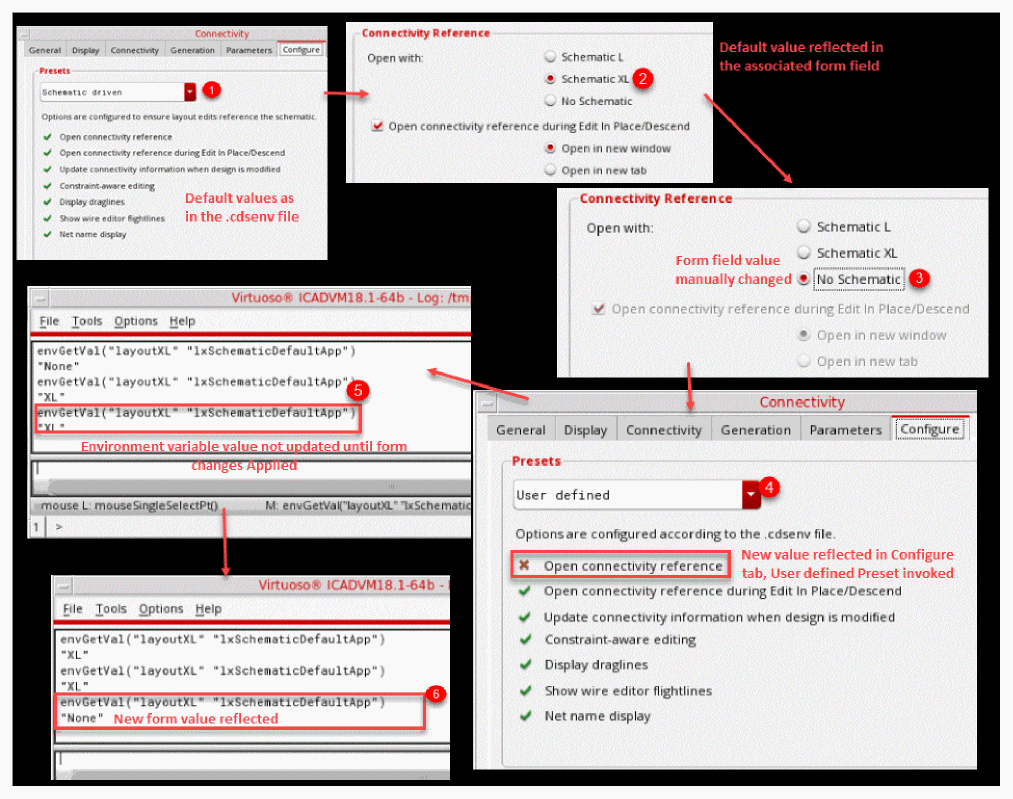
Environment variable: displayConfigureTab
| Field | Description |
|---|---|
|
Reflects that all the form fields associated with the Preset options have their value set to ON, implying the option is selected. |
|
|
Reflects that all the form fields associated with the Preset options have their value set to OFF, implying the option is deselected. |
|
|
Reflects that the form fields associated with the Preset options are neither Schematic driven (all fields set to ON) nor Non schematic driven (all fields set to OFF). If the Connectivity form is already open, the Configure tab is switched to User defined Preset mode. The associated environment variable is also set to the new form field value, after the form field value is applied. If the Connectivity form is opened again in the same Virtuoso session, it opens the Configure tab in User defined Preset mode, using the new form field value. |
|
|
Options are configured to ensure layout edits reference the schematic |
|
|
Related Topics
Placement Modes for Generating Selected Components from Source
Return to top