
Net Name Display
Layout XL enables you to add net name labels in the layout canvas for shapes that have associated labels. Having the net name labels display in the layout canvas makes layout editing simpler, especially for large designs.
As illustrated in the figure below, having the net name labels display on the canvas make it easy to identify the nets that are associated with a shape in the cellview.
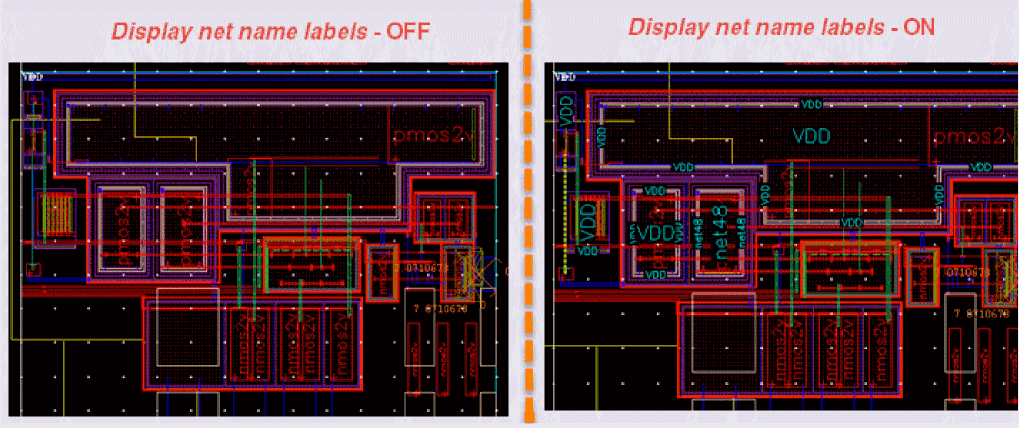
You can use the Options – Net Name Display command to enable the display of net name labels for shapes, or use the geEnableNetNameDisplay SKILL function.
The Net Name Display command opens the Net Name Display Options form that lets you customize the label display. Alternatively, you can use the geNetNameDisplayOptionForm SKILL function to open the form.
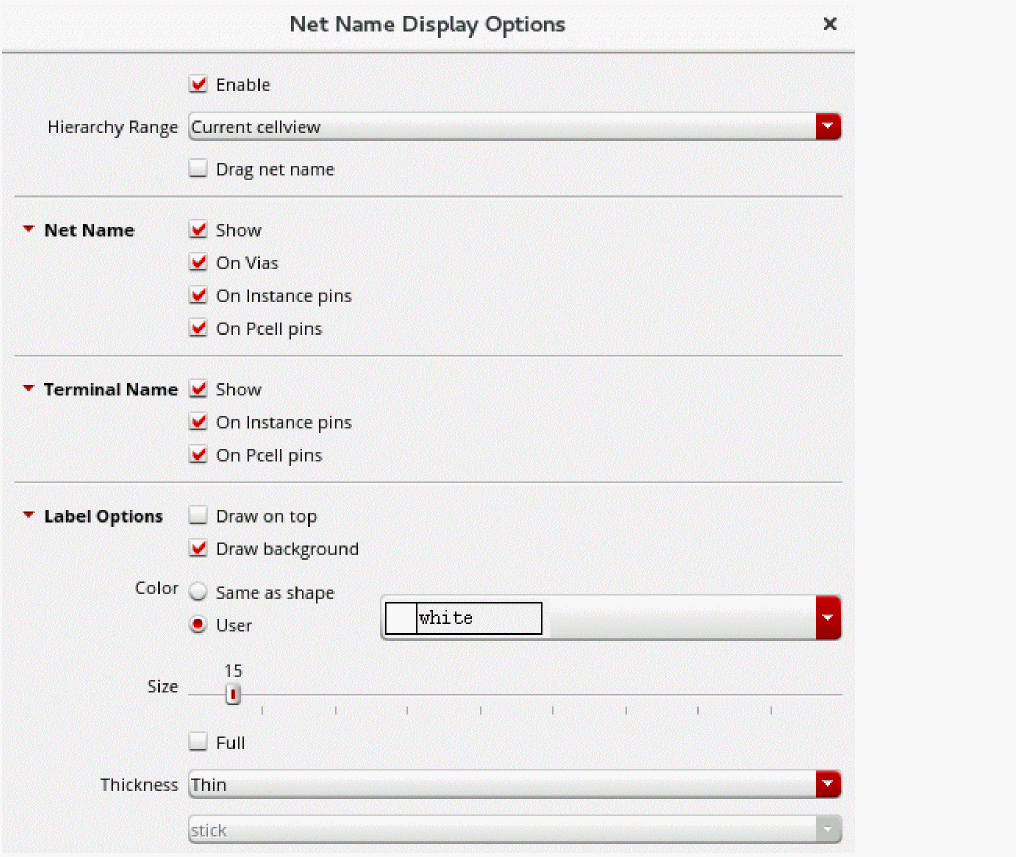
You can also use the associated Options toolbar icon  , to launch the Net Name Display Options form .
The toolbar displays a slightly different icon  , when Name Filtering is selected in the Net Name Display form. Net Name Filtering enables you to selectively display (or hide) the net name labels in the layout canvas.
By default, the display of net name labels in the layout canvas is enabled. You can use the Display net name labels option on the form to turn the label display off. Alternatively, you can use the netNameDisplayEnabled environment variable to control the net name display.
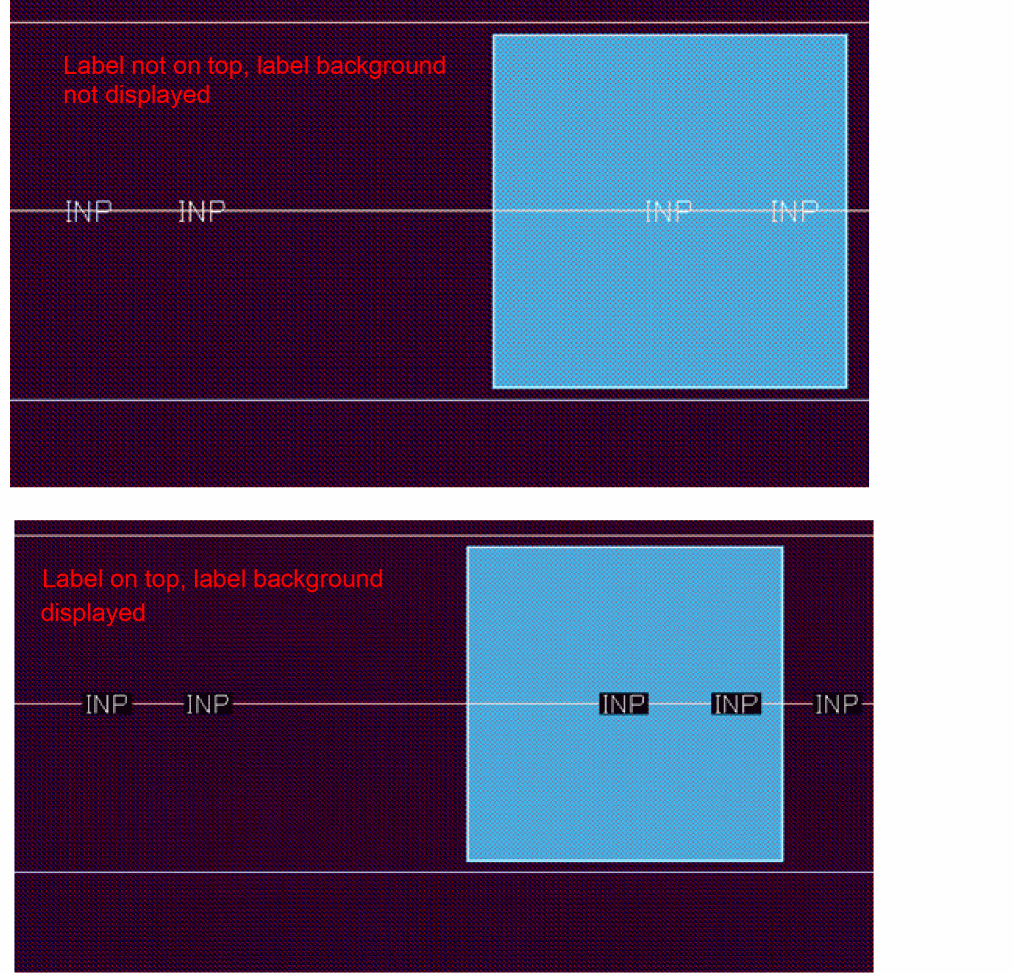
Layout XL lets you choose whether to display the label background as well on top of the shape, as displayed in the figure below. Displaying the label background makes the label appear prominently on the canvas. The figures below illustrate how adding a background can make the label appear more prominent.
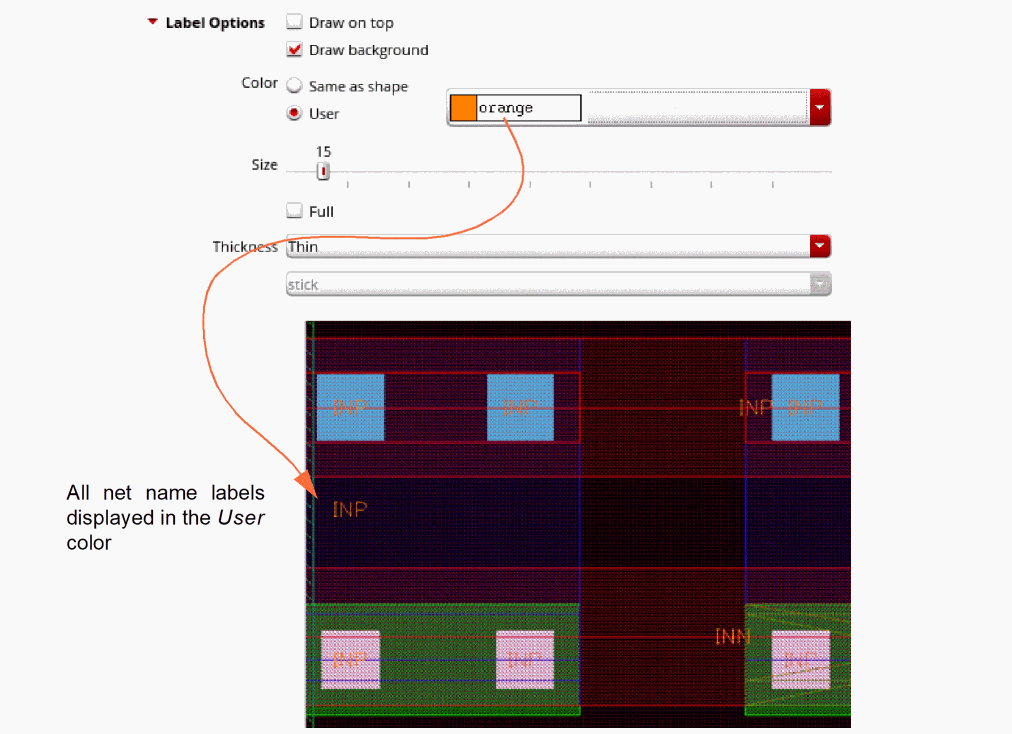
Depending on the device colors in the design, you can choose an appropriate color for the labels, or draw the label in the same color as that of the shape.
The figure below displays all the net labels in the specified color.
Related Topics
Return to top