
Enabling Level-1 Editing Mode
Level-1 Editing mode is the ability to edit objects inside a soft block without using the Descend or Edit In Place commands.
While in level-1 editing mode, you can edit the objects placed at level-1 only if the top-level is selectable.
To enable Level-1 Editing mode,
-
From the layout window menu bar, choose Options – Display.
The Display Options form appears.
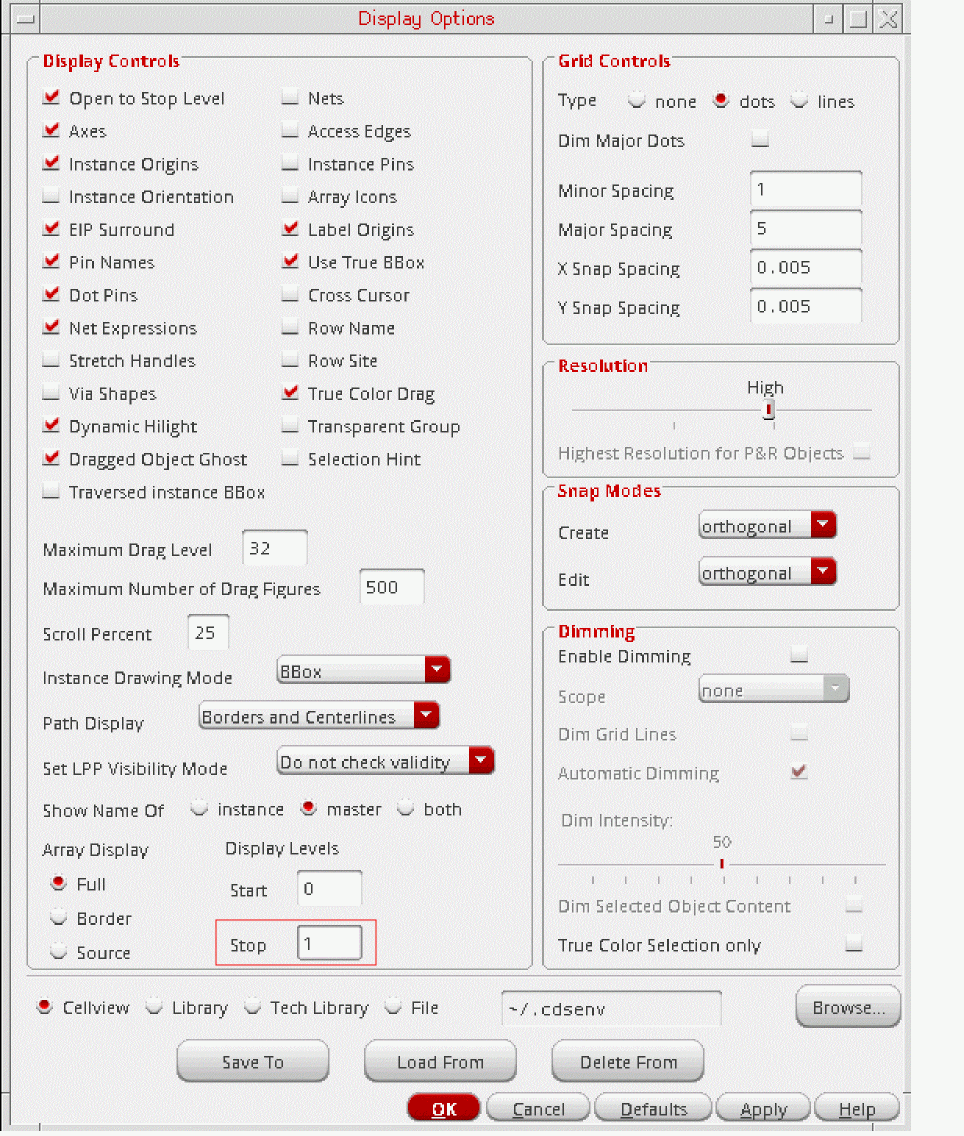
- In the Display Controls group box, under Display Levels, set the Stop value to 1.
-
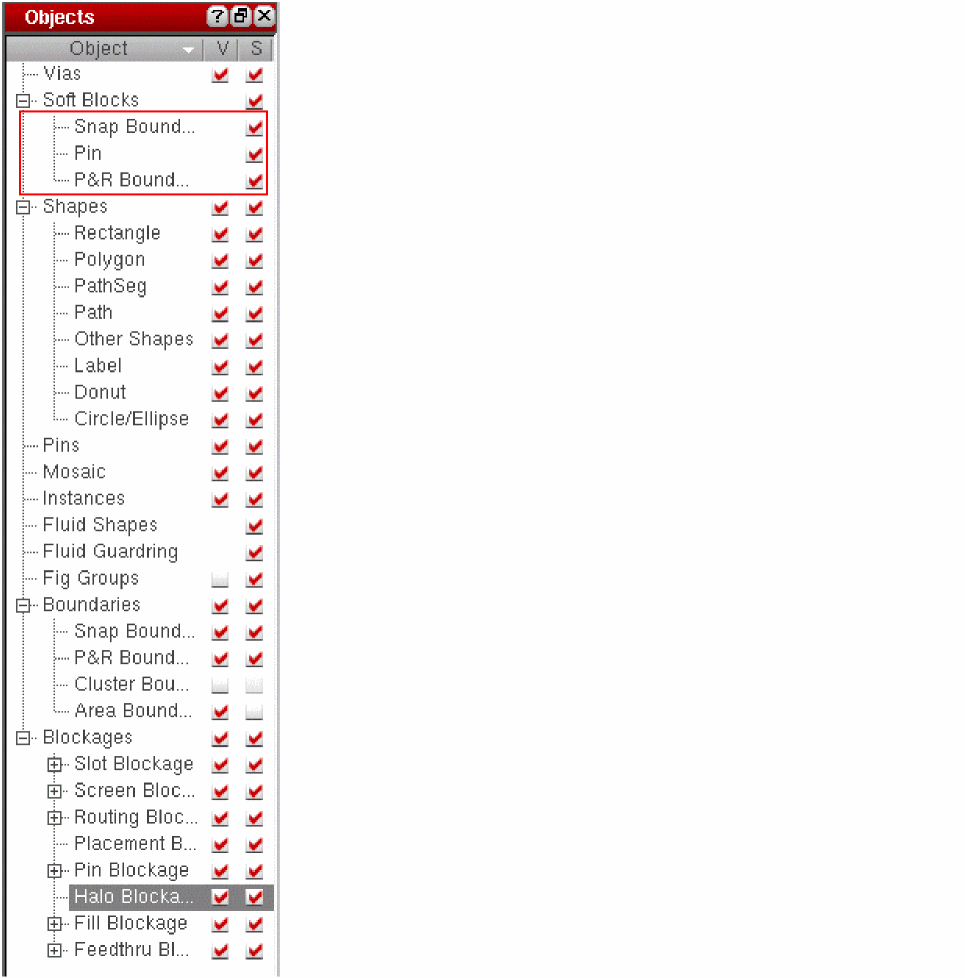
In the Objects panel, check the V and S check box to make Pins, P&R Boundary, and Snap Boundary visible and selectable. Check the S check box to make Soft Block Pins, P&R boundary, and Snap Boundary selectable.
Once in Level-1 Editing mode, you can do the following.
- Moving an Object in Level-1 Editing Mode
- Stretching an Object in Level-1 Editing Mode
- Reshaping an Object in Level-1 Editing Mode
- Chopping an Object in Level-1 Editing Mode
- Finding and Replacing Nets
- Discarding Edits
- Saving Hierarchical Cellviews under a Different Name
Related Topics
Return to top