
Moving an Object in Level-1 Editing Mode
Use the Move command in Level-1 Editing mode to move place and route boundaries, snap boundaries, and shape pins without entering Edit In Place mode. You can select the objects to be moved either before or after you start the Move command.
The picture below illustrates what happens when you move a shape pin.
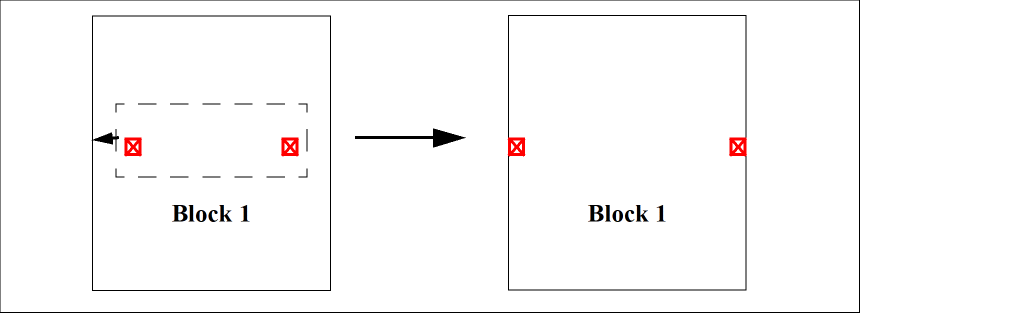
In both cases, the pin is snapped to either the modified boundary edge or the closest boundary edge. A pin that is assigned a status of firm or locked is not moved. If a grid is not initialized, moved pins are not snapped.
The picture below illustrates what happens when you move a place and route boundary or a snap boundary.
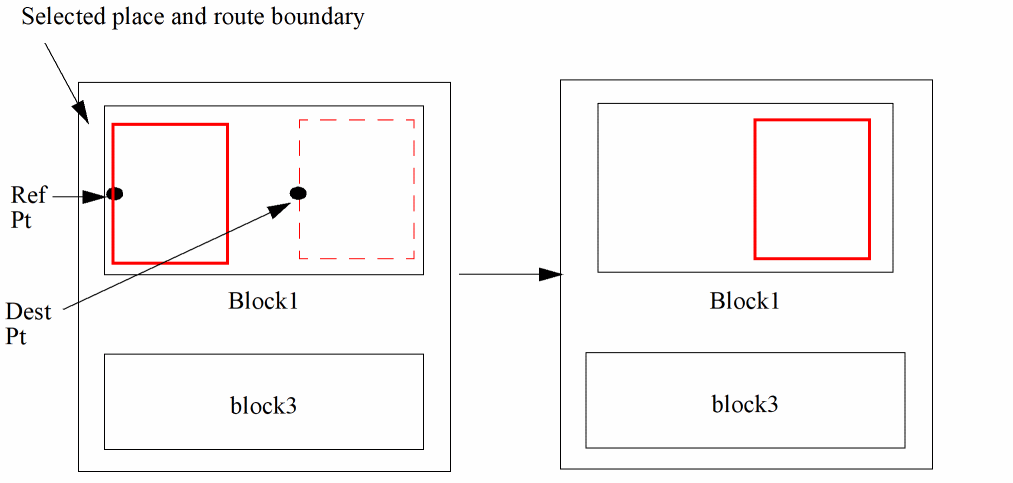
The place and route boundary is snapped according to the block type.
| Block Type | Snap Behavior |
|---|---|
|
The place and route boundary is snapped to the manufacturing grid. |
|
|
The place and route boundary is snapped to the placement grid. |
You can move multiple place and route boundaries or shape pins in a single operation. For example, you can select the corners or edges of place and route boundaries belonging to multiple blocks, as well as the top level, and apply the move operation to the entire selected set.
The picture below shows what happens when you move two place and route boundaries (Block 1 and Top Level) or snap boundaries at the same time.
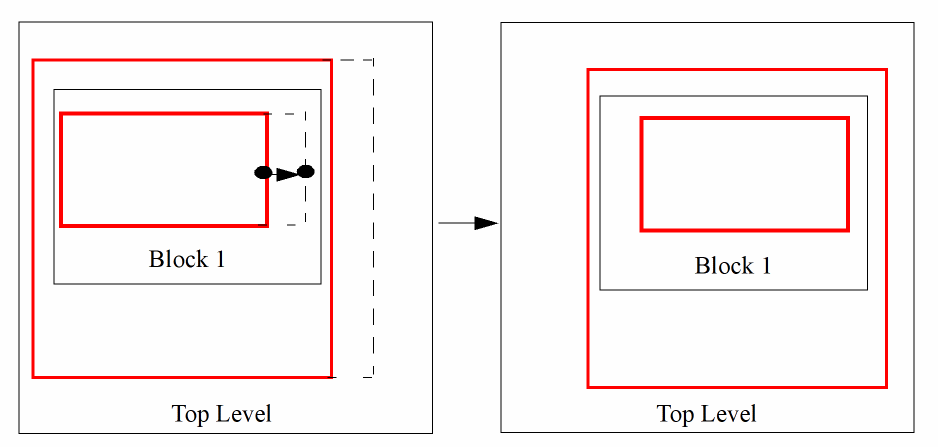
Moving a Place and Route Boundary at Level 1
To move a place and route boundary at level 1,
-
With Level-1 Editing mode enabled, choose Edit – Move from the layout window menu bar.
A message in the status banner at the bottom of the layout window prompts you to select the figure to be moved. -
Select the place and route boundary you want to move.
You are prompted to point to the reference point for the move. -
Point to the reference point.
You are prompted to point to the new location for the move. -
Point to the new location.
The place and route boundary is moved from the reference point to the new location.
Related Topics
Return to top