
Permuting Pins Automatically
When automatic pin permutation is switched on, Layout XL automatically permutes pins in a component if doing so corrects a short caused by:
- Interactive routing (using automatic abutment).
- Moving or stretching a shape or using any operation that changes connectivity.
If a short involves stopped layers, automatic pin permutation may not resolve the shorts because Layout XL does not support stopped layers for automatic pin permutation. To resolve such shorts, perform manual pin permutation.
To switch on automatic pin permutation:
-
From the layout window menu bar, choose Options – Connectivity.
The Connectivity form is displayed. - In the Generation tab, select Permute pins.
- Click OK.
Example 1
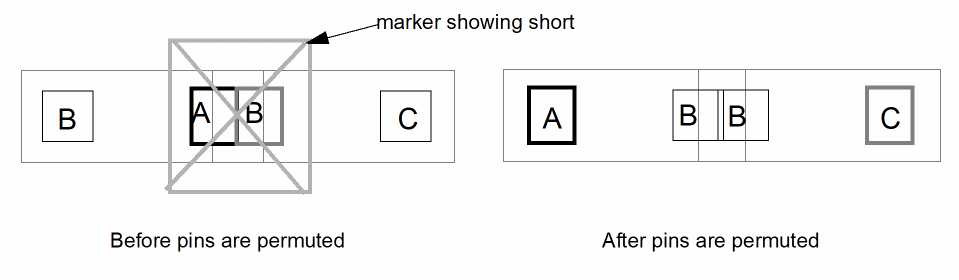
Layout XL automatically permutes the pins of a single component when doing so removes a short.
In the diagram below, two pins belonging to different nets (A and B) create a short when they are touching each other. If these pins are permutable and if reversing the pins of one component connects the two pins that are on the same net (B), Layout XL permutes them automatically.
Example 2
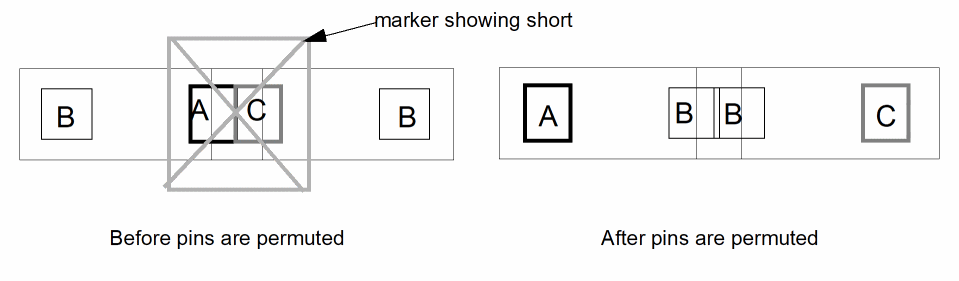
Layout XL also automatically permutes the pins of two components simultaneously when doing so removes a short.
In the diagram below, two pins belonging to different nets (A and C) create a short when they are touching each other. If these pins are permutable, and reversing the pins of both components connects the two pins that are on the same net (B), Layout XL permutes them.
Checking Permutation Information
To see information about permuted pins:
- From the layout window menu bar, choose Connectivity – Pins – Permute.
- Choose the pins you want to permute.
-
Press
F3.
The Permutation Information form appears telling you what was done. If the pins you select do not permute, the info window tells you why.
Updating Permuted Pins
Permuted pins are not preserved by the Update Components And Nets command. If any component in the design needs to be updated, the command resets the permutation status of all the cells to that originally stored in the schematic.
Related Topics
Return to top