
Stretching a Single Edge in Level-1 Editing Mode
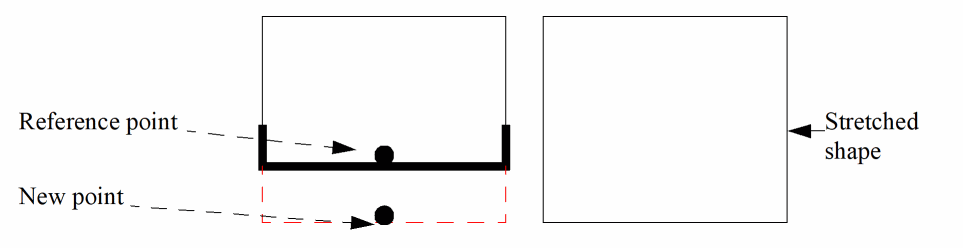
To stretch a single partial edge:
-
With Level-1 Editing mode enabled, choose Edit – Stretch from the layout window menu bar.
A message in the status banner at the bottom of the layout window prompts you to select the figure to be stretched. -
Make sure that you are in partial selection mode and select the edges or corners you want to stretch.
The selected edge or corner becomes the reference point for the stretch. -
Point to the new location for the edge.
The edge is stretched.
Stretching Multiple Edges
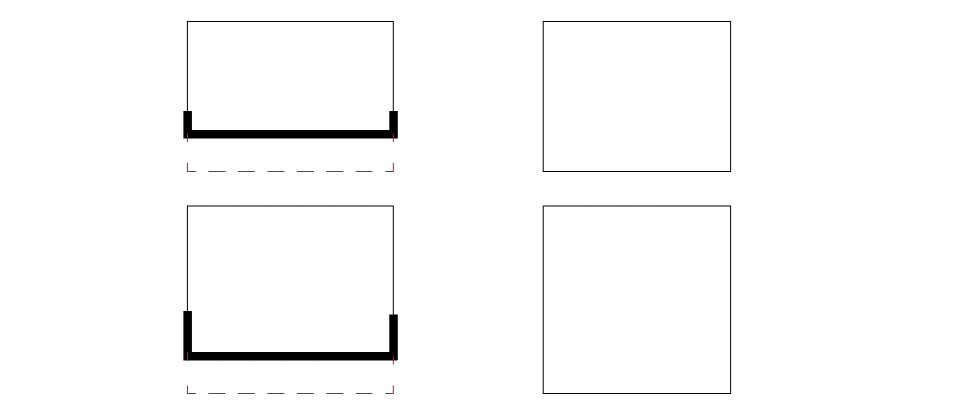
To select the edges or corners of multiple instances in partial selection mode,
-
With Level-1 Editing mode enabled, choose Edit – Stretch from the layout window menu bar.
A message in the status banner at the bottom of the layout window prompts you to select the figure to be stretched. -
Make sure that you are in partial selection mode and use
Shift-click or area selection to select the edges or corners you want to stretch.
The selected edges become the reference point for the stretch. -
Point to the new location for the edges.
The edges are stretched.
-
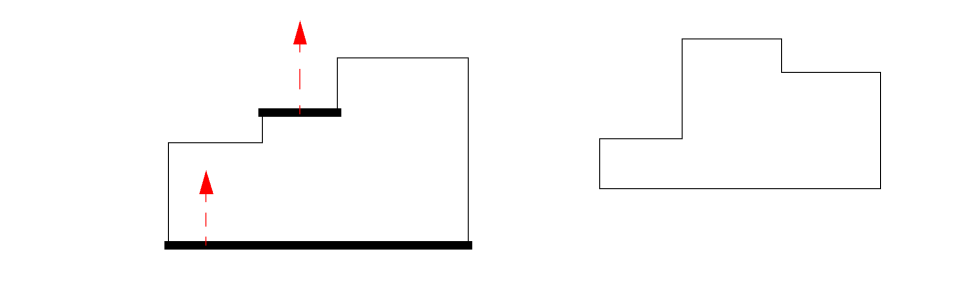
You can also stretch multiple partial edges of same soft block.
Related Topics
Return to top