
Synchronous Copy with syncClone Source Group
You can use a synchronous clone as the copy source to create a new clone. The copy target is a group of type “syncClone” and is added to the same synchronized family as the copy source. However, depending on the number of synchronous clones you choose to copy, the result of the Copy command varies.
Copying a Single Synchronous Clone
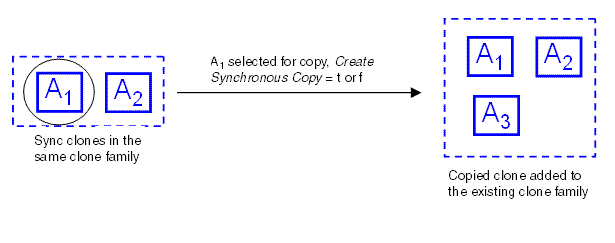
If you select a single synchronous clone as the copy source, the resulting copy is a synchronous copy, irrespective of the state of the Create Synchronous Copy check box. The copy target is added to the synchronized family to which the copy source belongs.
For example, you have two synchronous clones, A1 and A2, in a clone family. If you copy either of the synchronous clones, a new synchronous clone, A3, is added to the synchronized family even if the Create Synchronous Copy check box is not selected. The result is the same if the Create Synchronous Copy check box is selected.
Converting a Synchronous Clone Group to a Basic Group
To convert a synchronous clone group to a basic group—a group of type “none”:
-
Right-click the synchronous clone and choose Remove Clone From Family from the shortcut menu.
Alternatively, you can remove a clone from its family by using the Remove Clone button on the Update Clone Families form.
The selected synchronous clone is removed from its family. As a result, the group type changes from “syncClone” to “none” and the group is no longer synchronized with the other members of the family.
Copying Multiple Synchronous Clones
If you select multiple synchronous clones from a single synchronized family or from multiple families, Layout XL processes the request based on the state of the Create Synchronous Copy check box.
Case 1: Copying Multiple Synchronous Clones with Create Synchronous Copy Deselected
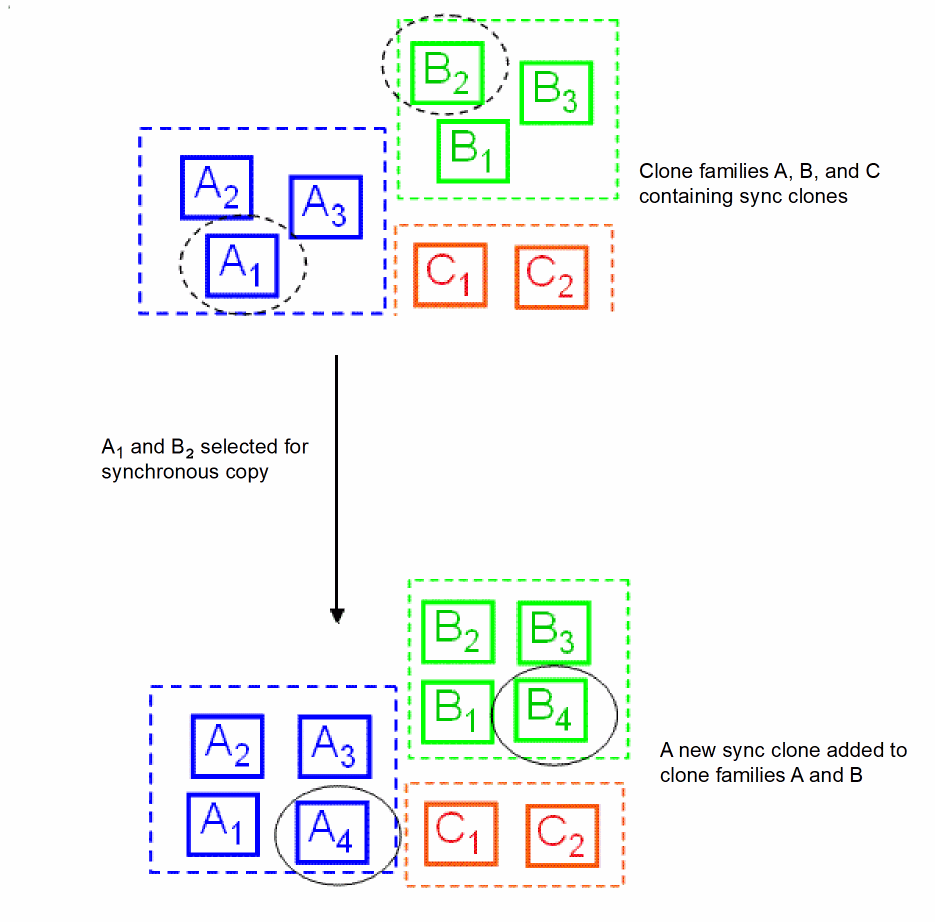
Consider three clone families: A, B, and C. If you copy the synchronous clones A1 and B2, as shown in the figure below, with the Create Synchronous Copy check box deselected, a copy of each selected clone is created in its own family.
Case 2: Copying Multiple Synchronous Clones with Create Synchronous Copy Selected
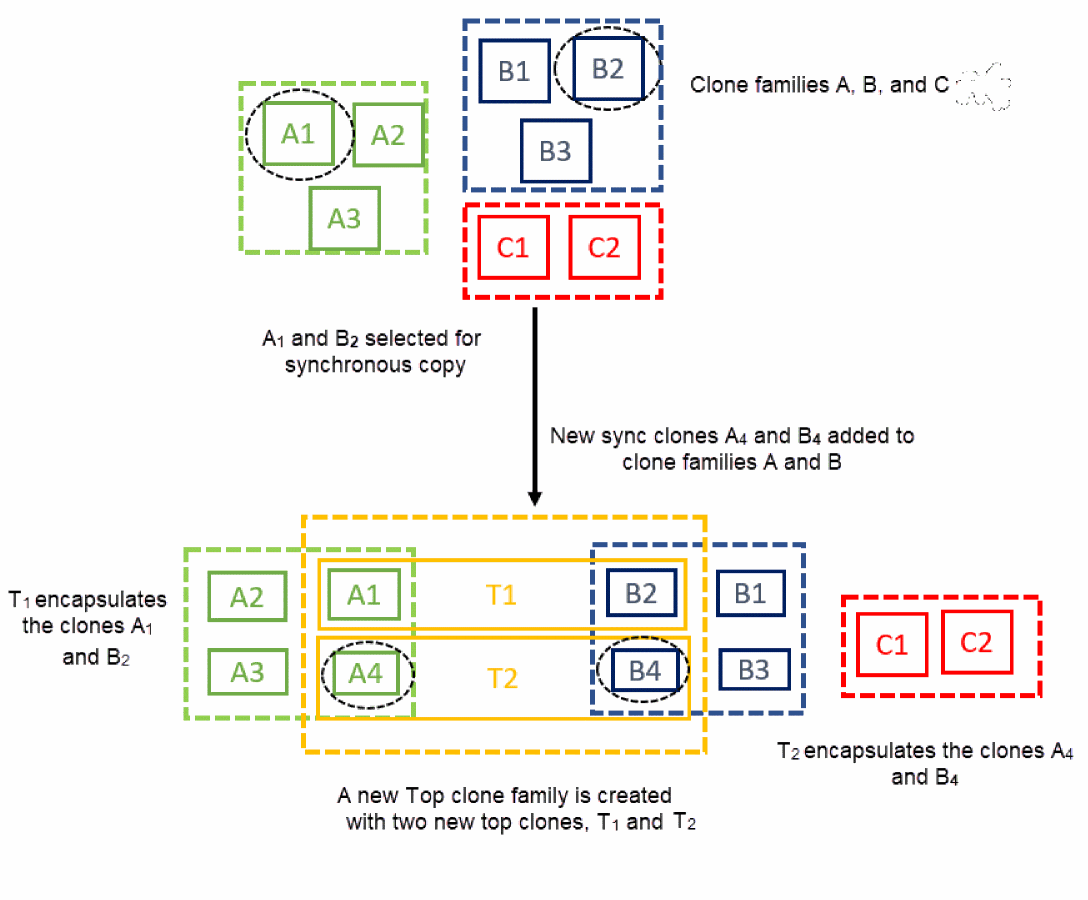
If you select the Create Synchronous Copy check box while copying multiple synchronous clone sources, a copy of each selected source is added in its own family.
In addition, a new Top clone family is created with two new top clones T1 and T2.
A clone T1 is created and it encapsulates the clones A1 and B2. This means that, a clone is created around the copy source.
A clone T2 is created and it encapsulates the clones A4 and B4. This means that, a clone is created around the copy target.
Related Topics
Removing a Clone from a Family
Return to top