Update Clone Families Form
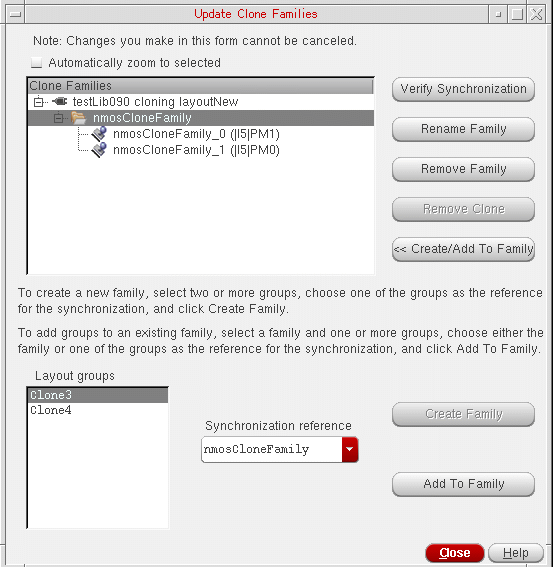
Use the Update Clone Families form to manage the families of synchronized clones in your design. You can update the status of a clone family, rename a clone family, remove a clone from a family, create and remove clone families, and add a group to an existing family.
|
Field
|
Description
|
|
Automatically zoom to selected
|
Zooms in on the clone or clone family that is currently selected in the Clone Families pane, or on the layout group selected in the Layout groups pane. Clicking on the top level fits the whole cellview in the layout window. If you select more than one layout group, the software zooms in on the bounding box that encloses the selected groups. This option is considered only when you make the selection in the Update Clone Families form; selecting a synchronous clone in the canvas does not zoom the display to the selected clone or group.
|
|
Clone Families
|
Lists the clone families in the current design. You can expand each entry to display the clones it contains.
|
|
Buttons
|
This section lets you select buttons on the right-hand side of the form that operates on the clone families displayed in the left pane.
|
|
Verify Synchronization
|
Checks the consistency of the clones in the selected family or in all the families if no family is selected, and makes any changes required to the existing clone families depending on the design situation.
If a clone is out of synch with the other clones in the family, it is removed from the family. Although the clone group is still retained, the group type is changed from syncClone to none.
If two or more clones are out of synch with the family but in synch with each other, they are moved into a new clone family.
If all the clones in the family are different, the family is removed altogether. The results are printed in the CIW. You cannot undo Verify Synchronization.
|
|
Rename Family
|
Renames the selected clone family and the member clones, if set for update. This button is enabled only when you select a clone family.
If the clone family contains virtual clones that cannot be renamed, the Rename Clones check box is disabled.
|
|
Remove Family
|
Removes the selected clone family from the design. This button is enabled only when you select a clone family. You cannot remove a family if one of its members is currently being edited in place. You need to exit the Edit In Place command first.
|
|
Remove Clone
|
Removes the selected clone from a family. This button is enabled only when you select a clone. You cannot remove a clone if one of its members is currently being edited in place. You need to exit the Edit In Place command first.
|
|
Create/Add To Family
|
Expands the form to let you create a new family of synchronous clones or add clones to an existing family.
|
|
Layout groups
|
Lists all the regular layout groups not currently assigned to a clone family. It does not list any other type of group. When you remove a clone from its family, its type is changed to none and it is added to the list of layout groups. However, its name is left unchanged, which means that the list might contain names like cloneFamily1_1. Such groups are regular groups and not synchronous clones.
|
|
Synchronization reference
|
Lets you choose how the members of the new or updated family are synchronized. All routine geometry is synchronized, including shapes and vias. However, labels are not synchronized.
If you are creating a new family, the drop-down list contains all the selected layout groups to be included in the family. From the Synchronization reference drop-down, choose the reference group with which the other groups are to be synchronized.
If you are adding groups to an existing family, the drop-down list contains the family itself and all the groups you want to add to it. If you choose the family, the new members are synchronized against the existing members of the family. If you choose one of the groups, the new and existing members are synchronized against the group you selected.
|
|
Create Family
|
Creates a new family containing the members highlighted in the Layout groups list. This button is enabled only when you select two or more layout groups and there is no existing family selected in the Clone Families pane.
|
|
Add To Family
|
Adds one or more selected groups to an existing family. This button is enabled only when you select an existing family in the Clone Families pane and at least one group from the Layout groups pane.
|
Related Topics
Updating Clone Families
Verifying a Clone Family
Removing a Clone from a Family
Removing a Clone Family from Design
Creating a New Clone Family
Adding a Group to an Existing Family
Editing a Clone in a Synchronized Family
Generating a Family of Synchronous Clones
Layout XL Forms
Return to top
