
Adding a Group to an Existing Family
To add a layout group to an existing family,
-
From the layout window menu bar, choose Connectivity – Update – Clone Families.
The Update Clone Families form is displayed. -
Click Create/Add To Family.
The form is expanded to include the options. - In the Clone Families pane, select the family you want to update,
-
In the Layout groups pane, select the group to be added to the family.
The Synchronization reference drop-down and the Add To Family button are both enabled.
The Layout groups pane lists all the regular layout groups not currently assigned to a clone family. It does not list any other type of group. When you remove a clone from an existing group, its type is change to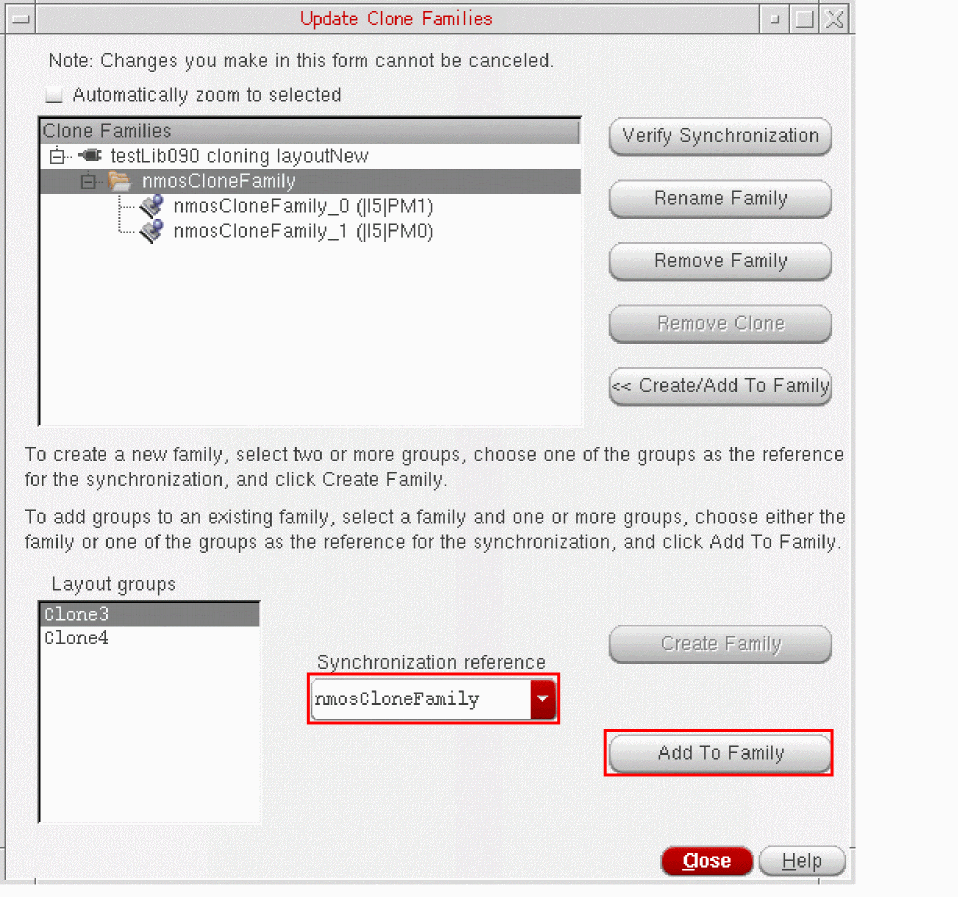
noneand it is added to the list of layout groups. However, its name is left unchanged, which means that the list might contain names likeSynchronousClone123. Such groups are not synchronous clones. - From the Synchronization reference drop-down, choose one of the following.
-
Click Add to Family.
As long as the selected group can be considered a clone of the other members in the family you selected, it is added to the family. A group containing only shapes and no instances can also be added.
The family is updated in accordance with the synchronization reference, and the Clone Families pane is updated.
Labels are not synchronized. Any dummy devices present in the reference group are copied in other occurrences of the clone. - Click Close to dismiss the Update Clone Families form.
Related Topics
Return to top