|
Field
|
Description
|
|
Display Mode
|
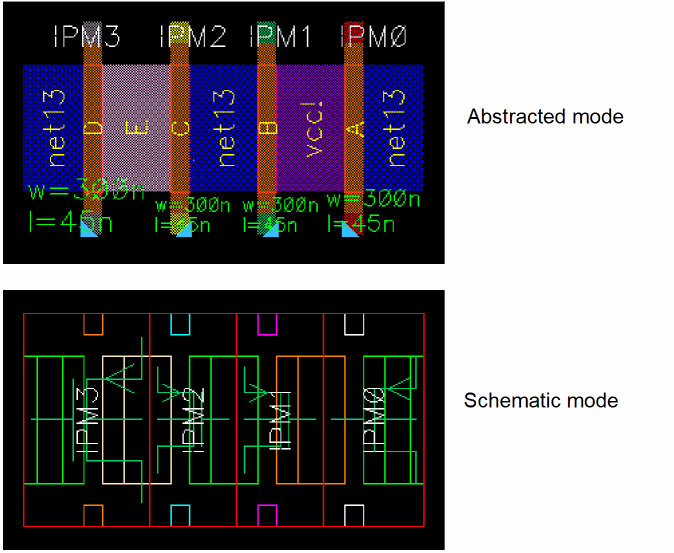
Lets you turn off Smart Display or switch between Smart Display modes. The available options are:
-
Off: Turns off Smart Display.
-
Schematic: Turns on Schematic mode. In this mode, devices are represented using their schematic symbols and connections are displayed using symbolic flight lines.
The displayed devices could be representing virtual hierarchies, if the design is viewed using Layout XL or a higher tier. -
Abstracted: Turns on Abstracted mode for the entire cellview or for the objects selected in the canvas. In this mode, you see an abstract representation of devices.
|
|
Surround Display
|
This section determines how surrounding objects are displayed. The available options are:
-
normal: Displays surrounding objects with dimming intensity at 0 percent.
-
dim: Displays surrounding objects with dimming intensity set to the value specified in the Display Options form.
-
hide: Displays surrounding objects with dimming intensity at 100 percent.
-
pins: Displays all pins on the same net with the same color, as shown below. Surrounding objects are displayed with dimming intensity at 100 percent.
|
|
Instance Display
|
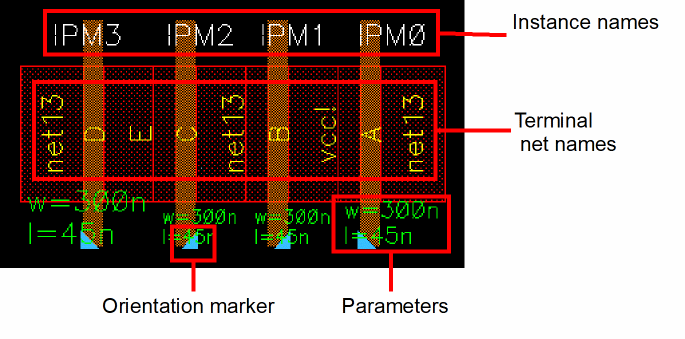
Determines the information to be displayed for instances.
|
|
Instance name
|
Displays instance names.
For hierarchical blocks in the layout, when the display level > 0, the instance name always displays. When the display level = 0, the instance name displays only when the Show Name Of field in the Display Options form is set to master.
|
|
Instance terminal net name
|
Displays the terminal net names for instances.
|
|
Orientation marker
|
Displays the orientation and end markers for devices.
|
|
Parameters
|
Displays the width and length values (parameters) for devices.
|
|
Pin connected shapes and routes
|
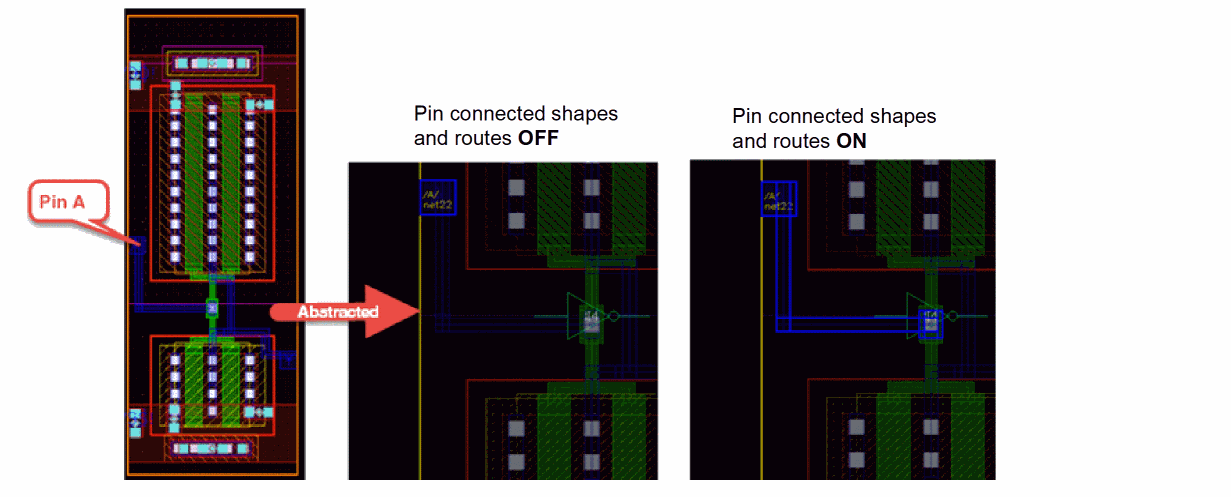
Highlights the pins and same-layer shapes and routes that overlap with the pins. Also displays the associated net labels.
The value of this option also impacts the value of Options – Display Pins – Instance
when displaying the instance pins at level 0.
The instance display values described above comprise the smart labels. The size of the smart labels is automatically adjusted when you zoom in or zoom out the design.
|
|
|
|
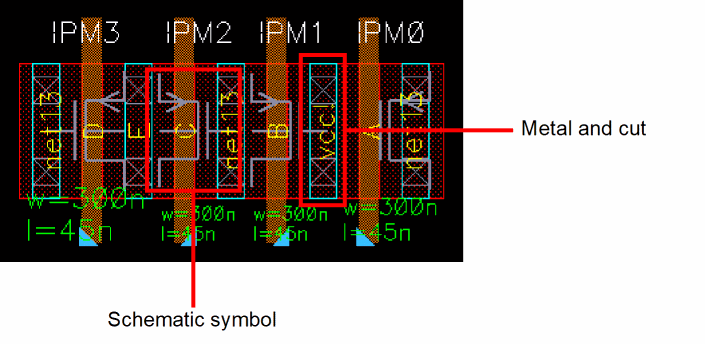
Schematic symbol
|
Displays the schematic symbol view overlaying the layout instance blocks in Abstracted display mode.
This option is turned on by default and is grayed out for Schematic display mode.
|
|
Instance BBox
|
This section determines how the instance bounding box is displayed.
|
|
Colored for mfactored devices
|
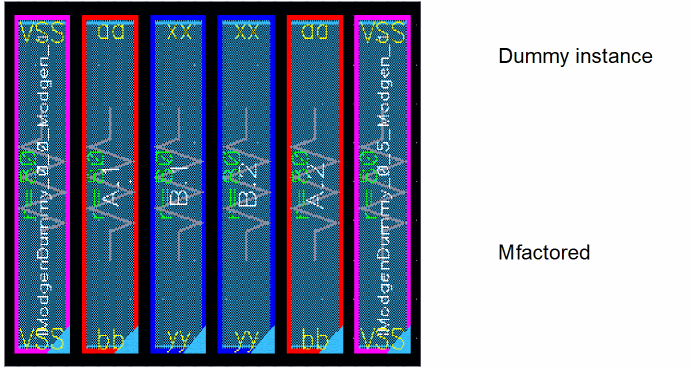
Displays a colored bounding box for mfactored instances with mfactor > 1. The bounding boxes of instances with matching patterns are displayed using the same color.
|
|
Colored for dummies
|
Displays a colored (pink) bounding box for dummy devices.
|
|
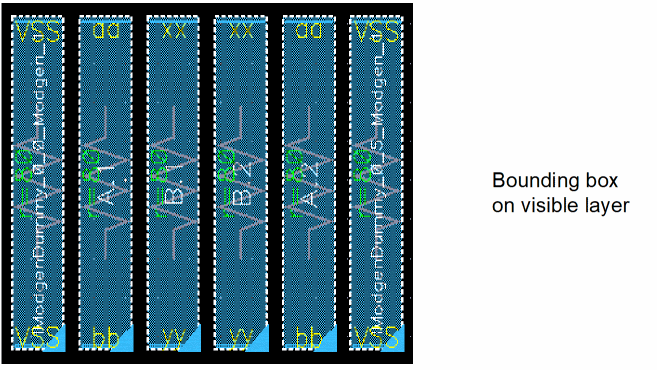
Only visible layers
|
Displays a bounding box enclosing the device.
|
|
MOS Only
|
This section applies only to MOS devices.
|
|
Schematic symbol
|
Displays the schematic symbol for MOS devices in Abstracted mode.
|
|
Metal and cut layers
|
Displays details of objects drawn on metal and cut layers.
|
|
Connectivity
|
This section determines the connectivity information to be displayed.
|
|
Abstract via
|
Displays vias with a white dotted line, as shown below. Wires are displayed with only their center lines visible.
|
|
Abstract wire
|
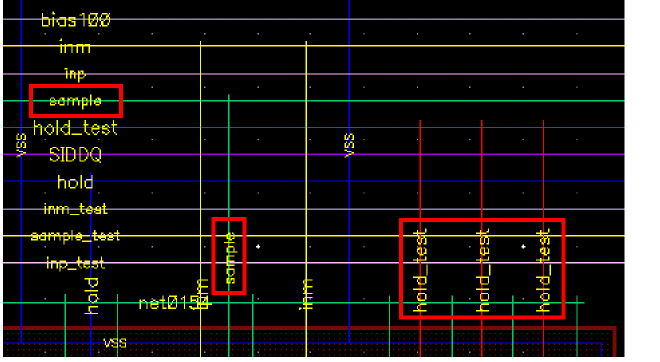
Displays wires with only their center lines visible. All wires that are on the same net are displayed using the same color. Wires that are not on a net are displayed in gray. Vias are hidden from view. For example, in the figure below, all wires on net hold_test are displayed in red and all wires on net sample are displayed in green.
|
|
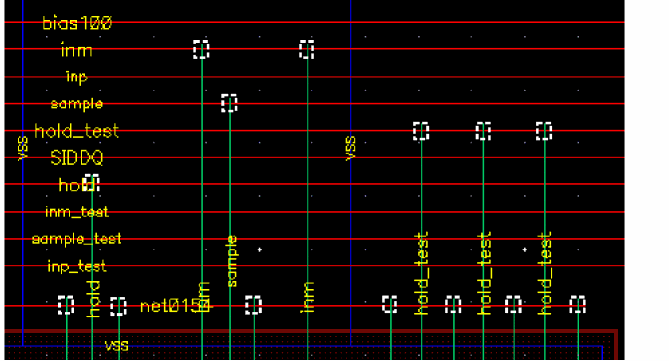
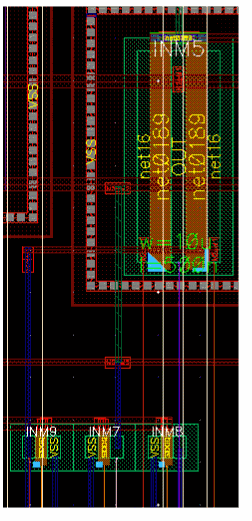
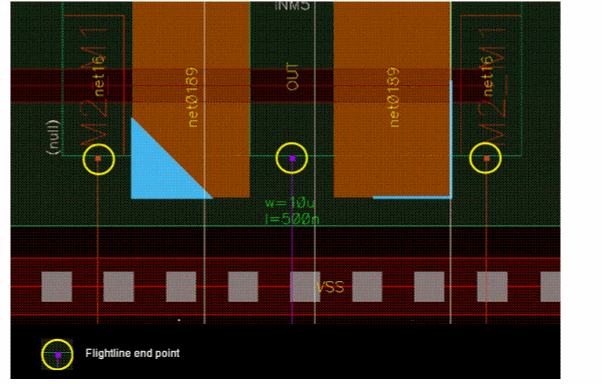
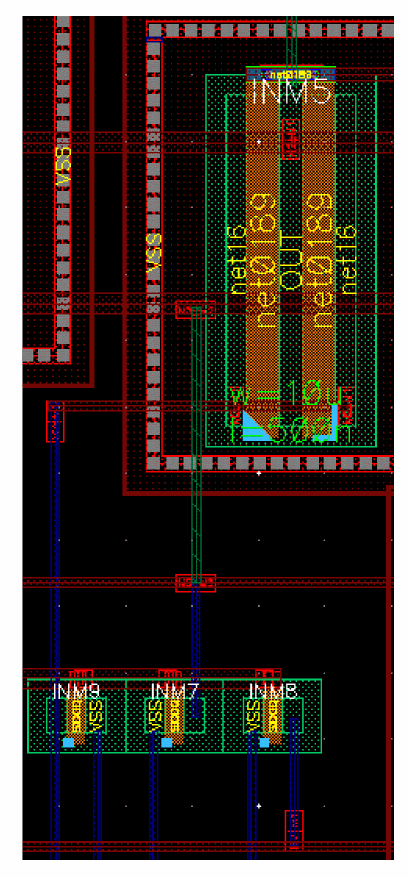
Flight lines
|
Displays orthogonal flight lines.
The end points of flightlines are represented using small rectangles as illustrated in the figure below.
|
|
Flight lines none
|
Hides orthogonal flight lines.
|
|
Ignore power and ground nets
|
Prevents the display of flight lines representing power and ground nets, when selected. This option is selected by default and applies only when connectivity is set to Flight Lines.
|
|
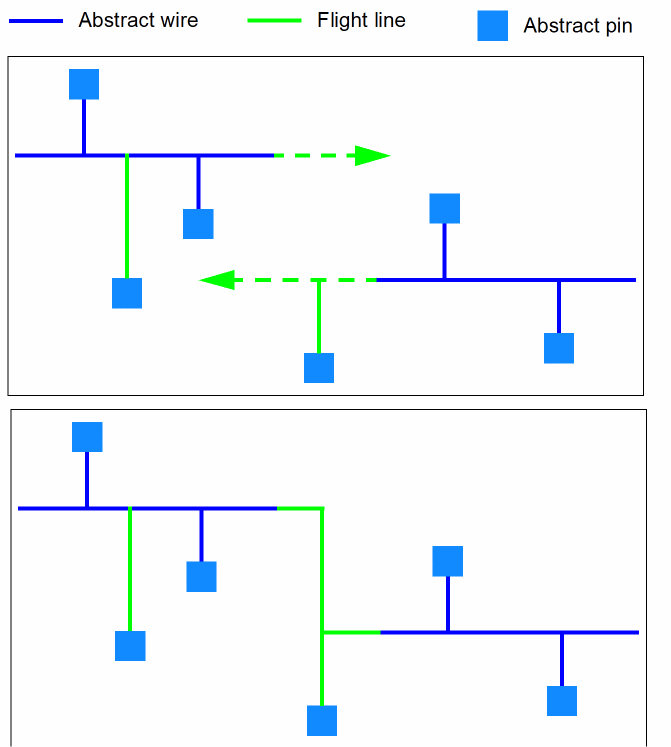
Extend existing trunks
|
Uses flight lines to extend existing trunks on the same net to display connectivity. The trunks are extended in either direction and unconnected pins are connected to these trunks with orthogonal flight lines to complete connectivity. This option is deselected by default and applies only when connectivity is set to Flight Lines.
As shown in the diagram below, for an incomplete net, Net A, the two horizontal trunks are extended at the ends and the nearest pins are connected to the trunks with flight lines (vertical twigs). The two trunks are also connected with orthogonal flight lines to complete connectivity.
|