
Smart Display
Smart Display (SMD) is a layout editing environment that can be used to generate a symbolic representation of the layout by using one of the two modes, Abstracted or Schematic.
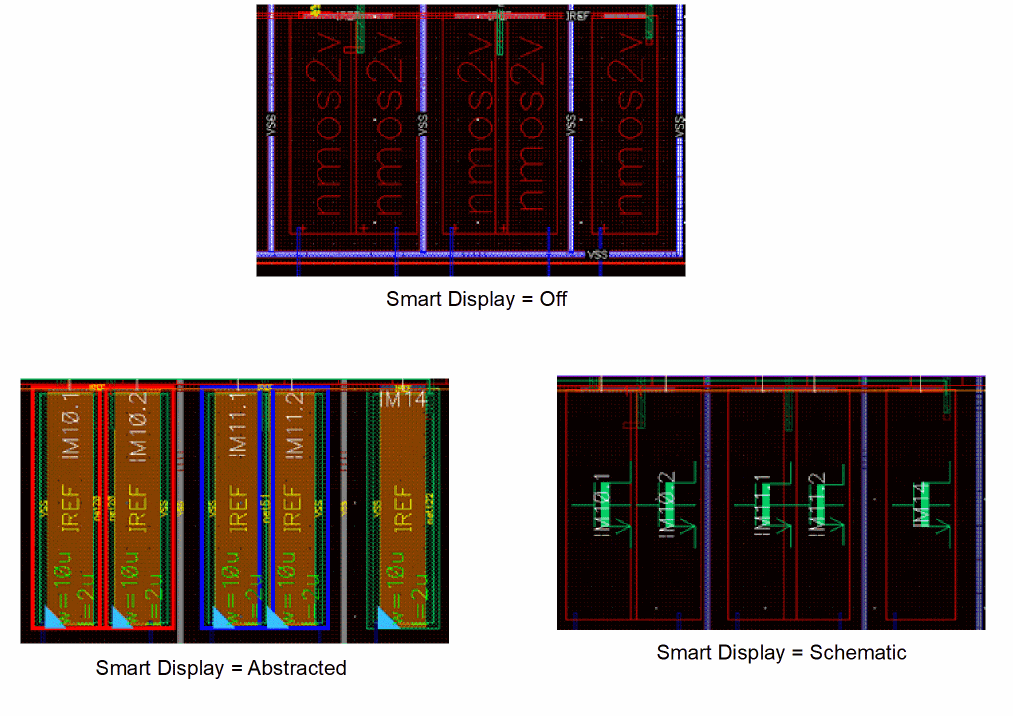
In Abstracted mode, you see a MOS representation of the layout. The layers visible in this mode are diffusion and poly. The diffusion layers are recolored to help identify PMOS and NMOS cells, red for PMOS and green for NMOS. This abstract representation helps in the placement of devices.
In Schematic mode, MOS devices are represented using their schematic symbols and connections are displayed using symbolic flight lines. All physical layers are hidden from view. Because of the reduced data and symbolic connections, designs in this mode are simple to understand and debug. This makes it easier for users to exchange designs.
In Abstracted mode, if required, you can choose to abstract only a specific set of objects. For this, you need to select the objects before you enable Abstracted mode. In Schematic mode, the entire cellview is abstracted, and not just the objects that are selected in the layout.
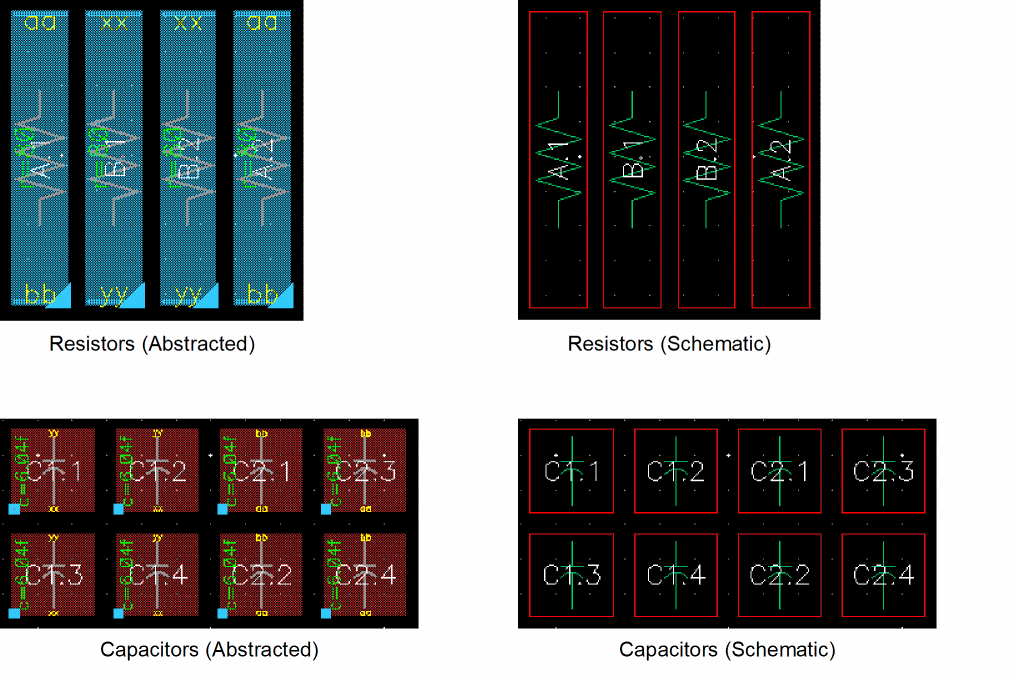
In both Abstracted and Schematic modes, you can also see an abstract representation of resistors, capacitors, and hierarchical blocks. Any other surrounding objects are by default dimmed. They can also be hidden from view. Moreover, you can choose to display a specific set of connectivity objects, such as wires, vias, flight lines, and pins, and information that you consider relevant, such as the instance name and device size.
Devices are shown using their real size, which helps circuit designers generate an accurate placement prototype. Flight lines and the number of tracks help estimate the channel size before routing.
The following figure compares a design object in different modes:
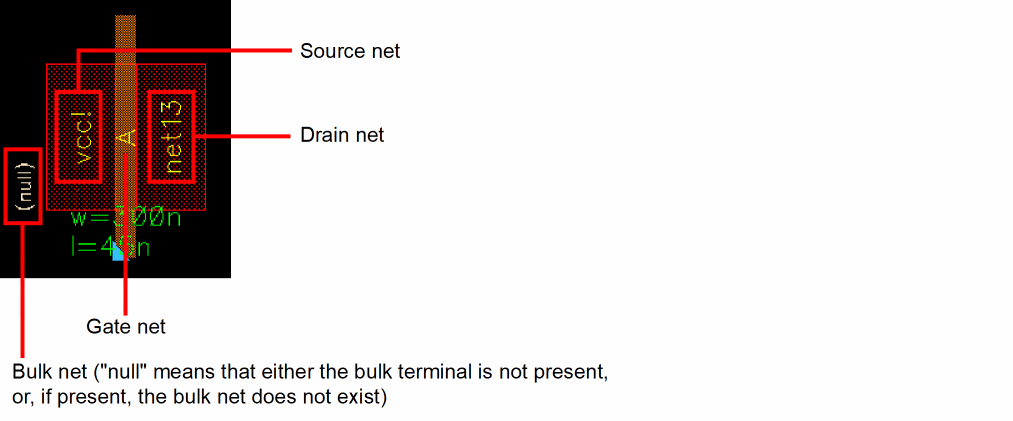
The following figure shows the net names for a PMOS device in Abstracted mode:
The following figure shows capacitors and resistors in Abstracted and Schematic modes:
Exporting the Design in Smart Display Mode
To save the design in Abstracted or Schematic mode to an image file, choose File – Export Image in the layout window. In the Export Image form that is displayed, specify the required options, including the path for the file to which you want to save the design, and click Save to File.
Related Topics
Return to top