
Short Locator Form
Use the Short Locator form to locate the error that is causing a short.
General
The following table describes the fields available on the General tab of the Short Locator form.
| Field | Description |
|---|---|
|
Lets you define an area in which the Short Locator is to operate. |
|
|
Lets you run the Short Locator command on the net of the clicked shape. |
|
|
Lets you select the area on the canvas. When you specify an area, its coordinates are added to the text box. |
|
|
This section shows the name of the shorted nets and the color used to mark the shapes on each net.For each shorted net, the text field below the net name indicates the number of associated pins (P), labels (L), virtual labels (VL), and instance pinFigs (IP), as displayed in the figure below. |
|
|
Lets instance pinFigs be considered as sticky points for the shorted nets, in addition to pins, labels, and virtual labels. When the connectivity of devices is known to be correct, using instance pinFigs as sticky points can help locate shorts faster. |
|
|
|
|
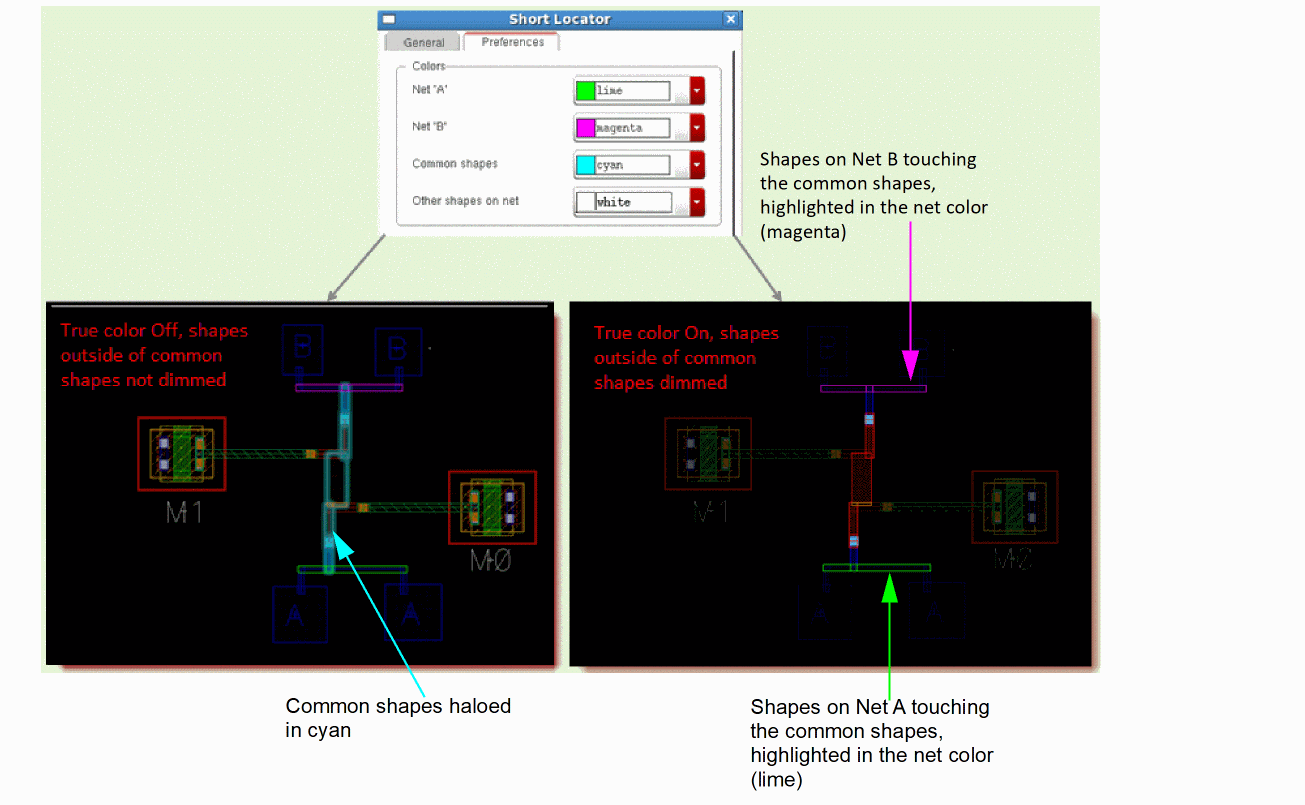
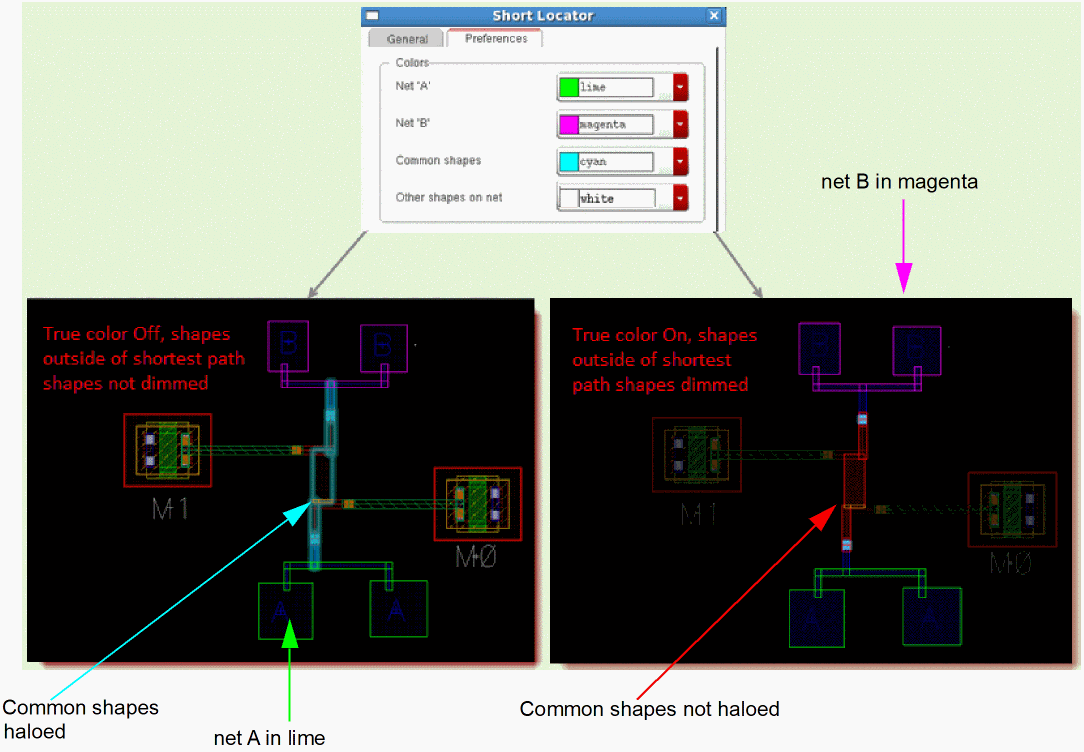
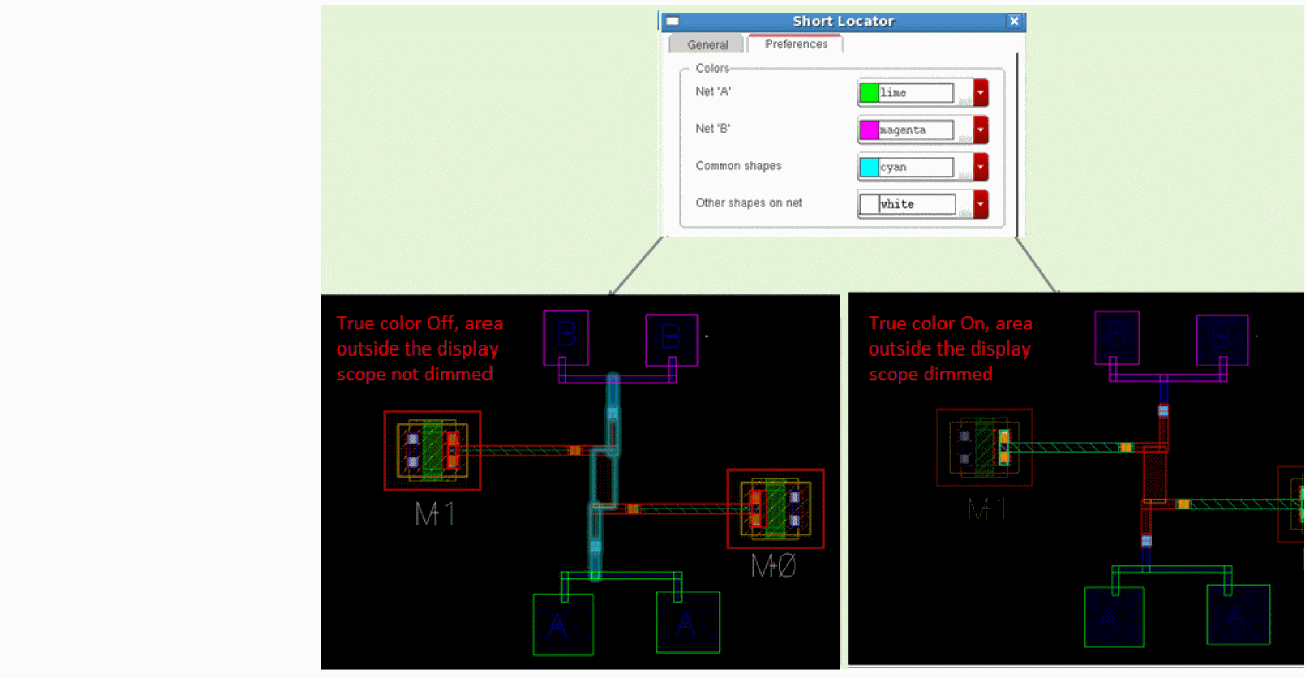
This section lets you select the mode in which the shapes are displayed in the layout canvas. You can also choose to display a diamond shape in the layout canvas for each pin, label, and virtual label in the layout. Environment variable: extractShortLocatorDisplayMode |
|
|
Common shapes haloed in the color selected for common shapes. Shapes on a shorted net that are touching the common shapes highlighted in the color associated with that net. If True color is selected, common shapes are displayed in their true color and the other shapes are dimmed, as illustrated in the figure below. |
|
 |
|
If True color is selected, shapes on the shortest paths are displayed in their true color and the other shapes are dimmed, as illustrated in the figure below. |
|
 |
|
|
Common shapes haloed in the color selected for common shapes. Shapes on the shortest paths highlighted in the color selected for the corresponding shorted net. Other shapes on the net highlighted in the color selected for other shapes. If True color is selected, all shapes on the net are displayed in their true color and shapes not on the net are dimmed, as illustrated in the figure below. |
|
 |
|
|
Calculates the shortest paths and common path. This button is enabled only when |
|
|
Enables you to quickly switch the layout display between the Entire net display mode and one of the other two modes — Common shapes or All shortest paths, which ever was last used. |
|
|
Zooms to the middle common shape. Zooming to middle can help perform a dichotomy to locate the error causing the short for a design that has a large number of common shapes. |
|
|
Zooms to fit all the shapes in the selected mode—common shapes, shapes on all the shortest paths, or shapes on the entire net—in the available layout window. |
|
|
Displays shapes corresponding to the selected display mode in their true color. The True color view makes it easy to see the shapes of interest as all the other shapes are dimmed. Environment variable: extractShortLocatorShowPinsAndLabels |
|
|
Displays a diamond shape above each pin and label. Environment variable: extractShortLocatorShowPinsAndLabels |
|
|
Displays a diamond shape for instance pinFigs. Environment variable: extractShortLocatorOtherShapesColor |
|
Preferences
The following table describes the fields available on the Preference tab of the Short Locator form.
| Field | Description |
|---|---|
|
Specifies the constraint group that defines the connectivity stack to be used. By default, the constraint group used by the connectivity extractor is used. |
|
|
Specifies a start layer and an end layer to narrow down to a smaller set of extractable layers to be used for shape chasing. The same layer can be used to define the start and end layer for shape chasing. |
|
|
Specifies the highlight colors for the following: Environment variables: extractShortLocatorNetColor1, extractShortLocatorNetColor2 Environment variable: extractShortLocatorOtherShapesColor
Environment variable: extractShortLocatorCommonShapesColor |
|
|
Zooms the layout automatically to fit all the shapes in the selected display mode. Environment variable: extractShortLocatorAutoZoomToFit |
|
|
Displays in layout canvas a label with the name of the net associated with the virtual labels. Environment variable: extractShortLocatorShowVirtualLabelNetOnShapes |
|
|
Specifies the font size for the net used to display the virtual labels . Environment variable: extractShortLocatorVirtualLabelNetOnShapesFontHeight |
|
|
Specifies the maximum number of shapes that will be highlighted for a large net. Environment variable: extractShortLocatorHighlightLimit |
|
|
Opens the Save Short Locator View form that lets you specify the view name to use for saving the Short Locator view. |
|
|
Opens the Load Short Locator View form that lets you load a previously saved Short Locator view. |
Related Topics
Return to top