
Troubleshoot Startup Issues
You can face following issues while starting Layout XL:
- Invalid Markers from Previous Software Versions
- Options Form Does Not Appear at Startup
- Unable to Restart Layout XL after Opening Assura LVS or DRC
Invalid Markers from Previous Software Versions
If you are opening layouts you developed using previous versions of Virtuoso software, you can clean up the layout canvas and get rid of invalid markers.
-
From the layout window menu bar, choose Connectivity – Update – Components And Nets.
Layout XL resynchronizes the layout connectivity with the schematic connectivity. -
From the layout window menu bar, choose Verify – Markers – Delete All.
The markers disappear. - Choose File – Save.
-
From the layout window menu bar, choose Window – Close.
The layout window closes. - From the schematic window, choose Window – Close.
- The schematic window closes.
-
From the Command Interpreter Window (CIW), choose File – Open.
The Open File form is displayed. - From the Library Name cyclic field, choose the library name of your design.
- In the Cell Name field, type or select from the Cell Names list the cell name of your design.
- From the View Name cyclic field, choose the view name of your design.
-
Click OK.
The layout window appears, displaying the updated layout configuration. -
From the layout window menu bar, choose Launch – Layout XL.
The Palette assistant and the schematic view appear.
If you still have problems, check that your technology is correctly defined.
Options Form Does Not Appear at Startup
When you press F3 to see an options form listing possible choices for a command and the command does not have an options form, the message box shown below appears:
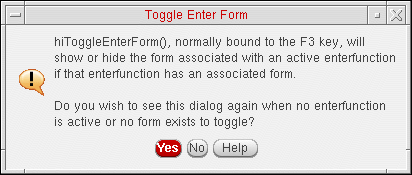
If you want the message box to appear every time you press F3 for a command that has no options form, click Yes.
If you do not want the message box to appear every time you press F3 for a command that has no options form, click No.
Unable to Restart Layout XL after Opening Assura LVS or DRC
In a session, if you close Layout XL and start Assura and then open Layout XL again, it is possible that you may not be able to launch Layout XL again until the library list is updated. To update the library list, set the shell environment variable, CPH_UPDATE_LIBLIST.
Related Topics
Technology File Requirements for Layout XL
Return to top