
Create Wire Form
Use the Create Wire form to create symbolic wires. Symbolic wires are created using pathSegs and vias that are contained within routes.
| Field | Description |
|---|---|
|
Specifies the net to which the created wire is to be added. If the specified net does not exist, a new net is created. |
|
|
Creates probes for the specified net (Layout XL and higher tiers). |
|
|
This section lets you specify the width, direction, and style for the wire that you want to create. |
|
|
Specifies the width of the wire to be created.
Environment variable: |
|
|
Controls the direction in which to offset the pathSeg from the digitized points of the path or pathSeg. The supported routing directions include center, left, and right. The default is center.
Environment variable: |
|
|
Creates the wire at a specified distance from the digitized points with respect to the centerline of the pathSeg, in the direction specified by Justification. The default is
Environment variable: |
|
|
Controls how the beginning wire segment ends are created.
Environment variable: |
|
|
Specifies the value for the begin extension of the wire. This field is enabled when Begin Style is set to variable.
Environment variable: |
|
|
Controls how the beginning wire segment ends are created.
Environment variable: |
|
|
Specifies the value for the end extension of the wire. This field is enabled when End Style is set to variable.
Environment variable: |
|
|
The following options let you specify the snapping behavior for the wire that you want to create. |
|
|
Controls how the cursor snaps when you create the wire.
The default value is orthogonal.
Environment variable: |
|
|
Finishes the Create Wire command as soon as a point is digitized on a flightline target object (pin or existing wire or via). When creating a bus and Auto Terminate is on, all wires in the bus snap to its target pin. This option is selected by default. |
|
|
Snaps the wire to the center of rectangular pins or of pins that are created as polygons and have rectangular shapes. If this check box is selected, wires snap to the starting and ending pins. The Snap to Pin Center check box is deselected by default. This option is available in Layout XL and higher tiers.
Environment variable: |
|
|
Snaps a wire to the center of vias. The starting wire starts from the clicked point and two small segments are added to connect to the via origin. Tapping a via and a wire gives preference to the via. This check box is off by default. This option is available in Layout XL and higher tiers.
Environment variable: |
|
|
Adjusts the wire segment to automatically cover the source and target pins. Otherwise, the wire segment is not adjusted and the wire terminates at the point you chose. By default, this option is deselected. 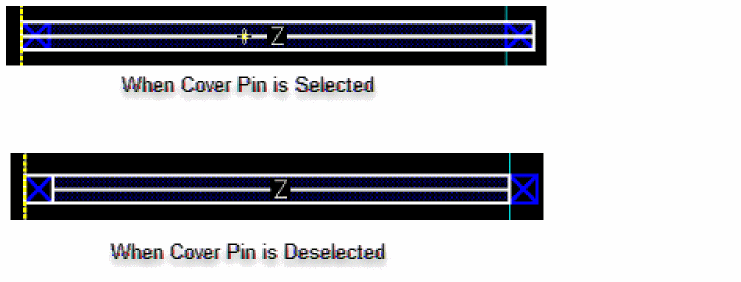
Environment variable: |
Related topics
Reshape Wire Shortcut Menu Commands
Return to top