
Workspace Configuration
Here is a sample workspace showing the various elements of a workspace in a Virtuoso Schematic Editor XL Editing session window. A session window appears when you first open a cellview for design editing.
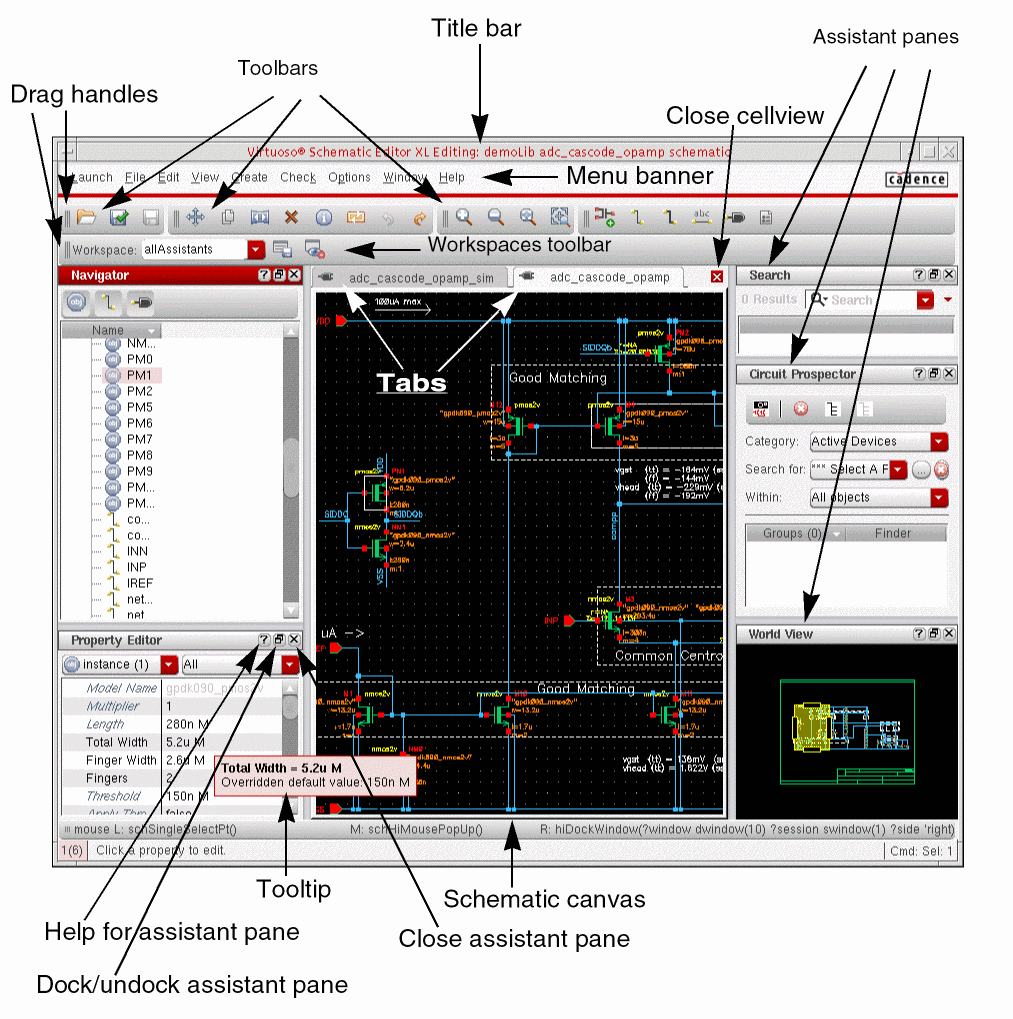
You can define the following properties of your window layout in a workspace:
- Docked, floating, and hidden assistant panes
- Docked and hidden toolbars
- Positions and geometries of the assistant panes and toolbars in your window layout
You can specify only those user interface components that are available for a particular viewtype or application as part of your workspace. For example, you cannot create a workspace in the Virtuoso Layout XL that contains an assistant pane that is specific to the ADE Explorer environment.
You cannot define what banner menus appear, what icons appear on a toolbar, or the content of an assistant pane using a workspace.
You can customize a workspace to appear for a particular view type or application. For example, you can specify one combination of toolbars, assistant panes, and so on, to appear for a schematic view and a different combination for a layout view.
Related Topics
Session Windows and Workspaces
Setting the Default Workspace for an Application
Return to top