
11
Mixed-Signal Design Verification
This topic provides information about the connection between Virtuoso© ADE Verifier™ (Verifier) and Cadence© vManager™ (vManager) for requirements-driven mixed-signal design verification flows.
The functional verification of mixed-signal designs is one of the top challenges in any verification project. All mixed-signal designs need analog, digital, and mixed-signal verification. For the successful functional verification of a project, some of the required aspects are metric-driven verification, top-down verification planning, and reporting or traceability of bottom-up results.
Verifier lets you set up an analog design verification project using a requirements-driven methodology. From a high level perspective vManager uses the same methodology to let you analyze and plan the verification of your digital requirements. Using Verifier and vManager, you can plan the verification of your project in a mixed-signal environment and analyze all the results together in a single cockpit.
Related Topics
List of Mappings between Verifier Requirement Fields and vManager Attributes
ADE Verifier Results in vManager
Connecting Multiple Verifier Views to a vPlan
Review of the Verification Results in vManager
Referenced Cellviews in an ADE Verifier-vManager Session
ADE Verifier-vManager Flow
vManager and Verifier provide a point solution using the requirements-driven methodology for the digital and the analog flow respectively.
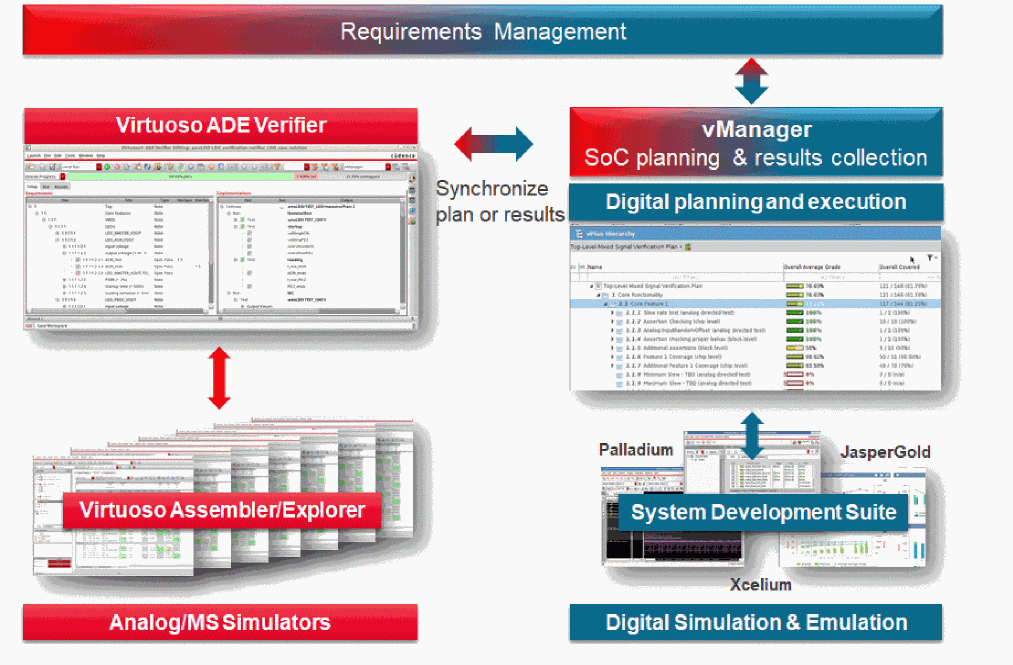
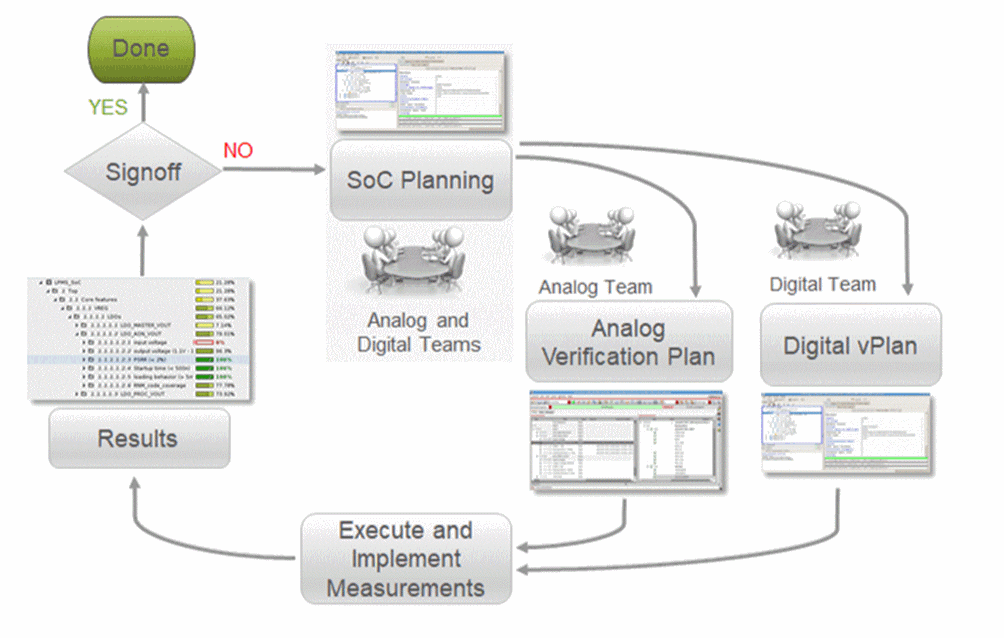
In an ideal scenario, mixed signal design verification starts with a planning session with all the engineers in the analog and digital verification teams. The planning session helps them develop a common understanding of the project. The engineers capture the high-level verification requirements and evaluate factors such as the interfaces, important performance measures, and integration of the different design blocks. The specification document is the reference for most of the high level verification items.
After the initial plan is completed, the analog and digital teams begin refining their respective parts of the plan by capturing requirements and evaluating the dependencies for their domains. These refinements include implementing checks, testbenches, measurements, running simulations, or modifying measurements in the testbenches of their respective plans.
When satisfactory results have been achieved, the analog and digital plans and their results are combined. This provides a common representation of the verification status and highlights any conflict in data, connection or communication. The combined plan might change further because of other changing aspects.
The following figure displays the typical flow in a mixed signal verification project.
ADE Verifier Architecture
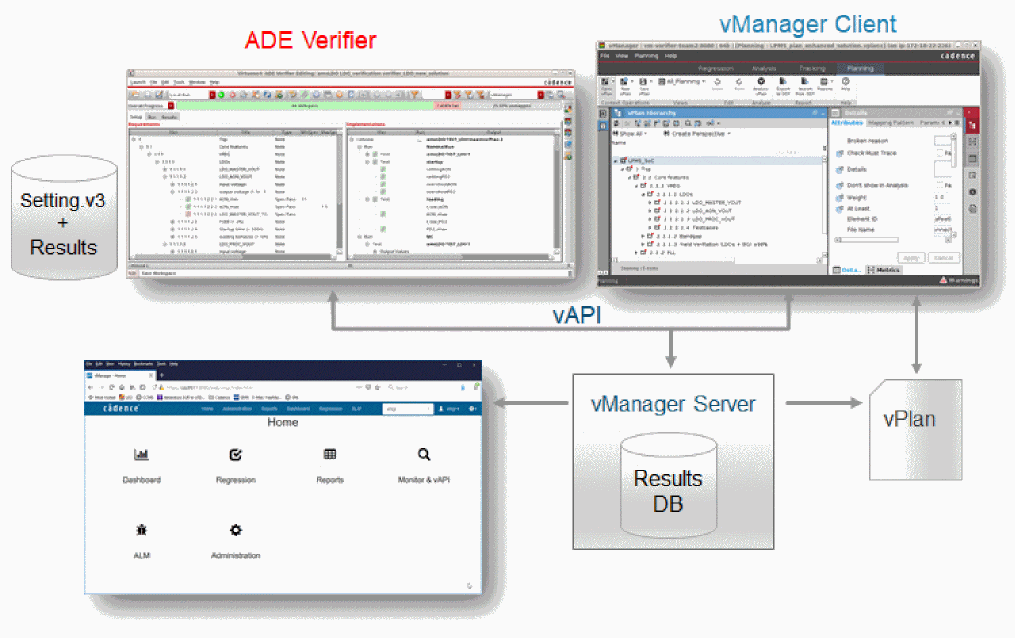
Verifier uses the vManager client-server architecture. In this architecture, Verifier is a client similar to the vManager client. The vManager server is connected to a database and can access the verification plans of clients. This allows the vManager or Verifier clients to connect to each other and fetch and send data.
The server architecture ensures synchronization between all clients. Each of the clients retains their own local data while sharing essential information with the server. You can also connect multiple Verifier cellviews to the same vPlan to enable the verification of a large mixed-signal project. See Connecting Multiple Verifier Views to a vPlan.
vManager Connection Settings in ADE Verifier
The vManager toolbar is available to the right in the Verifier window. Use this toolbar to manage the vManager connection.
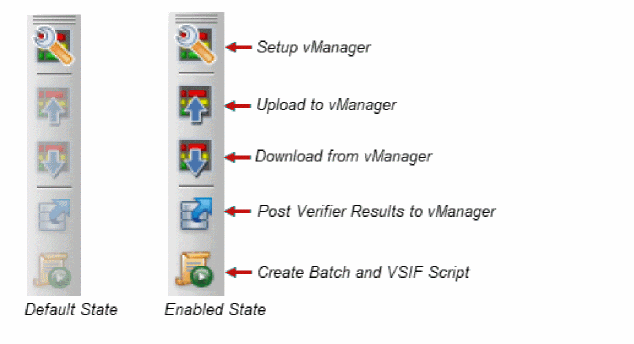
This toolbar contains task-oriented commands required to synchronize the verification plans and results in Verifier and vManager. The commands are enabled after you specify the settings for the vManager connection. You can click the required command on the toolbar. Alternatively, you can choose Tools – vManager – <required command>.
The following tables describe the main commands on the vManager toolbar.
Accessing the vManager Toolbar
To access the vManager toolbar, do one of the following:
- Choose vManager in the workspace list on the Verifier toolbar.
- Choose Window – Workspaces – vManager.
- Choose Window – Toolbars – vManager.
- Right-click anywhere on the Verifier toolbar and choose Toolbars – vManager.
Prerequisites for Setting Up a vManager Connection in ADE Verifier
- Virtuoso IC6.1.8 and ICADVM18.1 ISR3 or higher.
- vManager 19.02 AGILE or higher with the Analog work mode enabled in the server setup. For more information, see Project Configurations -- Settings -- Generic Configurations in Cadence© vManager™ Web Portal User Guide.
- You need to ensure that the vManager server uses the same file system as the location where the vPlan is saved.
- You need to ensure that the appropriate user or groups permissions are enabled to allow the server user (account name under which the server is running) to access the plan for read or write access. This grants the read or write permissions to the server process owner for the vPlan file.
-
Connection errors are indicated by an exclamation mark on the Setup vManager icon (
 ). A possible way to resolve these errors is by specifying a sufficient duration for timeout. Connection timeouts take place when the vManager server is not reachable or is not responding.
 - You can only save the form with valid server settings. Deselect the Enabled check box to proceed without resolving the invalid server settings or connection issues.
- You can specify a new vPlan file name to create a new plan using Verifier. See vManager Setup Form.
- You need to ensure that the Analog work mode is enabled in the vManager server setup. For vManager to smoothly pass data back and forth, keep the Analog work mode enabled. For more information, see Project Configurations -- Settings -- Generic Configurations in Cadence© vManager™ Web Portal User Guide.
Setting Up the vManager Connection
To specify the vManager configuration settings, do one of the following:
-
Click
 on the vManager toolbar.
 -
Select Tools – vManager – Setup vManager.
This displays the vManager Setup form.
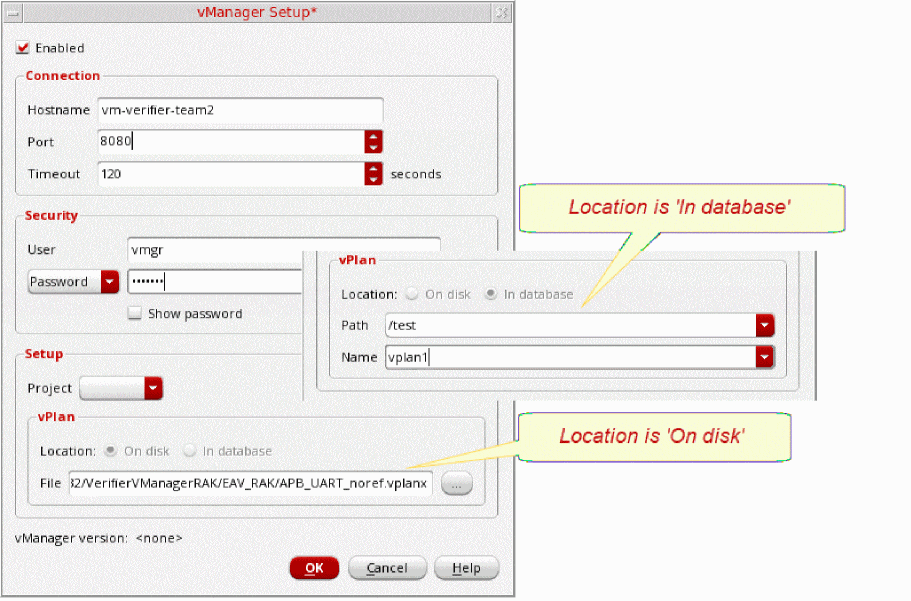
To know more, see the vManager Setup Form form.
Authentication for the vManager Server
You can establish a connection between Verifier and a vManager server using the following authentication methods:
-
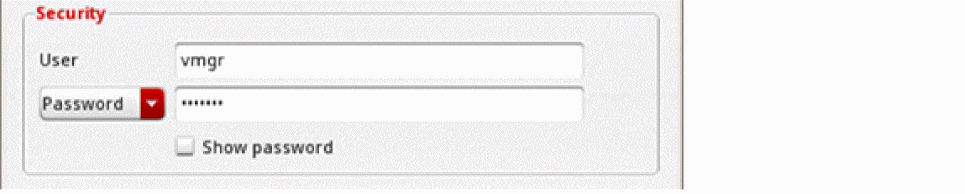
Password - In the Security group box of the vManager Setup form, choose Password after specifying the User.
Select Password from the list when all users share the same local user login and password to connect with the vManager server. These login credentials are saved as plain text in thesetings.v3file in your project directory and are available for public access.
-
Token - In the Security group box of the vManager Setup form, choose Token.
Select Token from the list when you want to log into the vManager server with your UNIX user name. Verifier automatically populates your user name in the User field and uses an encrypted token instead of a password. You can get this token from your profile information saved on the vManager server. The vManager server saves this token securely in an encrypted format for every user in their./cadencedirectory. The token is not saved in thesettings.v3file as it is only applicable to a specific user.

Download of vPlan Requirements on Initial Merge
A successful connection between Verifier and vManager displays a message box. The information about the last completed download is displayed in the message box as well as the tooltip on the Download from vManager button on the vManager toolbar. For an existing vPlan, Verifier downloads and merges the vPlan requirements with the existing analog plan requirements. Alternatively, you can replace all the analog requirements with the digital requirements.
These vPlan requirements are not downloaded in the following conditions:
- You have selected not to save changes in the prompt that appears when you choose File – Make Read Only.
- You have restored a named snapshot that contains vManager setup information.
To view the merged digital requirements in Verifier, right-click anywhere in the Requirements pane and choose Show – Non Analog.
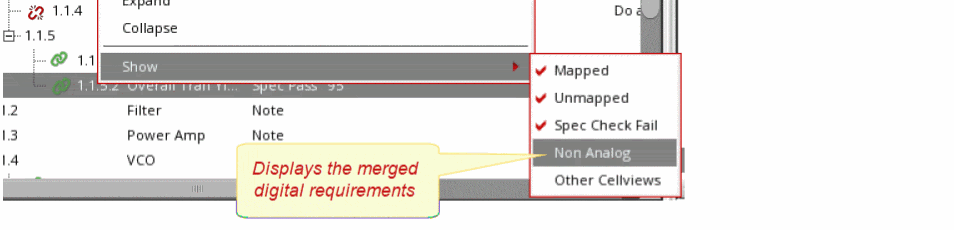
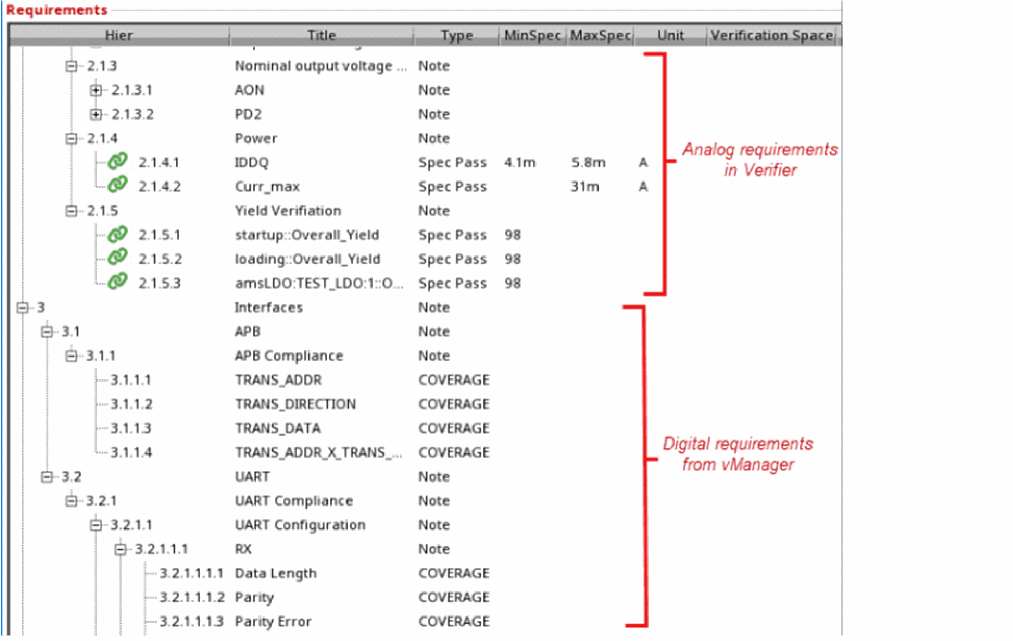
This displays the digital requirements from vManager and the analog requirements from Verifier in the Requirements pane in Verifier.
Uploading a Verification Plan to vManager
To upload a verification plan from Verifier to the vManager server, do one of the following:
-
Click
 on the vManager toolbar.
 -
Click
 on the Verifier toolbar.
 - Choose Tools – vManager – Upload to vManager.
A progress bar at the lower right side in the window displays the upload status.

While uploading, Verifier checks for the vPlan file specified in the vManager server setup. If the vPlan file does not exist on the server, Verifier creates a new vPlan file.
Open the plan in vManager and verify that it contains the changes made in Verifier.
Downloading a vPlan from vManager
To download a vPlan into Verifier, do one of the following:
-
Click
 on the vManager toolbar.
 - Choose Tools – vManager – Download from vManager.
- Open a cellview that has been saved with valid vManager settings. This automatically downloads the vPlan.
When you choose to download from vManager, and there are changes in the vPlan, Verifier displays a message asking you to merge, replace or cancel the download. You can make the appropriate choice to merge or replace the analog plan in Verifier. See Download of vPlan Requirements on Initial Merge.
Editing the Verification Plan and vPlan Concurrently
When you choose to download from vManager, Verifier merges the changes from the vPlan. This makes it easy to edit both plans concurrently.
To edit the verification plan and the vPlan concurrently:
- Open the same plan in vManager and Verifier.
- Edit the same plan concurrently.
- In vManager, save any changes to the vPlan.
-
In Verifier, click Download from vManager from the vManager toolbar.
- Choose Merge on the dialog box that appears. See Download of vPlan Requirements on Initial Merge.
- Choose Upload to vManager from the vManager toolbar to upload the merged changes to the vManager server. Reopen the vPlan in vManager to see the latest changes.
- Ensure that you download or upload in the sequence given above because all changes are merged in Verifier, and not in vManager.
- Verifier does not merge changes to the same requirement on upload, but overwrites the requirement in vManager. For example, suppose you download a vPlan to Verifier, edit a requirement within vManager, then edit that same requirement and save the changes in Verifier. This will upload the plan to vManager and overwrite the changes made in vManager. If you edit the same requirement in Verifier and upload it to vManager, all changes made in vManager are overwritten.
- Ensure that you make minimum changes to the hierarchy. Making significant changes can make the merge complex.
-
Press the
Esckey to cancel an ongoing upload or download operation.
Verification Plans in ADE Verifier and vManager Plans
In typical scenarios, Verifier downloads the vPlan and merges the changes to the verification plan. See Download of vPlan Requirements on Initial Merge.
However, a merge of the plans is not required when:
- The Verifier cellview has no requirements but vManager has requirements data.
- The Verifier cellview has requirements but vManager has no requirements data or a new vPlan file is created in vManager.
Requirement IDs in an ADE Verifier-vManager Flow
To identify requirements, Verifier uses requirement IDs, whereas vManager uses a combination of the hierarchical path and title of the requirement. When there is an overlap of requirement IDs in the downloaded requirements, the vManager data is retained and the Verifier data is discarded for the requirement with the overlapped ID.
- Requirement IDs in Verifier must be unique. See Reassigning IDs Hierarchically.
- In case of a conflict where identical requirement IDs and requirement titles are found, requirement IDs are given preference.
- In case of a conflict, vManager data is given preference over Verifier data.
Posting Verifier Results to the vManager Server
After a simulation is run in Verifier, you can upload the simulation results to vManager by doing one of the following:
 on the vManager toolbar.
A progress bar on the lower right side in the window displays the upload status.

To cancel an ongoing upload of simulation results, press the Esc key.
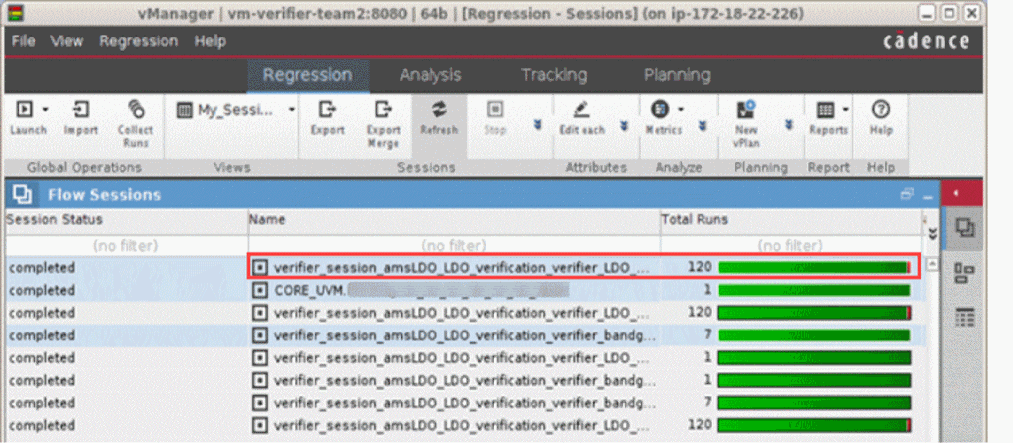
You can view the uploaded results as a new session in vManager.
Creating a Batch and VSIF Script
You can create a batch and
To create a batch and VSIF file:
-
In Verifier, do one of the following:
The Create Batch and VSIF Script window appears. - Specify a name for the script and click Save.
- Open the vManager client, if not already opened.
- In the vManager window, choose Regression – Launch and select the script file from the required location.
 on the vManager toolbar.
List of Mappings between Verifier Requirement Fields and vManager Attributes
The following table provides a list of the requirement fields in Verifier that are mapped to vManager attributes.
The Type field in Verifier displays the goal value of digital requirements that are downloaded from vManager and supports the CHECK, COVERAGE, and TESTCASE digital goal types, also referred to as metric ports in vManager.
For more details, see
ADE Verifier Results in vManager
The verification results are uploaded using the Post Results to vManager command from Verifier and are available as run sessions in the Regression tab in vManager. Click a run session to view the list of runs in that session. Double-clicking a run from this list displays the corresponding run-specific details. The run is a single mappable item on the Analysis tab that include vManager attributes, errors, warnings or information. The following table describes some of the results that are uploaded and how they relate to vManager run attributes.
Additionally, the List Tabs section in vManager displays the following information related to errors and warnings from the Verifier run.
vManager Attributes - Domain and Scope
Some of the requirements fields in Verifier which are important in the Verifier-vManager connection are as follows:
For more details, see
Domain
The verification domain of a requirement specifies if it is an analog or a digital requirement.
In Verifier, all digital requirements are displayed but there is no interaction with these requirements. These digital requirements serve only as information to the user. The only possible action that you can perform is to change the domain of these digital requirements to ANALOG, which makes them useful in Verifier.
While analog requirements are editable and have the domain 'ANALOG', non-analog, that is, digital requirements are read-only and might have the domains SIMULATION, EMULATION, FORMAL, NONE, or more.
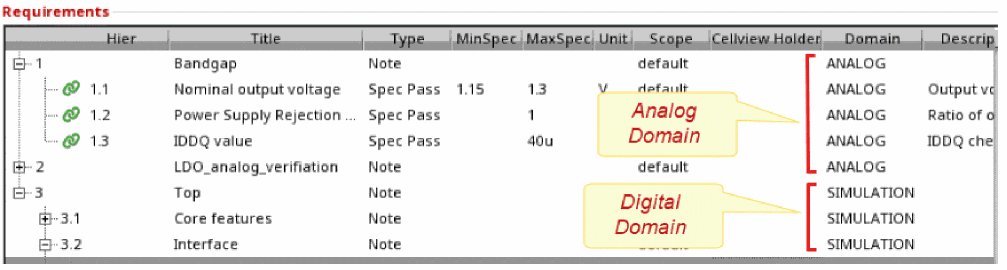
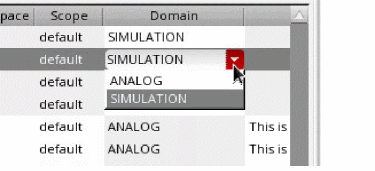
In Verifier, you can change the domain of digital requirements to ANALOG in the Requirements pane or the Requirements Editor Assistant. This indicates that you want to take 'ownership' of the requirements in your verification plan in Verifier. You cannot make any changes other than domain or type to downloaded digital requirements, but you can edit digital requirements created in Verifier and upload these to vManager.
Scope
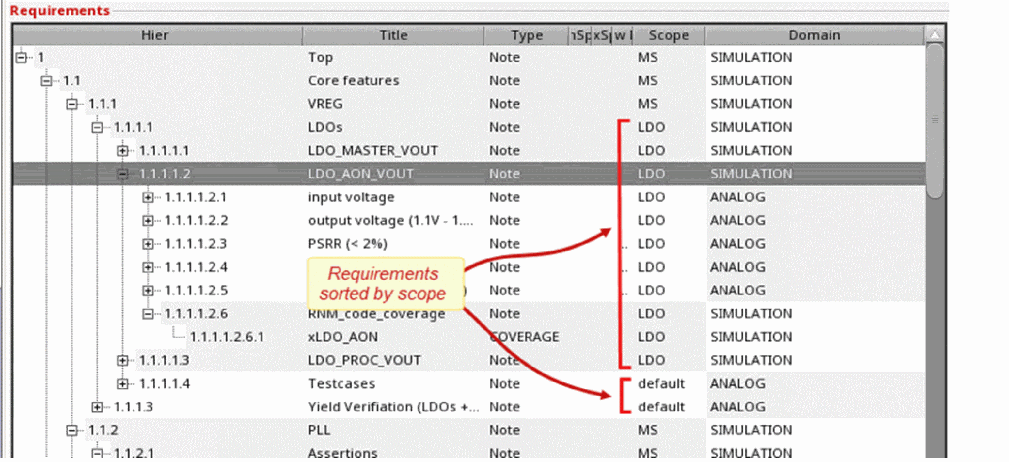
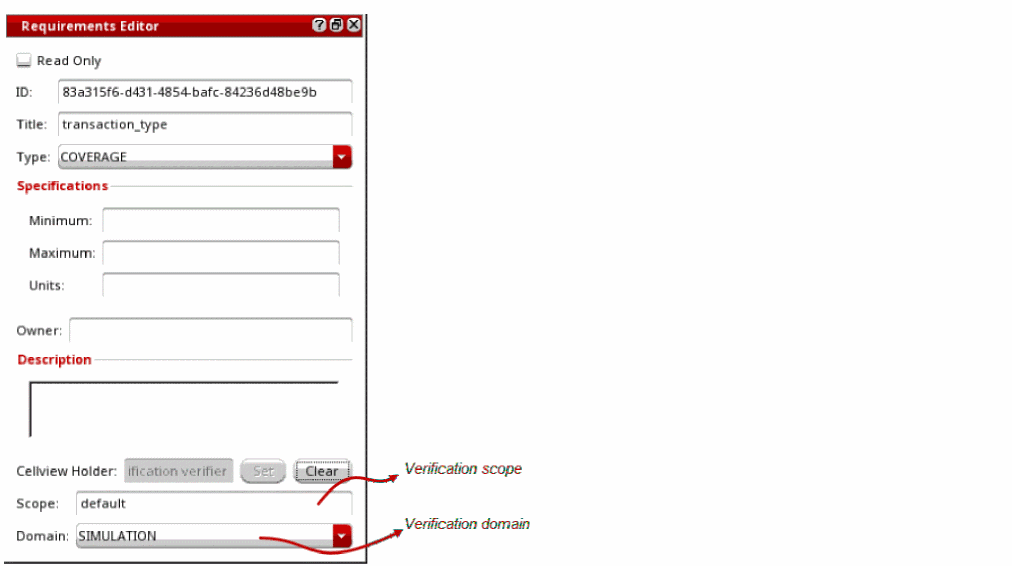
The verification scope lets you define a group of requirements that belong together. Analog and digital designers can filter the results and hierarchical plan based on the defined scope. The scope is a string field and can contain a user-defined value. The following example shows the usage of scopes MS, LDO, and default.
The following figure shows the domain and scope of a digital requirement in the Requirements Editor assistant in Verifier.
Connecting Multiple Verifier Views to a vPlan
You can connect multiple Verifier views to the same vPlan. Using the Cellview Holder field in the Requirements pane, you can store the relationship between a cellview and the vPlan by specifying the Verifier view to which a requirement belongs. Verifier shows all requirements of the current cellview, which is the holder, and all requirements that do not have holder information. You can set or clear the holder as the current cellview.
To connect a Verifier view to a vPlan using the Cellview Holder field:
- Right-click the Requirements pane and choose Set Cellview Holder from the shortcut menu.
-
Open the Requirements Editor assistant and click Set.
Cellview holder is set automatically only if vManager is enabled when creating, pasting, or importing requirements. When vManager is disabled you can manually set the cellview holder. The cellview holder is loaded from thesettings.v3file.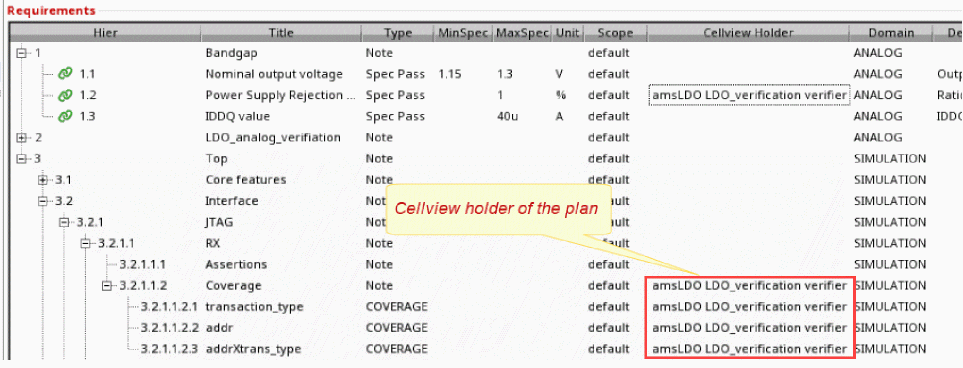
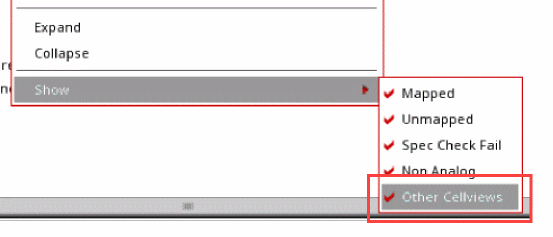
By default you can see requirements owned by other Verifier cellviews in the Requirements pane. You can deselect the Other Cellviews shortcut menu command to see only the requirements belonging to the current Verifier cellview and items without Holder assignment.
Review of the Verification Results in vManager
When you download and upload requirements, vManager and Verifier show the same hierarchy.
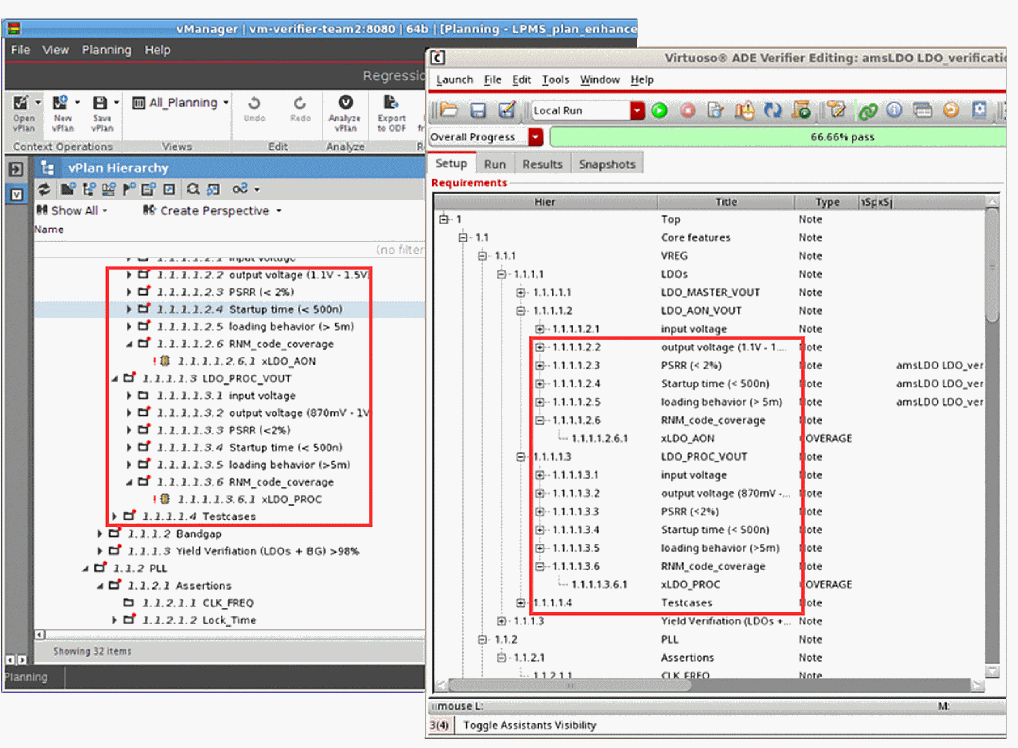
You can run simulations and post the Verifier results to vManager, and the results are displayed in vManager.
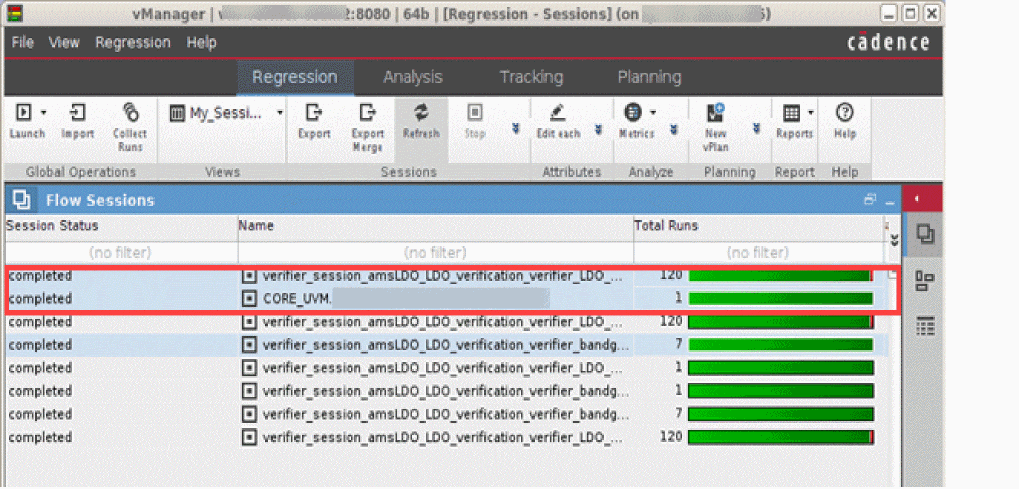
After you post the results to vManager, you can combine the uploaded results and the synchronized vPlan by using the Analyze vPlan command in vManager. See
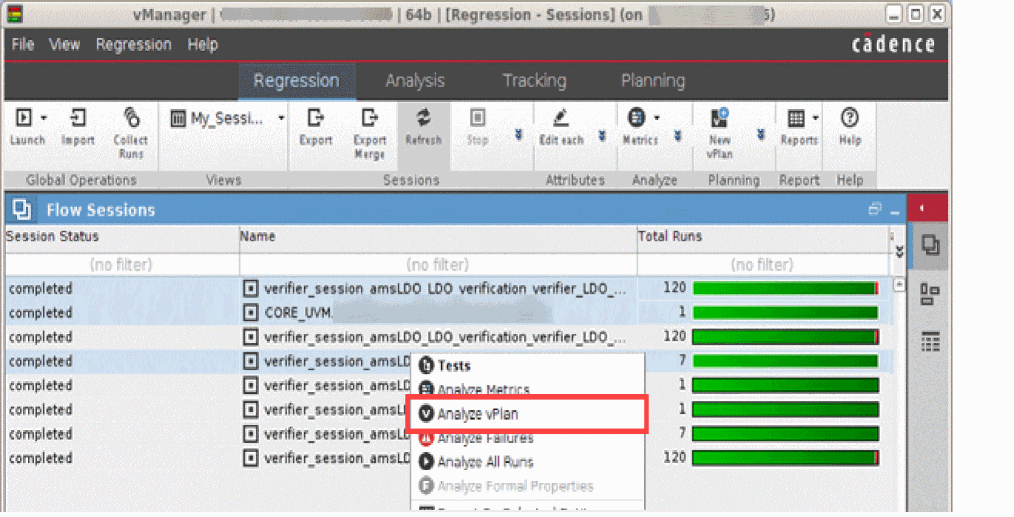
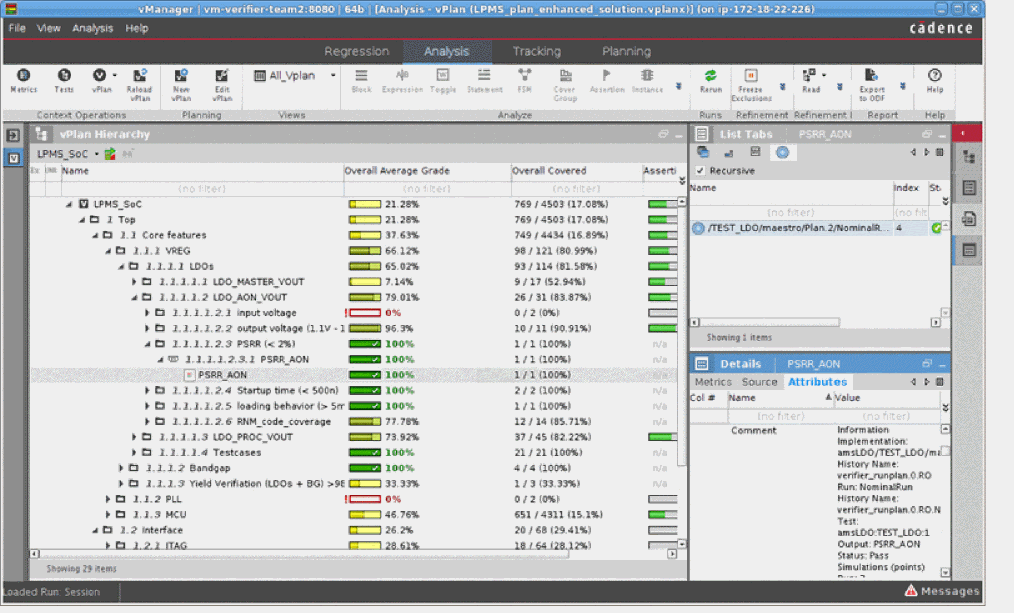
Choosing the Analyze vPlan command displays the analog and digital verification results together in a unified view in vManager.
Referenced Cellviews in an ADE Verifier-vManager Session
The connection between Verifier and vManager replicates the 1:1 reference structure. Every Verifier or vManager reference builds its own Verifier-vManager link, ensuring identical structure of the plan, and therefore, avoiding discrepancies. Verifier manages the connection between the cellviews and references in a single, unidirectional connection to vManager.
The following figure shows the flow when there are external references in Verifier and VManager.
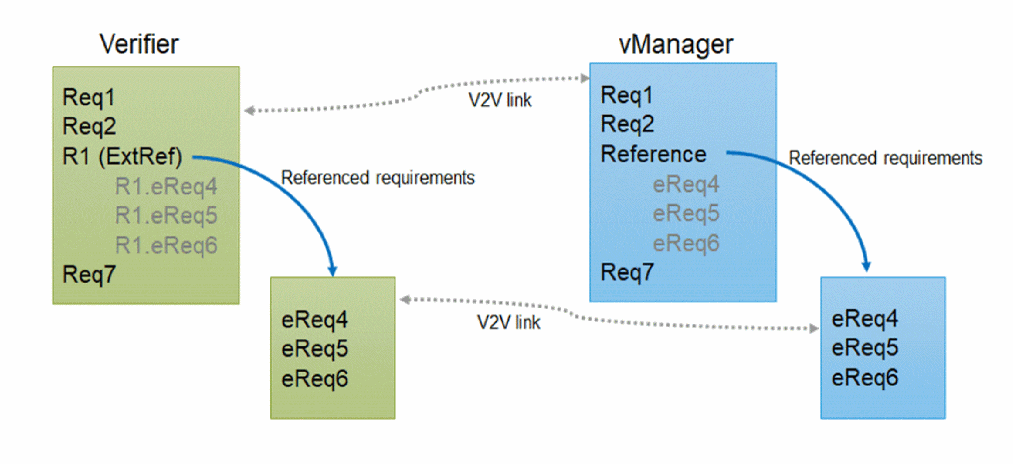
Connection between an ADE Verifier Cellview and a vManager Plan with External References
When you initiate a connection from a Verifier cellview to a vPlan that has references to other plans, a new Verifier cellview is created for each referenced vPlan. This new view is created in the same library as the current Verifier cellview. The name of the cellview is 'verifier_vManager', which is identical to the reference name.
When you download a reference to the current session, warning messages are shown if the reference:
- Already exists in the current Verifier session
- Contains a reference which already exists in the current Verifier session
- Contains multiple references to the same cellview
The vManager settings automatically replicate the current Verifier settings. This allows showing the same references in Verifier and vManager.
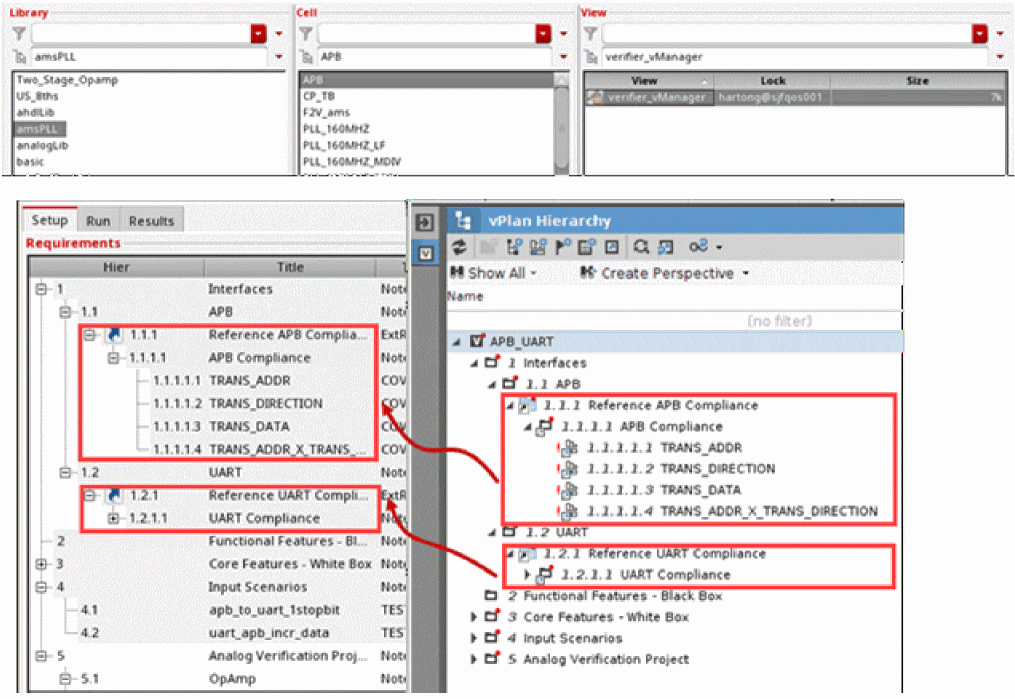
Connection between an ADE Verifier Cellview with External References and a vManager Plan
All external references in a Verifier cellview must be either on disk or in the database.
When you initiate a connection from a Verifier cellview that contains external references to a vPlan in vManager, a new vPlan is created in vManager for each cellview referenced from Verifier. When you upload from Verifier the first time, a message box is displayed to let you specify the name of the new vPlan.
If your Verifier setup contains the same maestro cellview as an implementation as well as an external reference, both upload the same results and create duplicate result sets in vManager. These duplicate results are mapped to the same entries, which is why vManager merges the these results and you might see two results being mapped to the same vManager entry.
The vManager settings are automatically set in the referenced cellviews, and references in the vPlan are automatically created. This allows showing the same references in Verifier and vManager.
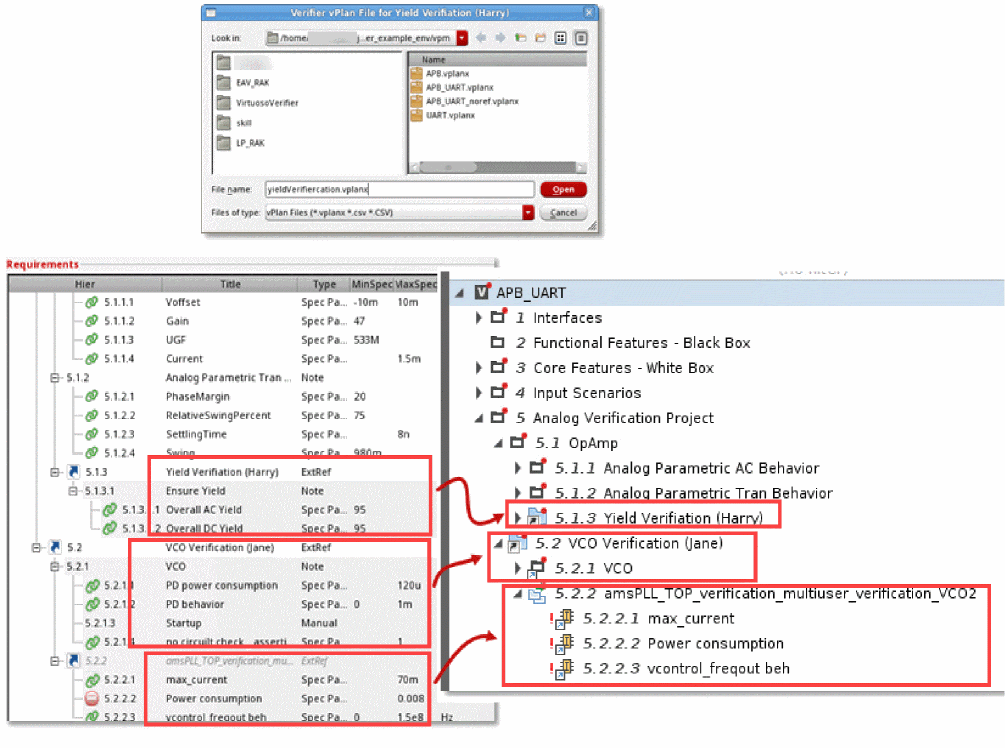
When you import external references to connect to a vPlan, the child requirements of the external reference may be hidden if the Cellview Holder property is not set to the current cellview. To resolve this, ensure that you specify the correct settings for Cellview Holder or specify the default set of filters using the environment variable filterOptions.
Return to top