
10
Verification in ADE Verifier with Reliability
Reliability analysis is performed on maestro cellviews to analyze the effects of time on circuit performance drift and to predict the reliability of designs in terms of performance. In other words, reliability analysis helps to evaluate the degradation of designs caused by the passage of time or self-heating. In ADE Assembler, you can run reliability simulations to generate outputs for fresh tests (when time is zero), stress tests (to generate degradation data), and age tests (at specific intervals, such as 1 year, 3 years, or 10 years).
ADE Verifier (Verifier) provides an overarching verification plan that links all analog tests across multiple designs. With reliability outputs in implementations, you can verify if the design degradation is according to the verification plan.
To know about setting up a reliability analysis in ADE Assembler, see
Related Topics
Reliability Hierarchy in ADE Verifier
Reliability Outputs in ADE Verifier
Reliability Flow in ADE Verifier
Reliability Outputs in Different Run Modes
Validating Simulation Results for Reliability Outputs
Viewing Simulation Logs for Reliability Outputs
Reliability Hierarchy in ADE Verifier
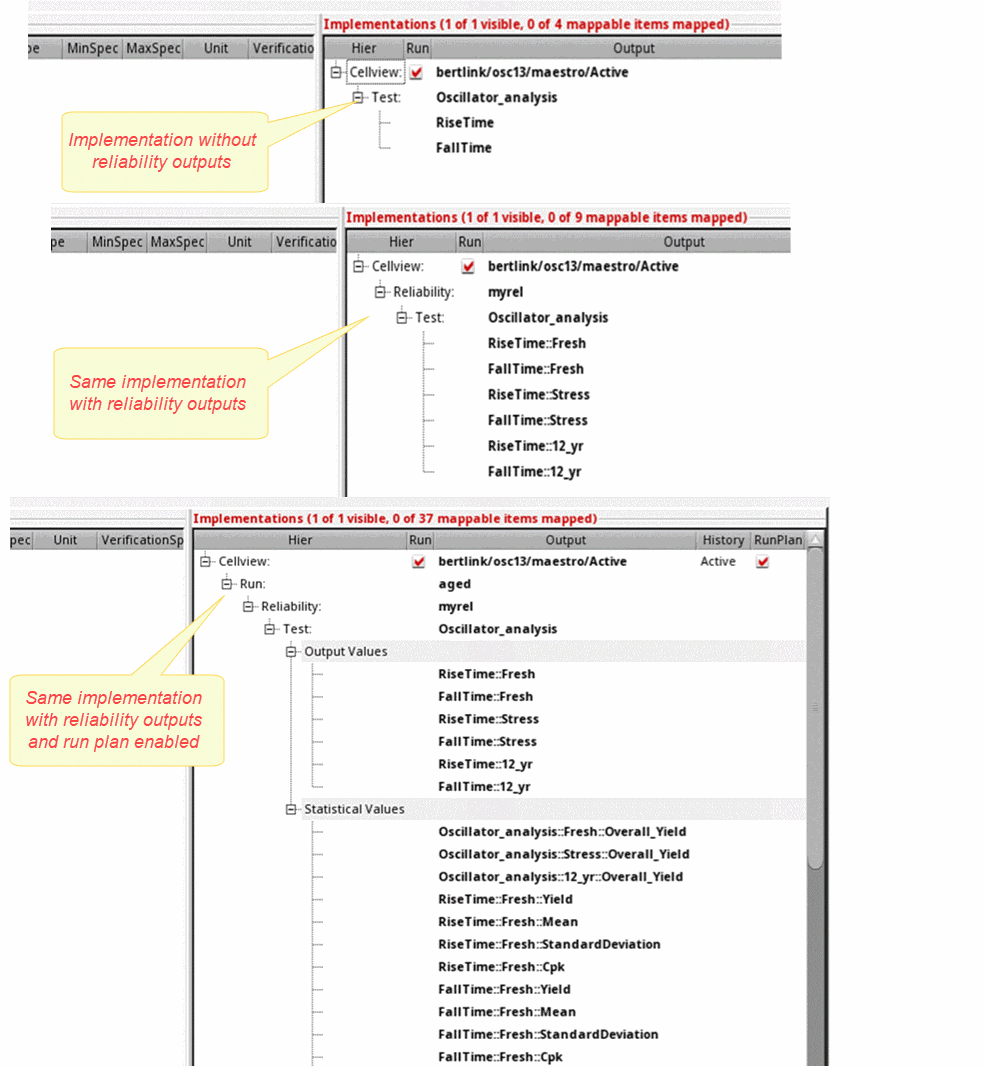
When you add a maestro cellview as an implementation in Verifier, the hierarchy is based on the tests in the cellview. However, when you add a maestro cellview with a reliability setup enabled, the hierarchy changes in Verifier and is additionally based on the reliability setups.
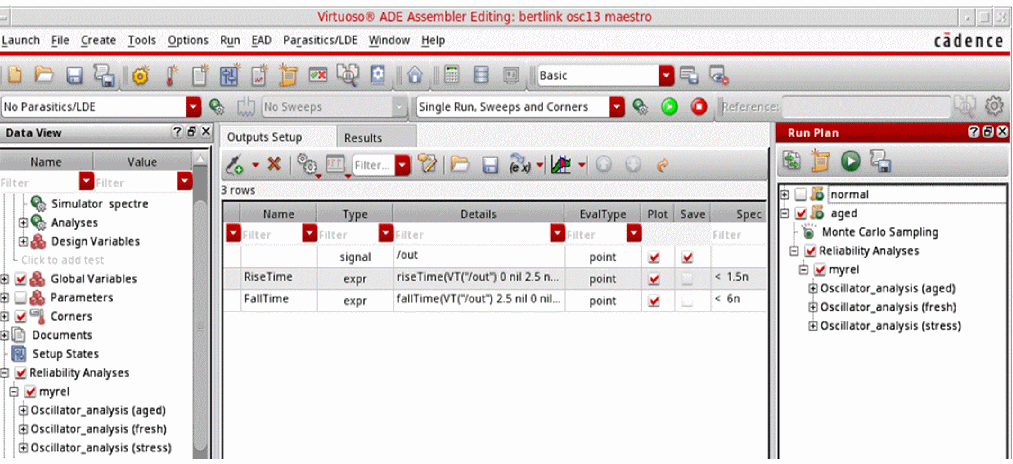
Consider the following figure of a maestro cellview where a reliability analysis and a run plan are set up and enabled.
The following figure shows the differences in the Verifier hierachy in such a scenario.
Related Topics
Verification in ADE Verifier with Reliability
Reliability Outputs in ADE Verifier
Reliability Flow in ADE Verifier
Reliability Outputs in Different Run Modes
Validating Simulation Results for Reliability Outputs
Viewing Simulation Logs for Reliability Outputs
Reliability Flow in ADE Verifier
A typical reliability flow in ADE Verifier includes the following steps:
-
Open a
maestrocellview in ADE Assembler. -
Specify a reliability analysis setup.
See Specifying the Reliability Analysis Setup. -
Save the
maestrocellview. - In ADE Verifier, choose Edit – Preferences – General – Reliability Outputs and select the required settings.
-
Add the
maestrocellview as an implementation.
See Adding Implementations. -
Create requirements from the implementation.
See Creating Requirements from Implementations. -
Run a simulation in Verifier.
See Simulation of Implementations. -
View the results of the simulation run.
See Verification Status of Requirements and Validating Simulation Results for Reliability Outputs. -
View the simulation logs.
See Viewing Simulation Logs for Reliability Outputs.
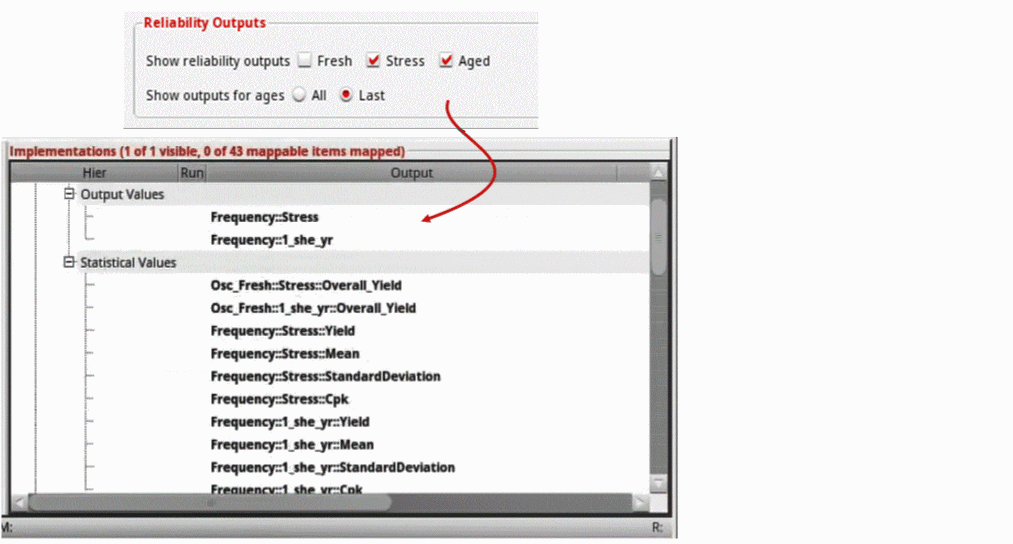
The reliability outputs are displayed in the implementation hierarchy based on the selected settings. For example, to view reliability outputs related to stress and age tests, select the Stress and Aged check box next to Show reliability outputs and deselect the Fresh check box. The implementation will now only display the outputs from the stress test.
Related Topics
Verification in ADE Verifier with Reliability
Reliability Hierarchy in ADE Verifier
Reliability Outputs in ADE Verifier
Reliability Outputs in Different Run Modes
Validating Simulation Results for Reliability Outputs
Viewing Simulation Logs for Reliability Outputs
Reliability Outputs in ADE Verifier
The reliability outputs in a Verifier implementation hierarchy might differ depending on the analysis and aging settings specified in the reliability setup in ADE Assembler. To enable reliability outputs in Verifier, you need to enable the related settings in the
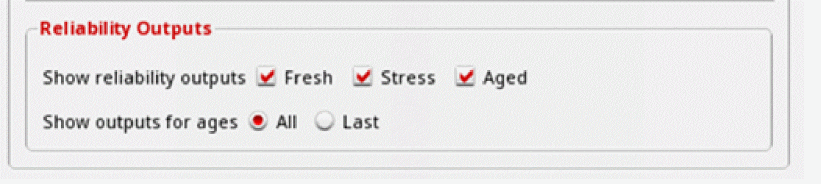
Using reliability analysis can expand the implementation hierarchy significantly. To be efficient in your verification, it is important that you focus only on the data that is really relevant to your final verification and disable all other options.
Alternatively, you can also use the following environment variable in the Virtuoso CIW to specify the preferences related to reliability outputs:
Example:The following usage of the environment variables will show the reliability outputs for fresh tests and last age only.
envSetVal("verifier.preferences" "displayFresh" 'boolean t)
envSetVal("verifier.preferences" "displayAge" 'boolean t)
envSetVal("verifier.preferences" "displayRelOutputAges" 'string "Last")
By default, all reliability outputs are selected and displayed for all ages. However, you can make changes to the selection based on the outputs that you want to display in Verifier implementations.
Related Topics
Verification in ADE Verifier with Reliability
Reliability Hierarchy in ADE Verifier
Reliability Flow in ADE Verifier
Reliability Outputs in Different Run Modes
Validating Simulation Results for Reliability Outputs
Viewing Simulation Logs for Reliability Outputs
Reliability Outputs in Different Run Modes
Consider that you have the following maestro cellview in ADE Assembler.
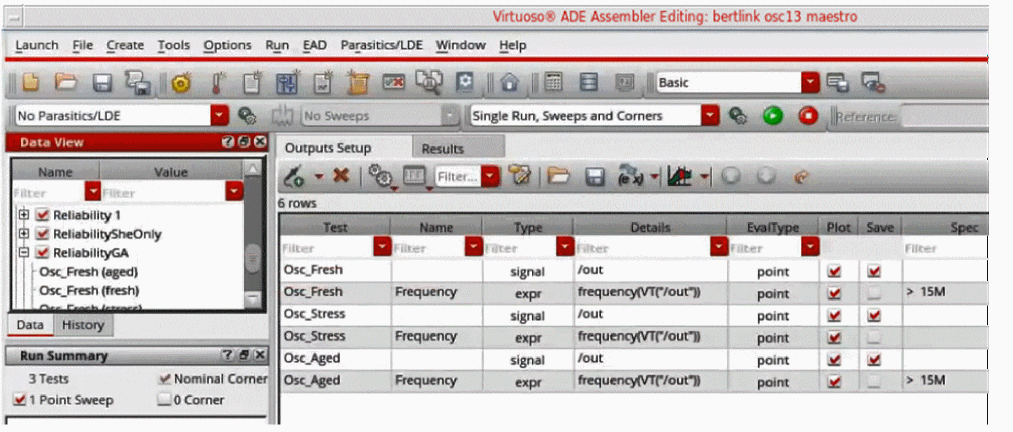
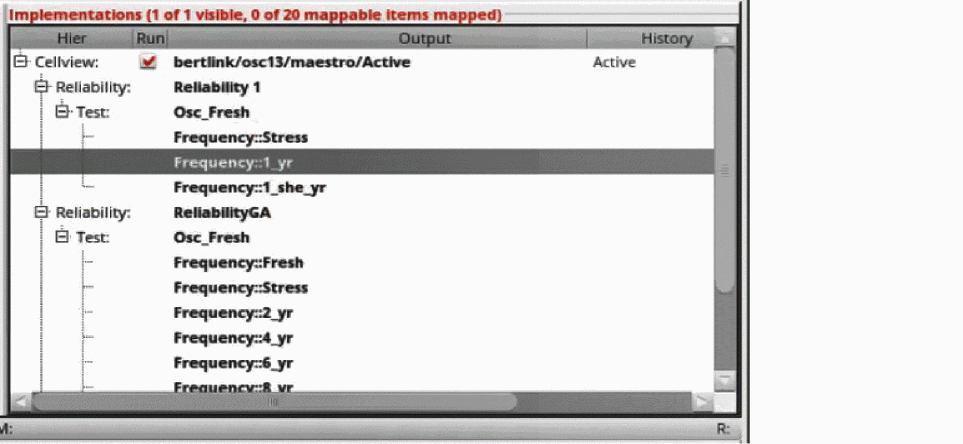
In Verifier, when you add this maestro cellview as an implementation, the hierarchy changes as follows depending on the selected settings.
-
When run mode is set to Single Sweep, Sweeps and Corners in ADE Assembler, the outputs are grouped by the tests under the reliability setup.
-
When run mode is set to Monte Carlo Sampling in ADE Assembler, the implementation displays additional statistical parameters than the Single Run, Sweeps and Corners run mode. Statistical corners can be added accordingly. The output and statistical values are grouped separately in the Output Values and Statistical Values sections under a test, and all tests are grouped under the corresponding reliability setup.
You can run simulations in the Monte Carlo Sampling run mode using two reliability modes: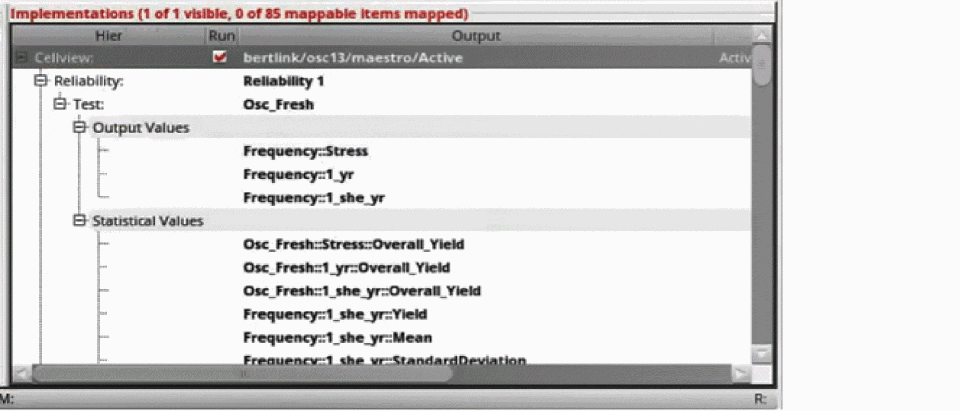
-
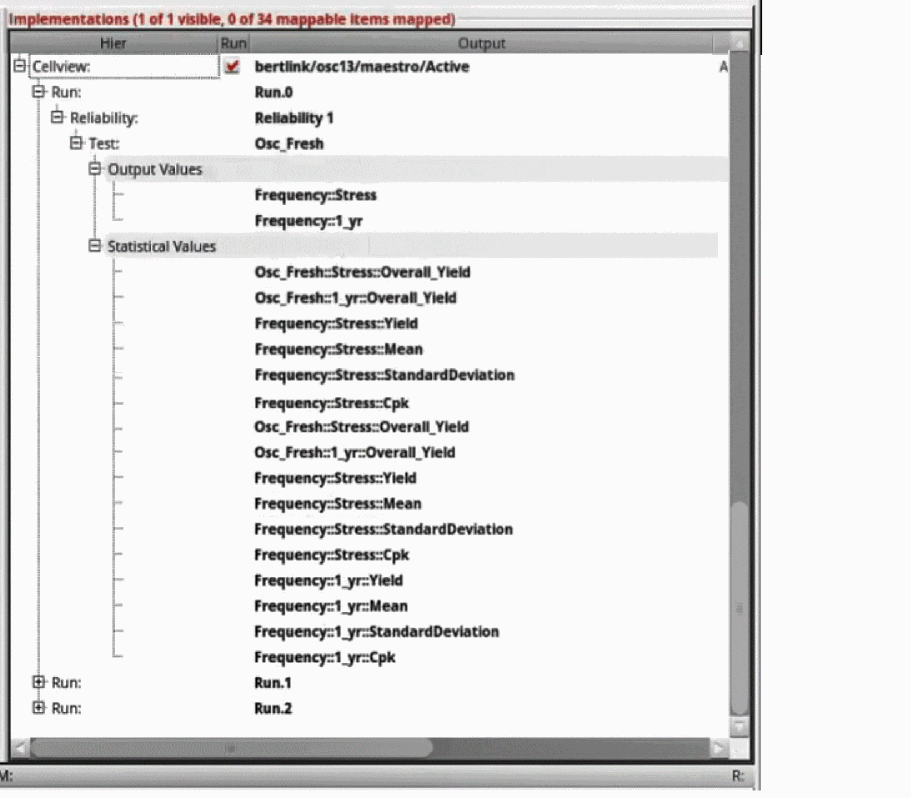
N+N
In this flow, Monte Carlo Sampling (process variations) is applied in both the stress and age simulations to provide more higher accurate results.The reliability outputs in the Verifier implementation show the different outputs and values for multiple stress simulation points.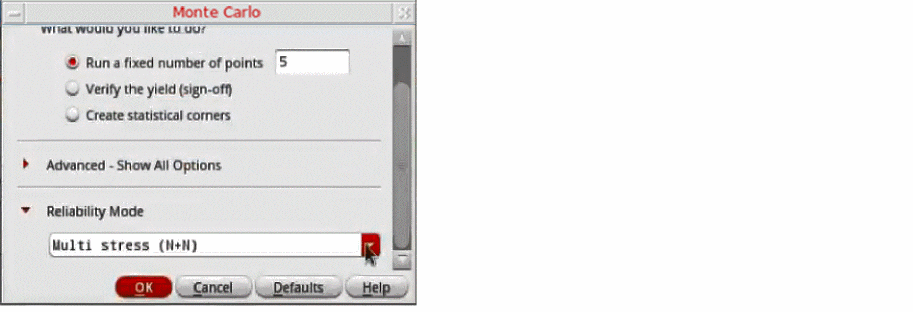
-
1+N
In this flow, a single stress simulation is performed in the first iteration to calculate the aging degradation. It is reused with process variations during Monte Carlo analysis combined with aging.
To view Monte Carlo Sampling outputs and statistical values for single-stress simulations, change the Reliability Mode to Single stress (1+N) in the Monte Carlo form.The reliability outputs in the Verifier implementation show the different outputs and values for single-stress simulation points. Here, the stress values are removed from the statistical values. 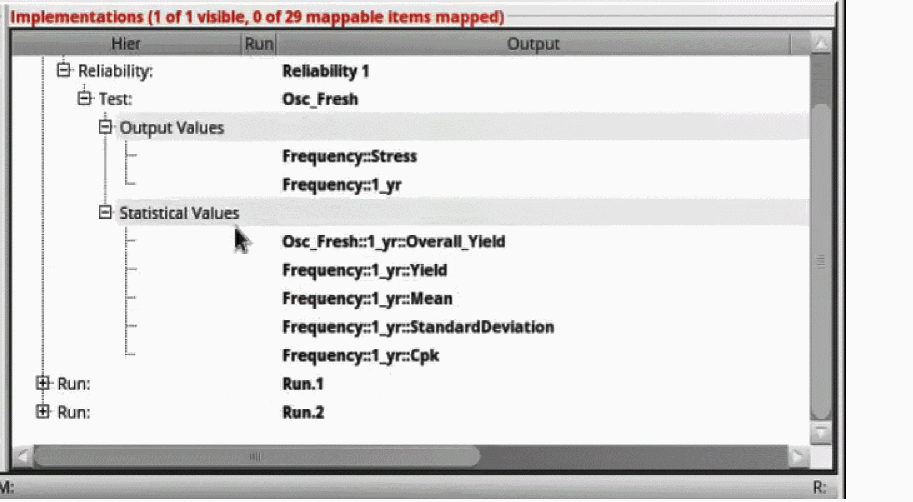
-
N+N
-
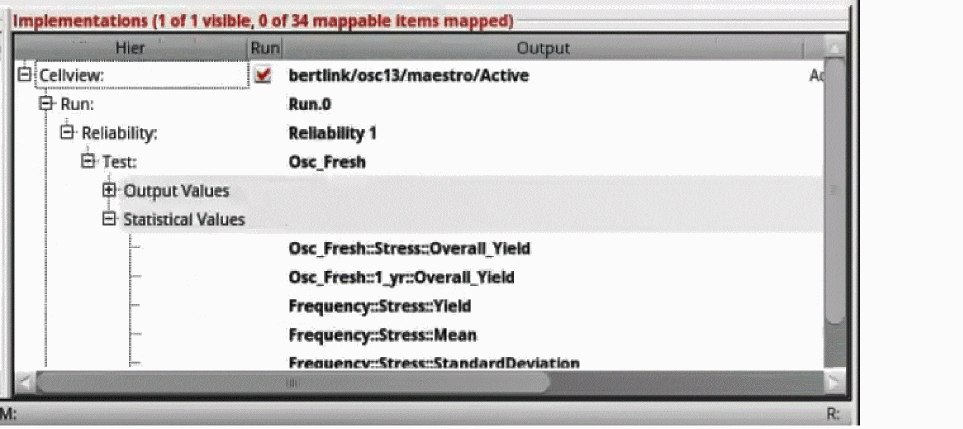
When Run Plan Mode is enabled in Verifier, the run plan is shown on the top in the implementation hierarchy. Similar to the hierarchy displayed for Monte Carlo Sampling run mode, the outputs and statistical values in the Outputs and Statistical Values sections are separately grouped under a test. All tests are grouped under the corresponding reliability setup. All reliability setups are again grouped under a run plan.
Related Topics
Verification in ADE Verifier with Reliability
Reliability Hierarchy in ADE Verifier
Reliability Outputs in ADE Verifier
Reliability Flow in ADE Verifier
Validating Simulation Results for Reliability Outputs
Viewing Simulation Logs for Reliability Outputs
Validating Simulation Results for Reliability Outputs
To validate simulation results for reliability outputs:
-
Open a
maestrocellview in ADE Assembler. - Run a reliability simulation.
-
In Verifier, add the
maestrocellview as an implementation. - Right-click the implementation and choose Update Implementations from the shortcut menu.
-
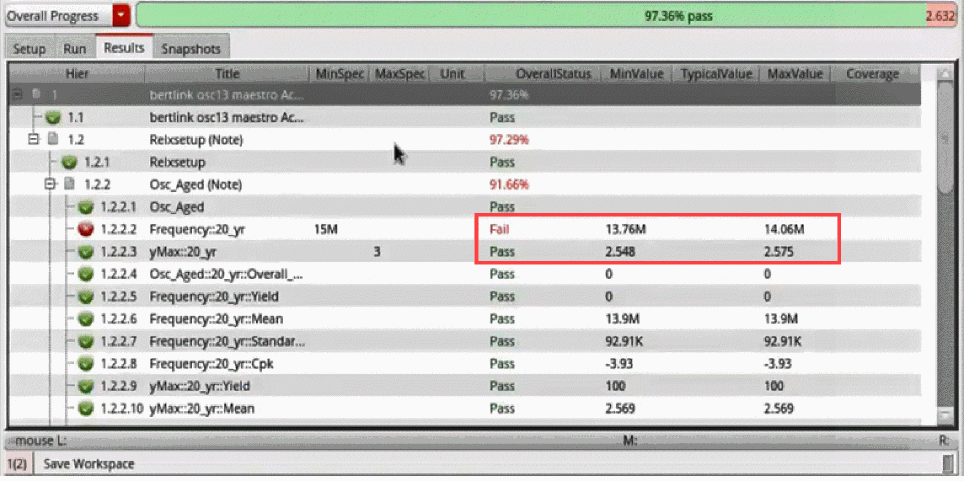
Click the Results tab to view the generated results.
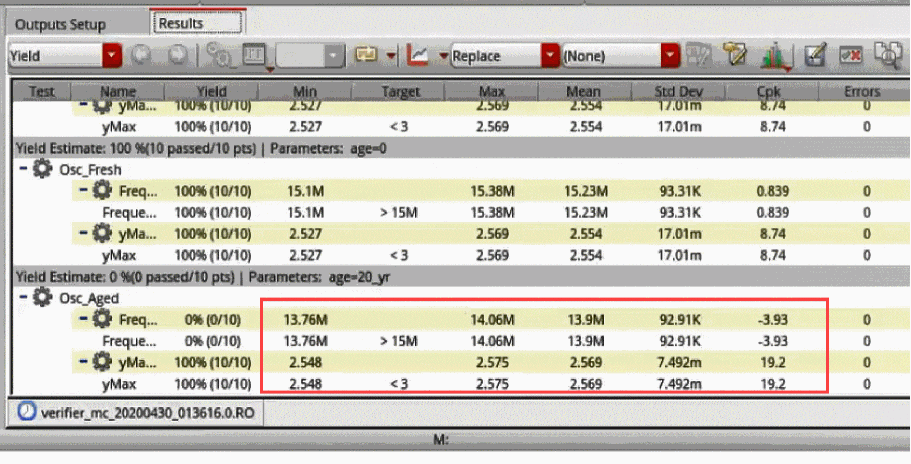
The results are filtered for different ages. You can evaluate the results based on the age values and variable values.
- Validate the results as follows:
Related Topics
Verification in ADE Verifier with Reliability
Reliability Hierarchy in ADE Verifier
Reliability Outputs in ADE Verifier
Reliability Flow in ADE Verifier
Reliability Outputs in Different Run Modes
Viewing Simulation Logs for Reliability Outputs
Viewing Simulation Logs for Reliability Outputs
The simulation logs of reliability simulations are grouped on the basis of the reliability setups that include implementation tests. The tests in a reliability setup also include groups of aging result details.
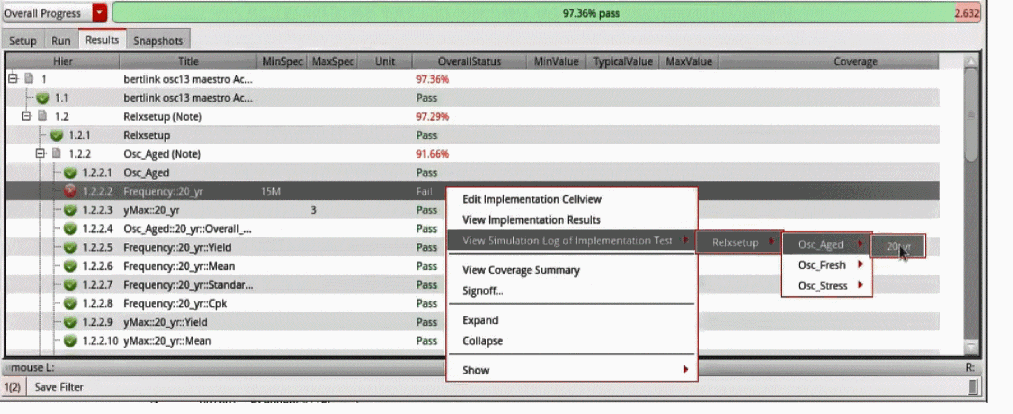
To view the output logs for reliability simulation results:
- In the Results window, select the specification for which you want to view the output log.
- Right-click the selected specification and choose View Simulation Log of Implementation Test – <reliability setup> – <test> – <age point>.
- Select the required reliability setup listed in the submenu.
- From the submenu that opens, select the required test.
- From the submenu that opens, select the required age point of the specification.
The output log displays the details of the first point corresponding to the selected age in a new window.
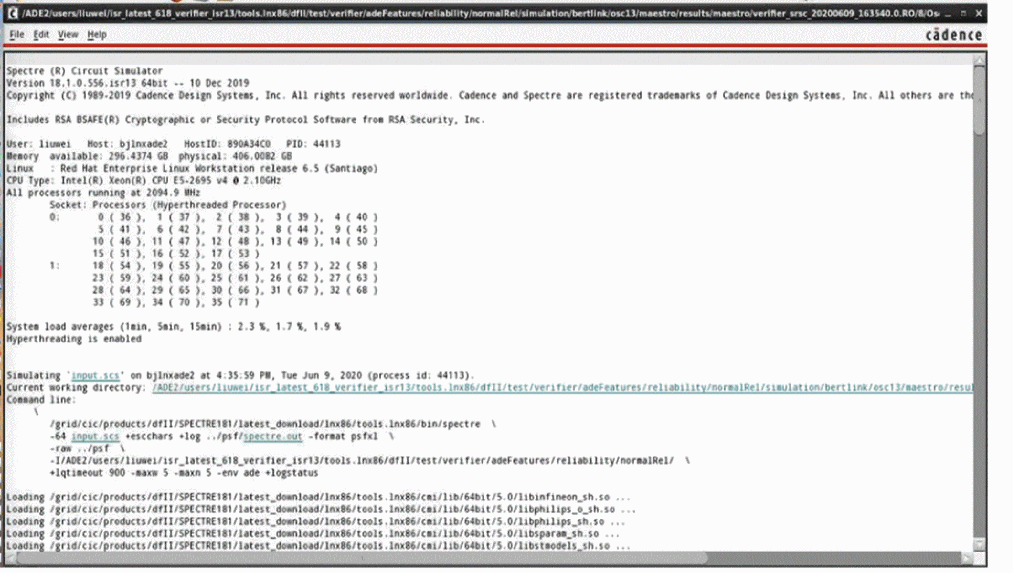
If the maestro cellview does not contain a sweep value and the reliability setup contains only one age point, the output log displays the details of that age point. If the maestro cellview contains a sweep value, the output log displays the details of the first point corresponding to the selected age.
Related Topics
Verification in ADE Verifier with Reliability
Reliability Hierarchy in ADE Verifier
Reliability Outputs in ADE Verifier
Reliability Flow in ADE Verifier
Reliability Outputs in Different Run Modes
Validating Simulation Results for Reliability Outputs
Return to top