
When you use the SimVision environment with the Spectre®AMS Designer simulator, you have access to additional controls to support Verilog®-AMS and other AMS-related design units. The SimVision environment appears when you use the -gui option with the xrun or xmsim command or when you run the simvision command (either from the command line or from a Tcl file that you specify using the -input option to the xrun) xmsim.
The Design Browser Window for AMS Designs
The Design Browser presents a graphical display of your design and provides access to the other SimVision windows. The Design Browser for the AMS Designer simulator looks something like the following illustration:
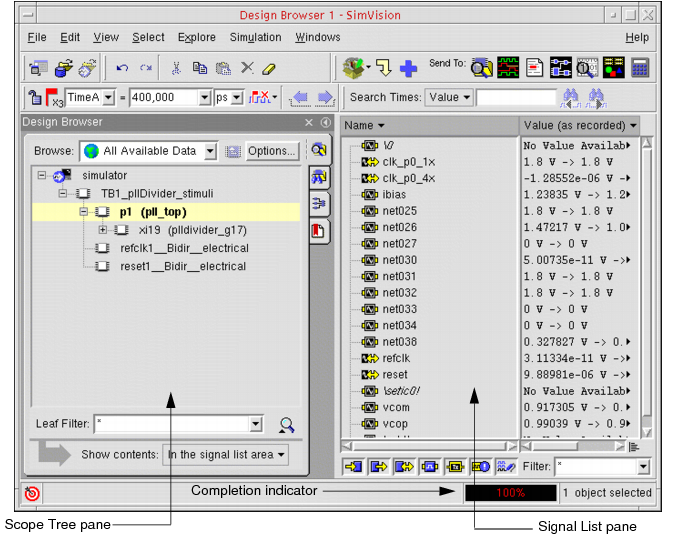
The Design Browser contains two primary panes. On the left is the Scope Tree pane, which displays your current design hierarchy in a graphical tree representation. On the right is the Signal List pane, which displays a list of signals with their current simulation values. The completion indicator appears at the bottom of the window.
The SimVision environment can also read PSFXL analog simulation data. It supports a unified PSFXL/SST2 database that contains both SST2 digital data and PSFXL analog data, so that you do not need to manually segregate analog probes in a separate database when probing or opening databases to view the results.
Starting with the INCISIV 14.1 release, the PSFXL/SST waveform data can also be read using the Virtuoso Visualization and Analysis (ViVa) tool in standalone mode.
The unified PSFXL/SST2 database stores the results in a sub directory, with two containers. The digital signal results are stored in a SST2 container (*.trn) and the analog signal results are stored in an analog container (*.tran). The logFile, created during the simulation, links these two containers in a unified database.
The Design Browser lets you:
- Select branches in addition to the objects available for a Verilog module by choosing Select - Branches
In the Source Browser, the left parenthesis enclosing each branch appears highlighted, as illustrated here:

- Navigate through the edges by using the Previous Edge and Next Edge buttons. These apply to only digital signals

