
9
Netlisting
The environment generates the following files for simulation:
| File | Description |
|---|---|
ADE Assembler creates or updates the simulator input file automatically when you give the command to run a simulation. The environment creates hierarchical netlists incrementally: incremental netlisting is faster than full hierarchical netlisting because the environment updates the netlist only for those schematics that have changed since it created the previous netlist.
Alternatively, you can
- You want to run the simulator in stand-alone mode
- You want to modify the netlist to take advantage of features that the design environment interface to your simulator does not support
- You want to read the netlist before running the simulation
See the following topics for more information:
Creating a Netlist
-
To create and display the simulation input file, which contains the netlist, do the following:
On the Data View assistant pane, right-click the test or analysis name and choose Netlist – Create. In this case, ADE Assembler updates the netlist only for those cells that have changed since the previous netlist was created. Netlist is not created for the cells that are not checked and saved. Instead, their existing netlist is used. The netlist appears in a text browser window.If you include DSPF files in your simulation setup, you can set options in the.simrcfile to update the save statement in the netlist according to the format and content of the DSPF files, which are dependent on the extraction tool used to create the files. For more details, refer to Customizing Netlist Creation Using the Options in .simrc. -
To recreate the netlist, choose Netlist – Recreate. In this case, ADE Assembler runs full hierarchical netlisting for all the cells or schematics in the hierarchy.
Displaying a Netlist
To display an existing simulator input file, do one of the following:
- On the Data View assistant pane, right-click the test and choose Netlist – Display.
- On the Results tab of the Outputs pane, right-click a test and choose Netlist – Display.
Expanding Hierarchy to Netlist a Design
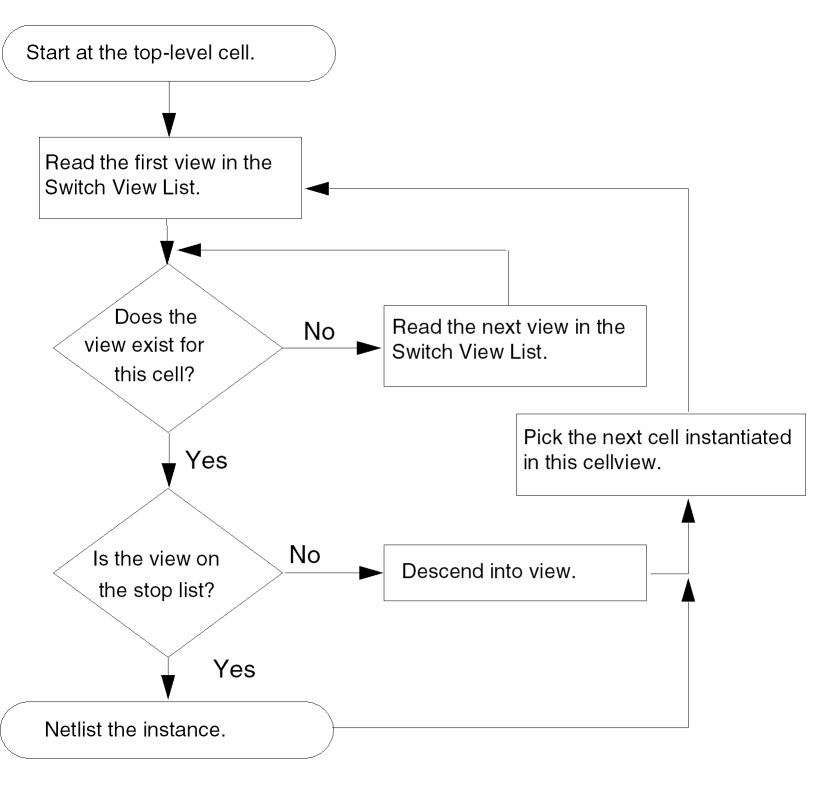
While netlisting a hierarchical design, the environment expands every cell (instance) into lower level cells until it reaches one designated as a primitive. The environment adds each primitive to the netlist.
At each level in your design hierarchy, you can have one or more views for each cell. You use a view list to specify which view the design environment selects for expansion during netlisting. View lists can be global to the entire design or specific to an instance as specified by its property values.
For analog simulation, you specify the global or default view list in the Switch View List field of the
The netlister uses the stop list, which you specify in the Stop View List field on the
If you are using DSPF subcircuits that contain blackboxes, the netlister traverses inside each blackbox device and uses the schematic name corresponding to each object to write the save statement in the netlist. This helps in probing the device terminals or objects inside the blackbox devices.
The following flowchart shows how a typical OSS-based netlister netlists a design.
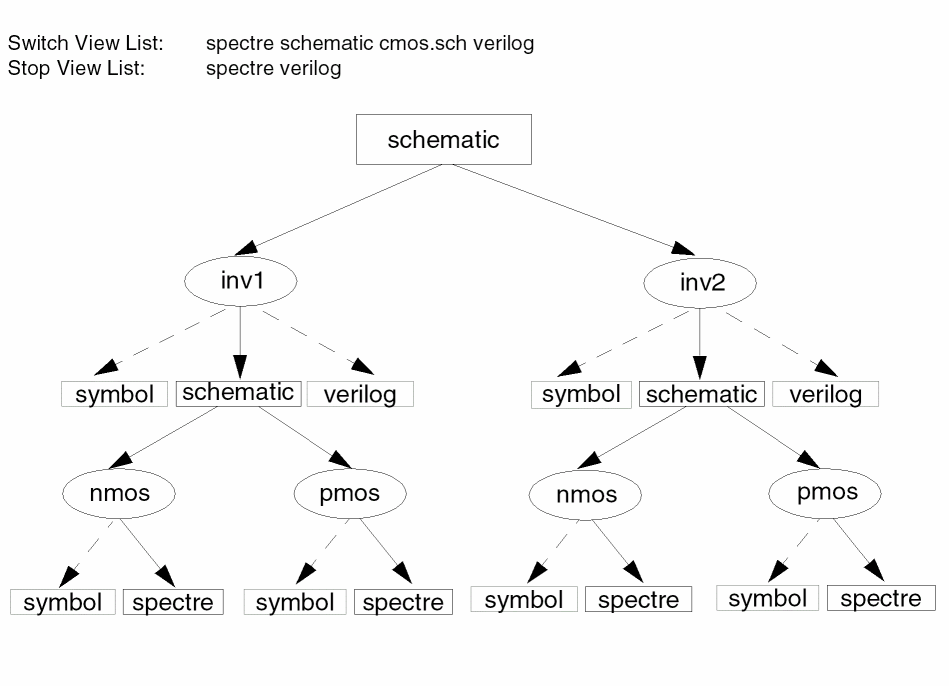
The following figure illustrates how hierarchy expansion is performed on a simple design. The solid lines show the view selection and design expansion based on the switch view list and stop view list shown.
Return to top