
6
Other CDF Information
Other Settings Tab
You use the Other Settings tab of the Edit CDF form to specify the sizes of input fields.
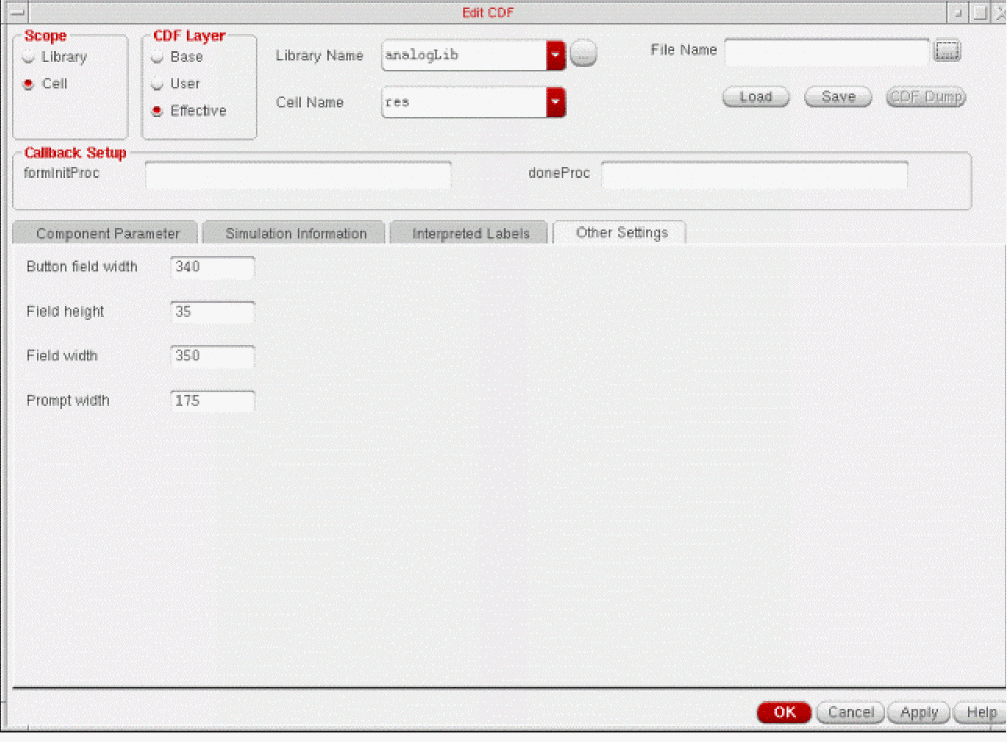
The following fields let you control the size of parameters on an instantiation form (such as the Add Instance or Edit Object Properties forms). These fields do not affect the display in the Edit CDF form.
Button field width lets you specify the width of a button on the instantiation form. The default width is 340 pixels.
Field height lets you specify the height of a field on the instantiation form. The default height is 35 pixels.
Field width lets you specify the width of a field on the instantiation form. The default width is 350 pixels.
Prompt width lets you specify the width of the prompt on the instantiation form. The default width is 175 pixels.
Setting Up Fields and Prompts
The input fields and prompts for a component are displayed on an instantiation form, such as the Add Instance or Edit Object Properties forms. The following examples show the Add Instance form as it appears when a component is instantiated. The sample CDF description in these examples defines four parameters: a button, a string, a cyclic field, and a radio button field.
Adjusting Button Fields
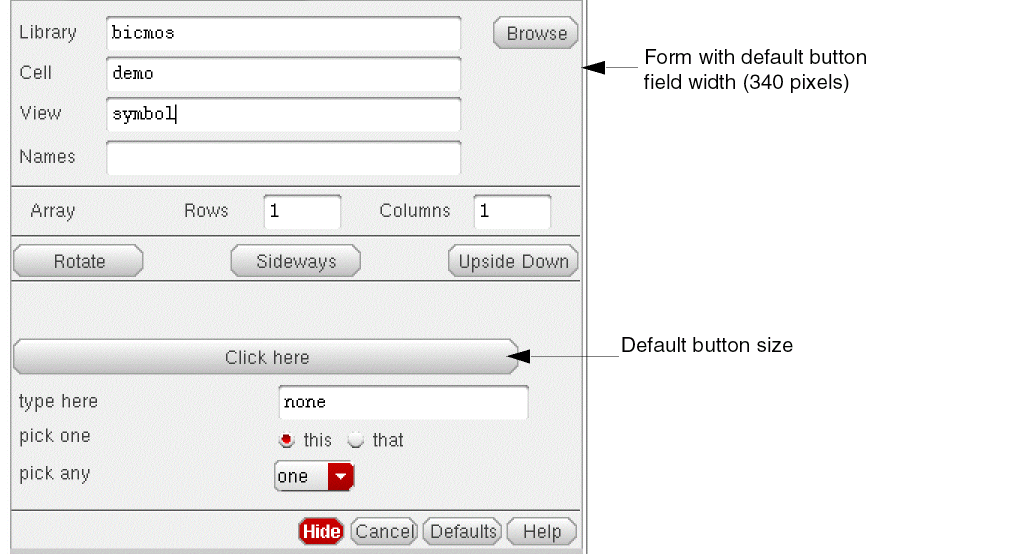
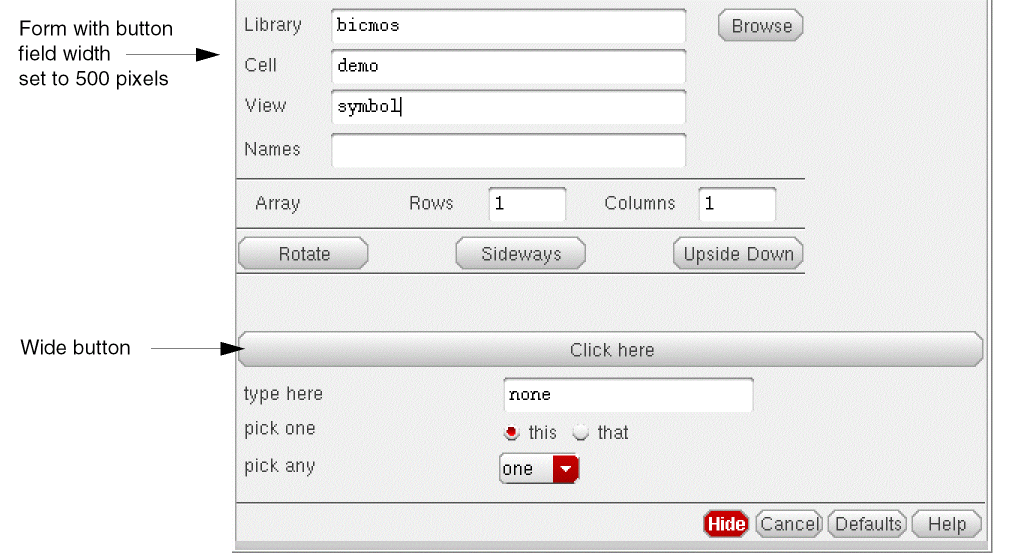
You can adjust the width of a field with the Button field width parameter in the Other Settings tab on the Edit CDF form. The following examples show button fields on two Add Instance forms. The following form shows the button with the default width of 340 pixels.
The following form shows the button with a width of 500 pixels.
Adjusting Field Heights
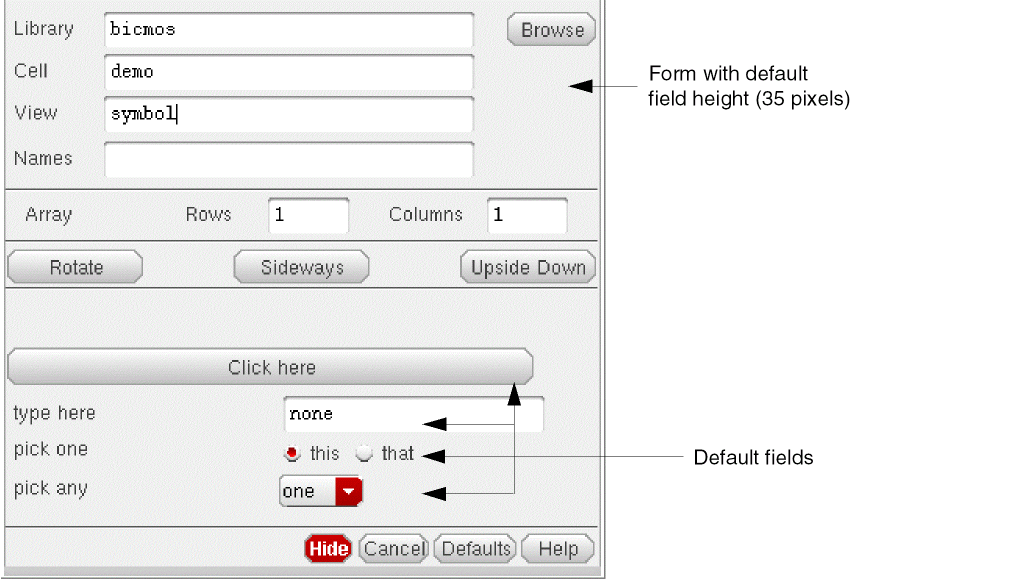
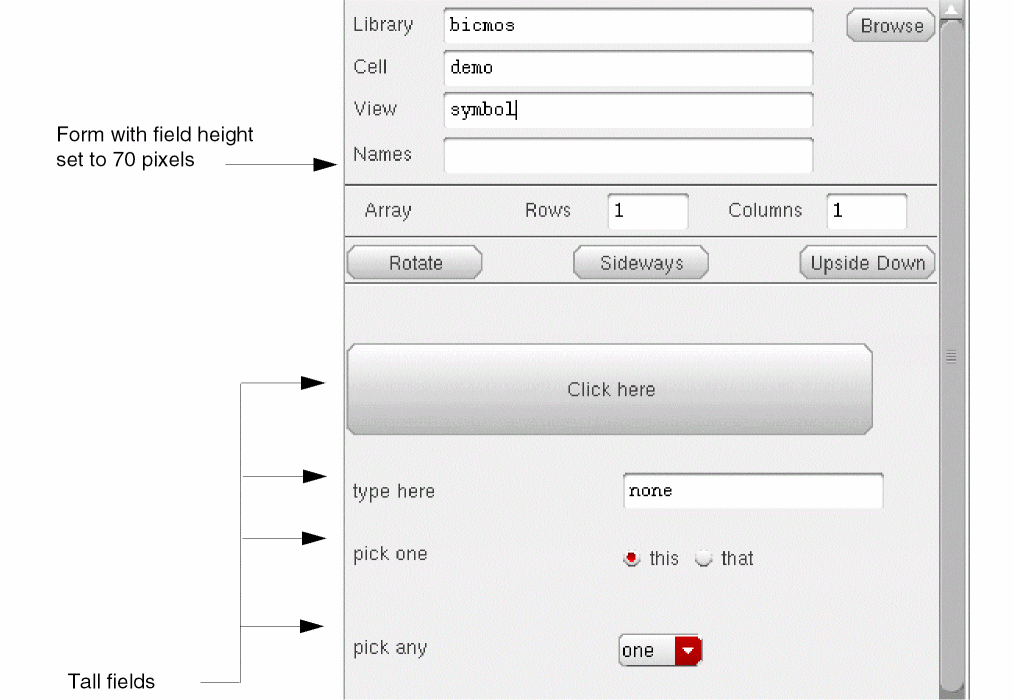
You can adjust the height of a field with the Field height parameter in the Other Settings tab on the Edit CDF form. The following example shows fields on two Add Instance forms. The following form shows the fields at the default height of 35 pixels.
The following form shows the field height at 70 pixels.
Adjusting Field Widths
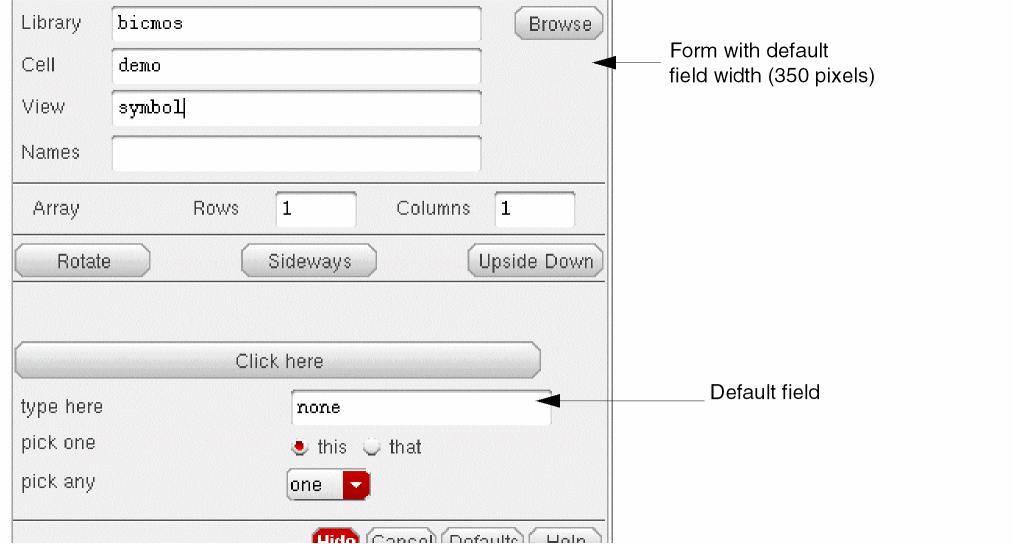
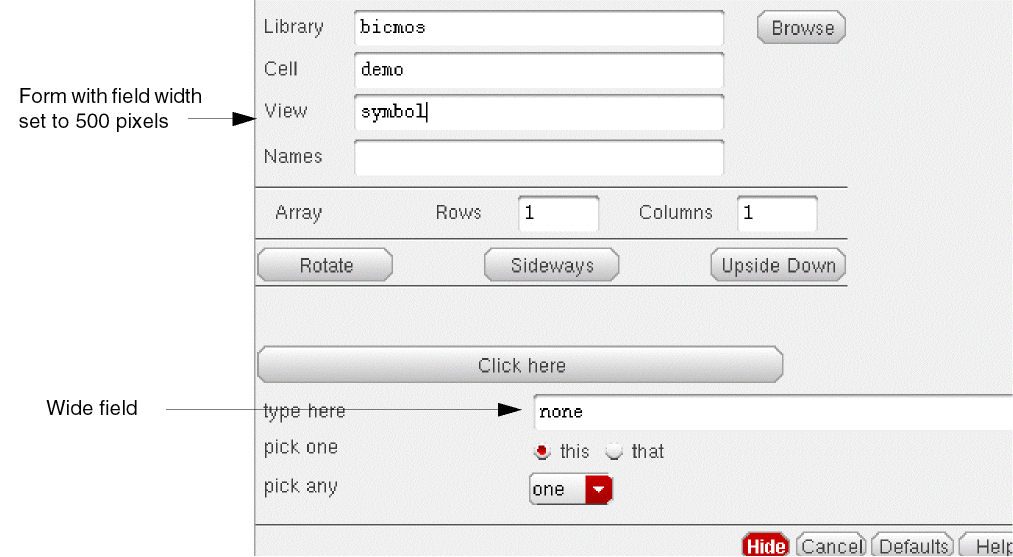
You can adjust the width of a field with the Field width parameter in the Other Settings tab on the Edit CDF form. This parameter adjusts the width of string input fields only. (You adjust the width of a button field with the Button field width parameter in the Other Settings tab on the Edit CDF form.) The following examples show string input fields on two Add Instance forms. The following form shows the field at the default width of 350 pixels.
The following form shows a field width of 500 pixels.
Adjusting Prompt Widths
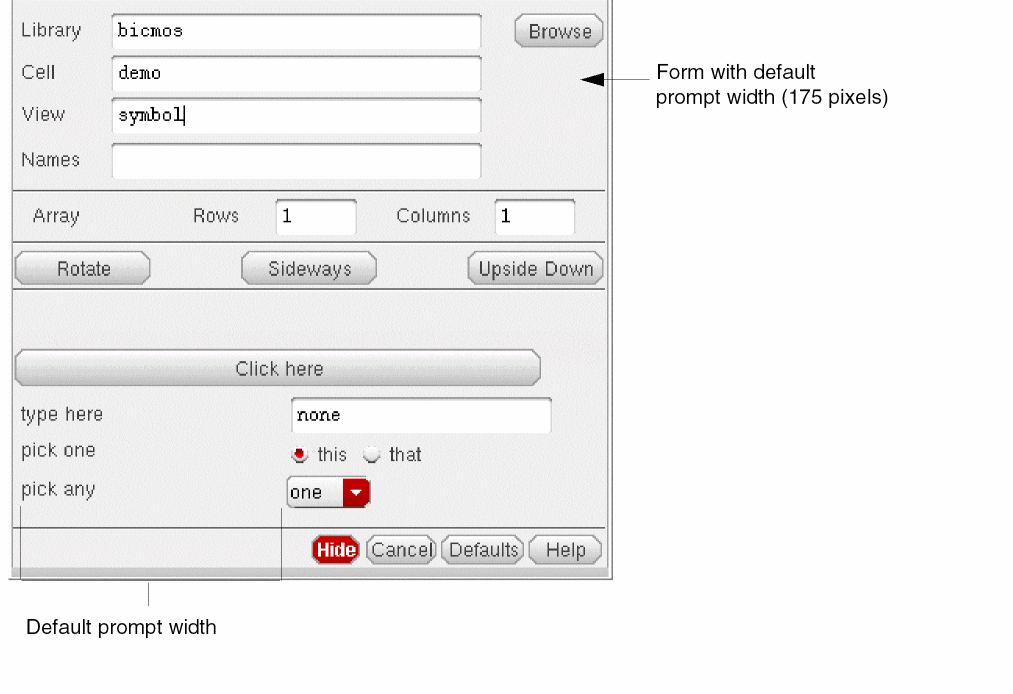
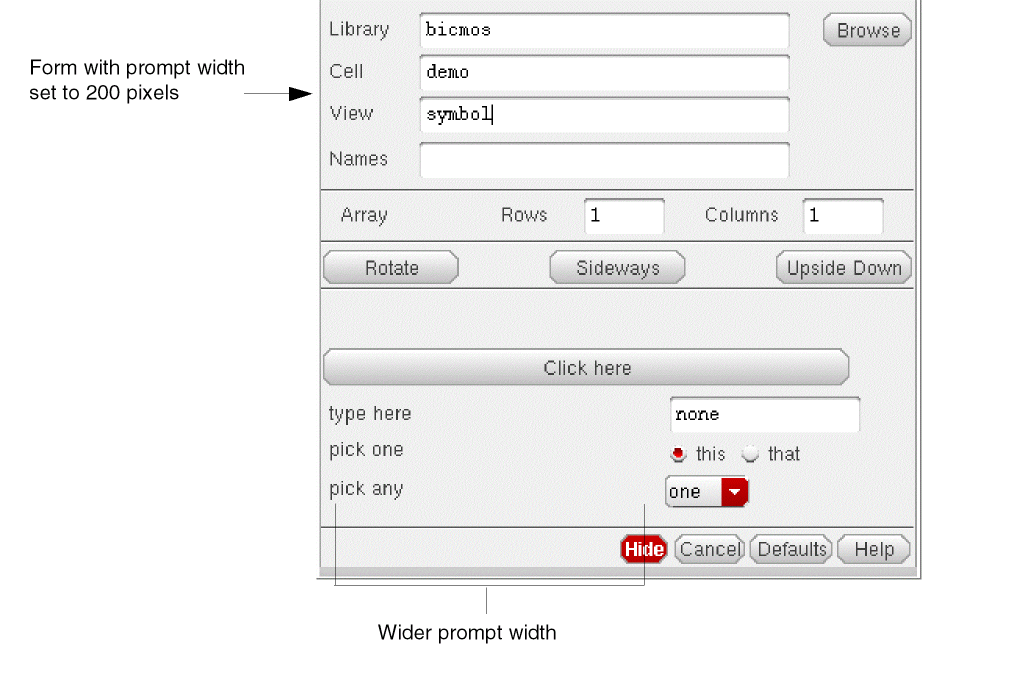
You can adjust the width of a prompt with the Prompt width parameter in the Other Settings tab on the Edit CDF form. The following example shows prompts on two Add Instance forms. The following form shows the prompts at the default width of 175 pixels.
The following form shows the prompt width of 200 pixels.
Initialization Procedure
The formInitProc field in the header of the Edit CDF form lets you enter the name of an optional procedure for preprocessing CDF data. The procedure executes when the contents of the CDF are displayed on a form, such as the Add Instance form or the Edit Object Properties form. The procedure takes a single argument, cdfDataId, which is the database object that represents the CDF description for the component being loaded into the form. You enter only the function name (with no parentheses) in the formInitProc field.
In the NFET example, you might enter an initialization procedure to reset all NFET parameters to their defaults each time the component is displayed on a form. (This is only an example. It is not practical to reset parameters to their default values every time you return to the Edit Object Properties form.)
Enter the procedure name, setDefaults, in the formInitProc field. This procedure takes only one argument, cdfDataId, which is used to point to the parameters and values of the associated component.
You can create the SKILL procedure with a standard editor. You must load the file in order for the initialization procedure to be called and run. (See “Loading Callbacks” for details about loading or attaching a SKILL procedure.)
procedure(setDefaults(cdfDataId)
        ;used as formInitProc to set all nfet values to the
        ;default values as form is entered
    cdfDataId->w->value = cdfDataId->w->defValue
    cdfDataId->width->value = cdfDataId->width->defValue
    cdfDataId->l->value = cdfDataId->l->defValue
    cdfDataId->length->value=cdfDataId->length->defValue
)
An initialization procedure runs every time the form is updated. The procedure runs when you change a value on the component (a callback), and when you point to a new component.
You can also enter the following SKILL expression to set the formInitProc property when you create the cell CDF:
cdfId = cdfCreateBaseCellCDF( cellId )
.
.
.
cdfId->formInitProc = "setDefaults"
Postprocessing Procedure
The doneProc field in the header of the Edit CDF form lets you enter the name of an optional procedure to be executed after you change a parameter on a component instance. You execute the procedure when you click Apply on the Edit Object Properties form or when you place an instance of the component using the Add Instance form.
For the NFET example, a DoneProc procedure might recalculate the simulation parameters every time the instance changes. Enter the procedure name in the DoneProc field. In the following example, the procedure name is calcSimParams. This procedure takes a single argument, cellId, that identifies the cell of the instance that was modified. Throughout the procedure, cdfgData, the global variable for CDF information, accesses the CDF information.
You can create the SKILL procedure with a standard editor. You must load this file in order for the procedure to be called and run. (See “Loading Callbacks” for details about loading or attaching a SKILL procedure.)
procedure(calcSimParams(cellId)
    cdfgData = cdfGetInstCDF(cellId)
        tmp=cdfParseFloatString(cdfgData->w->value)
        cdfgData->ad->value=sprintf(s "%g" (tmp * 7.0 * 1e-6))
        cdfgData->as->value=sprintf(s "%g" (tmp * 7.0 * 1e-6))
        cdfgData->pd->value=sprintf(s "%g" ((tmp + 7e-6) * 2))
        cdfgData->ps->value=sprintf(s "%g" ((tmp + 7e-6) * 2))
)
You can also enter the following SKILL expression to set a postprocessing procedure when you create the cell CDF:
cdfId = cdfCreateBaseCellCDF( cellId )
...
cdfId->doneProc = “calcSimParams”
Return to top