
Verifying Incremental EIP Updates
Changes made to the hierarchical design partition are saved in the hierarchical design partition view (child) pointed by a layout configuration. To verify incremental updates, you need to open or import a parent top-level design partition view with layout configuration. You can verify your updates, including all the changes in the child design partition view. These changes are applied to all occurrences of the subcell in the top-level design partition view.
To verify updates made in a hierarchical design partition view:
-
Right-click the hierarchical design partition view in the concurrent layout assistant and choose Show Detailed Changes (EIP) to view all changes made during incremental EIP.
This will perform EIP in read-only mode. The object is shown in the Cells category in the OBJECTS section of the Summary Pane.
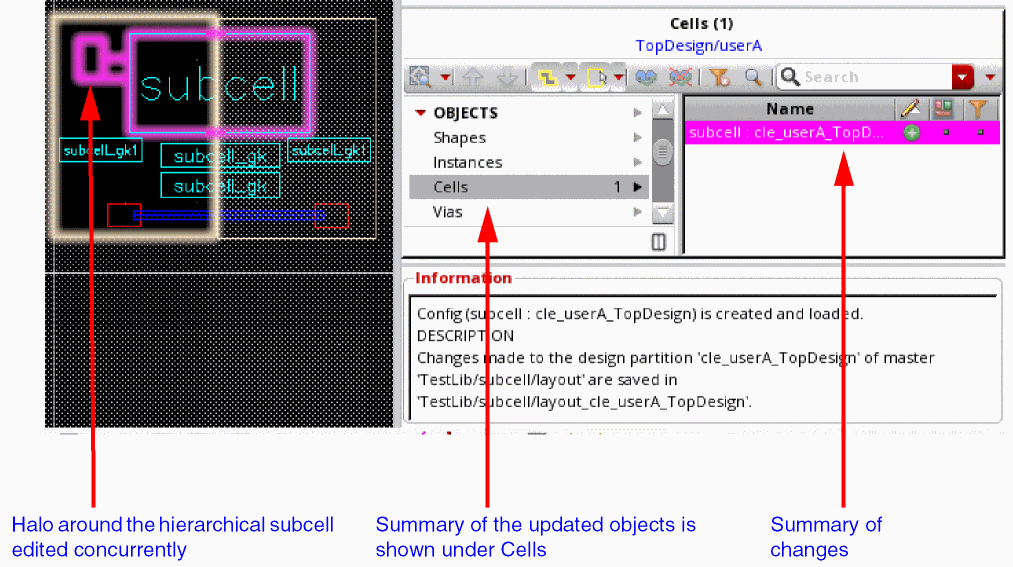
- Click File – Save at the top-level design partition view to save this layout configuration, which is a reference to the child hierarchical design partition that you just edited.
-
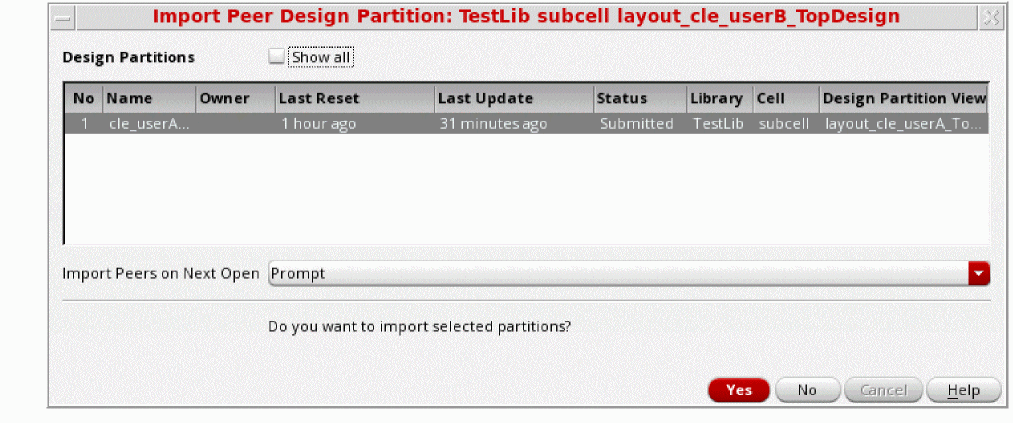
Open a peer design partition.
The Import Peer Design Partition form is displayed.
-
Click Yes or No based on whether you want to view changes made by the peer user.
If you choose to import peer changes, the imported changes are marked by a halo in the canvas.
You can now use the Layout Configuration form to load or unload the changes in the design hierarchy.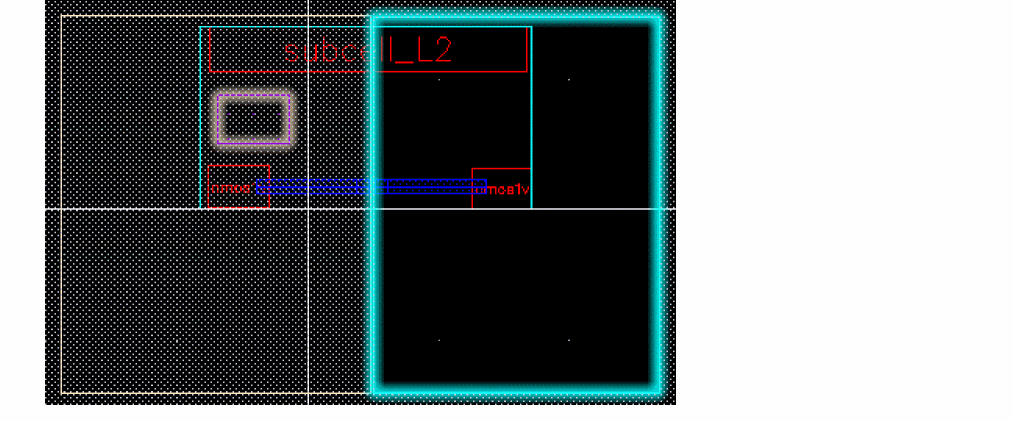
-
Choose Layout Configuration from the Submit for Merge drop-down list or choose Concurrent – Layout Configuration.
The Layout Configuration form is displayed. -
Click Load if the changes look fine in all occurrences of the subcell.
The value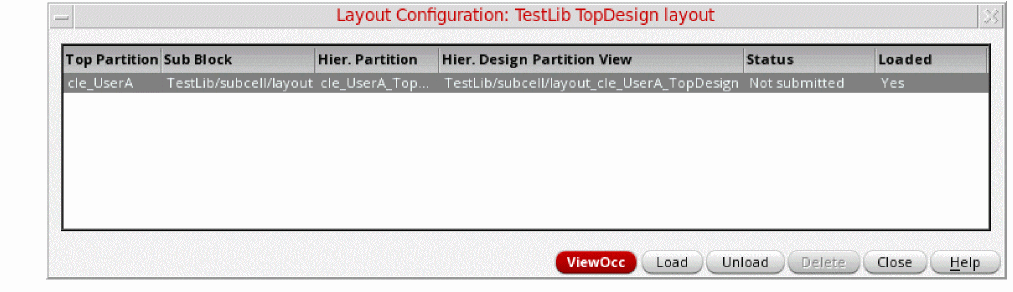
Yesin the Loaded column indicates that the incremental changes have been imported to the subcell. The manager can see layout configurations in all design partitions and load them as needed. Layout configurations are loaded automatically for the designer, which means the subcell design in memory will contain the incremental changes. However, if the designer opens the subcell cellview from the disk, the layout configuration is automatically unloaded and an Unloaded Configurations warning is displayed in the assistant. - Click the Load button after this subcell cellview is closed to refresh the selected layout configurations.
Related Topics
Import Peer Design Partition Form
Return to top