
Merging a Submitted Design Partition
After the designers have completed editing the design and submitted their respective design partitions for merge, the manager needs to review these requests and then either approve or reject the merge requests.
When the merge process is in progress, manager should make changes only in the design partition view. Any direct edits to the top design during merge are discarded when the top is reverted to the previously unmerged state.
-
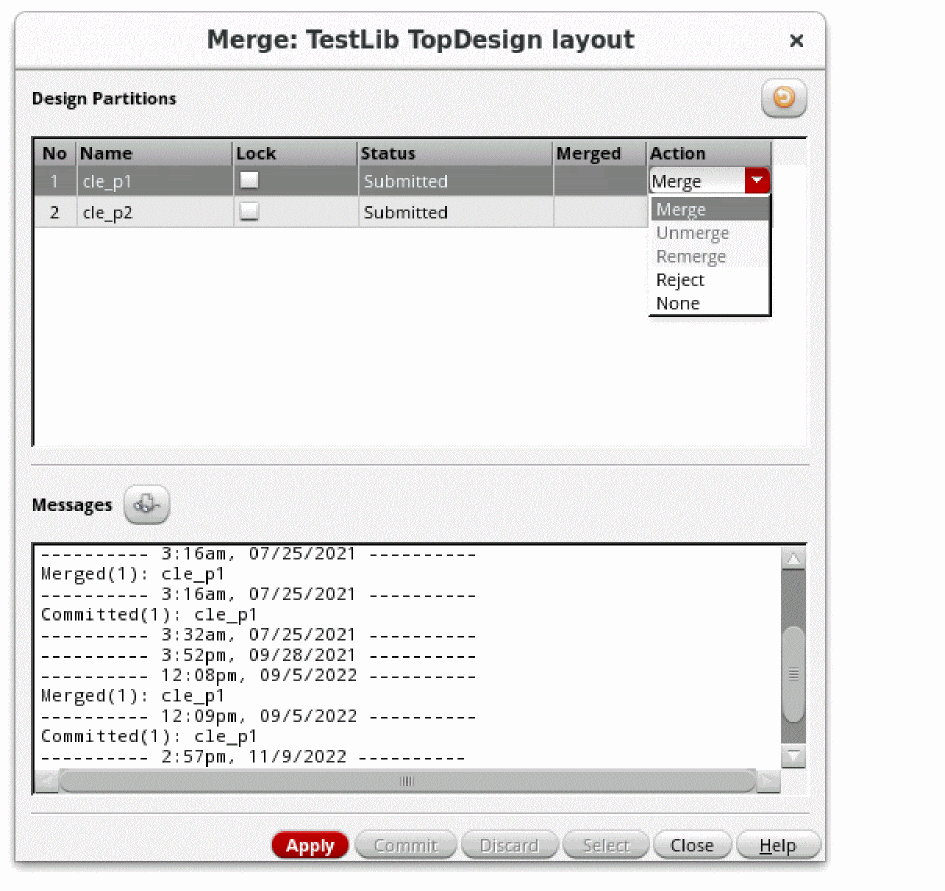
Click Merge/Unmerge in the Concurrent Layout assistant or choose Concurrent – Merge.
The Merge form is displayed. - Click in the Action field of the design partitions you want to merge.
-
Select Merge.
-
Click the Apply button.
Design partitions with action set as Merge are merged with the top design. Information regarding the actions taken are added to the message box on the form. -
(Optional) Click the Messages button to view the merge log.
In case a conflict is detected during merge, then when you click the Messages button an HTML file is displayed with the Merge Report. This report has details about the conflicts.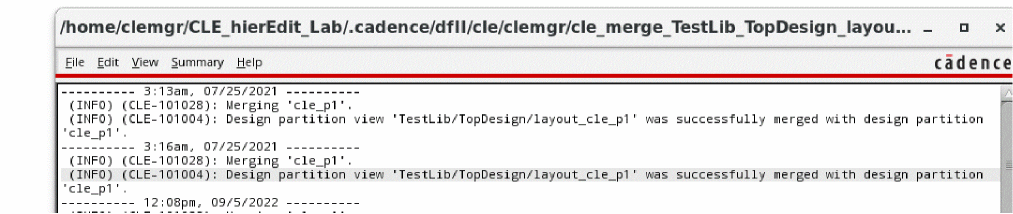
-
Select Commit on the Merge form to complete the merge process.
This step recursively merges the children hierarchical design partition views into the subcell and commit the changes.
Return to top