
- Overview
- Running the OA DB Checker
- Check Library - Innovus Interoperability Library Checker
- Check Design - Innovus Interoperability Design Checker
- Create Check File - Create Check Design File
- Viewing OA DB Checker Violation Markers in the Annotation Browser in Virtuoso
- Run Innovus - Innovus Launch GUI
- OA DB Checker Use Case Scenarios for Virtuoso Users
20.1 Overview
OpenAccess Database Interoperability Checker (OA DB Checker) is a SKILL-based utility that can be run in the Virtuoso environment to ensure that the OpenAccess database when brought inside Innovus™ Implementation System is compatible for place-and-route flow. The OA DB Checker is also referred as the Innovus Interoperability Checker. To ensure interoperability, the OpenAccess database should contain all the necessary database objects that are required by applications within Innovus. At the same time, it should not contain any database object that would stop the Innovus implementation flow.
The OA DB Checker, 16.20.002 revision and above, is available through the Innovus plug-in in Virtuoso. To learn more about running the OA DB Checker, see Running the OA DB Checker.
20.2 Running the OA DB Checker
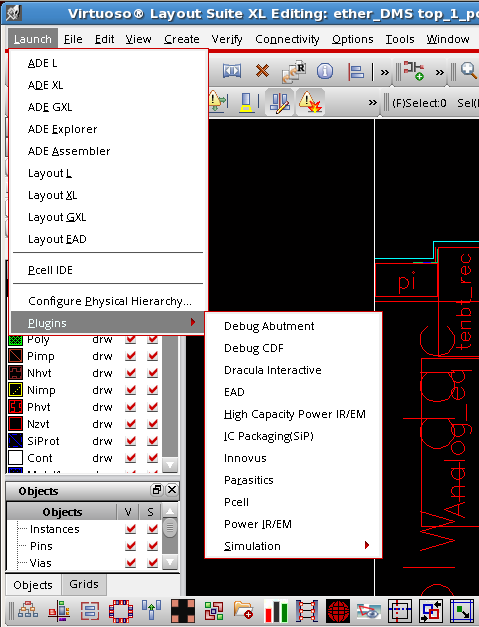
The OA DB Checker is available through the Innovus plug-in in the Virtuoso Launch menu. To launch the OA DB Checker, select Innovus from the Launch --> Plugins submenu in Virtuoso.
Once the plug-in is invoked, Innovus appears as a menu header on the Virtuoso window.
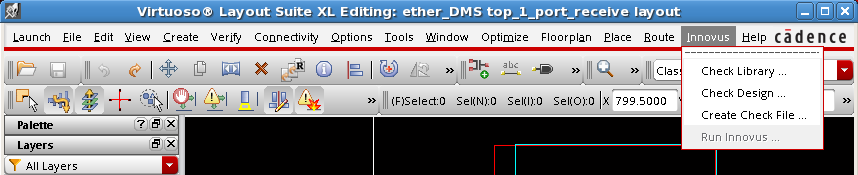
The Innovus menu in Virtuoso provides the following options:
- Check Library - Opens the Innovus Interoperability Library Checker form, which enables you to check the completeness and correctness of technology data and the reference library.
- Check Design - Opens the Innovus Interoperability Design Checker form, which enables you to check the correctness and completeness of the design library.
- Create Check File - Opens the Create Check Design File form, which enables you to generate a file containing the lib/cell/views from your design.
- Run Innovus - Opens the Innovus launch GUI form, which enables you to perform library and design checks and open the design in Innovus Implementation System. The Run Innovus option is enabled only if Innovus is in your installation path.
20.3 Check Library - Innovus Interoperability Library Checker
Select the Innovus - Check Library option from the Virtuoso menu bar to open the Innovus Interoperability Library Checker form.
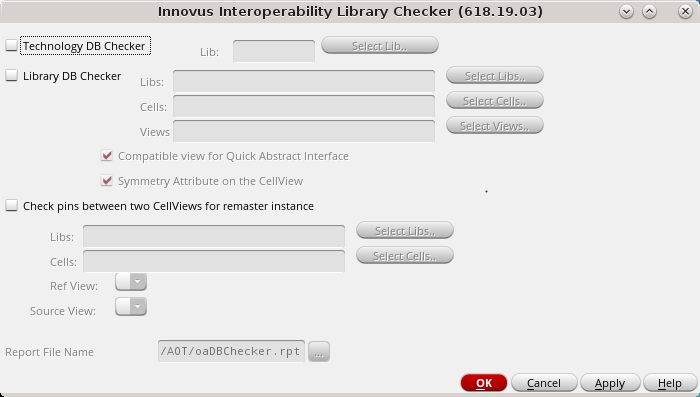
The Innovus Interoperability Library Checker form contains the following sections:
- Technology DB Checker
- Library DB Checker
- Check pins between two CellViews for remaster instance
- Report File Name
20.3.1 Technology DB Checker
Checks for completeness of technology data in the specified library.
Many applications within Innovus require certain information to be present completely, consistently, and correctly in the OpenAccess technology database. This information includes definitions of layers, vias, routing, and DRC rules. Some of the completeness checks are tricky and vary from one application to other. For example, LEFDefaultRouteSpec and LEFSpecialRouteSpec are requirements for automatic routers but wire editors in Virtuoso do not require them.
To ensure that the required data is present in the technology database, the checker performs the following checks:
- The foundry constraint group exists in the technology.
- The
LEFDefaultRouteSpecconstraint group is present in the technology.
- Each pair of consecutive routing layers has a cut layer defined between them.
- The width constraint is specified in
LEFDefaultRouteSpecfor each routing layer. If the width constraint inLEFDefaultRouteSpecis less conservative than the foundry width value, the checker reports this to the user.
- Innovus always reads the spacing constraint from foundry. The spacing constraint must be specified in the foundry constraint group. If the value of a spacing constraint in
LEFDefaultRouteSpecis different from its foundry value, Innovus reports the inconsistency and displays a message that the foundry spacing value will be used by the Innovus technology reader.
- If more than one spacing value is specified, the values must be increasing monotonically.
- Innovus always reads the layer pitch constraint from foundry. It must be specified in the foundry constraint group. If a pitch constraint is present in
LEFDefaultRouteSpecwith its value different from the foundry value, the inconsistency is reported.Note: Innovus technology reader uses the foundry spacing value.
- The
oacValidRoutingLayerconstraint is defined inLEFDefaultRouteSpecand specifies all the routing layers in the technology, except the backside layer and the minimum capacitance layer.
- The
oacValidRoutingViasconstraint is defined inLEFDefaultRouteSpecand has at least one via between every two consecutive routing layers. TSV (via from metal to backside routing layer) and via to top routing layer may not be included in the valid vias list.
- The
LEFSpecialRouteSpecconstraint group is present in the technology and has a via rule for every two consecutive routing layers. Exceptions of top routing layer and via to top routing layer are not applicable onLEFSpecialRouteSpec. - There are no PCell vias in the validVias list of the LEFDefaultrouteSpec (LDRS) and Non-Default Rules (NDRs). If any PCell via is present, the checker reports its name along with the associated constraint group during technology library checking. For example:
Checking for PCELL vias in validVias list of NDRs....The validVias list of the constraint group 'virtuosoDefaultSetup' from library 'LIB' contains a pcell via 'M1V1M2_C'. The pcell via should be removed from the validVias list and, if necessary, replaced by a custom (fixed) via definition or a standard (paramaterizable) via definition.The validVias list of the LEFDefaultRouteSpec 'LEFDefaultrouteSpec' from library 'LIB' contains a pcell via 'M1V1M2_C'. The pcell via should be removed from the validVias list and, if necessary, replaced by a custom (fixed) via definition or a standard (paramaterizable) via definition.FAILED : Technology library 'LIB' fails certain checks.For interoperability with Innovus, you should remove the reported P-cell vias from the validVias list. If necessary, you can replace the P-cell via with a custom (fixed) via definition or a standard (paramaterizable) via definition.
-
All custom vias available in the tech file should be available in the Incremental Technology Database (ITDB). If the checker finds references to custom vias in the tech file (under the LDRS section) but cannot find the custom via master in the ITDB/PDK, it issues a WARNING message such as the follows:
WARNING: "Custom via found in the design for which there is no via cell master. Please make sure that the custom via cell masters are available in the library and then reload the design" - The Layer function table contains the list of all routing and cut layers as defined in the technology database. Material type is checked for all routing and cut layers. All the layers defined in
validViasandvalidLayersinLEFDefaultRouteSpecandLEFSpecialRouteSpecare included in the layer function table in the right sequence.
- The OpenAccess reader (and data-checker) specifically looks at
minSpacingconsistency in all the constraint groups used in the design. TheminSpacingconstraint values should be equal or greater than the values specified in foundry constraint groups.
- All the layers in the
LEFDefaultRouteSpecshould have consistentANTENNArules. Various values that should be defined for a layer are:ACCURRENTDENSITYDCCURRENTDENSITYANTENNAMODELANTENNAAREARATIOANTENNADIFFAREARATIOANTENNACUMAREARATIOANTENNACUMDIFFAREARATIOANTENNAAREAFACTORANTENNACUMROUTINGPLUSCUTANTENNAFATEPLUSDIFFANTENNAAREAMINUSDIFFANTENNAAREADIFFREDUCEPWL
- The Virtuoso ASCII techFile should have the cutClass specification in the viaSpacing rule for a CUT layer.
- For advanced node data, spacing table should be defined in the OpenAccess database if cut classes are defined in the techFile.
The Technology DB Checker checks for all the occurrences of above situations and reports probable problems when the current view is taken to Innovus and brought back.
20.3.2 Library DB Checker
Checks for the correctness and completeness of the specified lib/cell/view as the reference library.
20.3.2.1 Compatible View for Quick Abstract Inference
Checks whether the specified lib(s)/cell(s)/view(s) can be used for reading the instance abstracts inside Innovus.
A proper dual view has prBoundary and pin shapes for all pins in the layout view. If prBoundary is not present, the quick abstract inference capability in Innovus will not populate the SIZE statement of the abstract, which might not give any meaningful shape to the instance. The shape of the instance is computed based on its geometry's bounding box. Similarly, if all the pin shapes are not present, the quick abstract inference capability in Innovus will assume no metal layer is assigned to that pin and the router will give an error when you try to route such nets using automatic routers, such as NanoRoute. A warning message is displayed for such cases while importing a design into Innovus. The checker checks whether or not a particular view is a valid dual view, which contains prBoundary and all pin shapes corresponding to its logical Verilog view.
As part of this check , if a pin is outside the prBoundary, the checker displays a warning. This is because, though legal, it is not advisable to have pins outside the prBoundary. A pin outside the boundary is often an indication that the prBoundary has not been updated to enclose wiring.
20.3.2.2 Symmetry Attribute on the Cellview
Checks for the existence of the SYMMETRY property on a given list of cellview(s).
For quick abstract inference and other applications within Innovus to work, there must be a SYMMETRY statement in any given lib/cell/view that is being used as the IP in a design. You would provide a list of libraries and a view name. The checker runs on all the cells inside those libraries and the given view name and reports whether or not each one has the SYMMETRY property set.
20.3.3 Check Pins between Two Cellviews for the Remaster Instance
Checks whether the pins and ports match between two given cellviews.
In the netlist-driven mixed-signal flow, the blackbox declaration of the AMS block is done and then you are allowed to re-bind the instance with the layout view during iterative stages of floorplanning and analysis flow. Innovus either crashes or shows inconsistent behavior if the number of terms in the abstract view of the blackbox does not match with that in the layout view. You need to make sure that these two views have exactly the same name and number of terms.
During remastering (if being done in Virtuoso), the tool gives a warning or error message for these kinds of mismatches.
20.3.4 Report File Name
Provides the report in text format. The PASS/FAIL status for each check is printed clearly at the end of the report in the final summary.
Here's a sample Innovus Interoperability Library Checker report:
######################################################################################## Technology Lib Name: FEOAreflib8 #### @(#)$CDS: virtuoso version 6.1.7-64b 09/21/2016 22:40 (sjfhw307) $ #### OA DB Checker Version: 16.20.003#### OA DB Checker Path: /grid/cic/ciccm_t1nb_004/CICCM_BUILDS1/IC6.1.7/main/lnx86/64/160921-291/tools.lnx86/dfII/etc/tools/innovus/oaDBChecker.il#### Report Generated on: Sep 22 15:00:11 2016 ####################################################################################
INFO (CHECKER_LIB-33): Only default vias, routing layers, pitch, routing width, routing direction, layer offset, wire extension constraints are read from the constraint group set by "set init_oa_default_rule" or defaults to LEFDefaultRouteSpec and rest of rules are read from foundry constraint group.
Checking the right sequence of cut layers in technology....PASSED
Checking 'LEFDefaultRouteSpec' Constraint Group for valid layers, appropriate spacing values etc.....PASSED
Checking LEFSpecialRouteSpec Constraint Group....PASSED.
Checking 'minSpacing' Constraint Group for valid layers, appropriate spacing values etc.....INFO (CHECKER_LIB-11): 'minSpacing' Constraint Group does not have validLayers.
Checking for PCELL vias in validVias list of NDRs....NOT FOUND
FAILED : Technology library 'FEOAreflib8' fails certain checks.
Final SummaryType of checks PASSED FAILED------------------------------------------------------------------------------
Tech Library:LDRS Checks PASSEDLSRS Checks PASSEDConstraint Group Checks FAILED
Library Checks:Compatible View Checks FAILEDSymmetry Attribute Checks FAILED
20.4 Check Design - Innovus Interoperability Design Checker
Select the Innovus - Check Design option from the Virtuoso menu bar to open the Innovus Interoperability Design Checker form.
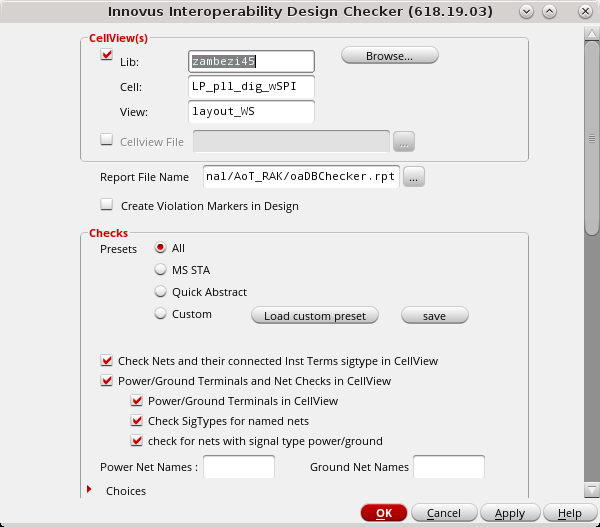
The Innovus Interoperability Design Checker form checks for the correctness and completeness of the specified lib/cell/views as the design library. It contains the following sections:
20.4.1 CellView(s)
In this section, you specify the lib/cell/views that need to be checked for correctness and completeness as the design library. You can choose to specify either:
- A single lib/cell/view by specifying the appropriate values in the Lib, Cell, View fields in the CellView(s) section of the checker,
Or - Load a file containing a list of cell views by selecting the Cellview File check box and then specifying the file name in the adjacent field.
If this method is used, the subsequent design checks are done on each view. With this method, the report has a separate header for each lib/cell/view followed by the checks made for that cellview.
20.4.2 Report File Name
Provides the report in text format. The PASS/FAIL status for each check is printed clearly at the end of the report in the final summary.
Here's a sample Innovus Interoperability Design Checker report:
######################################################################################## @(#)$CDS: virtuoso version 6.1.8-64b 03/17/2022 12:01 (cpgsrv11) $ #### OA DB Checker Version: 618.19.03#### OA DB Checker Path: /servers/inciccm_v31/ciccm_dev/IC6.1.8/ISR/lnx86/64/220317-024/tools.lnx86/dfII/etc/tools/innovus/oaDBChecker.il#### Report Generated on: Mar 30 17:49:57 2022 ####################################################################################
######################################################################################## oaDBChecker Report #### OA Design CellView: ether_DMS/top_1_port_receive/layout #### Report Generated on: Mar 30 17:49:57 2022 ####################################################################################
Performing Check for existence of leading '|' char in instance names...PASSED
Performing checks for correct Bus information...PASSED
Performing Check for checking Sigtypes of Nets and their connected InstTerms...ERROR (CHECKER_DESGN-59): (ether_DMS/top_1_port_receive/layout) contains a net 'VDDRX' of sigtype 'supply', but its isGlobal attribute is not set to true. Make the net 'VDDRX' global by adding ! at the end of the net, otherwise there will be a problem while saving the flattened view during saveDesign in Innovus. In some cases, it is required to override any logical tiehigh/tielow connection with the physical implementation in the design. If the OpenAccess database is only used for analysis, this message can be ignored. However, if the OpenAccess database is to be saved, there may be connectivity issues in the P/G network. For more information, please refer to the oaDbChecker document in the mixed signal interoperability guide.
......FAILED
Performing Check for existence of PG terms in Netlist...INFO (CHECKER_DESGN-27): Found terminal VDD with power sigType in the cellView.INFO (CHECKER_DESGN-27): Found terminal GND with ground sigType in the cellView.INFO (CHECKER_DESGN-27): Found terminal VDDRX with power sigType in the cellView.INFO (CHECKER_DESGN-27): Found terminal GNDRX with ground sigType in the cellView....PASSED
Performing checks for SigTypes of named power and ground nets...ERROR (CHECKER_DESGN-62): No power nets specified....FAILED
Performing Check for Power/Ground nets...INFO (CHECKER_DESGN-98): Found net VDDRX with supply sigType in the cellView.INFO (CHECKER_DESGN-98): Found net GNDRX with ground sigType in the cellView.INFO (CHECKER_DESGN-98): Found net GND with ground sigType in the cellView.INFO (CHECKER_DESGN-98): Found net VDD with supply sigType in the cellView....PASSED
Performing Check for existence of non-drawing shapes...PASSED
Performing Check for existence of non-drawing pin shapes...PASSED
Performing check for pins on non-routing layers in the design...PASSED
Performing check for presence of textDisplay objects in the design...PASSED
Performing Check for gapFill/fill/fillOPC purpose validity on routing layers...PASSED
Performing checks for presence of conic shapes in the design...PASSED
Performing check for status of interface bit for all blocks in the current view...PASSED
Performing checks for the incompatible wires/wire segments...PASSED
Performing Check for completeness of all Constraint Groups (NDRs) in the design...PASSED
Performing check for presence of pcell cache...PASSED
Performing Checks for XL compliancy...WARNING (CHECKER_DESGN-39): Terminal 'BLW_DIS_2p5' found outside the bounding box of the design.WARNING (CHECKER_DESGN-39): Terminal 'AEQ_DIS_2p5' found outside the bounding box of the design.WARNING (CHECKER_DESGN-39): Terminal 'MR_AEQ_BYPASS' found outside the bounding box of the design....PASSED
Performing check for mustJoin terminals...PASSED
Performing checks for mismatch in instance instTerms and its master terminals...PASSED
Performing checks for trim metal shapes present in design...PASSED
Performing checks for pin shapes for terminals in the design...PASSED
Performing check for net/pin names with Verilog reserved keywords...PASSED
Performing check for net/pin names with System Verilog reserved keywords...PASSED
Performing checks for presense of symbolic wiring in PG nets in design...WARNING (CHECKER_DESGN-102): Design has 'supply' net with net name VDDRX which does have symbolic wiring.WARNING (CHECKER_DESGN-102): Design has 'supply' net with net name VDDRX which does have symbolic wiring.WARNING (CHECKER_DESGN-102): Design has 'supply' net with net name VDDRX which does have symbolic wiring.
......PASSED
Perform checks for routing status of the design...PASSED
Performing check for pin placement status...PASSED
Performing check for existence of PRBoundary...PASSED
Performing check for multiple instantiation of same cell with different cellview...PASSED
Performing check for WSP interoperability...PASSED
Performing check for unbound instances...PASSED
Performing checks for placement status of hard macros...PASSED
Final SummaryType of checks PASSED FAILED------------------------------------------------------------------------------
Design Library Checks:'|' char in instance names PASSEDBus Annotation check PASSEDCheck Nets and their Inst terms' sig type FAILEDPower/Ground Checks PASSEDCheck signal types of named nets FAILEDNets with signal type power or ground PASSEDShapes on drawing purpose PASSEDPins on drawing purpose PASSEDPins on non-routing layer check PASSEDPresence of textDisPlay object check PASSEDValidity of gapFill/fill/fillOPC PASSEDPresence of conic shape check PASSEDStatus of interface bit check PASSEDUnsupported routing shapes PASSEDNon default rules check PASSEDShow non default rules PASSEDMS constraints check PASSEDPCell cache check PASSEDXL Compliancy check PASSEDcheck for mustJoin terminals PASSEDAbsence of instTerms in its master terminals PASSEDExistence of trim metal layers PASSEDPin shape check for terminals PASSEDNets or pins with same name as verilog reserved keywords PASSEDNets or pins with same name as system verilog reserved keywords PASSEDCheck PG nets with symbolic wiring PASSEDDesign route status check PASSEDPin placement status check PASSEDPR Boundary check PASSEDInstances inconsistency check PASSEDCheck WSP interoperability PASSEDCheck for unbound instances PASSEDPlacement status check PASSED
20.4.2.1 Create Violation Markers in Design
Select the Create Violation Markers in Design check box if you want the OA DB Checker to create violation markers that can be displayed in the Annotation Browser window in Virtuoso. This makes it easier to view and debug violations as examining the log file for violations can be time consuming.
The marker creation feature is available in the latest Virtuoso ICADVM181 ISR/IC618 ISR release and in Innovus 20.1. This feature needs the INVS30 license.
For more information, see Viewing OA DB Checker Violation Markers in the Annotation Browser in Virtuoso.
Note: The marker creation feature is available only if you load OA DB Checker by using the plug-in method. It will not be available if you load OA DB Checker manually.
20.4.3 Checks
This section provides various options for checking the design library. The checks are categorized by possible mixed-signal flows. You can select a suitable check category from the Presets subsection. You can view list of available checks by expanding the Choices subsection.
20.4.3.1 Presets
Select one of the following check categories:
- All - This is the default setting. All possible design checks, listed under Choices, are carried out with this setting.
- MS STA - With this setting, the checks mandatory for static timing analysis of mixed-signal designs are selected by default. You can select additional checks from the Choices subsection.
- Quick Abstract - With this setting, the checks mandatory for quick abstract inference are selected by default. You can select additional checks from the Choices subsection.
- Custom - With this setting, you can select a combination of checks as per your requirements. Click save to save your custom settings. You can load previously saved settings using the Load custom preset button.
For each of the above preset categories, the following checks are turned on by default:
| Check | Description |
|---|---|
| Check Nets and their connected inst Terms sigtype in CellView | Checks for signal type mismatches between all nets and the connected inst terms for a given cell view. For example, if a signal net is connected to a pin of a block but that pin is declared as a P/G pin, the checker will flag it as an error. Similarly, if a P/G net is connected to a non-P/G pin of a block, the checker flags it as an error. |
| Power/Ground Terminals and Net Checks in CellView |
Checks the power and ground connections and nets in the OpenAccess library/cell/view. It includes the following sub-checks:
|
20.4.3.2 Choices
Expand the Choices subsection to view the list of available checks.
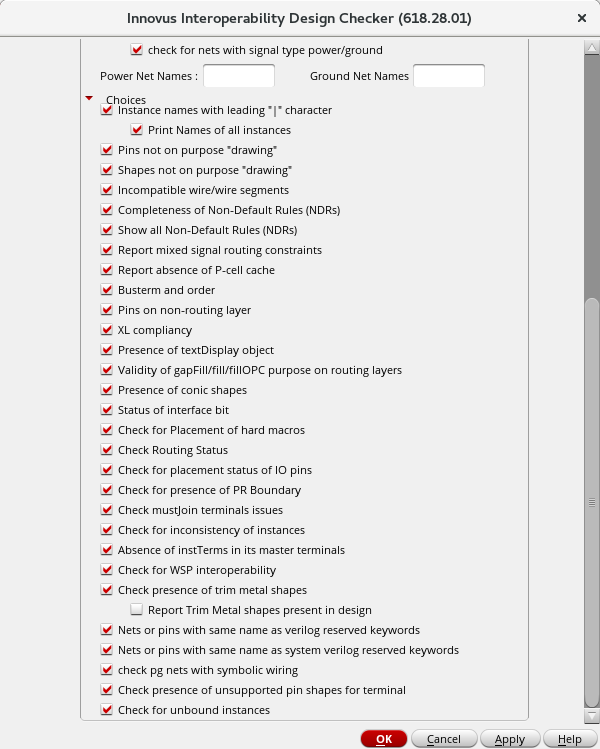
The table below lists the available checks and their default setting for the preset categories MS STA, Quick Abstract, and Custom. Note that all the checks below are turned on by default for the All preset category.
| Check | Description | MS STA | Quick Abstract | Custom | ||||||||||||
|---|---|---|---|---|---|---|---|---|---|---|---|---|---|---|---|---|
| Instance names with the leading "|" character | Checks for the existence of instance names with the leading "|" character. Virtuoso-XL creates a leading pipe character in instance names when connectivity-driven layout generation process is followed using Configure Physical Hierarchy (CPH) and Generate Physical Hierarchy (GPH). This leads to an instance name mismatch given in the .sdc file. The checker finds all such cases.You can use envSetVal("layoutXL" "prefixLayoutInstNamesWithPipe" 'boolean nil) before running the schematic-driven layout generation process in Virtuoso-XL to get rid of occurrences of the extra leading character in instance names. |
Off | Off | Off | ||||||||||||
| Pins not on purpose "drawing" |
Checks for the existence of pin shapes that are not on purpose drawing. Earlier versions of Innovus could not understand the pin layer and could not create physical shapes if pin shapes were not on the drawing purpose. In the current version of Innovus, any purpose other than drawing is converted to drawing in the round trip of OpenAccess data. There is no way to restrict the conversion within Innovus to put the pin back on the original layer purpose or drawing purpose. If the pin purpose is converted to drawing, we need a way to preserve the pin purpose for the top level. To retain pin purpose, use: |
On | On | On | ||||||||||||
| Shapes not on purpose "drawing" | Checks for the existence of shapes on non-routing layers in the design or on routing layers but on purpose other than "drawing". If you select the Shapes not on purpose "drawing" check box, the checker flags any blockages found on non-routing layers. In such cases, you must fix the tech and reload the design. | Off | Off | Off | ||||||||||||
| Incompatible wire/wire segments |
Checks for wire or wire segments that are not compatible with Innovus. Following types of routing shapes are allowed in Innovus:
If a wire or wire segment created in Virtuoso is not adhering to the half or zero extents rule, those nets when brought into Innovus are automatically changed to DEF SPECIALNETS wiring. This change can affect the physical design flow in Innovus. If you select the Incompatible wire/wire segments check box, the checker looks for any wires or wire segments in the design that do not adhere to the half or zero extents rule and flags these as incompatible with Innovus. |
On | Off | Off | ||||||||||||
| Completeness of Non-Default Rules (NDRs) |
A Non-Default Rule (NDR) is a constraint group defined in OpenAccess design and/or technology database and associated to a net. From the Innovus perspective, a valid NDR contains definitions of the following items/rules:
If the list of metal layers is lesser than that defined in If an NDR is defined in a hierarchical fashion and refers to the other constraint groups defined in the same design library, or the referred technology libraries up to the base technology in the technology definition tree, Innovus reads the complete tree structure by iterating all the referenced libraries and constraint groups. It creates an equivalent NDR that contains the five rules If there are any conflicting values found during hierarchy traversal, Innovus uses the technology hierarchy to resolve the conflict by using the values defined in the upper hierarchy as against the values defined in the lower constraint groups. The constraint groups are traversed as per their definition list including branches of the definition tree. The existence of the The user runs the checker in Virtuoso Environment on a design and technology database to make sure that the constraint defined on the net is a valid NDR definition and the NDR can be used as a valid routing rule within Innovus. If you select Completeness of Non-Default Rules (NDRs), SKILL iterates all the constraint groups and checks for its validity as an NDR. If the constraint is referring to other constraints (hierarchical constraint definition), the SKILL code is expected to traverse the complete list of constraints in the reference tree to fetch and complete the list of all variables. It would write the final NDR with values for the five rules When the Completeness of Non-Default Rules (NDRs) option is selected:
|
Off | Off | Off | ||||||||||||
| Shows all Non-Default Rules (NDRs) | Reports all NDRs in the design. | Off | Off | Off | ||||||||||||
| Report mixed signal routing constraints |
Checks for the existence of valid mixed-signal routing constraint in the OpenAccess database. In the flow, OpenAccess database might have been available from Virtuoso or Innovus. Therefore, interoperability of OpenAccess database using Innovus might lose some of the objects that are not supposed to be interoperated. The OpenAccess DB checker checks for the completeness of a constraint that is going to be used by all the tools including Innovus. Note: If multiple constraints, such as differential pair, match length, and bus, exist on same net, the checker generates an error stating that they cannot be applied on same net. The names of the constraints and the net or net group on which the conflict is occurring are reported in the error message. Differential Pair
Shielding
Diff Pair with Shield
Match Nets
OpenAccess Net Group
BUS Group
|
Off | Off | Off | ||||||||||||
| Report absence of P-cell cache |
Checks for missing P-cell cache. When a design is brought into Innovus, you might find WARNING and ERROR messages related to missing P-cell information. You then need to return to the Virtuoso environment, dump the P-cell cache, and then reload the design in Innovus. To prevent this situation, select the Report absence of P-cell cache check box in the checker. The checker then warns you about the missing P-cell cache so that you can dump the cache before loading the design in Innovus. Note that if there are no P-cells in the design, the checker reports PASS as given in (1) in the table below. It starts checking for the cache only if there are P-cells in the design. In such a case, sub-checks are reported as given in (2) and (3).
|
On | Off | Off | ||||||||||||
| Busterm and order |
Checks for bus terminals with missing ordering information. If you select the Busterm and order check box, the checker checks bus annotation and reports any bus terminals (busTerms) that do not have ordering (busOrder) information. |
On | On | On | ||||||||||||
| Pins on non-routing layer |
Checks for the existence of the pins on non-routing layers in the design. This usually happens if you have used the layers outside of the If you select the Pins on non-routing layer check box, the checker flags any pins found on non-routing layers. For example, if the
In such cases, you must fix the tech and reload the design. |
On | On | On | ||||||||||||
| XL compliancy |
Performs XL compliance checks. If you are working on a design or part of a design that needs to be analyzed or modified in Innovus, Innovus needs to be able to extract the connectivity information from the design. Some older designs implemented in Virtuoso may not have the connectivity required by Innovus. In some cases, the top level layout that is brought into Innovus may have a PR boundary and some pin formation but not have full connectivity. In such cases, you can select this check box to perform XL compliance checks such as:
If you select the Check for XL compliancy check box, the checker flags connectivity issues as follows:
|
Off | Off | Off | ||||||||||||
| Presence of textDisplay object | Checks for the presence of oaTextDisplay objects that are not connected to pins in the design. If you select this option, the checker throws an error mentioning that textDisplay is not supported in Innovus and therefore will not be round-tripped. textDisplay connected to pins are round-tripped correctly and are therefore not reported in this check. | Off | Off | Off | ||||||||||||
| Validity of gapFill/fill/fillOPC purpose on routing layers |
Checks for the validity of gapFill, fill, and fillOPC purpose on routing layers. Only data that is valid can be selected or turned off when viewing the cellview in the Virtuoso window. If the gapFill, fill, fillOPC purpose on any routing layer is not valid, the checker displays a warning such as follows:
In such cases, you would need to set the layer/purpose pair to valid before you can select or turn off visibility of the data. |
Off | Off | Off | ||||||||||||
| Presence of conic shapes | Checks for the presence of conic shapes in the design. If you select this option and a conic shape is present in the design, the checker throws an error mentioning that conic shapes will not be read into Innovus and will not be round tripped. | Off | Off | Off | ||||||||||||
| Status of interface bit | Checks for status of interface bit. | On | On | On | ||||||||||||
| Check for Placement of hard macros |
Reports hard macros without Typically, the hard macros in an AoT design have the placement status as If you enable Design Library checks and select the Check for Placement of hard macros check box, the checker flags hard macros that do not have placement status as |
Off | Off | Off | ||||||||||||
| Check Routing Status |
Checks whether or not Innovus will see the design as routed. If a block is routed manually in Virtuoso, it can be VXL clean but still be seen as unrouted when loaded in Innovus because it does not have any OpenAccess routes in the DB. In such a case, when you try to run extraction, Innovus errors out with the following message:
If you enable Design Library checks and select the new Check Routing Status check box, the checker flags any blocks that Innovus can view as unrouted. In such cases, you may need to update the design status manually before loading the design in Innovus. |
On | Off | Off | ||||||||||||
| Check for placement status of IO pins |
Checks whether the placement status of IO pins is set to I/O pins that have the placement status set to If the Check for placement status of IO pins check is enabled, the OA DB Checker provides a warning on encountering an I/O pin with placement status set to |
Off | Off | Off | ||||||||||||
| Check for presence of PR Boundary |
Checks for the presence of the place & route boundary (PR Boundary). This check may not be required during static timing analysis (STA) checks. If the MS STA preset category is selected, the Check for presence of PR Boundary option is turned off by default. |
Off | Off | Off | ||||||||||||
| Check mustjoin terminal issues |
Checks and reports the MUSTJOIN attribute on the PG terminals of a cell. PG terminals with the MUSTJOIN attribute lead to issues while assembling the design in Innovus. |
Off | Off | Off | ||||||||||||
| Check for inconsistency of instances | Reports instances that have the same cell name but different library names. | Off | Off | Off | ||||||||||||
| Absence of instTerms in its master terminals | Checks and reports mismatches between instTerms and master terminals. Such mismatches can occur if connectivity extraction was not run in Virtuoso after remastering instances. By enabling this check in the OA DB Checker, you can fix any reported mismatches within Virtuoso Layout Editor before importing or assembling the design in Innovus. | Off | Off | Off | ||||||||||||
| Check for WSP interoperability | Checks the design for Width Spacing Pattern (WSP) regions. Designs with WSP regions cannot be read into Innovus so enabling this check provides an early warning. | Off | Off | Off | ||||||||||||
| Check presence of trim metal shapes | Checks for the presence of trim metal shapes. Presence of trim metal shapes may cause interoperability issues if they are not aligned to tech LEF rules. | Off | Off | Off | ||||||||||||
| Nets or pins with same name as verilog reserved keywords | Checks whether the design has any pins or nets with names that clash with Verilog reserved keywords. By modifying the names of such pins and nets, you can avoid errors later on while saving the design in Innovus. | Off | Off | Off | ||||||||||||
| Nets or pins with same name as system verilog reserved keywords | Reports pins and nets using systemVerilog reserved names. Correct the reported issues before opening the design in Innovus. | Off | Off | Off | ||||||||||||
| Check pg nets with symbolic wiring | Checks for PG nests that use symbolic wiring. | Off | Off | Off | ||||||||||||
| Check presence of unsupported pin shapes for terminal | Reports any unsupported pin shapes for a terminal. | Off | Off | Off | ||||||||||||
| Check for unbound instances |
Reports unbound instances in the design. |
Off | Off | Off |
20.5 Create Check File - Create Check Design File
Select the Innovus - Create Check File option from the Virtuoso menu bar to open the Create Check Design File form.
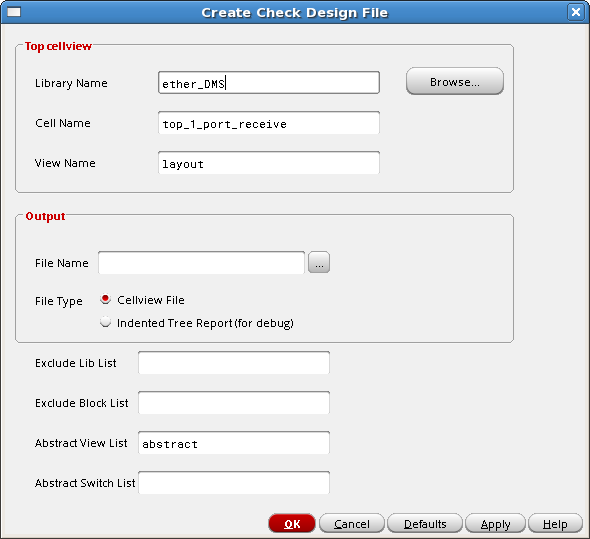
Use the Create Check Design File form to generate a file containing the lib/cell/views from your design. You can choose to extract lib/cell/views hierarchically. The output file can then be used to run the OA DB Checker.
The Create Check Design File form contains the following fields:
| Field | Description | |
|---|---|---|
| Top cellview | ||
| Library Name | Specifies the library name for the top cell of your design. | |
| Cell Name | Specifies the cell name for the top cell of your design. | |
| View Name | Specifies the view name for the top cell of your design. | |
| Output | ||
| File Name | Specifies the name and location of the output file. | |
| File Type |
Specifies the type of file to be output. Choose from one of the following options:
|
|
| Exclude Lib List | Specifies the list of libraries to be excluded from the cellview list input to the OA DB Checker. | |
| Exclude Block List | Specifies the list of blocks to be excluded from the cellview list input to the OA DB Checker. | |
| Abstract View List | Specifies the list of abstract views to be input to the OA DB Checker. | |
| Abstract Switch List | Specifies the abstract switch list. | |
20.6 Viewing OA DB Checker Violation Markers in the Annotation Browser in Virtuoso
The OA DB Checker logs all violations in the checker log files. However, examining the log file for violations can be time consuming. In this release, the OA DB Checker has been enhanced to create violation markers, which can be displayed using the Annotation Browser window in Virtuoso.
The marker creation feature is available in the latest Virtuoso ICADVM181 ISR/IC618 ISR release and in Innovus 20.1.
To view OA DB Checker violation markers in Annotation Browser, follow the steps given below:
- Load OA DB Checker by using the plug-in method and select Check Design from the Innovus menu in Virtuoso.
Note: The marker feature will not be available if you load OA DB Checker manually. - Select the Create Violation Markers in Design check box in the Innovus Interoperability Design Checker form.
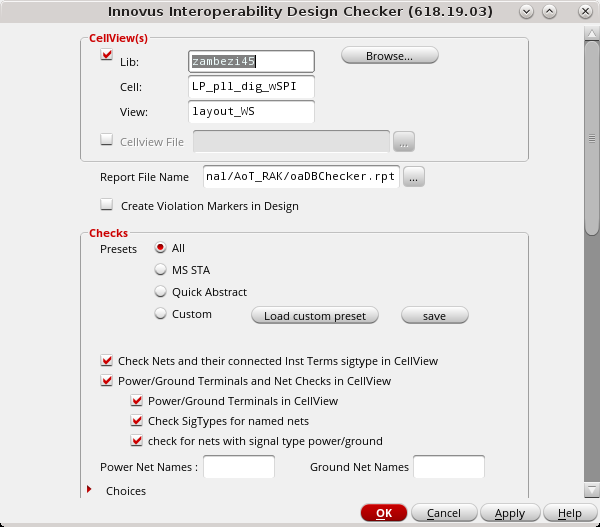
Note: The marker feature is available only in the Innovus Interoperability Design Checker form (Innovus -> Check Design) and not in the Innovus Interoperability Library Checker form (Innovus -> Check Library). - Specify other options, as required, and click OK. As you have selected the marker feature, the INVS30 license will be checked out.
- The violations are listed automatically in the Annotation Browser window on the Misc page. Violations are listed by category, such as Route(s) with no associated net and Shapes without net connectivity. You can expand a category, select a specific violation, and zoom into its bounding box.
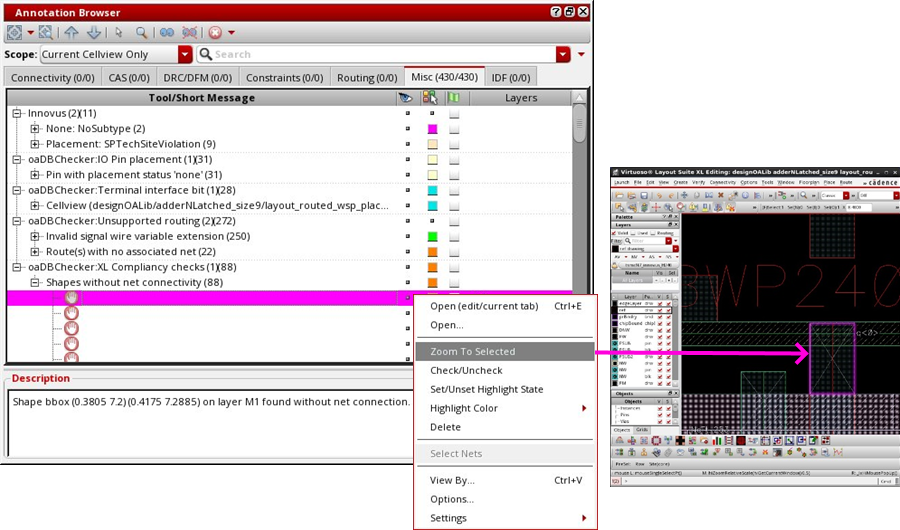
- You can view the description of violation and the lib/cell/view by hovering over the expanded violation:
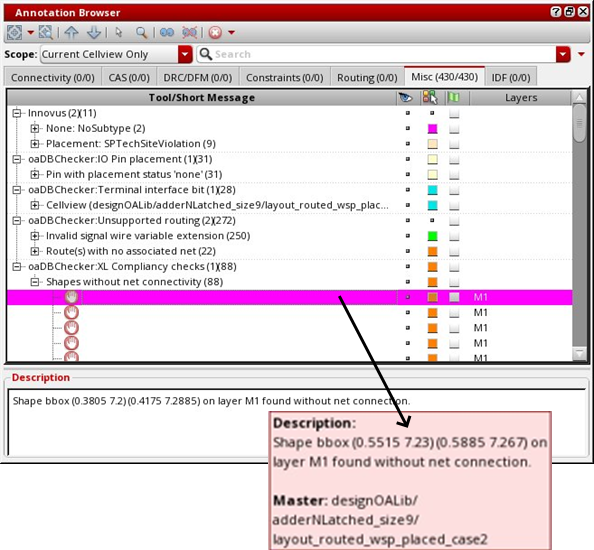
Note: As of this release, all marker violations are reported on the Misc page of the Annotation Browser window. If you ran any DRC check earlier on the current view, the OA DB Checker marker violations appear along with other DRC violations.
20.7 Run Innovus - Innovus Launch GUI
Select the Innovus - Run Innovus option from the Virtuoso menu bar to open the Innovus launch GUI form. The Run Innovus option is enabled only if Innovus Implementation System is in your installation path.
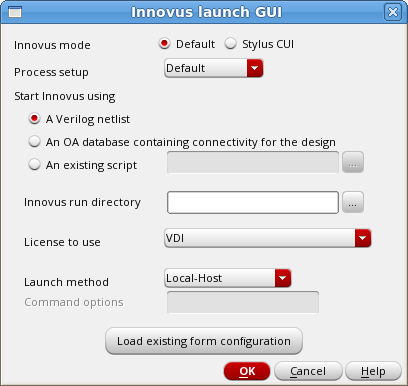
In the Innovus launch GUI form, you choose the mode in which you want to launch Innovus. To learn about these modes, see the Virtuoso Digital Implementation chapter.
20.8 OA DB Checker Use Case Scenarios for Virtuoso Users
The table below depicts various scenarios for Virtuoso users with Innovus plug-in installation:
| Scenario | Check Library and Check Design | Create Check File | Run Innovus |
|---|---|---|---|
| Default (No environment variable present; no Innovus installation) | Loads oaDBChecker.il from the dfII hierarchy |
Loads userCreateCheckDesignFile.il from the dfII hierarchy |
Disabled |
OA_CHECKER_DIR is set to the directory containing the latest oaDBChecker.il file; no Innovus installation |
Loads
|
Loads userCreateCheckDesignFile.il from the dfII hierarchy |
Disabled |
OA_CHECKER_DIR is set to the directory containing the latest oaDBChecker.il file; Innovus installation path is present in the PATH environment variable |
Loads
|
Loads userCreateCheckDesignFile.il from the dfII hierarchy |
Run Innovus is enabled. Loads |