Pin Tool Options Form
(Virtuoso Layout Suite EXL and higher tiers) Use the Pin Tool Options form to specify the settings to be applied when running all assisted move commands that are done using the Pin Tool.
|
Field
|
Description
|
|
Match Label Layer with Pin
|
Updates pin label layer whenever the parent pin is moved to a different layer.
-
Layer Only: Updates the label layer to match the pin layer.
-
Layer and Purpose: Updates the label layer and purpose to match the pin layer and purpose.
-
Create Label Options: Displays the Set Pin Label Text Style form that lets you specify label text settings.
Environment variable: pinToolMatchLabelLayer
|
|
Match Size
|
Specifies whether the pin being moved is to be resized to match the reference shape.
-
Auto: Creates square pins with side matching the edge of the reference shape that is closest to the PR boundary.
-
Whole Shape: Creates pins of the same size as the reference shape.
-
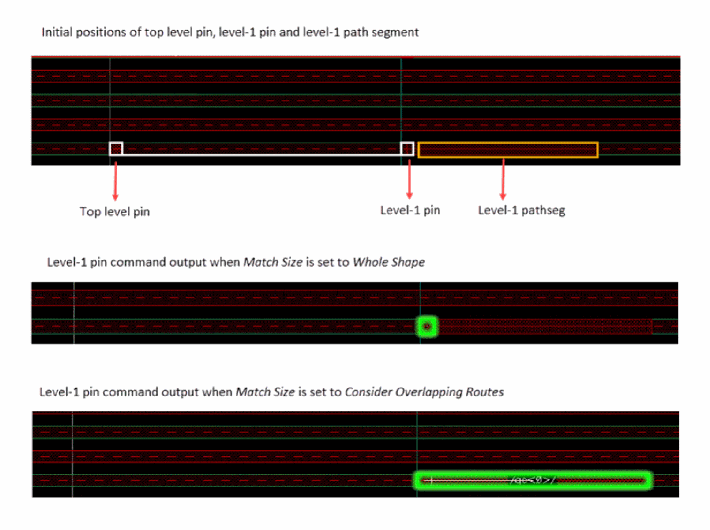
Consider Overlapping Routes: Resizes the top-level pin to include the level-1 path and path segment connected to the level-1 pin. This setting is applicable to the Level-1 Pin assisted move location command. If Match Size option is not selected, the pins are not resized.
The figure below shows the output of Level-1 pin command when Match Size is set to Whole Shape and Consider Overlapping Routes.
Environment variable: astPinMoveMatchSizeChoice
|
|
Match Layer
|
Specifies the LPP to which the pin is to be moved.
-
Match LPP: Moves pins to the same layer and purpose as the reference shape.
-
Match Layer Only: Moves pins to the same layer as the reference shape. The purpose remains unchanged.
-
Match Purpose Only: Moves pins to the same purpose as the reference shape. The layer remains unchanged.
Environment variable: astPinMoveMatchLayerType
|
|
Match Label Layer
|
Specifies the layer to which pin labels are to be moved.
-
Same as Pin LPP: Places labels on the same LPPs as their corresponding pins.
-
Use Stamp Label Layers: Places labels on the stamp label layers that are defined in the technology file. A sample stamp label layer definition from the technology file is shown below:
stampLabelLayers(
;(textLayer Layers)
; -----------------
(("M1_CAD" "TEXT") ME1)
(("M2_CAD" "TEXT") ME2)
); stampLabelLayers -
Same Layer, Custom Purpose: Places labels on the same layers as the pins, but lets you specify the purpose.
-
Custom LPP: Lets you specify both the layer and purpose on which labels are to be moved.
Environment variables: astPinMoveMatchLabelLayerChoice, astPinMoveMatchLabelLayerLPP, astPinMoveMatchLabelLayerPurpose
|
|
Match Number Of Pins/Routes
|
Specifies that the number of pins moved must match the number of references shapes. Pins are duplicated to maintain the count. If there are more pins at the top-level than level-1, the tool creates duplicate level-1 pins to match the top-level pin count. If the number of pins being moved is less than the number of reference pins, the tool creates duplicates of the pin being moved to match the number of reference pins. This setting is applicable to the Level-1 Pin and Top Level Pin assisted move location commands.
|
Related Topics
Setting Pin Tool Options
Set Pin Label Text Style
Return to top